

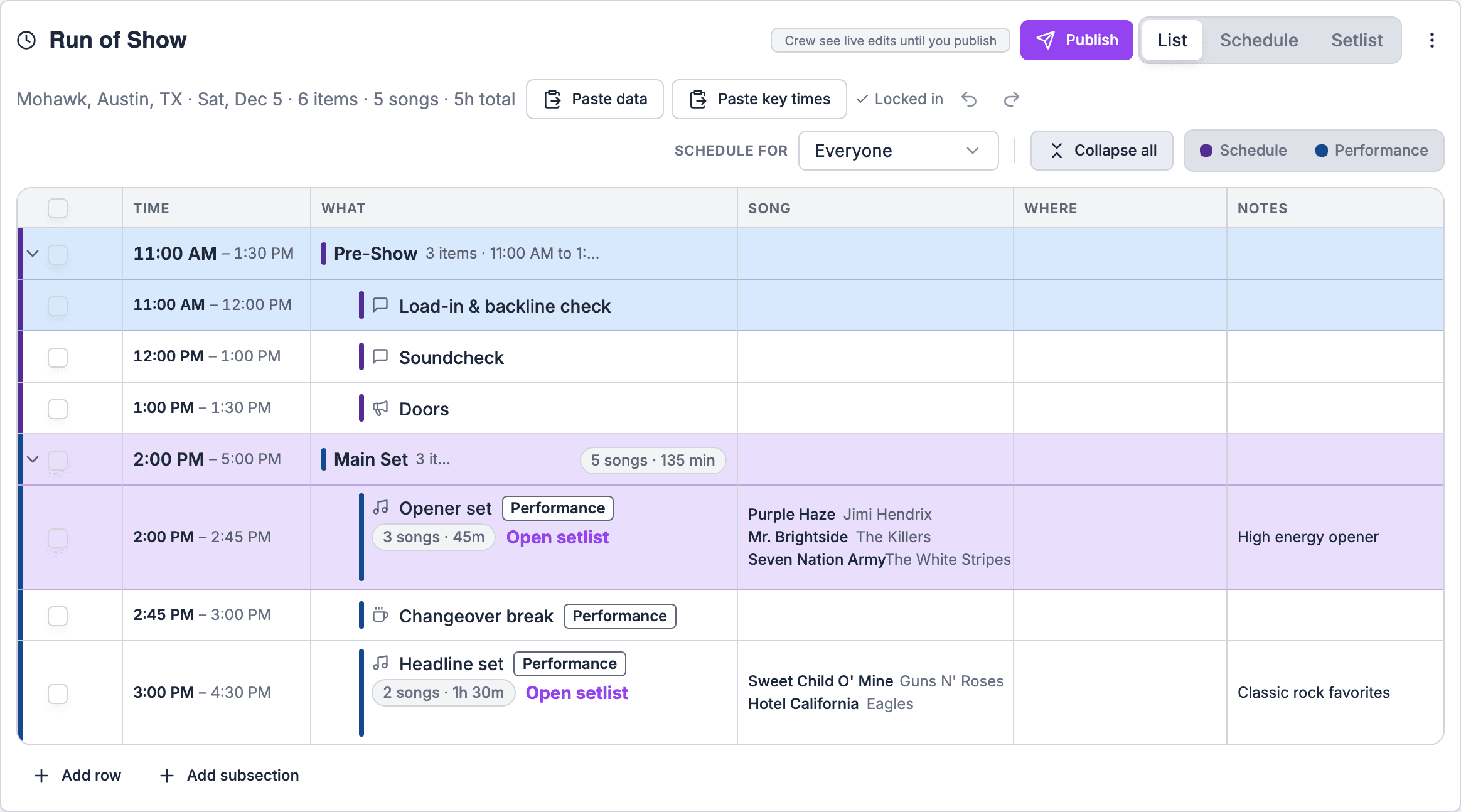
Questions this page answers
- Building the rundown (18 questions)
- Timing and time math (16 questions)
- Live show calling (17 questions)
- Cue details by department (15 questions)
- Talent and speakers (12 questions)
- Music and setlists (23 questions)
- Collaboration and approvals (12 questions)
- Sharing with clients (10 questions)
- Crew and mobile (12 questions)
- Printing and exports (10 questions)
- Templates and reuse (8 questions)
- Importing and switching tools (9 questions)
- Multi-day, festivals and tours (11 questions)
- Integrations (12 questions)
- Permissions and security (10 questions)
- Offline and reliability (10 questions)
- Pricing and plans (15 questions)
Deal-breakers at a glance
These 30 questions decide most evaluations. Soundcheck answers Yes to 14, Partly to 10 and No to 6.Worked example: a corporate general session
A producer is choosing a tool for a 90-minute general session: walk-in music, a VOG open, three keynotes with walk-up music, a video roll, an awards block and a hard out at 10:30 AM for breakouts. Here’s how the deal-breakers play out.Build it
Time it
Handle department cues
Share it
Run it
Building the rundown
1. How fast can I build a 40-row show from a blank page? Can I just type, the way I would in a spreadsheet?
1. How fast can I build a 40-row show from a blank page? Can I just type, the way I would in a spreadsheet?
6:42p or 18:42. See Building and editing.Buyers ask this first.2. Can I add my own columns, such as Audio, Lighting, Video, Graphics, Stage Manager notes or Talent? Can I hide the ones a crew member doesn't need?
2. Can I add my own columns, such as Audio, Lighting, Video, Graphics, Stage Manager notes or Talent? Can I hide the ones a crew member doesn't need?
3. Can I group rows into segments, blocks or acts, and fold them away?
3. Can I group rows into segments, blocks or acts, and fold them away?
4. Can I drag rows and whole segments to reorder them, with the times recalculating?
4. Can I drag rows and whole segments to reorder them, with the times recalculating?
5. Can one row hold several cues, for example “LX 14 + SQ 7 + GFX lower third”, or does each cue need its own row?
5. Can one row hold several cues, for example “LX 14 + SQ 7 + GFX lower third”, or does each cue need its own row?
6. Can I insert a “header” or “note” row that has no duration and doesn't change the timing?
6. Can I insert a “header” or “note” row that has no duration and doesn't change the timing?
7. Can I attach files to a row, such as slides, a script, a video file, a stage plot or a lower-third spreadsheet?
7. Can I attach files to a row, such as slides, a script, a video file, a stage plot or a lower-third spreadsheet?
8. Can I color-code rows by type, for example speaker, video roll, break, music or award?
8. Can I color-code rows by type, for example speaker, video roll, break, music or award?
9. Is there a script or “talent copy” field per row for teleprompter text or MC lines?
9. Is there a script or “talent copy” field per row for teleprompter text or MC lines?
10. Can I mark rows as optional or cuttable, so I know what to drop if we run long?
10. Can I mark rows as optional or cuttable, so I know what to drop if we run long?
11. Can I keep several versions of the show, such as Plan A, a rain plan and a short version?
11. Can I keep several versions of the show, such as Plan A, a rain plan and a short version?
12. Can I undo, and can I see who changed a row and when?
12. Can I undo, and can I see who changed a row and when?
13. Can I add rows that only some people see, such as internal notes the client shouldn't see?
13. Can I add rows that only some people see, such as internal notes the client shouldn't see?
14. Can I link a row to a person, a location or a piece of gear that already exists elsewhere in the system?
14. Can I link a row to a person, a location or a piece of gear that already exists elsewhere in the system?
15. Is there a limit on rows, columns or attachment size?
15. Is there a limit on rows, columns or attachment size?
16. Can I set the show's date, venue, time zone and doors, house-open and top-of-show times once, and have the whole rundown use them?
16. Can I set the show's date, venue, time zone and doors, house-open and top-of-show times once, and have the whole rundown use them?
17. Can I build the run of show inside the event or gig record, so I'm not keeping a separate document?
17. Can I build the run of show inside the event or gig record, so I'm not keeping a separate document?
18. Can the run of show cover the whole day, from load-in through soundcheck, doors, show and load-out, and not only the show itself?
18. Can the run of show cover the whole day, from load-in through soundcheck, doors, show and load-out, and not only the show itself?
Timing and time math
19. Do start times recalculate automatically when I change a duration?
19. Do start times recalculate automatically when I change a duration?
20. Can I set a hard start, a row that must begin at a fixed clock time, alongside soft starts that follow the row above?
20. Can I set a hard start, a row that must begin at a fixed clock time, alongside soft starts that follow the row above?
21. Does it show front timing (when each row will start) and back timing (when each row must start to end on time)?
21. Does it show front timing (when each row will start) and back timing (when each row must start to end on time)?
22. Can I set a hard out or curfew and see right away how far over or under we are?
22. Can I set a hard out or curfew and see right away how far over or under we are?
23. When there is a gap or an overlap before a hard start, does the tool flag it and suggest a fix?
23. When there is a gap or an overlap before a hard start, does the tool flag it and suggest a fix?
24. During the show, does it track planned time against actual time per row and for the whole show (over/under)?
24. During the show, does it track planned time against actual time per row and for the whole show (over/under)?
25. Can I see a running total of how far ahead or behind we are, live?
25. Can I see a running total of how far ahead or behind we are, live?
26. Can a row count up (open-ended, such as a Q&A that runs as long as needed) as well as count down?
26. Can a row count up (open-ended, such as a Q&A that runs as long as needed) as well as count down?
27. Does it handle a show that runs past midnight without making it a two-day event?
27. Does it handle a show that runs past midnight without making it a two-day event?
+1 to mark it. See Multi-day gigs.28. Which time zone does it use, and what happens when remote crew or speakers are in other zones?
28. Which time zone does it use, and what happens when remote crew or speakers are in other zones?
29. Can I show times as clock times (7:42 PM) and as elapsed show time (00:42:00)?
29. Can I show times as clock times (7:42 PM) and as elapsed show time (00:42:00)?
30. Can I time durations to the second, and frames for broadcast?
30. Can I time durations to the second, and frames for broadcast?
31. Can I lock a duration so it doesn't change when I edit the rows around it?
31. Can I lock a duration so it doesn't change when I edit the rows around it?
32. After the show, can I export planned against actual times for the client report or the next year's plan?
32. After the show, can I export planned against actual times for the client report or the next year's plan?
33. Can I set a buffer or contingency time per segment?
33. Can I set a buffer or contingency time per segment?
34. Does the timing keep running if the show caller's laptop closes or the browser refreshes?
34. Does the timing keep running if the show caller's laptop closes or the browser refreshes?
Live show calling
35. Is there a live mode where the show caller advances the current row with a single key (Space or GO)?
35. Is there a live mode where the show caller advances the current row with a single key (Space or GO)?
36. Can I step back a row if I advanced too early?
36. Can I step back a row if I advanced too early?
37. Does everyone's screen follow the caller's current row automatically, while each person can still scroll ahead?
37. Does everyone's screen follow the caller's current row automatically, while each person can still scroll ahead?
38. Is there a clear standby or “next up” indicator, so departments see what is coming before GO?
38. Is there a clear standby or “next up” indicator, so departments see what is coming before GO?
39. Can I write the call itself into the row (“Standby LX 14, SQ 7… LX 14 and SQ 7, GO”) so the caller reads it word for word?
39. Can I write the call itself into the row (“Standby LX 14, SQ 7… LX 14 and SQ 7, GO”) so the caller reads it word for word?
40. Can we have more than one show caller, for example one per stage or room, or a backup caller?
40. Can we have more than one show caller, for example one per stage or room, or a backup caller?
41. How quickly does a GO reach everyone's screen? What delay should I expect?
41. How quickly does a GO reach everyone's screen? What delay should I expect?
42. Can I send a message or a flash to one person or to every screen (“Wrap it up”, “Stretch 2 minutes”)?
42. Can I send a message or a flash to one person or to every screen (“Wrap it up”, “Stretch 2 minutes”)?
43. Is there a full-screen countdown for the stage or confidence monitor?
43. Is there a full-screen countdown for the stage or confidence monitor?
44. Can I run a speaker timer that the speaker sees and the audience doesn't?
44. Can I run a speaker timer that the speaker sees and the audience doesn't?
45. Can I jump to any row (skip a segment) and keep the timing correct?
45. Can I jump to any row (skip a segment) and keep the timing correct?
46. If the show caller loses connection, who takes over, and does the show stay in sync?
46. If the show caller loses connection, who takes over, and does the show stay in sync?
47. Can operators press their own “done” or “ready” for their cue, so the caller knows they are set?
47. Can operators press their own “done” or “ready” for their cue, so the caller knows they are set?
48. Can I record when each GO happened, for a post-show log?
48. Can I record when each GO happened, for a post-show log?
50. Is there a rehearsal mode that doesn't overwrite the actual times from the real show?
50. Is there a rehearsal mode that doesn't overwrite the actual times from the real show?
51. Can I keep “warnings” separate from “standbys” for long-lead cues (fly cues, pyro, a big video roll)?
51. Can I keep “warnings” separate from “standbys” for long-lead cues (fly cues, pyro, a big video roll)?
Cue details by department
52. Can each department (LX, SQ/Audio, Video/VX, GFX, Playback, Camera, Stage, Rigging, Pyro/SFX) have its own column with its own cue numbers?
52. Can each department (LX, SQ/Audio, Video/VX, GFX, Playback, Camera, Stage, Rigging, Pyro/SFX) have its own column with its own cue numbers?
53. Can a lighting operator open a view that shows only lighting cues and nothing else?
53. Can a lighting operator open a view that shows only lighting cues and nothing else?
54. Can I use the same cue numbers as the console (LX 14.5, SQ 7) and point cues?
54. Can I use the same cue numbers as the console (LX 14.5, SQ 7) and point cues?
55. Can I record mic assignments per row: which handheld or lav is live, who is on which channel, and when mics go hot or mute?
55. Can I record mic assignments per row: which handheld or lav is live, who is on which channel, and when mics go hot or mute?
56. Can I note video playback details: file name, duration, audio yes or no, loop or hold on the last frame, and the destination screen?
56. Can I note video playback details: file name, duration, audio yes or no, loop or hold on the last frame, and the destination screen?
57. Can I record graphics such as lower thirds (name and title text), slide numbers and logo loops?
57. Can I record graphics such as lower thirds (name and title text), slide numbers and logo loops?
58. Can I record walk-in and walk-out music, play-on and play-off tracks, and stingers per row?
58. Can I record walk-in and walk-out music, play-on and play-off tracks, and stingers per row?
59. Can I record camera shots or the director's notes per row (wide, close-up on the speaker, crowd)?
59. Can I record camera shots or the director's notes per row (wide, close-up on the speaker, crowd)?
60. Can I flag safety-critical cues (pyro, haze, flying, strobe) so they stand out?
60. Can I flag safety-critical cues (pyro, haze, flying, strobe) so they stand out?
61. Can I record VOG announcements with their script text and who reads them?
61. Can I record VOG announcements with their script text and who reads them?
62. Can I link to or embed a preview of the media itself (a thumbnail of the video, the audio track)?
62. Can I link to or embed a preview of the media itself (a thumbnail of the video, the audio track)?
63. Can departments add their own notes to a row without changing the producer's fields?
63. Can departments add their own notes to a row without changing the producer's fields?
64. Can I see on one screen which cues are not built or confirmed yet?
64. Can I see on one screen which cues are not built or confirmed yet?
65. Can I record IFB or comms notes, such as which channel the speaker's earpiece is on?
65. Can I record IFB or comms notes, such as which channel the speaker's earpiece is on?
66. Can I record stage moves: set changes, risers in and out, podium on and off, lectern mic?
66. Can I record stage moves: set changes, risers in and out, podium on and off, lectern mic?
Talent and speakers
67. Can I attach a person (speaker, MC, performer, presenter) to a row and see their whole schedule from it?
67. Can I attach a person (speaker, MC, performer, presenter) to a row and see their whole schedule from it?
68. Can each speaker get their own view, or a single-page sheet, of when they are on, where to be, and their call time?
68. Can each speaker get their own view, or a single-page sheet, of when they are on, where to be, and their call time?
69. Can I track speaker readiness: arrived, mic'd, in the green room, slides received, at the standby position?
69. Can I track speaker readiness: arrived, mic'd, in the green room, slides received, at the standby position?
70. Can I keep each speaker's walk-on music, intro script, pronunciation and title in the row?
70. Can I keep each speaker's walk-on music, intro script, pronunciation and title in the row?
71. Can I give a speaker a countdown on a confidence monitor, or on a link for remote speakers?
71. Can I give a speaker a countdown on a confidence monitor, or on a link for remote speakers?
72. Can I message a speaker directly during the show (wrap up, slow down)?
72. Can I message a speaker directly during the show (wrap up, slow down)?
73. Can I track slide deck versions per speaker and see which one is final?
73. Can I track slide deck versions per speaker and see which one is final?
74. Can I see conflicts, for example the same person on two stages at the same time?
74. Can I see conflicts, for example the same person on two stages at the same time?
75. Can I include talent call times (hair and makeup, rehearsal) that come before the show itself?
75. Can I include talent call times (hair and makeup, rehearsal) that come before the show itself?
76. Can a talent agency see only its own artist's slots across many events?
76. Can a talent agency see only its own artist's slots across many events?
77. Can I mark VIP or award-winner rows so the client sees them, but not private notes like “seat-filler needed”?
77. Can I mark VIP or award-winner rows so the client sees them, but not private notes like “seat-filler needed”?
78. Can I hide personal information about talent (phone numbers, hotel) from people who don't need it?
78. Can I hide personal information about talent (phone numbers, hotel) from people who don't need it?
Music and setlists
79. Can I build a setlist with song title, key, BPM, length and notes per song?
79. Can I build a setlist with song title, key, BPM, length and notes per song?
80. Can I keep a song library and drag songs into a set, rather than retyping them each time?
80. Can I keep a song library and drag songs into a set, rather than retyping them each time?
81. Does the set length add up automatically, so I know whether two 45-minute sets fit?
81. Does the set length add up automatically, so I know whether two 45-minute sets fit?
82. Can I mark segues, medleys and “no stop” transitions between songs?
82. Can I mark segues, medleys and “no stop” transitions between songs?
83. Can I record the count-in, click on or off, and tempo changes per song?
83. Can I record the count-in, click on or off, and tempo changes per song?
84. Can I store MIDI program changes or patch numbers per song, for keys, guitar rigs or a playback rig?
84. Can I store MIDI program changes or patch numbers per song, for keys, guitar rigs or a playback rig?
85. Can I attach lyrics, chord charts or lead sheets per song?
85. Can I attach lyrics, chord charts or lead sheets per song?
86. Can I track who sings lead and who plays which instrument per song, with substitutions?
86. Can I track who sings lead and who plays which instrument per song, with substitutions?
87. Can I mark songs as requested by the client: first dance, parent dances, cake cutting, last song, do-not-play list?
87. Can I mark songs as requested by the client: first dance, parent dances, cake cutting, last song, do-not-play list?
88. Can I mark the encore, and songs to cut or add when the set runs short or long?
88. Can I mark the encore, and songs to cut or add when the set runs short or long?
89. Can the setlist sit inside the show's run of show (Set 1 at 8:00, break at 8:45) so timings line up?
89. Can the setlist sit inside the show's run of show (Set 1 at 8:00, break at 8:45) so timings line up?
90. Can each band member see the setlist on their phone or tablet, and on stage?
90. Can each band member see the setlist on their phone or tablet, and on stage?
91. Can I print a big-font stage setlist for the floor?
91. Can I print a big-font stage setlist for the floor?
92. Can I see which songs we played at past shows at this venue, or for this client, so we don't repeat?
92. Can I see which songs we played at past shows at this venue, or for this client, so we don't repeat?
93. Can I track song details needed for performing-rights reports (title, writer, publisher)?
93. Can I track song details needed for performing-rights reports (title, writer, publisher)?
94. Can I import our existing song list from a spreadsheet, BandHelper, OnSong or Planning Center?
94. Can I import our existing song list from a spreadsheet, BandHelper, OnSong or Planning Center?
95. Can I start with songs I didn't enter myself?
95. Can I start with songs I didn't enter myself?
96. How do I create a saved setlist and put it on a gig?
96. How do I create a saved setlist and put it on a gig?
97. Can I duplicate a setlist?
97. Can I duplicate a setlist?
98. Can I reorder songs and sets?
98. Can I reorder songs and sets?
99. What happens when I delete a song from the library?
99. What happens when I delete a song from the library?
100. Where did my setlists go?
100. Where did my setlists go?
101. How do I bring our separate setlists into Run of Show?
101. How do I bring our separate setlists into Run of Show?
Collaboration and approvals
102. Can several people edit the same rundown at the same time and see each other's changes live?
102. Can several people edit the same rundown at the same time and see each other's changes live?
103. Can I see who else is viewing or editing right now?
103. Can I see who else is viewing or editing right now?
104. Can people comment on a single row without changing it?
104. Can people comment on a single row without changing it?
105. Can I @mention someone in a comment and have them notified?
105. Can I @mention someone in a comment and have them notified?
106. Can I lock the rundown, or parts of it, once it's approved?
106. Can I lock the rundown, or parts of it, once it's approved?
107. Is there an approval step, for example client sign-off on the show flow, with a record of who approved which version?
107. Is there an approval step, for example client sign-off on the show flow, with a record of who approved which version?
108. Can I compare two versions and see what changed since the last time the crew saw it?
108. Can I compare two versions and see what changed since the last time the crew saw it?
109. Can I get notified when someone changes a row I own, such as my department's cues?
109. Can I get notified when someone changes a row I own, such as my department's cues?
110. Can outside collaborators (the client's team, another production company, the venue) work in the rundown without paying for a seat?
110. Can outside collaborators (the client's team, another production company, the venue) work in the rundown without paying for a seat?
111. Can two companies on the same show each keep their own private columns or notes?
111. Can two companies on the same show each keep their own private columns or notes?
112. Can I assign tasks from a row (“Need final video by Thursday”) to a person, with a due date?
112. Can I assign tasks from a row (“Need final video by Thursday”) to a person, with a due date?
113. Can I restore an earlier version?
113. Can I restore an earlier version?
Sharing with clients
114. Can I send the client a read-only link without making them create an account?
114. Can I send the client a read-only link without making them create an account?
115. Can the client view show only the columns I choose (no internal notes, no crew rates)?
115. Can the client view show only the columns I choose (no internal notes, no crew rates)?
117. Can I put my company's branding on the client view?
117. Can I put my company's branding on the client view?
119. Can I password-protect a link?
119. Can I password-protect a link?
120. Can a client request changes or leave comments without editing directly?
120. Can a client request changes or leave comments without editing directly?
122. Can a couple or a client see their wedding or event timeline on their phone?
122. Can a couple or a client see their wedding or event timeline on their phone?
123. Can I see whether the client opened the link?
123. Can I see whether the client opened the link?
Crew and mobile
124. Is there a real mobile app, or a mobile web page that works well on a phone at FOH or backstage?
124. Is there a real mobile app, or a mobile web page that works well on a phone at FOH or backstage?
125. Can each crew member see only their department's columns on their phone?
125. Can each crew member see only their department's columns on their phone?
126. Does crew get a push notification when the rundown changes, and can they see what changed?
126. Does crew get a push notification when the rundown changes, and can they see what changed?
127. Does the phone view follow the live show (current row highlighted)?
127. Does the phone view follow the live show (current row highlighted)?
128. Can crew use it in dark mode, or a low-light stage mode, so it doesn't glow backstage?
128. Can crew use it in dark mode, or a low-light stage mode, so it doesn't glow backstage?
129. Can crew view it on a tablet mounted at a position (stage left, monitor world)?
129. Can crew view it on a tablet mounted at a position (stage left, monitor world)?
130. Can I send out a day sheet (call times, load-in, doors, show, curfew, hotel, parking) together with the run of show?
130. Can I send out a day sheet (call times, load-in, doors, show, curfew, hotel, parking) together with the run of show?
131. Do crew need their own paid seat to see the run of show?
131. Do crew need their own paid seat to see the run of show?
132. Can freelancers who work for several companies see each company's shows in one place?
132. Can freelancers who work for several companies see each company's shows in one place?
133. Can crew confirm they've read the latest version?
133. Can crew confirm they've read the latest version?
134. Can I put up a big screen backstage showing the current row, next row and countdown?
134. Can I put up a big screen backstage showing the current row, next row and countdown?
135. Can crew see call times and the run of show for the next day before they finish tonight?
135. Can crew see call times and the run of show for the next day before they finish tonight?
Printing and exports
136. Can I print a clean PDF that fits the page, with landscape, column choice and readable font sizes?
136. Can I print a clean PDF that fits the page, with landscape, column choice and readable font sizes?
137. Can I print a version per department (lighting only, audio only)?
137. Can I print a version per department (lighting only, audio only)?
138. Can I export to Excel or CSV and keep all columns?
138. Can I export to Excel or CSV and keep all columns?
139. Can the PDF carry a version number and a “printed at” time, so people know which copy they hold?
139. Can the PDF carry a version number and a “printed at” time, so people know which copy they hold?
140. Can I print a big-font stage version or a setlist?
140. Can I print a big-font stage version or a setlist?
141. Can I export to Google Sheets?
141. Can I export to Google Sheets?
142. Can I export a teleprompter script or a talent script?
142. Can I export a teleprompter script or a talent script?
143. Can I email the PDF to the crew from inside the tool?
143. Can I email the PDF to the crew from inside the tool?
144. Can I print the client's simplified timeline with our logo?
144. Can I print the client's simplified timeline with our logo?
145. Can I export the actual times after the show as a report?
145. Can I export the actual times after the show as a report?
Templates and reuse
146. Can I save a show as a template (wedding reception, corporate general session, awards night, festival stage day)?
146. Can I save a show as a template (wedding reception, corporate general session, awards night, festival stage day)?
147. Can I start a new show from a past one and shift all the times to a new date?
147. Can I start a new show from a past one and shift all the times to a new date?
148. Does the tool come with ready-made templates for my type of event?
148. Does the tool come with ready-made templates for my type of event?
149. Can I save a column layout or a department view as a reusable preset?
149. Can I save a column layout or a department view as a reusable preset?
151. Can I save a segment, such as “Awards block” or “Changeover”, and drop it into another show?
151. Can I save a segment, such as “Awards block” or “Changeover”, and drop it into another show?
152. When I change a template, do existing shows stay as they were?
152. When I change a template, do existing shows stay as they were?
153. Can a recurring show (a weekly service, a residency, a nightly tour show) carry over from one date to the next?
153. Can a recurring show (a weekly service, a residency, a nightly tour show) carry over from one date to the next?
Importing and switching tools
154. Can I import my existing run of show from Excel, Google Sheets or CSV, keeping columns and times?
154. Can I import my existing run of show from Excel, Google Sheets or CSV, keeping columns and times?
155. Can it read a PDF or Word run of show and turn it into rows?
155. Can it read a PDF or Word run of show and turn it into rows?
156. Can I import from Shoflo/LASSO, Rundown Studio, Rundown Creator, Cuez, Planning Center, BandHelper or OnSong?
156. Can I import from Shoflo/LASSO, Rundown Studio, Rundown Creator, Cuez, Planning Center, BandHelper or OnSong?
157. How long does it take to move a company's templates and song library over?
157. How long does it take to move a company's templates and song library over?
158. Will someone help us move over (white-glove onboarding)?
158. Will someone help us move over (white-glove onboarding)?
159. Can I paste rows straight from a spreadsheet?
159. Can I paste rows straight from a spreadsheet?
160. If I leave, can I export everything (all shows, templates, files) in a usable format?
160. If I leave, can I export everything (all shows, templates, files) in a usable format?
161. Can we run the old tool and the new tool side by side during the trial?
161. Can we run the old tool and the new tool side by side during the trial?
162. Where did the timeline go?
162. Where did the timeline go?
Multi-day, festivals and tours
163. Can one event hold many days, each with its own run of show?
163. Can one event hold many days, each with its own run of show?
164. Can I run several stages or rooms at once, each with its own caller and rundown, and see them side by side?
164. Can I run several stages or rooms at once, each with its own caller and rundown, and see them side by side?
165. Can I build changeover slots between acts (strike, set, line check) with their own durations?
165. Can I build changeover slots between acts (strike, set, line check) with their own durations?
166. Can I see the whole festival at a glance (stages by hours) and spot clashes?
166. Can I see the whole festival at a glance (stages by hours) and spot clashes?
167. Can artists' advance details (set length, changeover needs, stage plot, input list) feed into the stage running order?
167. Can artists' advance details (set length, changeover needs, stage plot, input list) feed into the stage running order?
168. Can a tour copy the show to every date and keep a separate day sheet per city?
168. Can a tour copy the show to every date and keep a separate day sheet per city?
169. Do times follow each venue's local time zone on tour?
169. Do times follow each venue's local time zone on tour?
170. Can I hold travel, load-in, soundcheck and press alongside the show on each day?
170. Can I hold travel, load-in, soundcheck and press alongside the show on each day?
171. Can I see split schedules (the band in one city, the crew in another) on the same day?
171. Can I see split schedules (the band in one city, the crew in another) on the same day?
173. If one act runs over, does the rest of the stage's day move, and can I see who is affected?
173. If one act runs over, does the rest of the stage's day move, and can I see who is affected?
Integrations
174. Is there an API or webhooks, so our other systems can read and update the rundown?
174. Is there an API or webhooks, so our other systems can read and update the rundown?
175. Does it work with Bitfocus Companion or a Stream Deck to fire GO?
175. Does it work with Bitfocus Companion or a Stream Deck to fire GO?
176. Can it trigger or follow QLab, ProPresenter, vMix, OBS, a lighting console or a playback system (OSC, MIDI, HTTP)?
176. Can it trigger or follow QLab, ProPresenter, vMix, OBS, a lighting console or a playback system (OSC, MIDI, HTTP)?
177. Does it connect to broadcast systems through MOS, for graphics, prompter and playout?
177. Does it connect to broadcast systems through MOS, for graphics, prompter and playout?
178. Is there a built-in or connected teleprompter that follows the rundown?
178. Is there a built-in or connected teleprompter that follows the rundown?
179. Does it sync with Google Calendar or Outlook for call times?
179. Does it sync with Google Calendar or Outlook for call times?
180. Does it connect to our rental or crew system (Flex, Current RMS, LASSO) so crew, gear and the show are in one place?
180. Does it connect to our rental or crew system (Flex, Current RMS, LASSO) so crew, gear and the show are in one place?
181. Does it talk to stage timers (Stagetimer, Ontime) or show the countdown itself?
181. Does it talk to stage timers (Stagetimer, Ontime) or show the countdown itself?
182. Can I get rundown changes into Slack or Teams?
182. Can I get rundown changes into Slack or Teams?
183. Can it read our CRM or event record, so the client, venue and date fill in automatically?
183. Can it read our CRM or event record, so the client, venue and date fill in automatically?
184. Does it work with Planning Center for church and worship teams?
184. Does it work with Planning Center for church and worship teams?
185. Does it have an AI assistant that can draft a run of show from an agenda, contract or email?
185. Does it have an AI assistant that can draft a run of show from an agenda, contract or email?
Permissions and security
186. Can I set who can edit, who can comment and who can only view, per show?
186. Can I set who can edit, who can comment and who can only view, per show?
187. Can I limit editing per column or per department (audio can edit only audio)?
187. Can I limit editing per column or per department (audio can edit only audio)?
188. Can I restrict who controls the live show (only the caller can press GO)?
188. Can I restrict who controls the live show (only the caller can press GO)?
189. Do you support single sign-on (SSO) and two-factor sign-in?
189. Do you support single sign-on (SSO) and two-factor sign-in?
190. Where is our data stored, and is it encrypted?
190. Where is our data stored, and is it encrypted?
191. Do you have SOC 2, a GDPR position, or an NDA-friendly setup for confidential product launches?
191. Do you have SOC 2, a GDPR position, or an NDA-friendly setup for confidential product launches?
192. Can I remove a freelancer's access the moment the show ends?
192. Can I remove a freelancer's access the moment the show ends?
193. Is there an audit log of who viewed and changed what?
193. Is there an audit log of who viewed and changed what?
194. Can I keep certain shows invisible to some staff, such as an unannounced artist or a confidential client?
194. Can I keep certain shows invisible to some staff, such as an unannounced artist or a confidential client?
195. Who owns the data, and what happens to it if we cancel?
195. Who owns the data, and what happens to it if we cancel?
Offline and reliability
196. What happens if the venue Wi-Fi drops during the show? Does the rundown keep working?
196. What happens if the venue Wi-Fi drops during the show? Does the rundown keep working?
197. Is there an offline mode or desktop app that runs on a local network with no internet?
197. Is there an offline mode or desktop app that runs on a local network with no internet?
198. Do changes made offline sync without conflicts when the connection returns?
198. Do changes made offline sync without conflicts when the connection returns?
199. What is your uptime, and is there a public status page?
199. What is your uptime, and is there a public status page?
200. What happens if your service goes down during my show, and how do I reach support at 9 PM on a Saturday?
200. What happens if your service goes down during my show, and how do I reach support at 9 PM on a Saturday?
201. Can I keep a cached copy on each phone so crew still see the show without a signal?
201. Can I keep a cached copy on each phone so crew still see the show without a signal?
202. Does it run on cellular hotspots with poor bandwidth?
202. Does it run on cellular hotspots with poor bandwidth?
203. How many people can follow a live show at once before it slows?
203. How many people can follow a live show at once before it slows?
204. Is there an automatic backup, and can I download a local copy before the show?
204. Is there an automatic backup, and can I download a local copy before the show?
205. Does it run in any browser (Chrome, Safari, iPad), or does it need an install?
205. Does it run in any browser (Chrome, Safari, iPad), or does it need an install?
Pricing and plans
206. How much does it cost, and is it priced per user, per editor, per show or per company?
206. How much does it cost, and is it priced per user, per editor, per show or per company?
207. Are viewers (crew, clients, talent) free?
207. Are viewers (crew, clients, talent) free?
208. Is there a free plan or a free trial long enough to run a real show?
208. Is there a free plan or a free trial long enough to run a real show?
209. Can I buy a pass for a single event or a short period, for one-off productions?
209. Can I buy a pass for a single event or a short period, for one-off productions?
210. Is there a discount for nonprofits, schools or houses of worship?
210. Is there a discount for nonprofits, schools or houses of worship?
211. What features are held back for higher plans (live show calling, API, exports, branding)?
211. What features are held back for higher plans (live show calling, API, exports, branding)?
212. Is there a limit on shows, rows, storage or concurrent live shows per plan?
212. Is there a limit on shows, rows, storage or concurrent live shows per plan?
213. Can I pay monthly, and cancel without a long contract?
213. Can I pay monthly, and cancel without a long contract?
214. If I'm a freelancer, can the production company that hires me pay for my access?
214. If I'm a freelancer, can the production company that hires me pay for my access?
215. Is the run of show included in the platform we already use for gigs, crew and invoicing, or is it an add-on?
215. Is the run of show included in the platform we already use for gigs, crew and invoicing, or is it an add-on?
216. What happens to my shows if I downgrade or stop paying?
216. What happens to my shows if I downgrade or stop paying?
217. Is there a money-back guarantee?
217. Is there a money-back guarantee?
219. Do prices change with crew size, for example a 30-person corporate crew against a 4-piece band?
219. Do prices change with crew size, for example a 30-person corporate crew against a 4-piece band?
220. Is there an enterprise plan with invoicing, a security review and a dedicated contact?
220. Is there an enterprise plan with invoicing, a security review and a dedicated contact?