

When to use this page
- You’re setting up Soundcheck and need your list of positions.
- You’re planning a new gig and want the crew shape in place before you know who will fill it.
- You run gigs with several calls a day, or gigs that span several days.
- You want a reusable crew shape for a show type you do often.
Positions: the jobs you staff
A position is a job your organization books people for: A1, V2, Stagehand, Rigger, Keys, Bartender. You define each once and use it on every gig, in templates, in availability requests and in imports.1
Open Positions
Go to Settings → Labels → Departments → Positions. The page reads “The jobs you staff for. Give each a short code and a default day rate”.
2
Add your positions
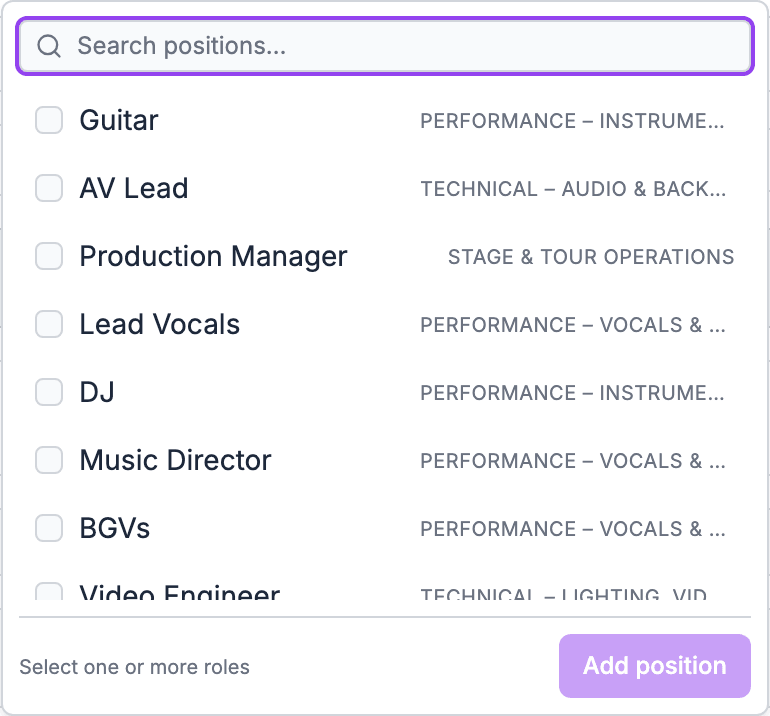
Choose Add positions. For each, set the Position name, a short Code (such as A1 or SH) and a Default day rate.
3
Give people their positions and rates
On a member’s profile, the Org Positions card lists the positions they work, with their own Day rate, Hourly rate and a Rating. A blank day rate gives no fee: the position’s default day rate is a reference and never sets pay. See Pay and rates.
Departments: groups of people
Early access. Departments are rolling out. Contact info@soundchecklive.io if you’d like them turned on.
- Manage them under Settings → Labels → Departments → All departments. Owners and Admins make changes; everyone in the organization can see them.
- When you create or edit a gig, the Department field says which department the gig is staffed under. Choose No department to leave it open.
- Departments are on every plan. Adding, renaming or deleting them needs the Team plan or a free trial.
Crew requirements: dress and reminders
Requirements in Soundcheck tell crew what to wear and what to remember. They’re not headcount.- Organization presets: on the Positions page, set Dress presets (choose Add preset) and Standing reminders that apply to every gig.
- Per gig: on the gig’s People → Requirements, pick a Dress code, add Dress notes and gig reminders.
- Crew see them on the gig in the mobile app, under Crew requirements.
Shifts: the plan on the gig
A shift is one position on one gig: its days, call and out times, pay, and how many people you need. You build shifts on the gig’s staffing board (People → Crew). The gig needs a date first. On the web, add a position to the board, then add a shift to it. The Create shift sheet reads “Choose crew, days, rate, and call times before sending.” and asks for:
A shift saved with Save as draft notifies nobody: “A draft notifies nobody — it parks the crew on the board until you send it.” A draft can have blank call times and nobody on it, so you can sketch the whole crew plan first and fill it in later.
In the mobile app, choose Add position or add a shift to an existing role. The sheet asks for the Role, Days, Call times, whether it’s Hourly, the Seats and the Need per day. The mobile app builds regular shifts only; open shifts are built on the web.
Headcount: Need and Spots
How you set “how many” depends on the kind of shift.
On a multi-day shift, each day can have its own target: “How many people this day needs. Leave blank for no target.” A load-in day can need ten people while the show day needs four, all on one shift.
The board rolls each position up as filled, short, or with open seats, and the Needs tab on Crew lists every gig in the next 30 days that still has open seats.
Several shifts a day
A position can have as many shifts on a gig as you like, including several on the same day. Use this whenever the same job has separate calls:- Stagehand · Load-in, 7:00 AM to 12:00 PM, need 10
- Stagehand · Show, 6:00 PM to 10:00 PM, need 4
- Stagehand · Load-out, 10:00 PM to 2:00 AM, need 12
Multi-day gigs
When a gig spans several dates, one shift can cover any of its days. Each day carries its own call and out time, its own rate, and its own headcount, and a blank value falls back to the shift’s. Crew accept or decline each day for themselves, so someone can take Friday and Saturday and pass on Sunday. A shift has one call window per day. For two separate calls on the same day, use two shifts. See Tours and multi-day staffing and How shifts work.One person, several positions
One person can hold more than one position on the same gig. Your A2 on load-in can be a stagehand on load-out, and a truck driver can also run the generator. Each position is its own shift with its own fee and call times, so pay stays correct for each role. The only limit: a person appears once on any one shift. To book them twice on the same day, put them on two shifts.The picker tells you when someone is already on another shift: “On {roles}”. Soundcheck shows this as a note and still lets you add them.
Reuse a crew plan
You rarely plan a gig from nothing.
Saved team templates need the Pro plan or higher. See Call lists, Templates and duplication and The Crew board.
Plan while the gig is still a hold
Draft shifts never notify anyone, so you can plan the full crew on a gig that’s still tentative. Sending is what tells people.What Soundcheck doesn’t plan for you
- Labor cost before booking. There’s no labor estimate for crew shifts. Turn on Show pay in the board’s view menu to see each person’s fee as you build, and check the gig’s Finances once people accept.
- Crew from the equipment order. Adding gear doesn’t add crew. A Flex quote import can create shifts from the quote’s labor lines (early access).
- Stages and rooms on a shift. A shift has no stage or room field. For a festival or conference with several rooms, put the room in the Shift name (A1 · Ballroom B), or put each room’s crew on its own gig in one project.
Worked example: corporate general session
Fictional example. Brightline AV is running a two-day corporate general session: build on Thursday, show on Friday.- They open the gig’s People → Crew and choose Start from a template, picking their Corporate GS team. Draft shifts appear for A1, A2, V1, L1 and Stagehand, with their regulars on them.
- They split stagehands into two shifts: Stagehand · Build on Thursday, need 8, hourly; and Stagehand · Strike on Friday from 5:00 PM to 11:00 PM, need 10.
- The A1, A2, V1 and L1 shifts cover both days, with Thursday’s call at 10:00 AM and Friday’s at 6:00 AM, set per day.
- Their V1, Dana, is also a qualified L2, so they put her on a second shift as L2 · Show on Friday. She’ll be paid for both.
- They set Dress code to Show blacks under Requirements.
- Everything stays a draft until the client signs. Then they move on to finding crew and send.
Questions this page answers
- How do I list the positions a gig needs before I know who will fill them?
- Can I build a crew template for a show type and reuse it?
- Can one person hold more than one position on the same gig?
- Can I split a gig into load-in, show and load-out, each with its own headcount and times?
- Can different positions on the same day have different call times?
- Can I plan crew while the gig is still a hold, without notifying anyone?
- Can I copy last year’s crew plan?
- Can I require a certification for a position?
Related
Finding crew
Fill the plan with the right people.
How shifts work
Statuses, seats and per-day answers in full.
Positions
Managing your positions catalog.