

The time clock is in early access and on for some organizations only. An owner or admin turns on Crew clock in and out under Settings → Organization → Gig workflow → Time clock. It’s off by default.
The Crew hours section
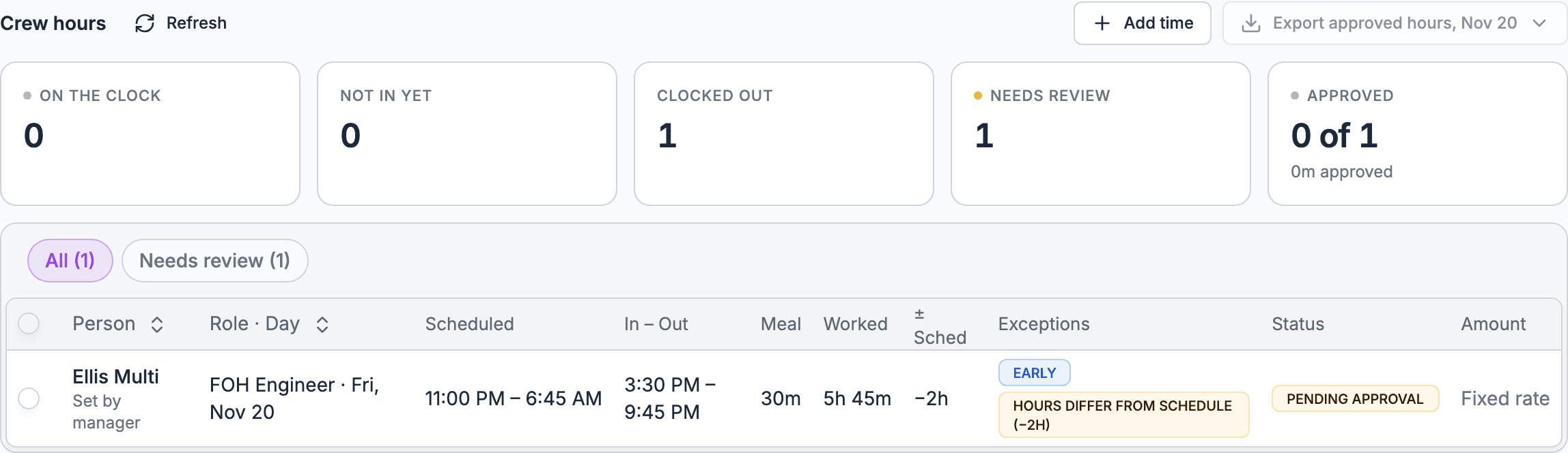
Open the gig’s Finances tab and find Crew hours. Counts across the top show who is On the clock, Not in yet, Clocked out, Needs review and Approved. Choose All or Needs review to filter the list. Open a person to see their entries: who clocked in and out, and whether they did it themselves or a manager did. Edit history shows every change, in the gig’s time zone.Fix and approve hours
How approved hours change pay
On an hourly crew offer, pay starts from the scheduled hours. See Hourly shifts. Approved hours then replace them:- All approved. Once every entry for a day is approved or rejected, that day’s payable uses the approved hours: whole minutes worked, minus any unpaid meal break, times the rate, rounded to the cent. Meal breaks are unpaid by default. If your organization sets Meal breaks are to Paid in its time clock settings, break time counts as worked. See Time clock.
- Still in review. While any entry on the day is waiting, the payable stays on scheduled hours.
- Reopened. Reopening an approved day whose payable is unpaid puts it back on scheduled hours.
- Already paid. Approving more hours on a day whose payable is paid leaves the paid line alone. A new unpaid line holds the extra amount.
- No rate. Hours approved for someone with no hourly rate show a No rate badge.
Overtime and double time
Hourly crew can earn daily overtime and double time from approved hours. An owner or admin sets it under Settings → Organization → Gig workflow → Time clock → Overtime on hourly shifts:- Leave the hours empty to keep straight time. Hours must be above 0 and up to 24, and the multiplier from 1 to 10.
- Double time must start after overtime.
- The rule counts approved hours on one shift day. Hours past the threshold are paid at the multiplier.
- Fixed-rate shifts aren’t affected.
- Each entry keeps the rule it was approved with, so changing the settings doesn’t reprice hours already approved.
- Export approved hours includes overtime and double-time minutes.
Who sees crew hours
A gig Lead or Finances assignee sees crew hours on that gig. Only a Lead can fix and approve them. Nobody can approve their own hours. Archived gigs are view only.
Timesheets across gigs
The Timesheets tab on the Crew page lists hours across gigs, this week by default, with Gig, Person, Status and Exception filters. Export approved hours downloads a CSV of approved entries for payroll, or a PDF timesheet of the same entries to review or send. See Export hours for payroll.On mobile
Managers open the gig, tap More, then Finances, and find Crew hours. Mobile shows On the clock, Not in yet, Needs review and Approved. Open a person to Fix a time, Reject with a reason, Reopen or Add time. Tap Approve N ready in the bottom bar to approve every entry that’s ready. Approving needs a connection. See Finances on mobile.Related
Payouts
Pay the hours once they’re approved.
Staffing and shifts
Set hourly rates and call times.
Finances
Start here for the whole tab.
Time clock
The full clock-in guide for crew and managers.
Crew invoices and payouts
Crew invoice you from approved pay, then you pay them.