

Where to find it
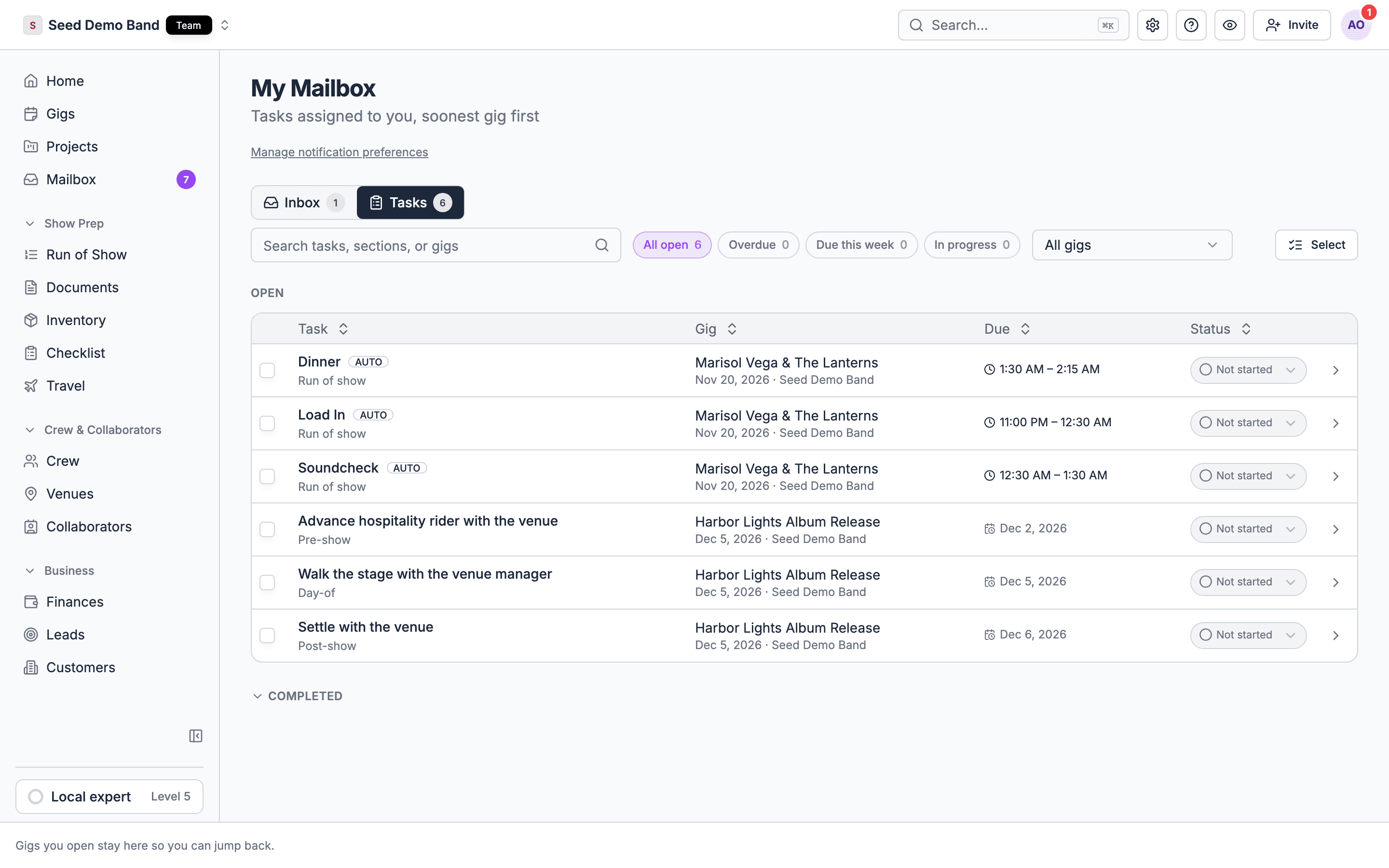
- Web: open your mailbox and choose the Tasks tab (
/engagements?tab=tasks). The tab and your mailbox item in the sidebar carry a count of what’s still open. Crew and members also see Your tasks on Home, with a link here. - Mobile: in the Inbox, a My checklist row under Messages shows how many tasks are still open and opens My checklist. Crew also see a My checklist row on the Gigs tab. See Checklist on mobile.
What the list shows
Open tasks are listed by their gig, soonest gig first, then by due date. Finished tasks are tucked into a collapsed Completed section, which loads when you open it. On the web it shows your 100 most recent completed tasks, and says Showing the 100 most recent. when there are more. The open list shows up to 500 tasks.Which gigs’ tasks appear
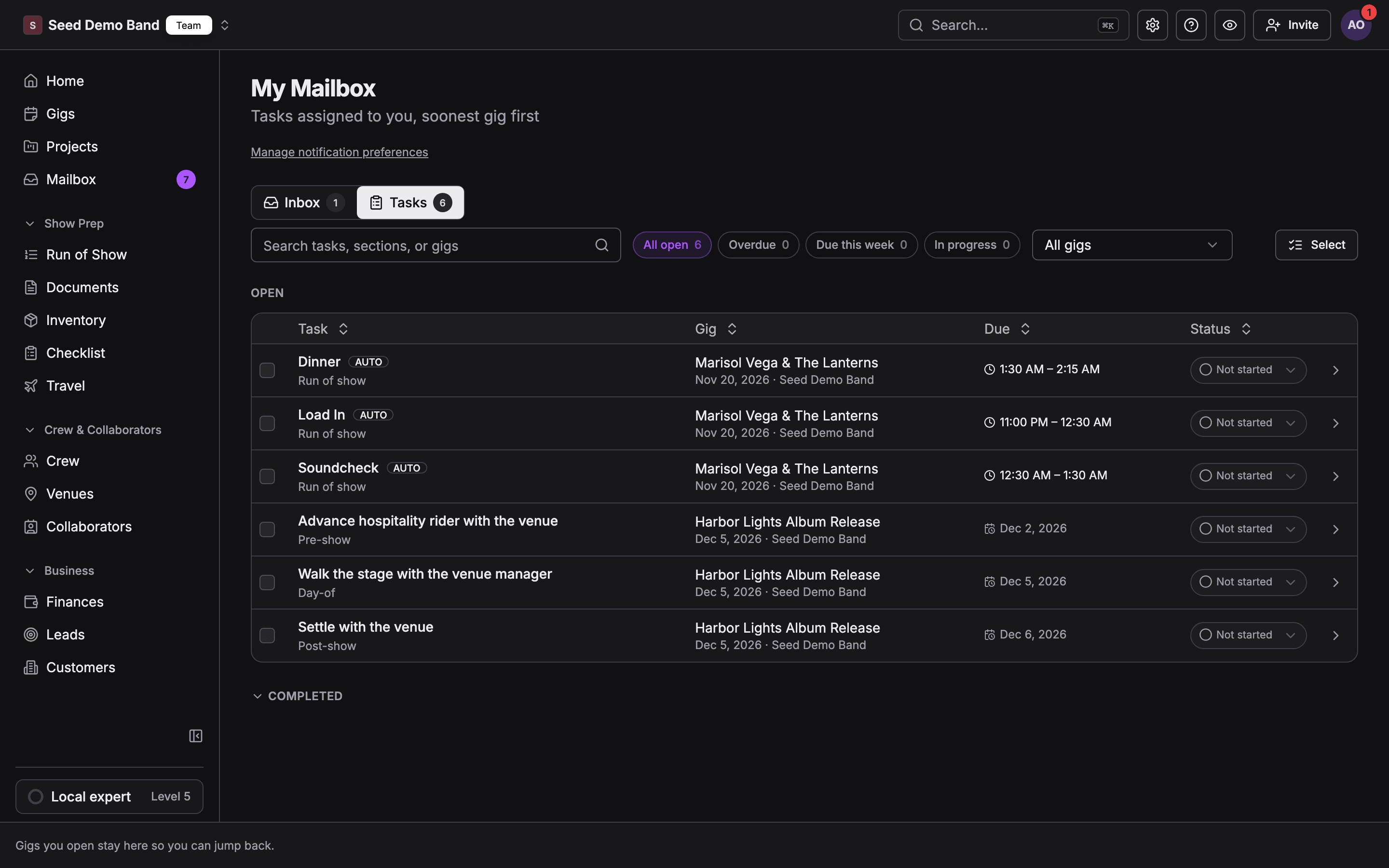
Each row shows a Done checkbox, the Task (with an Auto badge if Soundcheck created it), its Gig, when it’s Due (such as Due today or No due date), and its Status.
If nothing is assigned to you, the tab says You’re all caught up.
Find what matters now
Each filter chip shows its count.
Work from the list
- Check a task off with its checkbox, or change its status, without opening the gig.
- Open the gig: choose the gig in a task’s Gig column, which shows the gig’s name, date and organization, to open that gig’s Checklist tab and see the full list.
- Change several at once: choose Select, tick tasks, then choose Mark complete, Reopen or Set status. Choose Done to leave selection.
What you can change as the assignee
You can always change the status of a task assigned to you, from this list or from the gig, even if you can’t otherwise edit the gig. Changing anything else, such as the title, the due date or the assignee, needs edit access to the gig’s checklist. You only ever see your own tasks here, never anyone else’s.Notifications
When a task is assigned to you, you get a push notification.- One task reads Task · Summer Fest. The body starts with the organization and the gig day, then the task title and its due date if it has one, written as year-month-day, such as Load-in plan · due 2026-03-04.
- Several tasks on one gig at once arrive as one notification, Tasks · Summer Fest, listing the first two titles and how many more there are.
- Opening the notification takes you to that gig’s Checklist tab.
- you assign a task to yourself
- the gig is a sample gig
- the gig is a draft you can’t open yet
- you have push notifications turned off on every device
The assignment push is the only task notification. Soundcheck doesn’t send due-date reminders, overdue nudges, digests, or task emails or texts. Changing a task’s status, unassigning it or completing it doesn’t notify anyone. To keep deadlines in view, check the Overdue and Due this week filters here.
Related
Working a gig's checklist
The whole list for one gig.
Automatic tasks
Tasks Soundcheck assigns for you.
Mobile
My checklist on your phone.