

Soundcheck stores travel details. It does not book or cancel travel. Every flight, stay and ride is typed in, imported, or forwarded from a booking you made somewhere else.
Where to find it
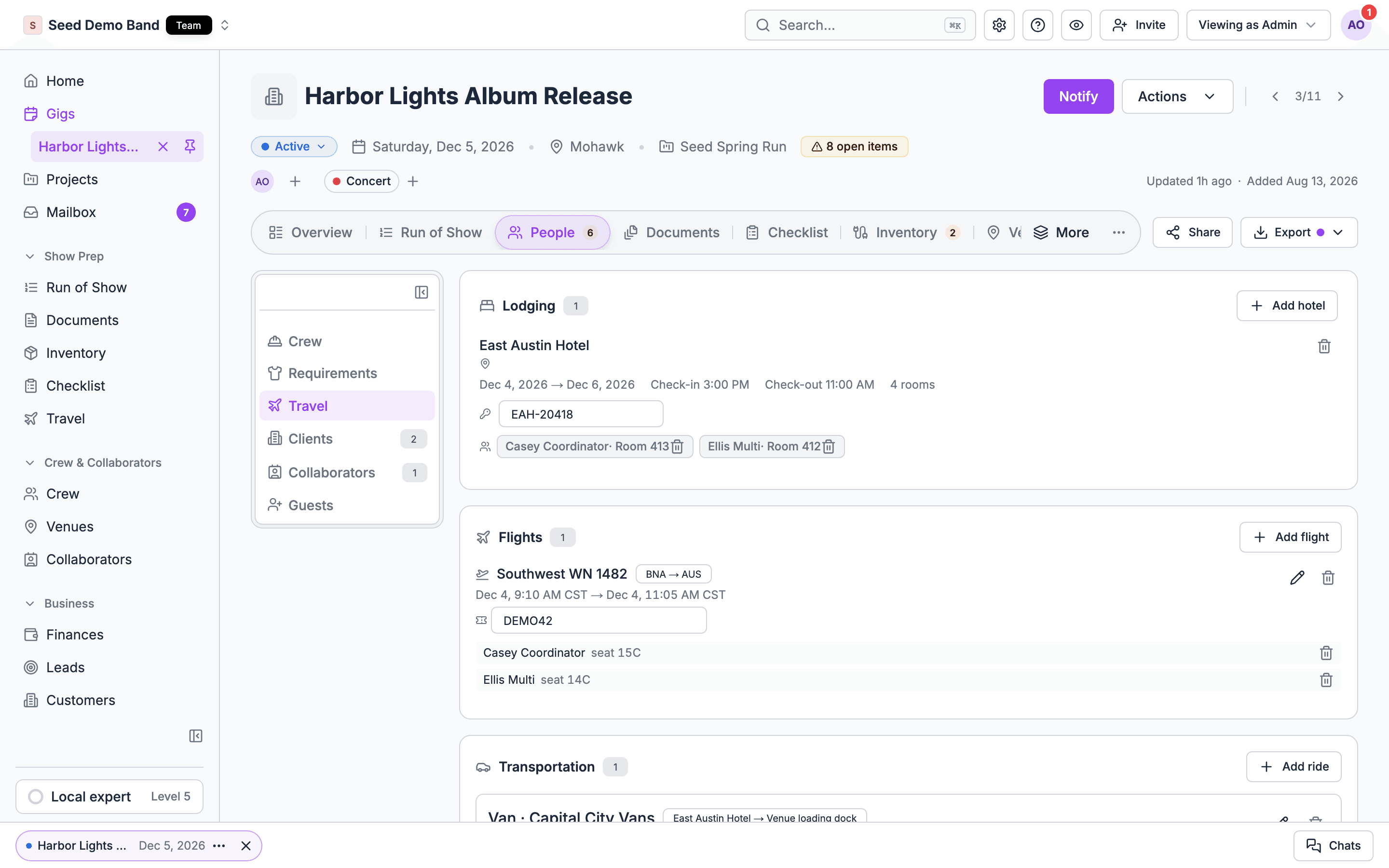
- On a gig. Open the gig, go to the People tab and choose Travel. The view has a Lodging card, a Flights card and a Transportation card. The Travel group sits beside Crew, so when you can’t see the Crew group, the same cards are at the bottom of the Venue tab instead. See When travel is on the Venue tab.
- Across gigs. Open Travel in the sidebar, under Show prep. People who manage business records see three tabs: Flights, Hotels and Transportation. Everyone else sees their own flights, hotels and rides on upcoming gigs, grouped by gig and then by day. Crew who don’t manage anything have a simpler sidebar, where the same page is My travel.
- On a person. On the gig’s Crew board, a plane icon and a bed icon on a person show their flights and hotel at a glance. Each icon is dimmed when they have none. People who edit travel see them on everyone. See People and crew travel.
- Your own travel on a gig. Crew who can’t edit travel get a My travel card on the gig, on the web and in the mobile app, to add the flights, hotels and rides they booked themselves. See Crew add their own travel.
- In the mobile app. A gig shows its Lodging, Flights and Transportation cards, and crew can add their own travel under My travel. See Travel on mobile.
When travel is on the Venue tab
The gig’s Travel group has the same access as its Crew group. When the Crew group isn’t shown, the travel cards move to the bottom of the Venue tab. That happens when:- your organization staffs gigs with invitations rather than crew offers,
- you can’t run or staff this gig,
- you’re previewing the gig as a member, or
- your plan doesn’t include crew tools.
Web and mobile do different jobs
Managers add new hotels to the hotel directory on the web. The app doesn’t set a booking’s cost or payer. See Manage gig travel.
The building blocks
Learn these first. Everything else in Travel builds on them.How it fits together
Your first itinerary, step by step
This walkthrough books one person in and out of a gig on the web. It takes about ten minutes.1
Put the people on the gig
Travel uses the gig’s people. Staff the gig first so the people who travel are on it. See Staffing and shifts.
2
Open the gig's Travel view
Open the gig, choose the People tab, and pick Travel. If there’s no Travel group, open the Venue tab instead. See When travel is on the Venue tab.
3
Add the hotel stay
On the Lodging card, choose Add hotel, pick one of your saved hotels, set Check-in and Check-out, and choose Add. Then add the people who are staying there. If the hotel isn’t saved yet, add it from Hotels near the venue, or save it first. See Hotels and lodging.
4
Add the flight
On the Flights card, choose Add flight. Fill in Airline, Flight number, From, To, Departs, Arrives and a Booking reference, then add your crew to the flight. If your team books on Brex Travel, choose Import from Brex instead. See Flights.
5
Add the ride from the airport
On the Transportation card, choose Add ride. Pick the Type, the Provider, and the Pickup and Drop-off places and times, then add the riders. See Ground transportation.
6
Check who still needs travel
The Flights card warns you when people on the gig have no flight, and names them. Once the gig has a ride, the Transportation card does the same with No ride yet: …. There’s no warning for hotels. Open the plane and bed icons on a person on the Crew board to check their flights and hotel at a glance.
7
Let crew see it
Crew see their own flights, stays and rides on the gig in the mobile app. Travel itself needs no publishing, but crew don’t see draft gigs, so publish the gig. Soundcheck doesn’t notify anyone when you add or change travel, so tell your crew it’s there. See Travel on mobile.
Works with
Each part of Soundcheck is its own app, and the gig is where they meet. Travel reads from some apps and feeds others. Here is every connection, and what moves between them.Pick the right page
Flights
Add flights and passengers, booking references, who still needs a flight, the Flights tab, and importing from Brex Travel.
Hotels and lodging
Saved hotels, stays on a gig, guests and their nights, hotels near the venue, and crew adding their own bookings.
Ground transportation
Rides, ride types, vehicles you own or rent, the Transportation tab, and Uber and Lyft links.
People and crew travel
Who can be on travel, the travel button on the Crew board, traveler details, and what crew see.
Confirmations and imports
Forwarded confirmations, Brex Travel, and recording travel through connected AI tools.
Projects, tours and trips
How travel belongs to projects, trips across several gigs, and travel buyouts on the billing schedule.
Travel on mobile
Lodging, flights and rides in the app, My travel, directions, and Get a ride.
Troubleshooting
Answers when something doesn’t look right.
Travel FAQ
Straight answers to the questions tour managers, agencies and production companies ask about travel.
Travel glossary
Rooming lists, room blocks, lobby calls, per diems and more, and what each one is in Soundcheck.
Who can do what
What Travel doesn’t do
- No booking. Soundcheck never books, changes or cancels a flight, hotel or ride. Uber and Lyft are links that open those apps.
- No notifications. Adding, changing or removing a flight, stay or ride sends no push, email or text to anyone. There are no check-in reminders. Tell your crew when their travel is ready. The gig details acknowledgment asks crew to confirm the flights and lodging assigned to them.
- No live flight status. Soundcheck doesn’t track delays, gates or cancellations.
- No travel expenses in Finances. Travel costs stay on the travel record. See Travel costs and Finances.
- No per diems or rooming list export. See the Travel FAQ for workarounds.
Related
Staffing and shifts
Build the crew who travel.
Venue logistics
Load-in, parking and on-site details.
Projects
Group a run of gigs into a tour.