

Why keep an inventory
Without one, the only record of where the second wireless kit went is someone’s memory. With one:- You see what’s free on a gig’s dates before you promise it.
- You see shortages before load-out, with the gig that holds the gear.
- Crew pack from a list, tick each item out, and tick it back in.
- The next coordinator finds the same names, photos and case numbers you used.
Open your inventory
- In the sidebar, open Show prep → Inventory.
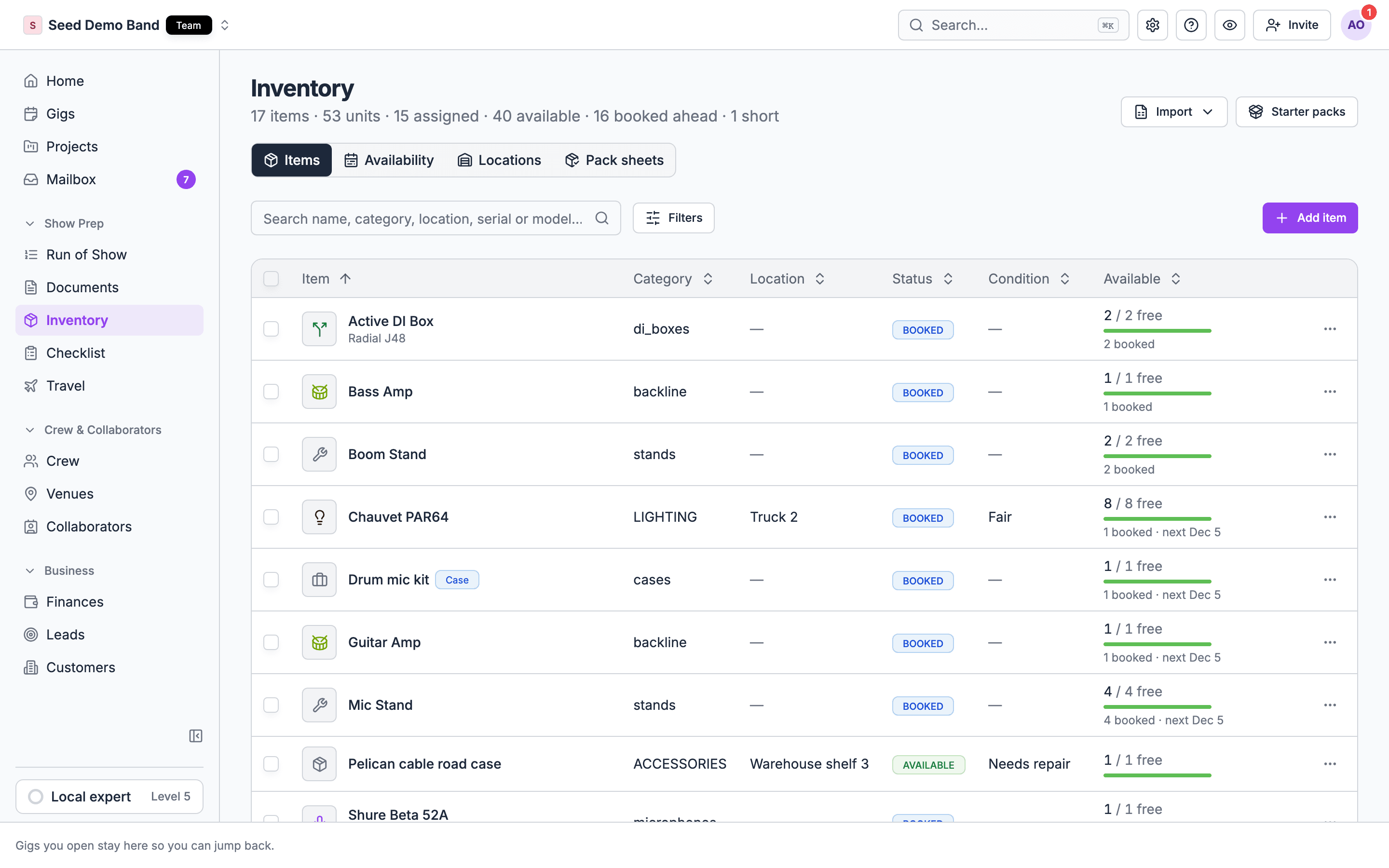
- The Items tab lists everything you own. Search or filter by Availability, Status, Category or Location.
- Select an item to preview it. Use its row menu to edit, book or delete it.
The items list
The Available count is what’s free today. Gear booked only for a future gig still counts as available today. To check another date, use the item’s Availability section or the Availability tab.
When an item is booked on upcoming gigs, its row also shows how many are booked and the next booking date, such as 10 booked · next Nov 29. That number is the most units booked on any one day from today on, not the total across gigs, so you can compare it with what you own. A Short badge means bookings go past your stock on at least one of those days. The summary above the list counts the items booked ahead and the items short. To list only those items, set the Availability filter to Booked ahead, or the Status filter to Short.
Item details
Select an item to open its details. At the top, Today shows how many are out and how many are free, and Upcoming shows what’s booked ahead (or Nothing booked), with the Short badge when it applies. The Bookings section lists upcoming bookings by date. Each one shows its state (Booked or Packed out), its date, and its gig. Select the gig to open its Inventory tab. Returned, cancelled, and released bookings, and bookings whose dates passed without being packed out (Not packed out), move to History. A booking on a cancelled gig shows as Released and says it holds nothing.Get started fast
An empty inventory reads “No inventory yet. Start from a pack, import a spreadsheet, or add items one by one.” You have three ways in.Start from a pack
Choose Start from a pack on an empty inventory, or Starter packs at the top of the page at any time.- Pick a starter pack for your kind of business (production, band, DJ, venue, producer, or a general kit), or an add-on pack such as vocal mics, stage power and cabling, or lighting basics.
- Edit the quantities and untick what you don’t own.
- Add it.
Import a spreadsheet
Owners and admins see Import. Gig coordinators can import inventory through the API or the AI assistant instead. Import has three choices:- Upload spreadsheet: upload a file from your computer.
- Paste rows: paste rows copied from a spreadsheet into Paste inventory rows. The box shows the shape it expects:
Name,Category,Quantity,Location, one item per line. - Download template: get a CSV template to fill in.
The import review is in early access and rolling out to organizations now. If Import opens a blank page, your organization doesn’t have it yet. Email info@soundchecklive.io to ask for it, or use Start from a pack and Add item meanwhile.
Add items one by one
Choose Add item. Fill in the form and choose Create Item. See the fields below.Out of service
A bulk item has one Out of service number, from 0 up to its quantity. That stock is still yours but is not offered to gigs: free is the quantity, less what is out of service, less what is booked. An item of 8 with 2 out of service offers 6 on a gig, on the Availability board and in the list. Condition (Good, Fair or Needs repair) describes the item and does not change what is free. Marking stock out of service is never refused. If a gig already books more than is left, the gig shows as short, the item reads Short, and saving names the gigs that became short. Putting the stock back in service clears the shortage. Lowering the quantity below what is booked is refused, and the message names the gigs that hold the stock. The list’s Status shows what the stock is doing from today on: Short (some day books more than is free), Booked, Out of service, or Available. An item reads Out of service only when none of it is left to use and nothing is booked. When only part of it is out, the item keeps its Booked or Available status, and the list row and the item’s header add the count, such as “1 out of service”. An item of 8 with 1 out of service and 3 booked reads Booked, with “1 out of service” under its stock. For a serialized item, its units in maintenance are its out-of-service stock. The Status filter’s Out of service option finds every item with stock out of service, whatever its status, so gear waiting for repair is easy to find.What an item holds
The item form is split into sections.
A few fields deserve a closer look:
- Tracking: Bulk (count only) or Serialized (one row per unit). See Serialized units.
- Kit type: Not a kit, Case (holds its contents) or Bundle (no stock of its own). See Kits, cases, and accessories.
- Replacement Cost and Daily Rate: what the item costs to replace, and what you charge per day. A gig quote can price an Inventory item line from its daily rate. See Gear and money and Quote from inventory.
- Case Type, Case Dimensions, Weight: free text for load planning. Soundcheck doesn’t total weight or case count for a gig.
- Photo: JPEG, PNG, WebP or GIF, up to 10 MB.
Categories and labels
Category is free text, with suggestions from your organization’s list. To tidy the list, open Settings → Labels → Catalogs → Inventory, “The categories you sort gear into.” Renaming or merging a category there updates every item that uses it. The list starts empty and fills as you add categories. Categories are one level deep; for Audio > Microphones > Wireless, use a name such as Audio: wireless mics. The item’s details also carry Labels, your organization’s own tags. Choose Add label to tag an item, such as Touring rig or Needs testing. Owners and admins can create new labels from there; gig coordinators can add existing ones.Book an item onto a gig from its row
You usually book gear from the gig’s Inventory tab. You can also start from the item. Choose Assign on an item’s row or on its record:1
Pick the gig
Search for the gig by name. Upcoming gigs come first, each with its date, then Past gigs. Active, completed and settled gigs are listed. Drafts, templates, cancelled and archived gigs, and the sample gig, aren’t.
2
Set a quantity
Once a gig is picked, the form shows how many are free on that gig’s dates, not today, and won’t book more than that.
3
Choose where it ships from
If your organization has stock locations, choose Ships from. The default location is preselected. Add Notes if you need them.
4
Add it
Select Add to gig. The booking takes the gig’s dates. The message that follows links to the gig’s Inventory tab.
Book several items at once
Tick items in the list and select Assign above the table. The form says Books 1 of each item. Items with none free on the gig’s dates are named and skipped. If one booking fails, the items not booked yet stay in the form so you can try again.Manage a booking from the item
Each upcoming booking on the item record has:- Pick (serialized items): choose which units go out, up to the booked quantity. A unit can’t be on two overlapping bookings.
- Ships from: move the booking to another location.
- Return (packed-out bookings only): mark it back and choose where it lands. Stock moves to that location. The web dialog has no notes field; a return made through the API or the AI assistant can carry notes.
Delete items
Delete one item from its row menu, or tick several and choose Delete above the table. Soundcheck asks first: “This removes the item, its photo and its assignment history.” Confirm with Delete item or Delete items. Deleting is allowed even while the item is booked on upcoming gigs or packed out. Its lines disappear from those gigs, and the gear stops counting against availability. A quote line that used the item keeps its name and price.Gear and money
Inventory isn’t an accounting tool, but two fields connect it to Finances:- Daily Rate: on a gig quote, an Inventory item line is priced at the item’s daily rate times the gig’s days. The line shows the rate, such as “$40/day × 2 days”.
- Replacement Cost: a reference for insurance and loss. It isn’t charged anywhere.
Directory actions
Related
Stock, units and kits
Locations, serialized units, cases and bundles.
The gig Inventory tab
The packing list on each gig.