

Call times
A call time belongs to a shift and a day. Every day of a shift has its own call and out time, so a three-day shift can start at 7 AM on load-in and 4 PM on show day.1
Set the times on the shift
In the shift sheet, give each day a call and an out time. Each day needs both or neither (“Set both call and out times”). Use event time fills in the gig’s own times, and Clear empties a day.
2
Copy them across days
When one day is right, choose Copy times to all days, or Copy times & rate to all days when the shift has per-day rates.
3
Add per-person details
Click a person on the board to add their own Sound check, Special instructions, a Leader role (Music director or Leader), or mark them as the Lead / contact for the unit when a group is booked as one.
- Overnight calls stay on one day. When the out time is earlier than the call time, Past midnight (next day) turns on. A 6 PM to 2 AM call doesn’t need a second day.
- Different positions, different calls. Each position has its own shifts, so A1s can call at 8 AM and stagehands at 10 AM on the same day.
- Several calls for one position. Load-in, show and load-out can be three shifts for the same position, each with its own times and headcount. Name each shift so crew can tell them apart.
Changing a call
You can move a call time on a live shift. People who accepted keep their spot unless they say otherwise.1
Change the time
Use Edit shift, the day header’s Set call times for this day…, or select cells and choose Set call times (Change times for several shifts). On mobile, open Manage shift, change the times and choose Save times.
2
Check who it reaches
Before saving, Soundcheck tells you how many people have already accepted and that they’ll be able to decline. Only the days you actually moved count.
3
Crew are told
Everyone still on the shift, accepted and pending, gets an update naming the day with the old and new window. People who declined, or are on standby, aren’t messaged.
4
They keep it or hand it back
In the app, accepted crew see Call time changed with Keep my spot and Decline new time (Decline new times for several days). Doing nothing keeps the spot.
Who hears about what
See who has caught up
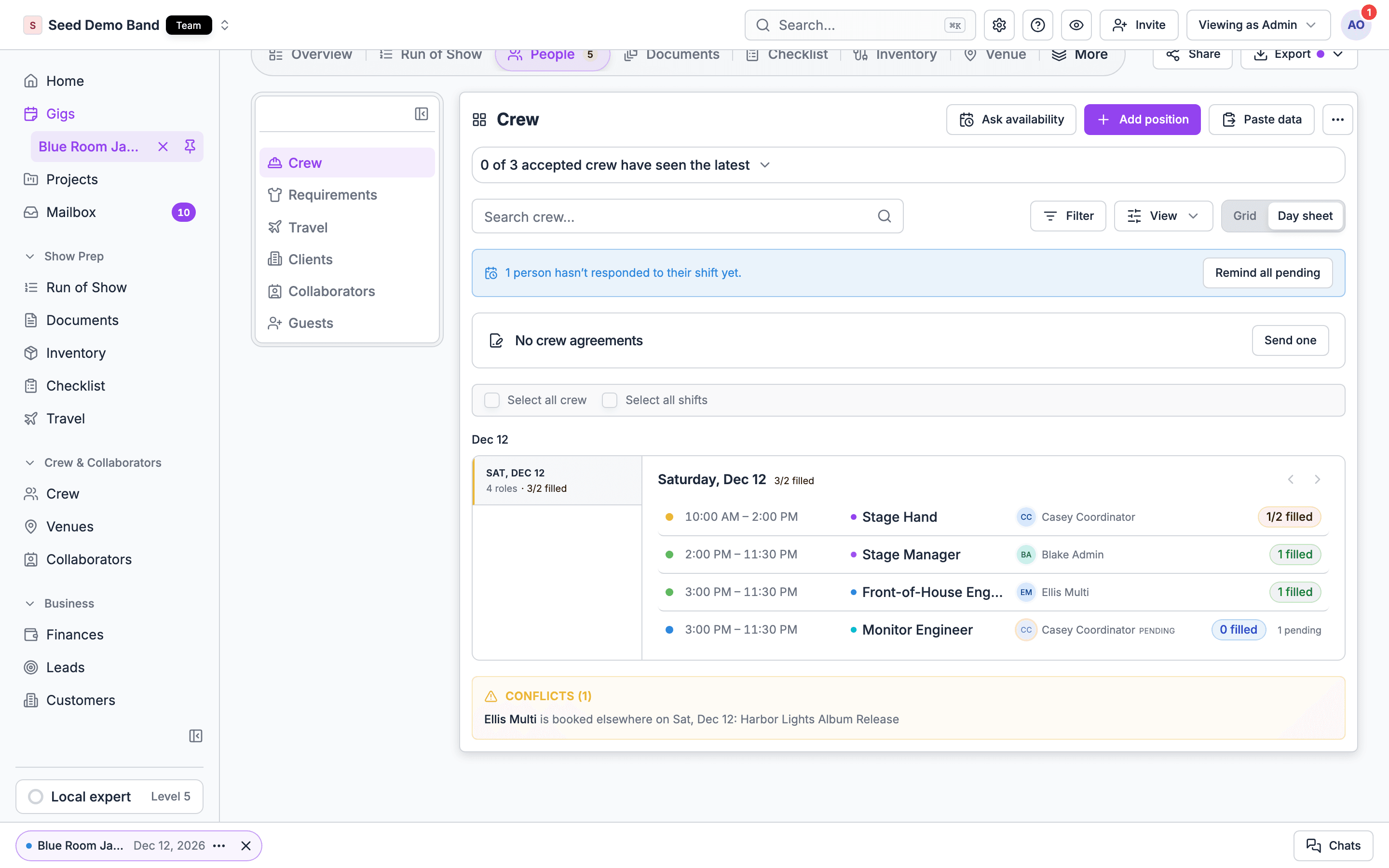
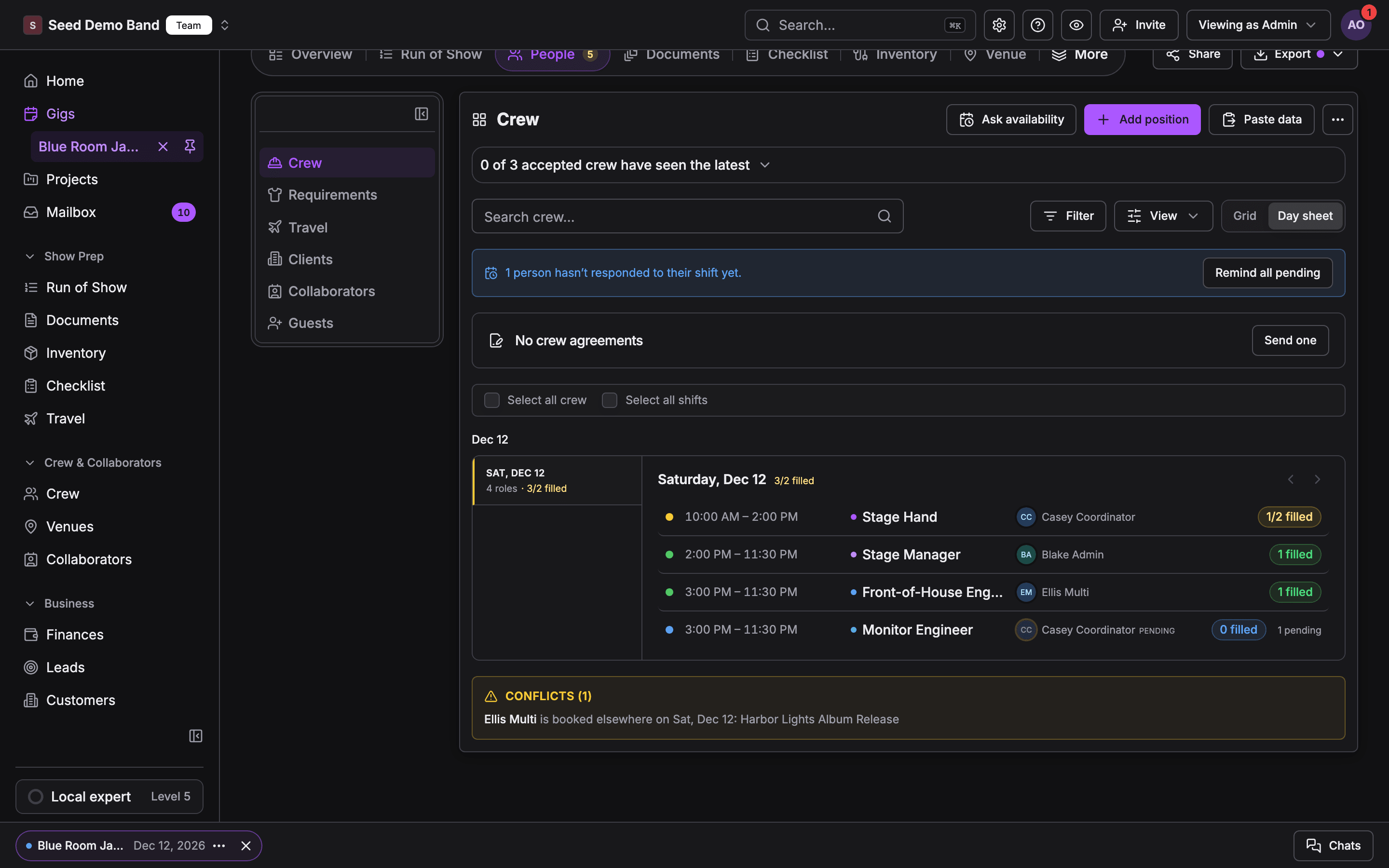
Once anyone has accepted, the web board shows a panel such as 3 of 5 accepted crew have seen the latest. Open it to see each person as Seen, Behind (with how many updates they’ve missed) or Not opened. Only changes that apply to that person count. Crew who are behind see a dot on the gig in their app until they open it. See Who has seen the latest. When you need a firm yes, send a Gig details acknowledgment. It asks each person to confirm the current call times, schedule, travel and files, and shows Details changed for anyone who confirmed an older version. See Gig details acknowledgment.Call sheets and day sheets
Soundcheck doesn’t have a standalone call sheet page. The same information reaches crew in these places:
Find the PDFs in the gig’s Export menu under For the crew. The day sheet and the crew list PDF are offered to people who manage the organization’s gigs. See The export hub.
Dress code and standing reminders come from the gig’s crew requirements and show on every crew member’s gig.
Messaging your crew
Notify your team
For one message to everyone on the gig, use Notify your team. It goes to the gig’s accepted crew.- Web: the gig’s notify action, or “Changes saved! Notify your team?” after you save gig changes. Write the message, optionally tick Include additional notes, and send. It goes by email.
- Mobile: Notify crew in the gig’s actions menu. The message appears on each person’s gig under Messages from your lead. You, the gig’s creator, and owners and admins see Read by N of M on it. Tap it to see who hasn’t read it.
Gig chats
Gig chats are in early access, available to a limited group of organizations. See Chat for who has them.- Owners, Admins and Gig Coordinators create a chat on the gig’s Chats tab (web) or in Chats on the gig’s Crew section (mobile).
- Chat with all crew starts a chat with everyone staffed on the gig. Later, Add N newly staffed crew brings new people in.
- Make smaller chats for one group, such as Audio or Saturday load-out, by picking the people.
- People with the app chat in it and get a push. People without it get the thread by text and reply by text.
- Crew aren’t added to every chat automatically: “You have not been added to any chats for this gig.”
Messaging one department or one call
Soundcheck doesn’t have a send-to-department or send-to-shift button today. To reach one group, make a gig chat with just those people, or use Copy phones in the mobile roster’s ⋯ menu and paste the numbers into a group text.Reminders before the call
Soundcheck doesn’t send an automatic “see you tomorrow” reminder. Send one yourself with Notify your team the night before, or ask the Soundcheck connector tobroadcast_event_reminder, which skips declined and standby people.
Texts
- Who gets texts: crew who chose SMS for that kind of message. On gigs that use invitations, anyone invited or accepted also gets a text when the gig’s date, time or venue changes or the gig is deleted, whatever their settings. Cancelling a gig without deleting it sends an email, not a text. Someone without an account gets offer texts only when you ticked Text them at this number, and never gets availability checks by text.
- Answering by text: offer texts end with “Reply YES [CODE] or NO [CODE]”. Codes last 30 days.
- Opting out: a reply of exactly
STOP,STOPALL,UNSUBSCRIBE,CANCEL,ENDorQUITstops texts.START,UNSTOPorYESturns them back on. - Fail safe: if Soundcheck can’t check whether a number has opted out, it doesn’t send.
- Quiet hours: Soundcheck doesn’t hold texts overnight today. Texts go out when the change happens, so avoid late-night edits to live shifts.
Notifications
Each person picks Push, Email or SMS for each kind of message: Event invitations, Crew offers, Availability checks, Event chat messages and Gig changes. Their choice wins over your organization’s default. A gig invitation still arrives the way the sender chose, and texts about a gig’s date, time or venue changing, or about the gig being deleted, go out whatever anyone’s settings say.- Your organization’s defaults: Owners and Admins set them under Settings → Notifications.
- Each person’s own: the Notifications card on their Settings page on the web, or You → Settings → Notifications in the app.
Calendars
When crew accept, they’re added to the gig’s Google Calendar event if your organization uses calendar sync, and the calendar invite is marked accepted for them. Crew can also subscribe to their gigs from Apple, Google or Outlook. See Calendar feed.Worked example: a wedding band’s Saturday
The ceremony moves from 4 PM to 3:30 PM on Thursday.- You open the board and choose Set call times for this day… on Saturday. Soundcheck says 6 people have already accepted and can decline the new time.
- You save. Each player gets an update with the old and new call by their own channel.
- Five tap Keep my spot. Your keys player taps Decline new time. The seat opens and you add a sub.
- Friday night you choose Notify crew: “Parking moved to Lot B. Black tie.” By Saturday morning it shows Read by 6 of 7, so you text the seventh.
Questions this page answers
- When a call time changes, is everyone told, and can I see who has seen it?
- Can crew choose text, email or push?
- Can I message one department or one call?
- Can I send a call sheet with parking, load-in door, contacts and dress code? Does it update itself?
- Can crew add calls to their calendar?
- Can I send a reminder the night before?
- Can crew message me back in the tool?
- Can crew see the run of show, not just their own call?
Related
Offers and confirmations
Sending, reminders, cancelling and replacing.
Day of show
Check-in, running late and last-minute changes.
Run of Show
The minute-by-minute plan crew read.
Chat
Gig group chats and the SMS bridge.