

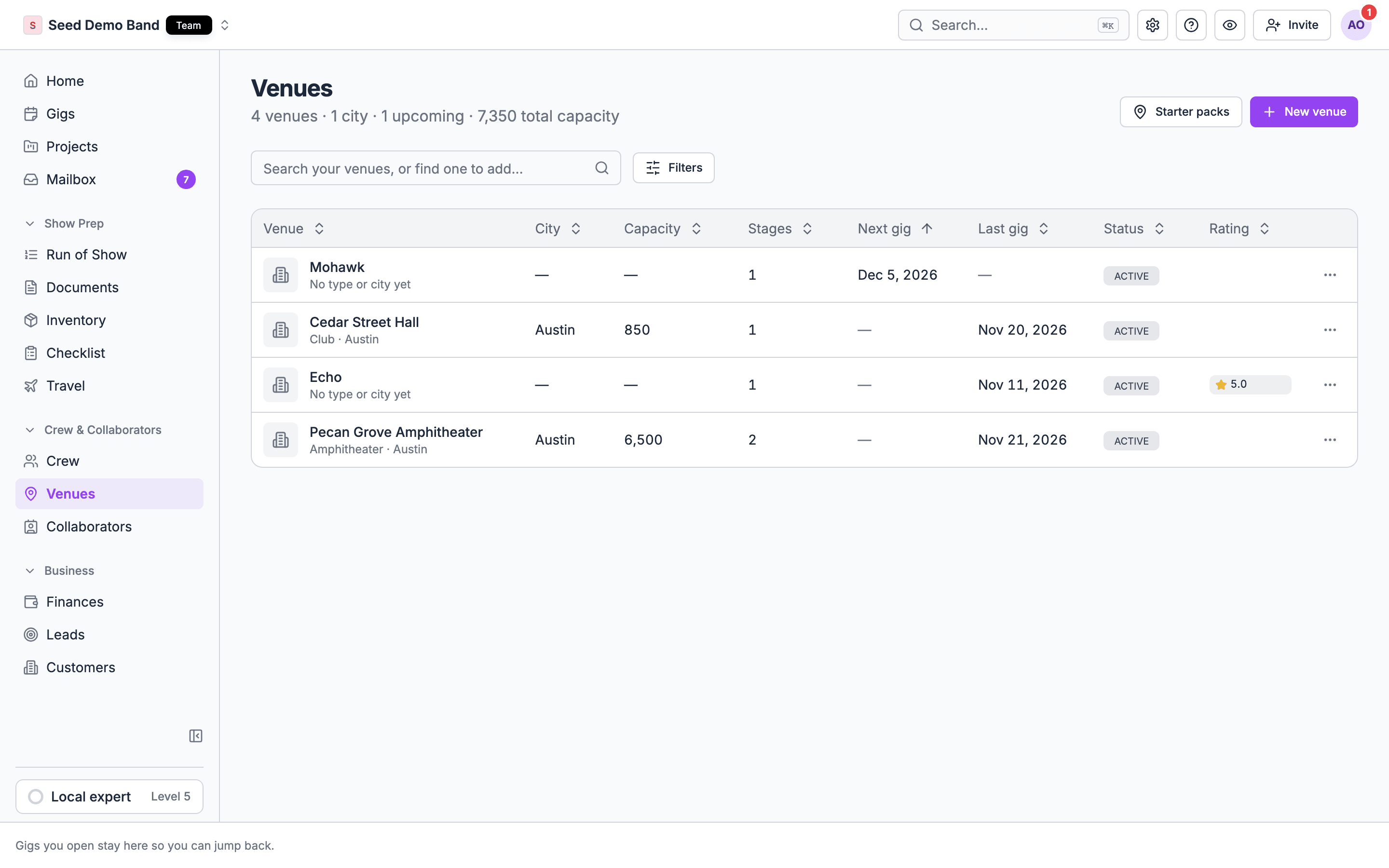
Open your venues
- In the sidebar, open Crew & collaborators → Venues.
- Browse your saved venues in the table, or search to find one.
- Select a venue to preview it in a side panel. Cmd/Ctrl-click, or Open venue in the row menu, opens the full venue record.
Who can add and edit venues
Owners, admins, gig coordinators and the Finance role can add, edit and remove venues, their stages, key spots and files. So can a member an owner or admin gives Customers, venues and leads. Everyone else has no access to the list or the records. Linking a venue to a gig is a separate permission: it needs permission to manage gigs (owners, admins and gig coordinators). See The gig Venue tab. You can also find a venue from the navigation search: venues you’ve saved show in a Venues group.The venues table
Click a column header to sort. Venues without a value always sort last. The list starts sorted by next gig, so the venues you’re about to play come first. On a narrow screen, City, Stages and Rating hide first, then Capacity and Status.
Use Filters to narrow the table by status, type, Capacity, upcoming gigs, or rating, and the amenity chips to require amenities. Choose Reset filters to clear them.
The row menu
Each row has a ⋯ menu:- Open venue opens the full record.
- Directions opens the venue in Google Maps in a new tab.
- Remove removes the venue from your organization. See Remove a venue.
Add a venue from the shared directory
Soundcheck has a shared directory of public venues. When you search, the table keeps showing your matching venues, and an Add from directory group lists other venues in the shared directory. Select Add to save a copy to your organization. If the directory search fails, it says “Couldn’t search the directory. Try again in a moment.”Your edits stay in your organization. Adding a directory venue gives your team its own copy of the listing. Changes you make to it are never shown to other organizations that saved the same venue.
Add a whole city with a city pack
To add several venues in one city at once, choose Starter packs at the top of Venues. On an empty list, choose Start from a pack. The picker is titled Venue city packs.- Search for a city.
- Tick the venues you want. Venues already in your list are marked Already added and can’t be ticked.
- Choose the Add button. It shows how many you picked.
Ask Soundcheck to research a city
If your city isn’t listed, the picker offers “Don’t see {city}? We can gather its major venues.” Choose Research {city}.- While it runs, the picker reads “We’re gathering the major venues for this city. This list updates on its own.” You can close it and come back.
- If it takes a while, it reads “This is taking longer than usual…”.
- If research fails, it reads “We couldn’t research {city}”.
Create a venue
1
Search Google
Choose New venue and start typing the venue’s name. Picking a Google result fills in the name, address, phone number, website, and photo, and suggests a venue type.
2
Check for an existing venue
If the place is already in your venues, Soundcheck offers to open it. If it’s in the shared directory, select Add to start your own copy instead of creating a duplicate.
3
Set type and capacity, then create
Soundcheck opens the new venue record, where you add contacts, logistics, stages, and files.
Linking to Google is optional. If a venue isn’t listed, type its name and fill in the rest on the venue record. Venues added from Google keep a record source badge so your team knows where the details came from.
Remove a venue
On the venue record, open the ⋯ menu (More venue actions) and choose Remove from your venues. Or, in the venues table, open the row’s ⋯ menu and choose Remove. Confirm with Remove venue. Removing deletes your organization’s copy: your edits, contacts, logistics, notes, stages, and files. Linked gigs keep their dates and details. The directory listing stays, so you can add the venue again later as a fresh copy.Related
The venue record
Everything on one venue’s page.
Importing data
Bring a venue list in from a spreadsheet or another system.