

Before you publish
- The gig must be published. A draft gig cannot have a live page; publish the gig first. See Draft and publish.
- Sample gigs can’t publish. On a sample gig, the Live page card shows a preview marked Sample: This is a sample live page. It isn’t published and has no public link.
- Publishing must be on for your organization. See Early access.
- Past and archived gigs can’t publish a live page. On the web, Anyone with the link (guest view) is unavailable in Share and the dialog says A guest link can’t be turned on for this gig. The app’s Share sheet says A guest link can’t be turned on for a past or archived gig. Publishing from the Export menu or the app’s Live page card is refused too. A page you published before the gig ended stays up, and you can still update it or take it down.
- Publish the run of show first if your organization uses run of show publishing. Guests see the last published version, not your draft. See The schedule on the page.
- Publishing notifies nobody. No push, email or text goes out. Share the code or link yourself.
Publishing
You can publish from three places. They all publish the same page.- Mobile app
The Live page tab
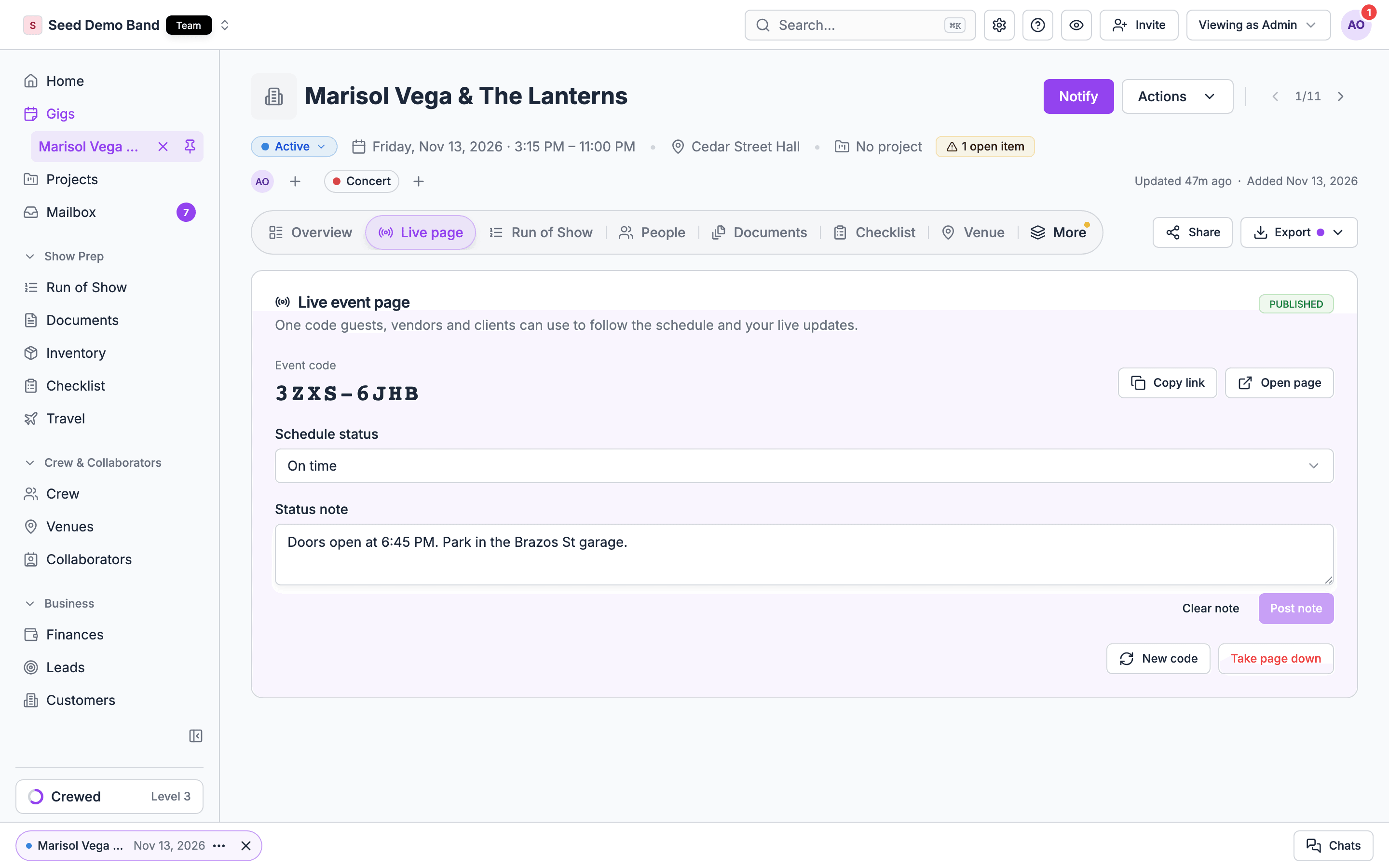
Every change saves as you make it. Guests see it at their next refresh, within a minute.
Issuing a new code
Use New code when a code was shared too widely.1
Choose New code
On the Live page tab, choose New code.
2
Confirm
Soundcheck asks Issue a new event code? and warns that the current code and link stop working, and everyone needs the new code to follow the event. Choose Issue new code.
3
Share the new code
Soundcheck says New event code issued. Share the new code or link with the people who should still follow the gig.
Taking the page down
Choose Take page down. Soundcheck asks Take the live page down? and explains that the code stops working right away. Choose Take page down to confirm.- The code and link stop working at once. Anyone who had the page open sees that it’s gone.
- The Live page tab is removed.
- Schedule status goes back to on time, and the Status note is cleared.
- Your choices under Run of show on the page are kept. They come back if you publish again.
- Publishing again gives the page a new code.
- Guest pages and the client portal still show the gig’s schedule and status. They don’t depend on the live page being published.
Limits
Early access
Publishing a new live page is rolling out gradually. Contact info@soundchecklive.io if you’d like it turned on for your organization.- A page you already published stays public, and you can still update it or take it down.
- Without early access, you can’t publish a page again after taking it down.
- Without early access, Publish live page doesn’t appear in the Export menu, and the app shows no Live page card unless a page is already published.
- Without early access and with no page published, the Share dialog shows only Who’s who. General access, Clients, Collaborators and Team don’t appear, and the app’s gig menu has no Share item. See Sharing a gig.
Who can publish
Gig managers (Owner, Admin and Gig Coordinator) publish, update and take down the live page, on the web or in the app. See Roles and permissions.- Being a gig’s lead, or being assigned to the gig, doesn’t let someone manage its live page.
- No org-wide access grant gives it either. Give the person a gig manager role instead.
- The Live page tab, the Export menu items and Share don’t appear while you preview a gig as a member.
Activity
Publishing, updates, new codes and taking the page down are recorded in the gig’s activity: Live page published, Live page updated, Live page code reset and Live page unpublished. The log shows what changed, not the text of your status note. Soundcheck doesn’t count views or show who opened the page.Related
Live page
Start here.
Sharing a gig
General access and the guest link.
Codes and privacy
How codes work.