

The billing progress bar
People who manage organization finances see a progress bar at the top of the Billing card:The billing schedule
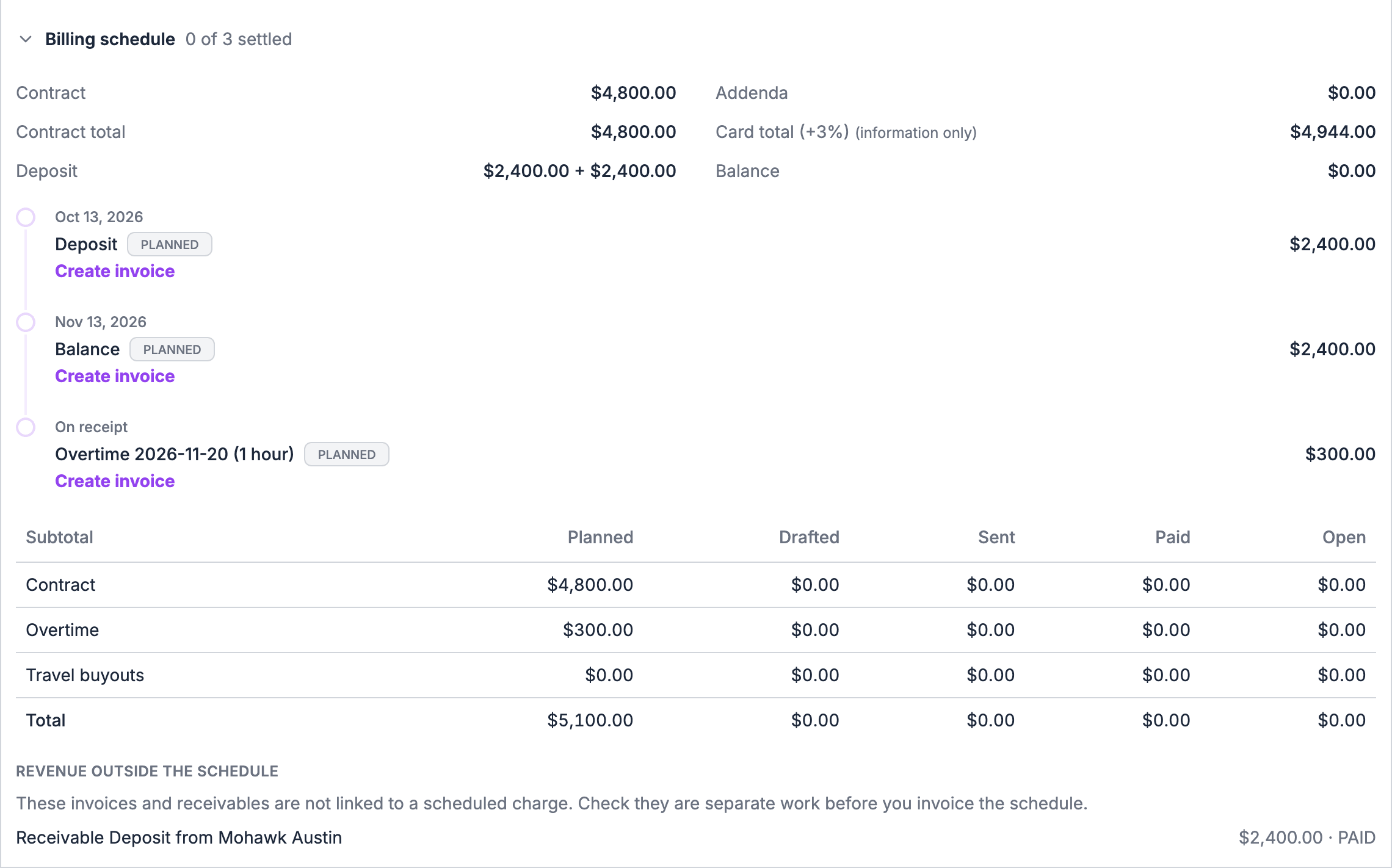
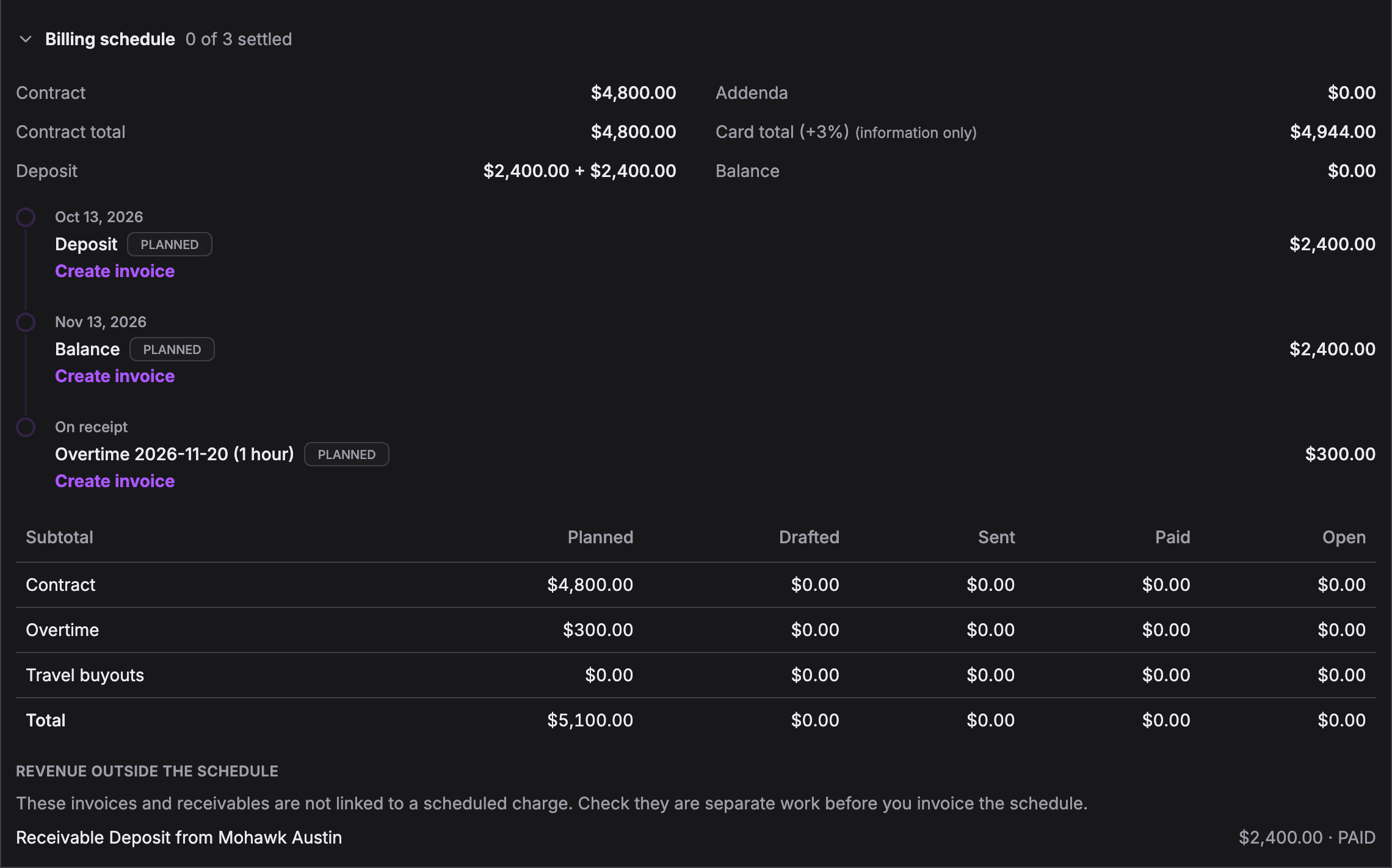
The Billing schedule shows each charge in order: its description, when it’s due, its status and its amount.
A charge links to its invoice. A charge without one offers Create invoice. Payments received on that invoice show under the charge, with the date, method and amount.
Due dates
- A dated charge shows its date.
- A charge due Days after signing reads Due after signing · waiting for signature until the client signs, then shows its date.
- A charge due on receipt reads On receipt.
Totals
Under the charges, a table adds them up for Contract, Overtime, Travel buyouts and Total, in five columns:When the schedule needs attention
Partial payments stay in Soundcheck until a line is fully paid. QuickBooks doesn’t show them before then.
Create an invoice
You can start an invoice two ways:- From a charge. Choose Create invoice on a charge in the billing schedule. The invoice opens with that charge’s lines. The balance and addenda share one invoice.
- From scratch. Choose Create invoice in the Invoices part of the Billing card.
1
Invoice details
Under Bill to, pick the client linked to the gig, or Someone else. Check the name and the client email. Add a Tax ID, a PO reference and the Invoice number. Leave the number blank to number it automatically.
2
Terms
Set the Issue date, Payment terms (Due on receipt, Net 7, Net 14, Net 30, Net 60 or Custom) and the Due date. Pick the Collection method (Bank transfer, Card, Check, Cash or Other), a Billing address, and the Income account the invoice files against. The Currency is US dollars (USD). Invoices can’t be issued in another currency today.
3
Line items
Each line has an item, Qty, Rate and Tax %, and shows its Amount. Choose Add item for another line.
4
Discount and notes
Add an Invoice discount if you give one. Write a Memo, printed on the invoice and the email. The Subtotal, Discount, Tax and Total due update as you type.
5
Save or send
Save draft keeps the invoice off the books. Send invoice emails it to the client and adds what they owe to the gig’s finances. Without a client email, the button reads Mark as sent, so you can send it yourself.
Invoice numbers and limits
- Numbering. Leave Invoice number blank and Soundcheck numbers it for you, starting at INV-1001 for your organization and counting up, skipping any number already used. A number you type can be up to 32 characters and must be unique in your organization. To match your accounting system’s sequence, type the number yourself.
- Lines. An invoice holds 1 to 100 lines. A line description can be up to 500 characters. Quantity is above 0 and up to 1,000,000, and the rate is above 0. Tax % is from 0 to 100 on each line.
- Discount. The Invoice discount is spread across the lines in proportion to their amounts. If it would bring a line to nothing, Soundcheck asks you to lower it.
- Text fields. Memo up to 4,000 characters, Billing address up to 500, PO reference and Tax ID up to 64 each, and the client name up to 200.
- Due date. The due date can’t be before the issue date.
- One line per charge. Each charge from the billing schedule can be on one line only.
What the client receives
Send invoice emails the client with the subject Invoice {number} from {organization}. The email lists the lines, subtotal, discount, tax, total or balance due and the due date, asks them to pay by the collection method you picked, and adds the issue date, PO reference, Tax ID, billing address and memo at the foot. It uses your organization’s client email branding. The email doesn’t attach a PDF and doesn’t include a payment link. Soundcheck doesn’t produce a PDF of a client invoice today. If your client needs a PDF or wants to pay online, send the synced copy from QuickBooks, or send your own and choose Mark as sent. Put bank transfer or check details in the Memo so they print on the email. Soundcheck doesn’t send overdue reminders. Watch Overdue invoices under Business → Finances and choose Email again to send a reminder yourself.The invoices list
The Invoices part lists the gig’s invoices. Sort it by Due or Total. Each invoice shows one status:
The actions menu on each row offers:
Sent invoices can’t be edited. To change one, void it and create a new one.
Void an invoice or write off the balance
1
Open the row's menu
Choose the actions menu on the invoice and pick Void invoice, or Write off balance on a part-paid invoice.
2
Read the confirmation
Voiding takes every line off the gig’s books and voids the QuickBooks invoice. Writing off takes the unpaid lines off the books, and the QuickBooks invoice keeps only what was paid.
3
Confirm
The client is not emailed. This can’t be undone.
Record what the client paid
The portal doesn’t take payment, so you record client payments yourself. Each invoice line is a row on the invoice side of the gig’s ledger.- Find the invoice row in the ledger and choose Mark received…. To record every open invoice at once, choose Mark all invoices received….
- Enter the method, amount, paid-on date and an optional note.
- Save. The charge moves to Partly paid or Paid in the billing schedule, and the payment shows under it.
Refunds and credits
Clients pay you outside Soundcheck, so refunds to clients happen outside it too. Soundcheck doesn’t issue credit notes or record a client refund. To show a refund or credit:- Nothing paid yet. Void the invoice, or write off the balance on a part-paid one, and invoice the right amount.
- Already paid. Refund the client from your bank or processor, then add a Standard expense line for the refund in the ledger so the gig’s profit and loss is right. Note the invoice number in its description.
What ticks on the close-out checklist
The billing schedule and invoices tick three close-out steps for you:- Deposit received when every deposit on the schedule is paid.
- Invoice sent when at least one invoice is sent.
- Payment received when every sent invoice is paid in full, no draft is waiting, no scheduled charge is unpaid, and the schedule has no problem to fix.
Who can invoice
Owners, Admins, Finance members and anyone assigned Finances on the gig create, send, void and write off invoices. After the gig’s last day, only Owners and Admins can. See The past-gig lock.QuickBooks
With QuickBooks connected, each invoice syncs as one QuickBooks invoice with a line for each item, and each payment is recorded against it. Voiding one line of a sent invoice updates the QuickBooks invoice. Voiding the whole invoice voids it in QuickBooks.Related
Billing terms and deals
Where the charges come from.
Gig billing report
Deposits, final payments and contracts across gigs.
Client portal
What the client sees.