

Run of show and act seat tasks need the Run of Show, which is in early access. Each source creates the gig’s checklist if it doesn’t have one yet.
Tasks from the Run of Show
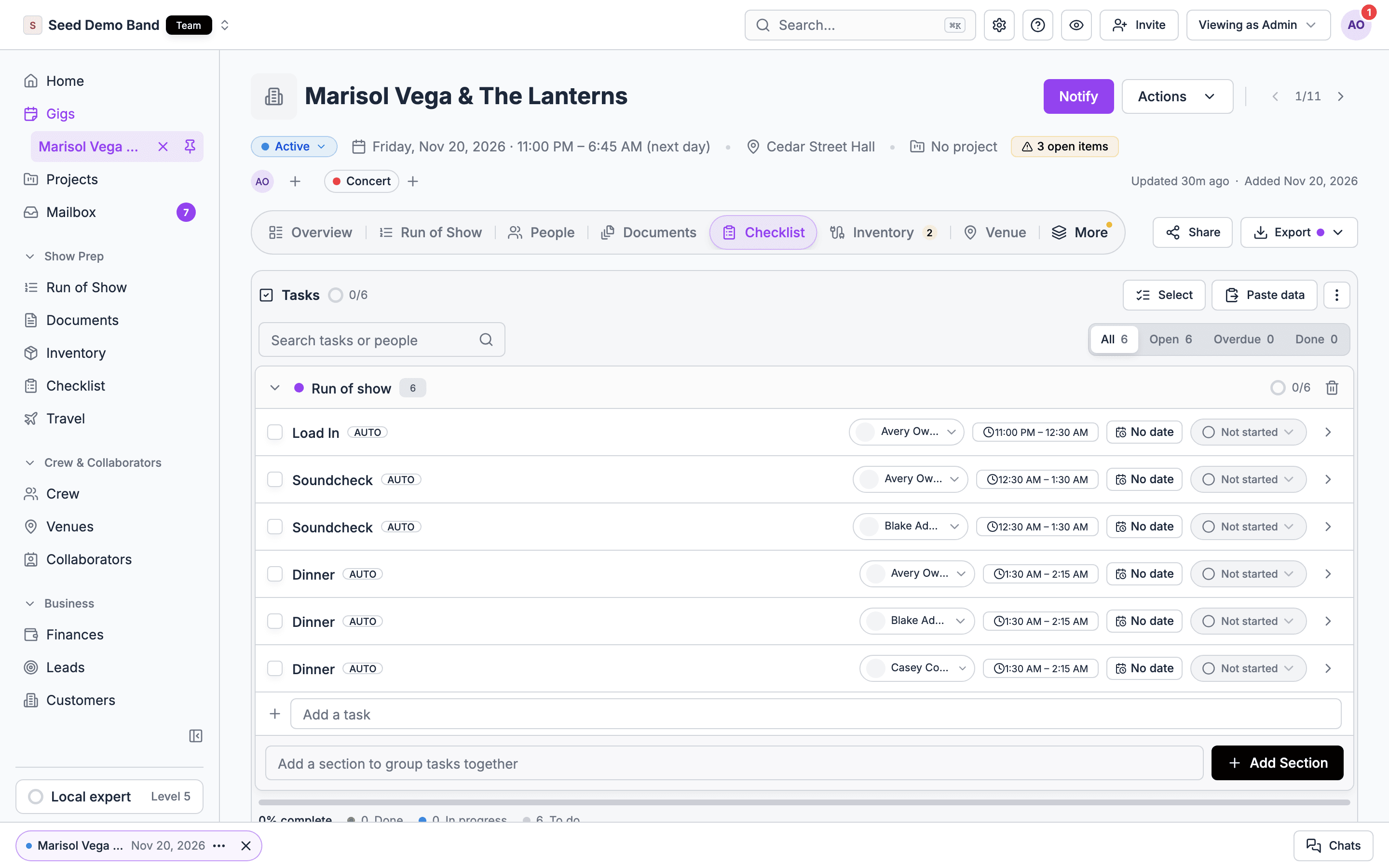
Putting someone on a run of show item gives them a task in the gig’s checklist, so the cue they’re running shows up in their task list next to everything else they owe.How it works
- Each crew member or staff member on an item gets one task, in a section called Run of show. Soundcheck creates the section, and the gig’s checklist, if they don’t exist yet.
- Crew on the item’s section’s track get a task too.
- The task is named after the item. An item with no title gives a task called Untitled cue.
- The task shows the item’s time on its row, such as 5:30 PM – 6:00 PM.
- The task follows the time crew can see: the published run of show when publishing is on, or the live schedule when it’s off. An item that isn’t in the published version yet shows as Untitled cue with no time until you publish.
When people change
See People on items in the Run of Show docs for how to put people on items.
Because a run of show assignment creates the gig’s checklist if it has none, a gig that already has run of show tasks no longer offers Use template. Add your other tasks to the existing checklist, or build them into a section of their own.
Worked example
You put Zoe and Sam on Line check, 5:30 PM to 6:00 PM, on the Production track.- The gig’s checklist gains a Run of show section with two tasks called Line check, one assigned to Zoe and one to Sam, each showing 5:30 PM – 6:00 PM and an Auto badge.
- Zoe and Sam are notified and see the task in their own task lists.
- You move Line check to 5:45 PM and publish. Both tasks now show 5:45 PM – 6:15 PM.
- You take Sam off the item before he starts. Sam’s task is removed. Zoe’s stays.
Act seat tasks
When an act plays on a gig, every seat in the act’s team needs someone in it. Soundcheck writes one task per seat, so an empty seat shows up as an unassigned task.How it works
- For each act on a run of show item crew can see, Soundcheck creates one task for each seat of each position in the act’s team. The tasks go in a section called Acts.
- The task is named for the position and the act, such as Drums · The Wedding Band. A position with several seats gets one task each, such as Vocals 1 of 2 · The Wedding Band.
- The task is timed to the act’s sets, like a run of show task.
- Each task is assigned to someone who accepted that position for the act, from crew offers, the roster or invitations, one person per seat. If you clear the assignee, Soundcheck doesn’t fill it again.
- When a seat goes away, its task is removed if nobody has started it.
- If you delete a seat task, Soundcheck doesn’t bring it back.
- Archived gigs and gig templates don’t get act seat tasks.
Worked example
The Wedding Band plays two sets at a wedding. Its team has one Drums seat and two Vocals seats.- The checklist gains an Acts section with Drums · The Wedding Band, Vocals 1 of 2 · The Wedding Band and Vocals 2 of 2 · The Wedding Band, each timed to the sets.
- Sam has accepted the Drums shift, so the Drums task goes to Sam.
- Only one singer has accepted so far, so one Vocals task is assigned and the other stays unassigned. The gap is visible on the checklist before show day.
Collaborator request tasks
When you share a gig with a collaborator in a role, Soundcheck adds the things that role usually owes you as tasks, and shares them with the collaborator.- The tasks go in the Uncategorized section.
- The collaborator sees them on their shared page and sets their status as they deliver.
- Open requests are counted as their own open item, not as overdue tasks.
Close-out tasks
After a show, the paperwork and money steps on the gig’s Closeout tab have to be finished before the gig can settle. When your organization enforces close-out and those steps are still missing a week after the show, Soundcheck writes the follow-up work into the checklist so it lands on someone’s list.When they’re created
All of these must be true:- Your organization has turned on Enforce close-out gates, and the gig is one the enforcement applies to.
- At least seven days have passed since the gig’s effective end, the later of its event date and its end date.
- One or more close-out steps that block settling are still incomplete.
- Close-out: Get contract signed
- Close-out: Confirm client quote approval
- Close-out: Collect deposit
- Close-out: Send invoice
- Close-out: Collect full payment
- Close-out: Lock the show settlement
Who they’re assigned to
Each task goes to the gig’s close-out owner:- the gig’s Finances assignee, if it has one
- otherwise its Lead
- otherwise the person who created the gig
Finishing them
Work from the step, not the task. When you tick a step on the Closeout tab, Soundcheck completes its matching close-out task for you. A signed contract that ticks Contract signed by itself completes its task too. The Closeout tab also shows a step’s close-out task next to it.Related
Works with
Every connection between the Checklist and the rest of Soundcheck.
Run of Show
The schedule that hands out timed tasks.
Post-event closeout
The steps behind close-out tasks.