

Where travel shows
Crew open the gig and look under Know before you go on Details. Travel shows there in up to five sections:
Lodging, Flights, Transportation and Travel itinerary only show when they have something in them. My travel shows for crew even when you haven’t added anything yet.
Managers see the same cards under Logistics on Details. They also get a Travel view: open the gig’s Crew group (shown as Team in some organizations) and switch from Crew to Travel. It holds the Flights, Transportation and Lodging cards with every passenger, rider and guest.
Managers also get a Travel section with Add travel, and a pencil on every flight, stay and ride. See Manage gig travel.
Each card opens a full screen with the details. A section with nothing in it says Nothing here yet.
My travel
Crew who booked their own travel add it here so their organizer sees it. Open the gig, find My travel under Know before you go, and tap Add travel. Pick Flight, Hotel or Ride to fill in the form yourself, or Upload a confirmation to have Soundcheck fill it in from your booking. See Fill travel from a confirmation.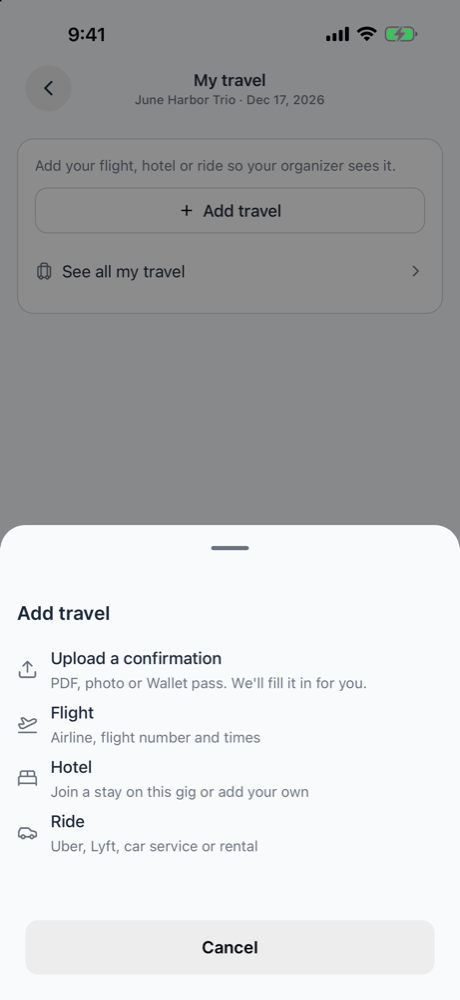
- Flight
- Hotel
- Ride
Fill in Flight number, Airline, From and To (3-letter airport codes), Departs, and optionally Arrives, Seat, Confirmation, Ticket number and Notes. The flight number and departure date and time are required. Each time has its own time zone. Departs starts in your phone’s time zone and Arrives in the gig’s. Typing a From or To airport Soundcheck knows sets that end’s zone to the airport’s. For an airport it doesn’t know, pick the gig’s time zone, your phone’s, or Other time zone before you save. Other time zone searches every zone by city, country, zone name or airport code. If the zone you picked doesn’t match the airport, Soundcheck asks you to pick the one to use. The Departs time wheel opens at the gig’s start time in that time’s zone, or at the current time when the gig has none. Arrives opens at the departure time. Changing the Departs day moves Arrives to the new day when it was empty or on the old day. Tap Add flight.
- Edit or delete your own. Tap the edit button on a flight or ride you added. Deleting asks first: it comes off the gig for you and your organizer.
- Organizer bookings are read-only. A flight or ride your organizer added shows Booked by your organizer, and you can’t edit it. A flight another crew member added is read-only too, with no label.
- Leave a hotel. On Lodging, tap Remove my booking on any stay you’re on, including one your organizer booked. You come off that stay. Anyone else on it keeps theirs.
Fill travel from a confirmation
Instead of typing a booking, upload the airline, hotel or ride confirmation you got. Under My travel, tap Add travel → Upload a confirmation, then Take photo, Choose photo or Choose file. A PDF, a photo or screenshot, or a Wallet pass works.- Soundcheck uploads the file and reads it. The sheet shows Uploading, then Reading details.
- Review what we found shows one card per booking it found for you. Bookings in the file for other people are skipped, and the sheet says how many.
- On each card, tap Add to open the Flight, Hotel or Ride form with the details filled in, or Skip. A card marked Check with a number of fields has fields to look over: those fields have a warning border and a note in the form.
- Check the form and save it. Soundcheck attaches the confirmation file to the saved booking, and the card says Added · file attached.
Travel documents
Boarding passes, e-tickets and confirmations live on the booking they belong to. Each flight, stay and ride on the Flights, Lodging and Transportation cards lists its documents, with the file name, type and size. Your documents stay yours: another crew member’s boarding pass on the same flight doesn’t show for you.- Open a document. Tap it. Photos and PDFs open in the app. A Wallet pass opens the share sheet. On iPhone, add it to Wallet from there.
- Add a document. On a flight, stay or ride you’re on, tap Add document, then Take photo, Choose photo or Choose file. You can add a PDF, a photo or a Wallet pass, up to 20 MB. If the upload drops, tap Try again or Remove.
- Delete a document. Tap the trash icon on a document you added. Soundcheck asks you to confirm first. You can’t delete documents other people added.
See all your upcoming travel
Open You → My schedule → My travel to see your upcoming flights, hotels and rides across every gig and organization in one list.- Travel is grouped by gig, then by day. The organization name shows when your travel spans more than one organization.
- Each time shows in its own time zone, such as “6:05 AM PST → 9:40 AM MST”. When the arrival is on a different day, it says so, such as (+1 day), or (−1 day) when it lands the day before.
- Flights show the airline, flight number and route. Hotels show check-in, check-out and the number of nights. Rides show the pickup time and place.
- Tap a row to open that booking’s full screen for the gig, where you can edit what you added. Tap the gig name to open the gig.
- Tap the paperclip on a row to open the booking’s documents. To add a document, use Add document on the booking in the gig. See Travel documents.
Manage gig travel
Managers can add, edit and delete every flight, stay and ride on a gig in the app. That takes the rights to edit the gig and to manage your organization’s gigs. The Travel section sums up what’s booked on the gig, such as 2 flights · 1 stay, or says No travel booked yet. Tap Add travel and pick Flight, Hotel or Ride. To change a booking, tap the pencil on its row on the Flights, Lodging or Transportation card. That works on any row, including travel crew added themselves. Flights and rides crew added show Added by and their name. Each form starts with a checklist of who’s on the booking: Passengers, Guests or Riders. It lists the people confirmed on the gig. See Who can be on travel. Someone already booked who is no longer confirmed stays on the list, checked, with Not confirmed on this gig, so you can take them off.- Flight
- Hotel
- Ride
Fill in Flight number, Airline, From and To, Departs and Arrives, Booking reference and Notes. Each end of the flight has its own time zone. The time wheels open the same way as in My travel. Tap Add flight, or Save when you edit. Seats and ticket numbers belong to each passenger and aren’t set here.
Flights and lodging
The Flights card lists each flight you’re on, with the route and times. The Lodging card lists each stay, with your own nights when they differ from the stay’s, and your room number. You only see your own passenger and guest details, never other people’s seats or confirmations.Rides
Crew see the rides they are on, the rides they added, and rides with nobody on them yet. Each ride shows its type and provider, the pickup and drop-off places and times, pickup instructions, the vehicle and the driver. Tap the driver’s phone number to call. Crew never see a ride’s cost or payer. When Hide sensitive info is on, a typed vehicle description shows as dots, but an organization vehicle’s name, such as Sprinter 1, still shows.Directions and Get a ride
- Directions. Tap a pickup or drop-off place to open it in a maps app or copy the address. On iPhone you also get Open in Maps; everyone gets Open in Google Maps and Copy address.
- Get a ride. A rideshare or taxi ride with a drop-off place has a Get a ride button. Uber opens with the drop-off filled in and pickup at your current location. Lyft opens with only the destination filled in.
- Uber and Lyft from any stop. When you tap a stop, or the venue’s Directions, the list also has Ride with Uber and Ride with Lyft. A key spot’s Directions doesn’t offer them.
Offline
The app saves gigs you are booked on for today and the next seven days, and keeps them for 48 hours after they end. Your travel on those gigs is saved too, so you can open it with no signal at the airport. Open the app while connected before you leave. Return travel doesn’t extend the 48 hours. It saves:- Flights and lodging assigned to you, with only your passenger or guest details.
- Rides you are on, rides you added, and rides with nobody on them yet. Other riders are saved by name only, and a ride’s cost and payer are not saved. A ride’s confirmation is saved only on rides you added.
- Your You → My schedule → My travel list.
- The Travel itinerary. The trip itinerary isn’t saved. Open it while connected.
- Any change. Adding, editing or deleting a flight, hotel or ride, and Remove my booking, all need a connection. The app says Editing is unavailable offline. Reconnect to make changes. Nothing is queued to send later.
Traveler details
Your traveler details live under You → Profile → Edit profile → Crew profile → Location & travel. The screen has Home base, Traveler details (Legal name, Date of birth, Preferred airport), Trusted traveler (TSA PreCheck with your Known Traveler Number (KTN), Global Entry with your Global Entry PASSID), Passport, Frequent flyer programs and Airline preferences. Tap Save location and travel. Owners and admins can fill in a member’s legal name, date of birth and preferred airport from You → Organization admin → Members. See People and crew travel.Related
Mobile app overview
Everything else in the app.
Ground transportation
Every ride field, and the web ride form.
Troubleshooting
When travel doesn’t show the way you expect.
Travel FAQ
Offline itineraries, notifications and more.
Travel glossary
The travel terms crew and tour managers use.