

When to use this page
- You’re filling shifts for a gig and want to know who’s free.
- You book freelancers who don’t have, or won’t make, an account.
- You need a call filled fast and don’t mind who takes it.
- You keep a first-call list and backups for each position or chair.
Pick from your roster
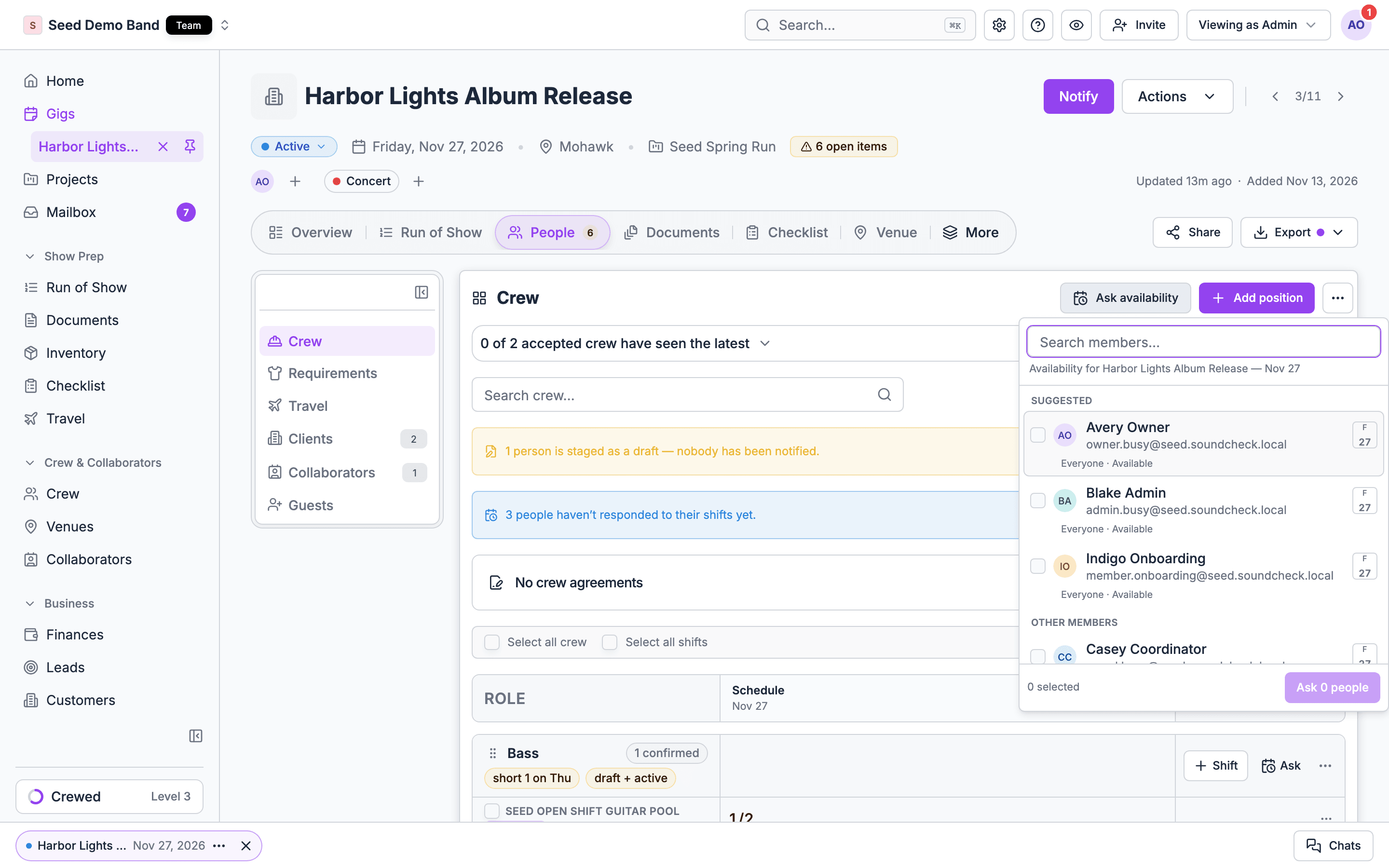
Every shift has a people picker. Open it from the shift, or choose people while you build the shift. Search with “Search members…”. People are grouped:
Each person shows what you need to decide:
- A chip for each day: Available, Unavailable, On hold or No availability info.
- Notes such as Booked (working elsewhere that day), Marked off, “On {roles}” (already on another shift here), or “From draft”.
- A conflict line such as “Also booked {dates} on “{title}"".
“Qualified” means the person has the position on their profile. Soundcheck doesn’t check certifications or licences when you pick someone. See Paperwork and compliance.
Ask who’s free first
When you don’t know who can work, ask before you offer. An availability answer doesn’t book anyone; it tells you who to offer the shift to.1
Ask from the gig
On the staffing board, choose Ask availability. Pick the people, confirm “Ask about availability?” and choose Ask N people. The gig’s days come with the request.
2
Or ask across gigs
On Crew & collaborators → Crew, open Schedule and choose Request Availability. Pick Whole day or Specific time, select the days (all within 92 days of each other), filter by position, and choose recipients.
3
Watch the answers
Crew answer Available or Unavailable for each day, in the app or with one tap from the email. Answers fill the board as Available, Asked and Unavailable chips, and the crew calendar updates.
Holds
A hold marks someone as tentatively yours for a day before you offer anything. Set it on the crew calendar: Crew → Schedule → By crew, click the person’s day, and choose Hold or Paid hold. Only people who manage the crew calendar set holds, and crew can’t remove them.
Soundcheck doesn’t rank crew holds as first hold and second hold today. To track who has first claim on a date, use Hold for your first choice and keep a note on the gig, or keep the ranking in a call list.
Conflict and double-booking warnings
Soundcheck warns you at every step, so a double-booking is a decision you make on purpose rather than a surprise.
Conflicts come from:
- Shifts the person accepted on your other gigs.
- Work they accepted with other Soundcheck organizations. You see that they’re busy, not where.
- Time they marked unavailable, and holds you set.
Call lists and first call
A call list (a team template on the Teams tab) saves the people you usually book for each position, in order: the first person is the primary, and the rest are backups. Use one per show type, or one per chair for a band.- Apply it with Start from a template or More staffing actions → Use a team. It creates draft shifts across the gig’s days with the people on them, and notifies nobody.
- Save a well-staffed gig as a new one with Save as team.
- Saved call lists need the Pro plan or higher: 5 on Pro, 25 on Team, unlimited on Enterprise.
On crew shifts, a decline doesn’t automatically offer the shift to the next backup. You choose who to ask next, or use an open shift to let your list race for it. Automatic promotion of the next backup only happens for organizations that still staff with invitations.
Freelancers without an account
You can book someone who has never used Soundcheck.1
Open the add form
In the shift’s people picker, choose Add someone without an account.
2
Enter their details
Fill in First name, Last name and Email. Phone (optional), Company (optional) and Fee (optional) are there when you need them.
3
Texts only with consent
Tick Text them at this number only if they agreed to receive texts.
4
Add and send
Choose Add to shift, then send the shift. You’ll see “Added. They have an email with a link.”
How crew get the offer
When you send, each person hears about it the way they chose. For each kind of message (offers, invitations, availability checks), a person picks push, email and text. Their own choice wins, then your organization’s default. People without an account are reached by email and text only, as above.- Push opens the offer in their Inbox.
- Email has one-tap accept and decline links. Accept submits straight away; decline asks them to confirm.
- Text reads “{org}: {title}. {details}. Tap to respond: {link} Reply YES {CODE} or NO {CODE}.” They can answer by texting back. Reply codes last 30 days.
Open shifts: first to accept
Early access. Open shifts are rolling out. Contact info@soundchecklive.io if you’d like them turned on.
1
Build the shift
In Create shift, tick Open shift — first to accept and set Spots.
2
Pick who to ask
Add more people than you have spots. Only the people you add can claim it.
3
Send
Everyone you picked gets the offer. In the app they see “Claim your days”, with Claim all days or Claim N of M days on a multi-day shift.
- The first people to accept fill the spots. Once it’s full, anyone who tries gets “all slots for this offer have been filled”.
- Everyone still waiting moves to Standby and is told: “This shift has been filled — you’re on standby. We’ll let you know if a spot opens up.” In the app they see “Filled — you’re on standby”, and full days read “Full · standby only”.
- If someone drops, a spot reopens. Everyone on standby goes back to waiting and gets “A spot opened back up on this shift — first to accept wins.”
- A filled open shift never expires. Its standby people get one notice if the deadline passes.
Standby
On crew shifts, Standby means “this open shift filled before you answered”. Standby people are offered the spot automatically if one opens. The board explains it: “on standby; offered automatically if a spot opens”. From a standby person’s day you can Send invite or Remove from shift. You can’t mark someone as standby by hand on a regular shift. To keep a backup ready, put them behind your first choice in a call list, set a Hold on their day, and offer them the shift if someone drops.Share crew with another organization
Agencies, labor providers, unions and production companies can lend their people to another Soundcheck organization.- An Owner or Admin goes to Settings → Team → Crew sharing, enters the other organization’s Public page address, and chooses Share. The share starts when the other organization accepts.
- Shared people join the other organization’s crew with your name on them, take a member seat there, and see only the gigs they accept.
- The other organization sees only the crew record fields you mark as shared.
- Ending a share removes shared people, except those already booked on a gig.
Replace someone fast
When someone drops the day before:- Open the gig’s board, or the gig from Crew → Needs, which lists every gig in the next 30 days with open seats.
- On the person’s shift, choose Swap for… and pick the replacement, or swap in someone without an account. The new person gets the same days and is notified; the old one is removed.
- For “whoever’s free”, send a new open shift to your list.
What Soundcheck doesn’t do here
- Do-not-book lists. There’s no do-not-hire flag, blocklist or favourites. Keep a private note as a crew record field that isn’t shared, and check it when you pick people.
- Automatic call-down. Soundcheck doesn’t send to one person, wait, then move to the next. Use an open shift, or send to your next choice yourself.
- Filter by home city. There’s no built-in home-base filter in the picker. Track a home city as a crew record field.
- Requests to a union hall. Sending a labor request to a hiring hall isn’t available today. See House, local and touring crew.
Who can do what
Worked example: a sub for the bass chair
Fictional example. The Velvet Hours play a Saturday wedding. Their regular bassist, Marco, has a conflict.- Their Wedding 6-piece call list has Marco first and two subs behind him. The band leader applies it with Use a team, then removes Marco from the draft Bass shift.
- The picker shows sub one, Priya, as Booked that day on another band’s gig, and sub two, Lee, as Available.
- They send the Bass shift to Lee with his usual per-day rate. Lee answers from the text with YES and his code.
- They also need a sound tech for the ceremony and don’t mind who. They send an open shift with one spot to three techs. The first to accept is booked, and the other two go to standby.
Questions this page answers
- Can I search for people who are available on a date and qualified for a position?
- Can I rank people for a position (first call, second call)?
- Can crew enter their own availability and blackout dates?
- Can I send one offer to many people and take the first who accepts?
- Can crew accept or decline from a text or email without creating an account?
- Can I hold backups on standby?
- Does the tool warn me when someone is double-booked?
- Can I add someone new on the spot without a full onboarding?
- Can I share a roster with a partner company or labor provider?
- Can crew see open positions and request them?
- How do I find a replacement fast?
- Can I keep a private “do not book” note?
Related
Offers and confirmations
What happens after you send.
Crew calendar
Availability, holds and bookings across your crew.
Call lists
Saved crews with call order.