

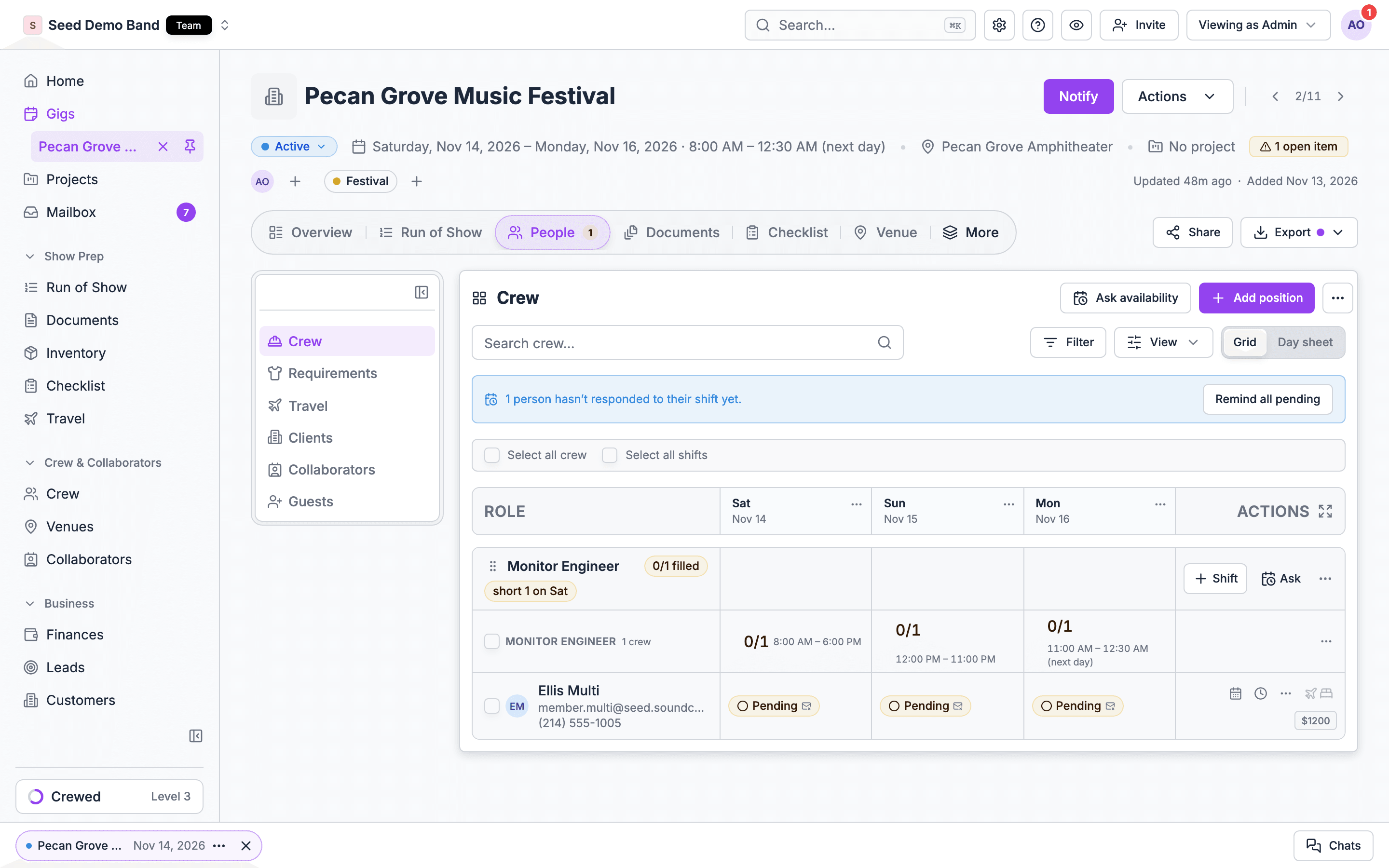
- Many days, one gig. A multi-day gig (a festival, a conference, a residency, a three-day build) gets shifts that cover any of its days. One offer books someone for the whole run, and they answer day by day.
- Many gigs, one run. A tour of separate dates is a set of gigs, grouped in a project. Each gig has its own shifts, and you copy the crew from date to date.
When to use this page
- Your event spans several days in one place.
- You’re staffing a tour, a run of shows, or a recurring residency.
- Crew need to accept some days and not others.
Many days, one gig
When a gig covers several dates, a single shift can cover any of them. In Create shift, tick the Days covered, then set each day:
In the app, crew see Choose days, with the hint “Unchecked days will be declined.”, or Accept all days / Decline all days and Confirm N of M days. On an open shift (early access) they see Claim all days or Claim N of M days.
A shift has one call window per day. For two calls on the same day, such as load-in and show, use two shifts. See Planning crew needs.
How multi-day pay adds up
- Flat, per day: each accepted day is paid at its rate. Declined days aren’t paid.
- Flat total: one amount for the shift. When the person has a day rate, their pay is capped at the day rate times the days they accepted, so a five-day flat total isn’t paid in full for two days.
- Hourly: each day pays the hourly rate times that day’s call-to-out hours, or approved time-clock hours where the time clock is on.
Changing days on a live gig
You can add or remove days after a shift is sent. Removing a day tells only the people who held it, and only about their days. See Adding or removing days on a live gig.Past midnight is one day
A strike that ends at 2:00 AM is still the show day. An out time earlier than the call time ends the next morning. Only make a gig multi-day when the work really spans separate days.Many gigs, one run: tours
A tour is a set of gigs, one per date or city. Put them in a project so you can see the whole run and its money together. Bands, DJs and agencies see the word Tour; venues see Series.1
Ask about the whole run
On Crew & collaborators → Crew → Schedule, choose Request Availability and select every tour date (within 92 days of each other), filtered to the positions you need. One request covers the run.
2
Staff the first date
On the first gig, build the shifts and put your core crew on them. Save it with More staffing actions → Save as team so the crew shape is reusable.
3
Copy to every date
Use Duplicate Gig from the gig’s Actions menu for each date. Shifts come across as drafts with the same crew, and call times move to the new date in that gig’s own time zone. Or apply your team with Use a team on gigs you’ve already created.
4
Adjust each date
Change what differs: the local call, a sub on one leg, a different rate for a fly date. Use the Crew → Schedule tab’s By gig and By crew views to see the whole run.
5
Send
Send each gig’s shifts. Each crew member gets one offer per gig and can answer each one.
Travel days, days off and dark days
- Travel day: add a shift named Travel on that day with its own rate, or leave travel days unpaid by leaving them out of the crew’s shifts.
- Day off or dark day: leave the day off the shift. On a multi-day gig, untick it in Days covered.
- A different rate on certain days: set the per-day rate on those days.
Flights, hotels and the bus
Add travel for crew on each gig. From the staffing board, open a person’s travel to book flights, hotel stays and rides. Riders on a ride, such as the bus or the truck, see the pickup, the vehicle and the driver in the app. On a tour, flights and hotels roll up to the project, and a trip can group a leg’s gigs and travel into one day-by-day itinerary. See Travel for people and crew and Projects and trips.Swapping someone mid-tour
When a crew member leaves part-way through:- On a multi-day gig: on each day they’re leaving, choose Remove from this day, then add the replacement to the shift for those days. Or choose Swap for… to replace them in one step; the new person gets the same days.
- On a tour of separate gigs: use Swap for… on the shift on each remaining gig.
What crew see
- The whole schedule. The Gigs tab in the app lists the gigs a crew member is booked on, with offers that still need an answer under Needs your reply and booked work under Up next. Each gig shows Your shift with their call, the logistics and their pay.
- Their calendar. Accepted gigs can be added to the crew member’s own calendar through Google Calendar sync or a calendar feed.
- Offline. Booked gigs are saved on the phone from 7 days before to 48 hours after, including schedule, run of show and travel, for arenas with no signal.
Time zones
Each gig keeps its own time zone, and its call times are set in it. When you duplicate a gig to a new date, its call times, flights and hotel stays move with it, each in its own time zone. Check the time zone on gigs that cross a border before you send.Share the tour crew list with each venue
Collaborators you share a gig with never see your crew. To give a venue the crew list, export it from the gig: the Crew list comes as a PDF, or as a CSV with each person’s name, position, status, call order, email and phone, and the Day sheet PDF gives one page per crew member for show day without pay. See Call times and messages.What Soundcheck doesn’t do here
- One offer for a whole tour of separate gigs. Each gig has its own shifts. Use a single multi-day gig for a residency, or duplicate a staffed gig for each date.
- Per diem. There’s no per diem rate or automatic daily allowance. Add per diem as a line on each gig’s ledger, or have crew submit expenses with receipts.
- Weekly totals for overtime. Time-clock overtime counts per shift day, not per week. To check a week’s hours, export approved hours from Timesheets and total them. See Overtime and union rules.
- Turnaround warnings. Soundcheck warns about overlapping bookings, not about short rest between an out time and the next call. Check the gap yourself on back-to-back dates.
Worked example: a twelve-date theatre tour
Fictional example. Lantern Live is taking a family show on a twelve-date spring tour with six touring crew and local hands in each city.- All twelve gigs sit in the Spring Tour project. An availability request covering every date goes to their audio, lighting and carpentry pool. Five of six regulars answer Available for every date; their L2 is out for dates 7 to 9.
- They staff the opening date: Head carp, A1, L1, L2, Wardrobe and Tour manager, each on a flat per-day shift, plus a Travel shift on the travel day before. They save it as the team Spring Tour core.
- They duplicate the opening gig for each city. On dates 7 to 9 they swap the L2 for a sub before sending.
- Each city’s house crew goes in as house labor from their Theatre local call template. See House, local and touring crew.
- Flights and hotels are added per gig. A West trip groups the first six dates, so crew see one itinerary.
- After date 5, their A1 has a family emergency. They choose Swap for… on the A1 shift on each remaining gig, and the replacement accepts from her phone.
Questions this page answers
- Can I book someone for a whole tour or run of dates in one offer?
- Can crew accept some days of a multi-day gig and decline others?
- Can crew see their whole tour schedule in one place?
- Can I track travel days, days off and show days at different rates?
- Can I add flights, hotels and ground transport to each crew member’s schedule?
- Can I pay per diem automatically?
- How do I swap a crew member out mid-tour?
- Can a gig that runs past midnight count as one day?
- Can I see each person’s total hours for a week of the tour?
- Can I staff a residency or multi-week event without rebooking each day?
- Can I share the tour crew list with each venue?
- Can I track who is on the bus or the truck?
- Does Soundcheck handle time zones on a tour?
Related
Projects
Group a run of gigs and roll up its money.
Managing a touring lineup
Subs, rotations and conflicts across a run.
Multi-day run of show
Day-by-day schedules on multi-day gigs.