

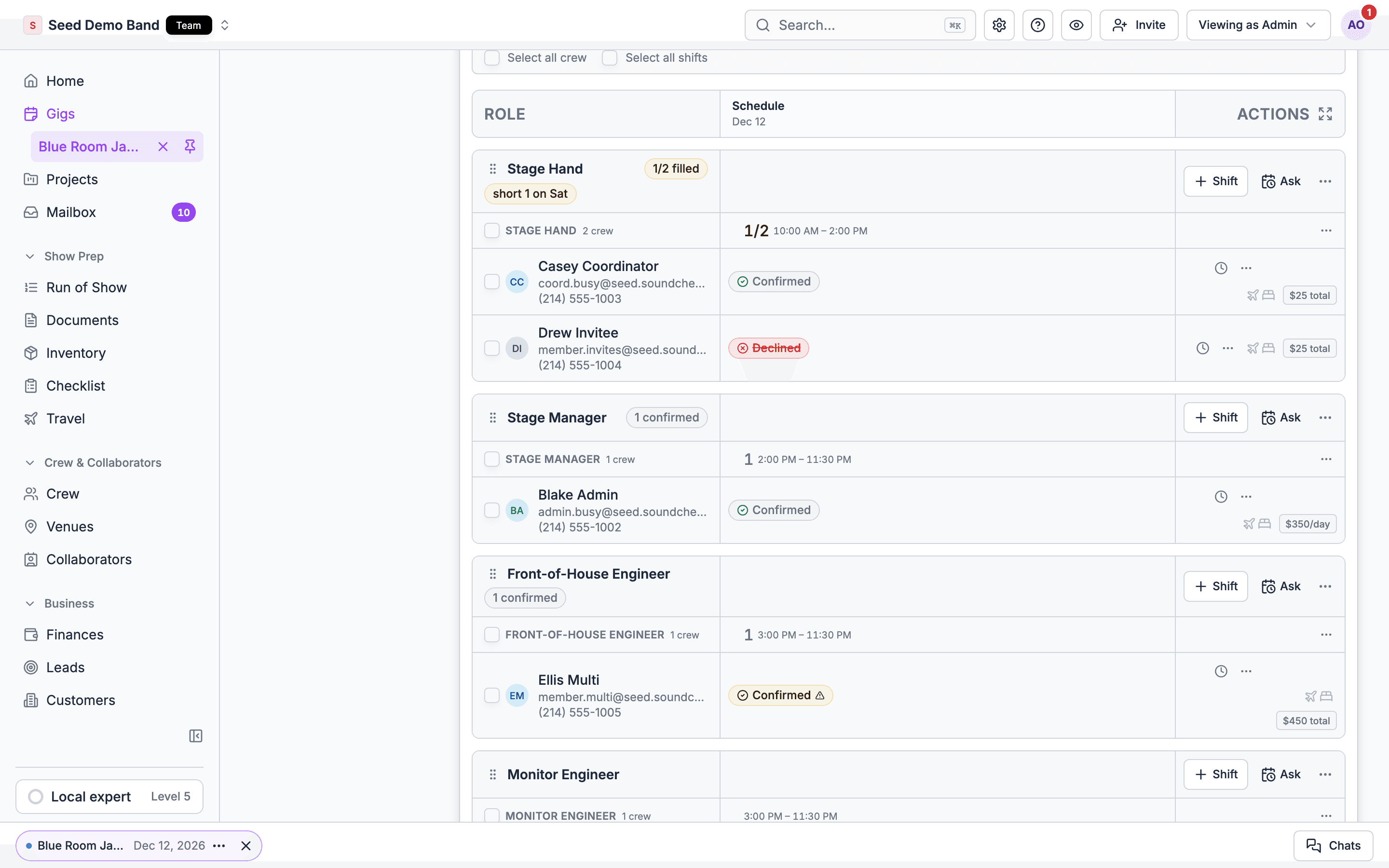
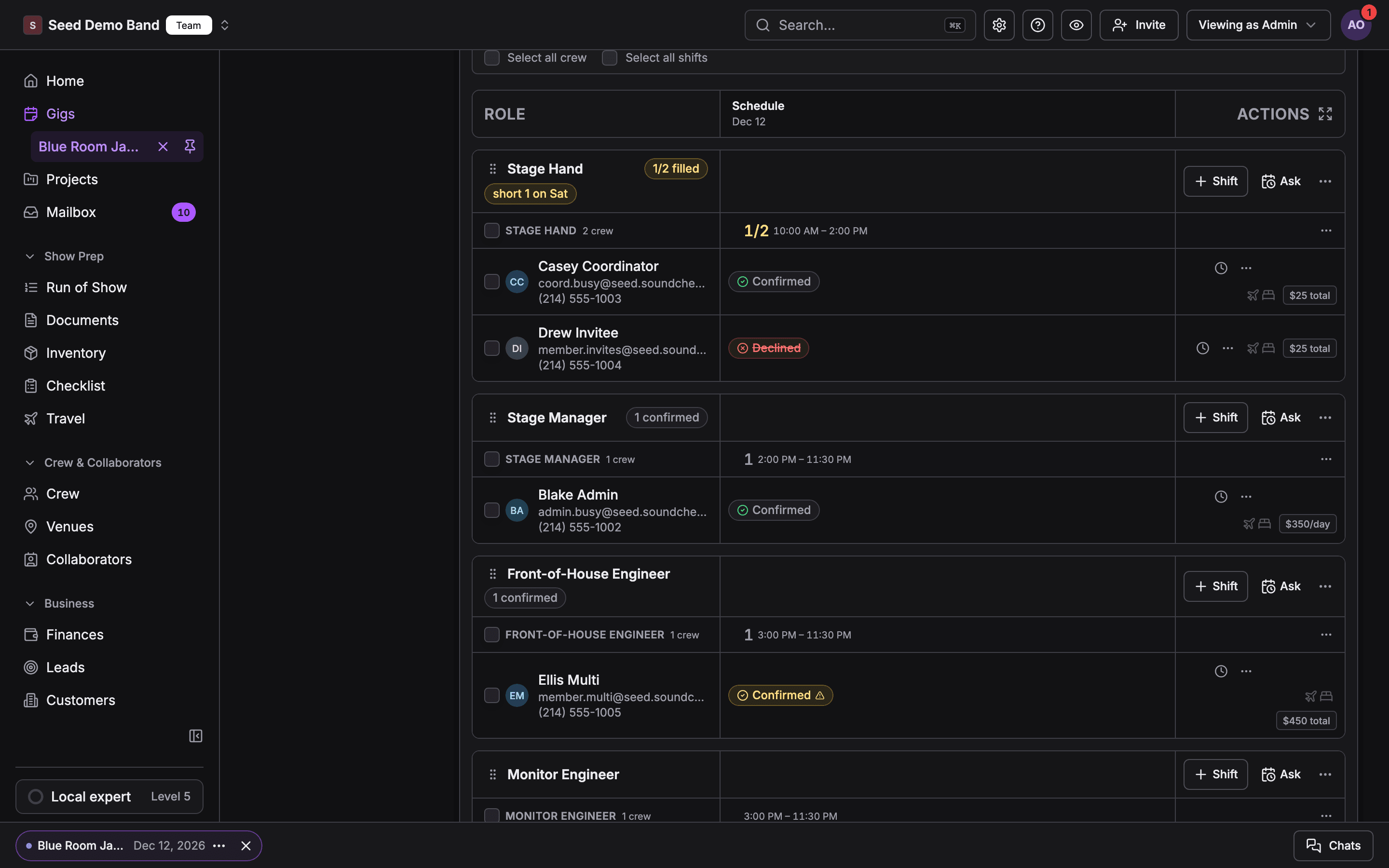
The board is for gigs staffed with crew shifts. For how shifts, offers and days behave (statuses, Need, pay locks, call-time changes), see How shifts work. For the older invitation flow, see Building teams for gigs.
Open the board
Open the gig, choose the People tab, and pick Crew in the list beside it. The address bar then ends in?tab=people&view=crew, so you can copy the link to land a teammate on the same board. Older links to the gig’s Staffing tab open here too.
You see Crew when you run the gig or can staff it, and the gig’s organization staffs with crew shifts. On a plan without the crew suite, Crew shows the plan it needs and can’t be opened.
The Overview tab also has a read-only Crew card: one row per role, grouped by department, with the confirmed people and a status such as 2/3 filled, 1 open, 2 awaiting reply, Draft or No crew yet. Choose the card’s Crew title to jump to the board.
An empty board
A gig with nothing staffed yet shows No one is staffed yet and up to three ways to start:The gig needs a date before you can add positions or shifts. Start from a template and Ask availability are for people who manage the organization’s gigs (Owner, Admin, Gig Coordinator).
The two views
The toggle on the right of the filter bar switches views:- Grid
- Day sheet
Positions down the side, the gig’s days across the top. Each cell shows the people on that position that day with their status. This is the view for building and changing shifts. On a phone-width screen the grid shows one day at a time.
Search and filters
Type in the search box to narrow the board to matching crew. The filter button narrows it further:
Active filters show as chips you can clear one at a time, and the board says how many of its crew are showing.
The view menu
The view menu holds settings that change what the board shows, not what’s on the gig:- Show pay: shows each person’s pay on their row, when you can see pay.
- Compact rows: fits more rows on screen.
- Days: tick or untick days to hide them. Hide days with no shifts hides every empty day at once.
Positions
Each position is a section on the board. Its header shows the position name, how filled it is (such as Filled — 2 of 3 spots), and Times vary by day when its days have different call times.- Reorder positions by dragging the handle, or with the arrow keys once it’s focused. The order is saved for the gig.
- More actions (⋯) on a position opens Edit shift… when it has one shift, Manage shifts… (a list of its shifts to pick from) when it has more than one, and Remove position….
- Remove position… asks you to confirm first. When it has sent shifts, the confirmation says how many sent shifts it cancels and how many crew lose their booking. Shift records are kept.
Shifts
Inside a position, each shift is its own block. The Shift actions menu on a shift has:
A draft shift also offers Edit shift and Discard draft from its block. Discarding a draft notifies nobody. A shift that was already sent can’t be discarded; cancel it instead.
Building a shift
When you add a shift or choose people for one, the shift sheet asks for:- Position: one of your organization’s positions.
- Days and call times for each day. Each day needs both a call and an out time, or neither. Copy times to all days applies one day’s times to the rest.
- Pay: a Default per-day rate or a Flat total, or hourly. When a member has their own rate for the position, their fee starts from it.
- Need: how many people each day needs. Leave it blank for no target.
- Open shift — first to accept: everyone you pick is offered the shift, the first to accept up to the number of spots are booked, and the rest go on standby. Shown where open shifts are on for your organization.
Each person’s row
Each person on a shift has a row with their status, their days, and their actions.
On a multiday shift, the row shows the days the person is on, with All days: when they’re on all of them and Not on shift for days they aren’t.
The row’s menu offers:
- Swap for…: replace this person with someone else. The replacement is added before the outgoing person comes off, so the seat is never empty partway through.
- Add someone without an account: add an outside person by name and email. See People without an account.
- Remove from shift, or Remove this day on one day of a multiday shift. The confirmation says what they lose: one day, or the whole shift.
- Agreement and form controls, so you can send that person an agreement or a form from the board.
- A travel popover with their lodging and flights. Open it to jump to the gig’s Travel group.
- Their pay, when Show pay is on and you can see pay.
Selecting days
Tick the checkbox in a cell to select that position on that day. Each day’s header menu also has Select this day, Set call times for this day… and Hide this day. With cells selected, a bar appears:
Every action that messages crew asks you to confirm first, and says who it reaches.
Drafts waiting to send
When people are staged on draft shifts, a bar above the board says so, for example 3 people are staged as drafts — nobody has been notified.- Send all opens a review of every staged draft, then sends them together.
- Discard all throws the drafts away after you confirm. Nobody is told, because nobody was told about them.
Reminders
When anyone hasn’t answered a sent shift, a bar says how many, for example 2 people haven’t responded to their shifts yet. Choose Remind all pending to nudge everyone at once, after a confirmation. To remind one shift, select its cells and use Remind N shifts. Reminders are manual. Soundcheck doesn’t nudge people who haven’t answered a shift on a schedule, so remind them yourself, or set an expiry on the shift. See Call times and messages.Who has seen the latest
Once anyone has accepted, a panel at the top of the board reads something like 3 of 5 accepted crew have seen the latest. Open it to see each accepted person as Seen, Behind or Not opened. See Who has seen the latest.More staffing actions
The More staffing actions (⋯) menu in the board’s header holds the actions that work on the whole board:
Paste data in the header turns a crew call from an email or spreadsheet into draft shifts. See Paste a crew call.
House labor
Labor call departments (local house labor, such as stagehands or riggers) show on the board under their positions. Each department’s load-in, show and load-out becomes a house labor shift with a head count and call times. House labor shifts are never sent to anyone and carry no pay. Owners, Admins and Gig Coordinators edit them. See House labor from the labor call.Locked boards
The board stops taking changes when:- The gig is Completed and Settled. Nobody can come off it until someone who manages the gig reopens it. See After a gig is settled.
- The gig is Cancelled or archived.
- You can’t staff the gig. You then see the board read-only, if you see it at all.
Related
How shifts work
Statuses, Need, pay locks, per-day answers and call-time changes.
Building teams for gigs
Invitations and crew offers end to end.
People overview
Every part of People and how it fits together.
Troubleshooting
When the board doesn’t do what you expect.