

Forms are in early access with the client portal, and rolling out to organizations now. To get them, email info@soundchecklive.io. You build them in Documents → Forms. See Portal forms for building, templates, plan limits and activating a form.
Send a form for a gig
1
Open the Forms list
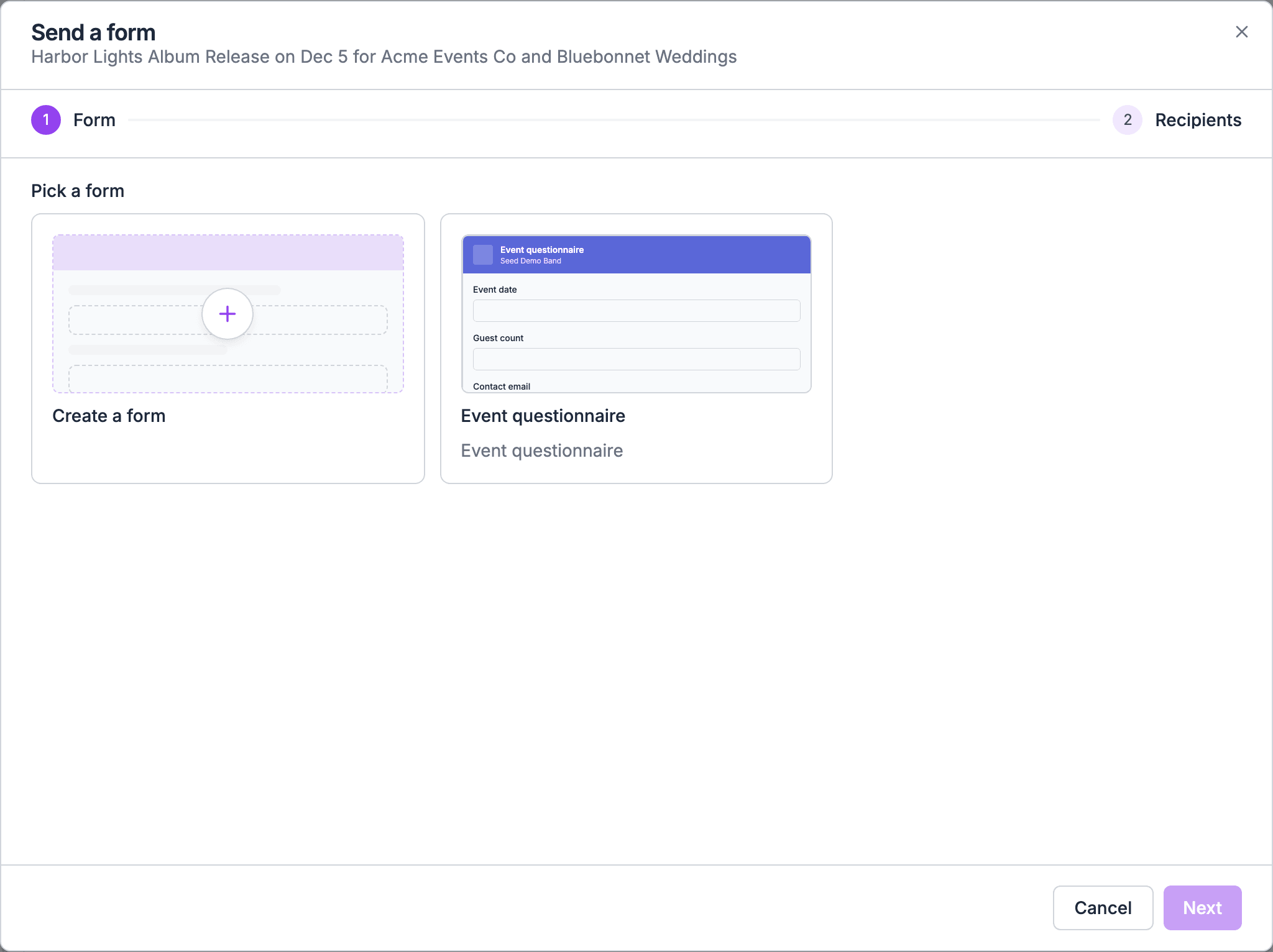
On the gig’s Documents tab, pick Forms, then choose Send.
2
Pick an activated form
Only activated forms can be sent. Create a form in the same flow offers the starter templates and a blank form. The form you activate is picked for this send. Drafts can’t be sent, so this path has no Save draft.
3
Set a deadline (optional)
Deadline sets the form’s due date. Leave the default (No deadline, or Until the gig is over) to allow changes until the gig is over. The due date is the end of that day in the gig’s time zone, and it’s also the last day the respondent can change their answers after they submit.
4
Set reminders (optional)
Under Reminders, turn on Remind before it is due and set Days before it is due (1 to 30). Turn on Remind when overdue and set Days between overdue reminders (1 to 30) and Most overdue reminders (1 to 10). Reminders need a deadline. Soundcheck checks for due reminders every hour.
5
Email the recipient
Email {name}, or Email each recipient when you send to several people, is ticked by default. Each row shows how it will arrive:
The Forms list
Forms lists every form sent for this gig, to anyone. That includes a form sent to someone not listed on the gig, and a response that reached the gig without an assignment. Each row shows the form, who it went to, whether they’re a client, contact or crew, and when something last happened. Rows still waiting sit first.Row actions
Open a row’s menu for what you can do next. The menu depends on the status.How answers can change
After submitting, the client sees Response received and can choose Edit answers.- With a deadline, they can change answers through that day.
- Without one, a form for a gig can be changed until the gig is over.
- A form sent without a gig never locks.
- Days are read in the gig’s time zone.
- Your team can always change answers with Staff fill.
Forms for crew
Forms sent to crew are listed here too, and they also show on each person’s row in the Crew group of the gig’s People tab. Crew answer through the assignment email link. On the gig’s Documents tab on the web, their own row shows Fill until they answer and View after. Forms can’t be filled in the mobile app; crew open the email link or the web.Your team is notified
When the first response comes in, Soundcheck emails “{name} submitted {title}”, with a link to the gig’s forms:- to the team member who sent the form, when they can manage the organization’s gigs;
- otherwise, such as when Finance sent it, to your organization’s email, or the owner when there’s none.
Where answers show up
- The form’s row on the Documents tab (View response).
- The person’s row in the Crew group of the People tab, for crew.
- The Form responses CSV in the gig’s export hub.
- The Music requests panel on the Run of Show tab, for forms with a Song list question.
What forms can’t do today
- Show or hide questions based on earlier answers. A question can only become required when an earlier choice is picked (Required when).
- Let the respondent upload a file, take a payment, or save a draft.
- Prefill answers from the gig or the client.
- Run as a public or embedded form on your website.
- Be edited once published. Send a new form instead.
With an AI assistant (MCP)
An AI assistant connected through MCP can list, create from a template, publish and delete forms, send a form for a gig (create_form_assignment), read and save music requests, change answers, and change Editable until. Apart from music requests, it can’t read submitted answers. It also can’t remind, remove an assignment, copy a link, or add custom questions.
Who can do what
- Send, remind, copy links, fill in, change deadlines, remove, read: people who can manage clients (Owner, Admin, Gig Coordinator, Finance, or anyone given client access). Someone who leads a gig without client access doesn’t see its forms.
- Answer: the recipient, through their portal, their link, or the Fill button on the web.
Related
Portal forms
Build forms and set up templates.
What clients see
How clients fill out a form in the portal.