

When to use it
- The show moved. Shift every due date by a day or a week.
- Someone changed roles. Hand all of their tasks to a teammate.
- A stretch of work is finished. Mark a whole section Complete.
- The plan changed. Delete the tasks that no longer apply.
Select tasks
1
Turn on selection
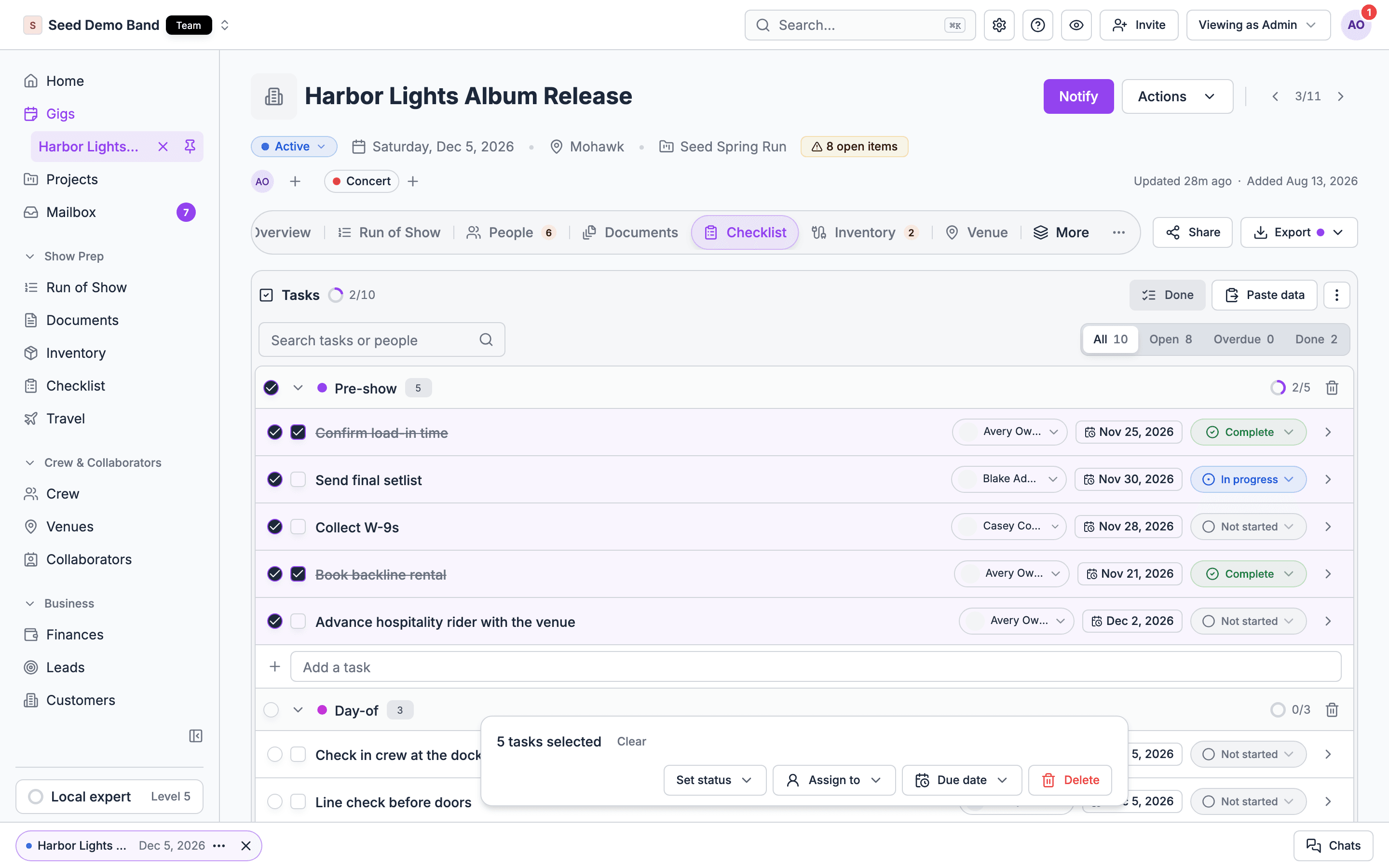
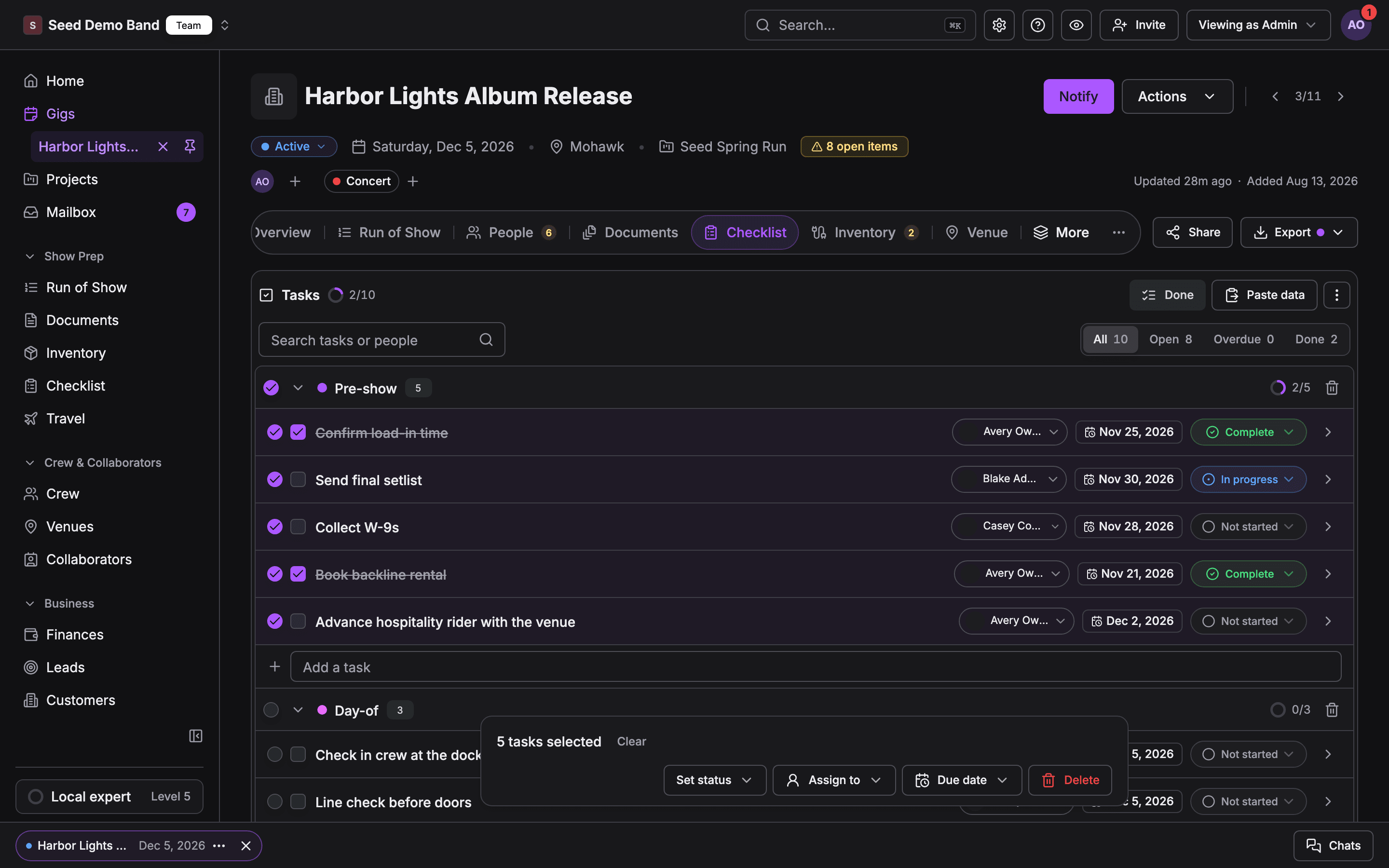
On the gig’s Checklist tab, choose Select in the header. A tick box appears on every task and on every section header.
2
Tick tasks
Tick each task you want. Tick a section’s header box to select every task in that section. Search and filters still work, so you can narrow the list first, for example to Overdue.
3
Choose an action
A bar along the bottom of the tab shows how many tasks are selected and the actions below.
4
Finish
Choose Done in the header to leave selection.
The actions
Each action applies in one step, and a message tells you how many tasks changed.
What gets skipped
- Shifting dates only moves tasks that have a due date. Tasks without one are left as they are, and the message says so. If none of the selected tasks has a due date, nothing changes.
- Tasks that already match aren’t counted. If every selected task already has that status, assignee or date, Soundcheck tells you nothing needed to change.
You can change at most 200 tasks in one step. Select fewer and run the action again for larger lists.
Bulk changes in your own task list
The mailbox Tasks tab has its own Select, limited to status: Mark complete, Reopen and Set status. It works across gigs, on the tasks assigned to you. See Your tasks.Related
Working a gig's checklist
Edit one task at a time.
Your tasks
Your own tasks across every gig.