

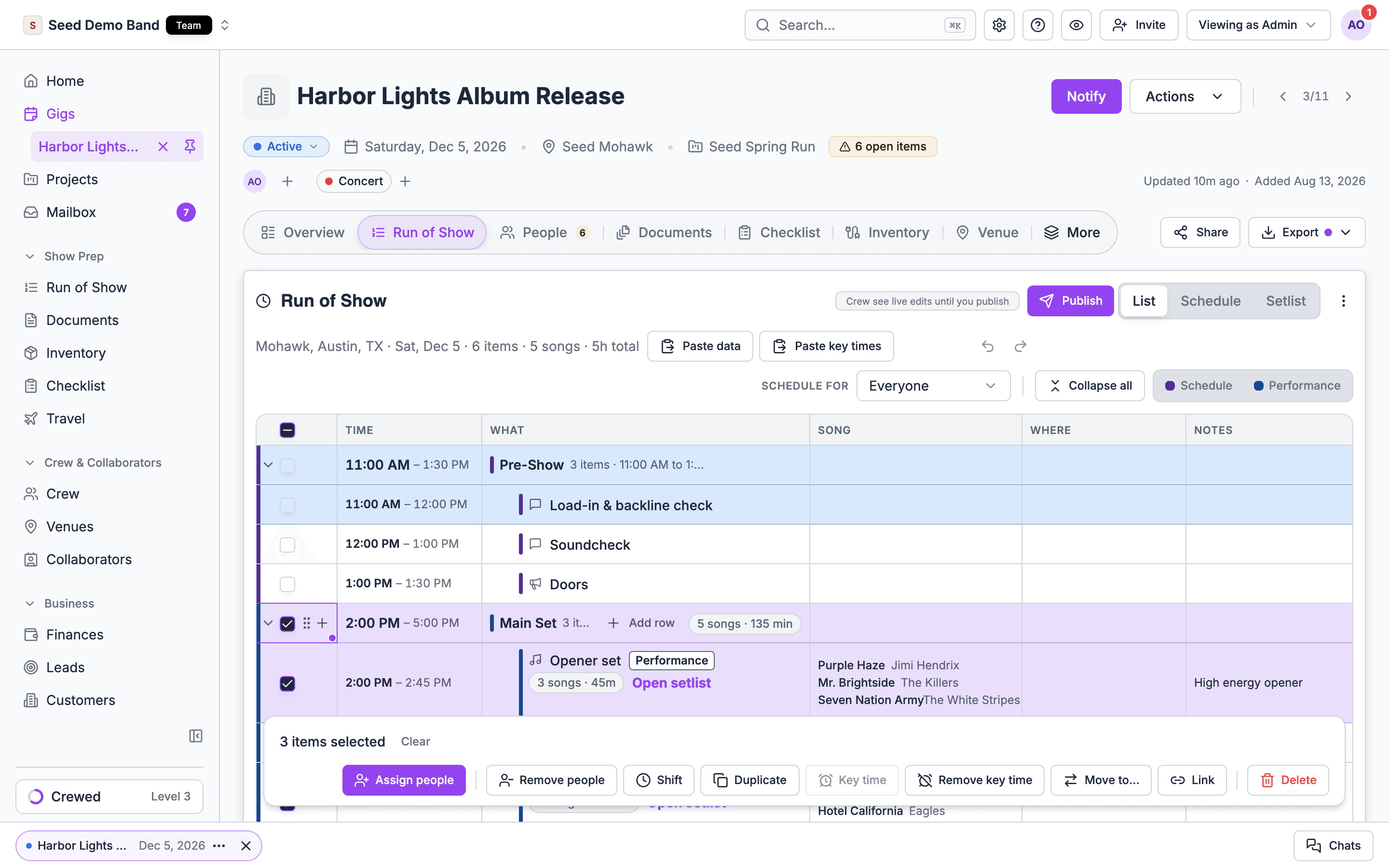
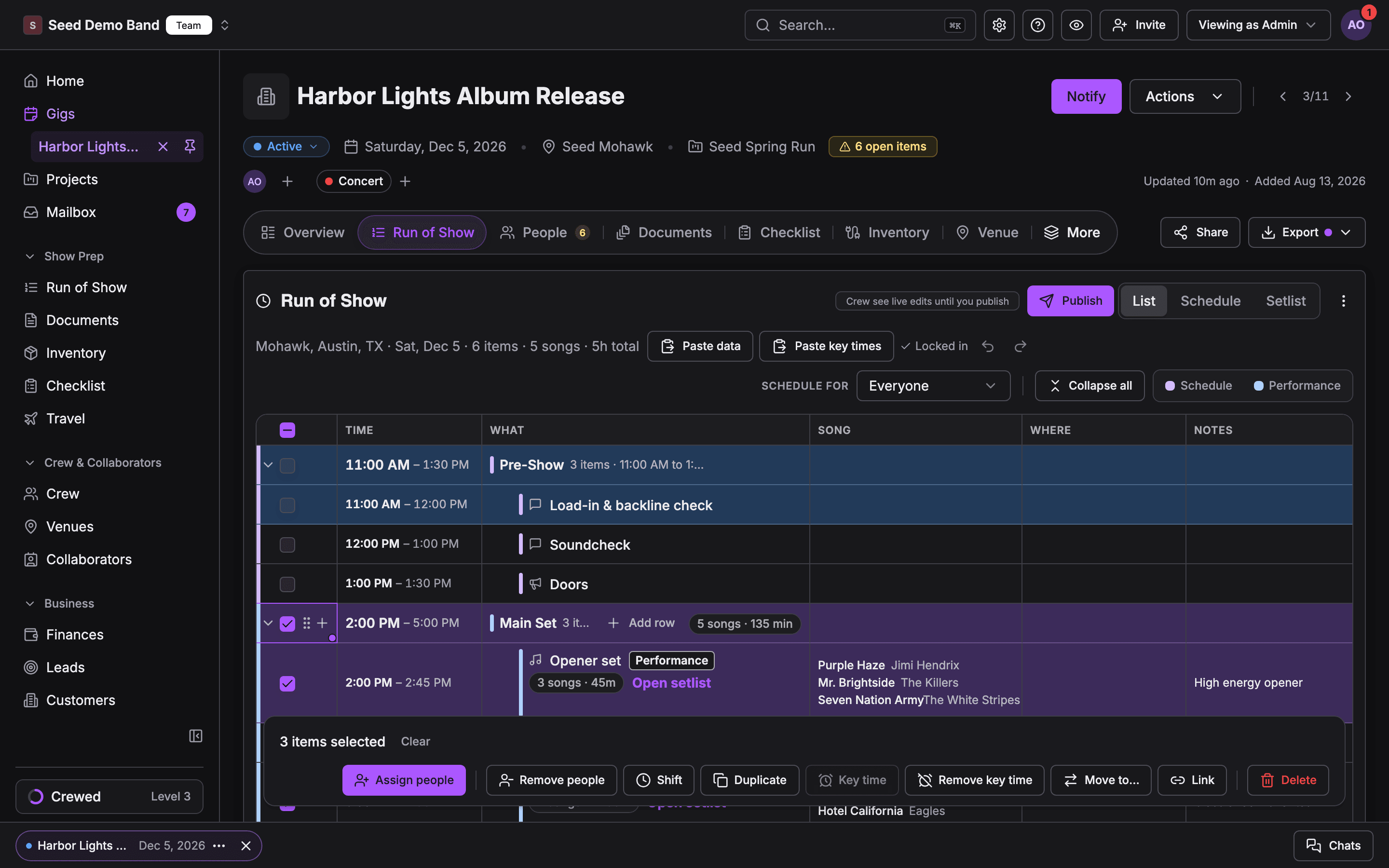
Selecting rows
- One row: tick the checkbox at the left of the row.
- A whole subsection: tick the subsection’s checkbox to select every row in it.
- A range: tick one row, then shift-click another row’s checkbox. Every row between them is selected.
- Everything: tick the checkbox in the column header to select every row.
Bulk actions work on the rows you can see. While Schedule for has a person picked, or a track card is hidden, you can still tick the rows that are showing and use the bar on them, even though cell editing is paused. See Views and filters.
The actions
Shift
Moves the selected rows’ start times earlier or later.- Choose Shift.
- Pick a preset: −60, −30, −15, −5, +5, +15, +30 or +60 minutes. Or type any number of minutes in the custom field, such as
-45, and choose Apply.
- Rows without a start time are skipped. If none of the selected rows has a start time, the bar says None of the selected items has a start time.
- Only the selected rows move. To move a row and everything after it instead, use Shift this and later in the row’s ⋯ menu. See Linking cues and timing.
- A row that’s linked to others moves its whole chain.
Duplicate
Copies the selected rows. The copies keep each row’s details, people and songs. Use it to repeat a block, such as a changeover routine that happens between every act. A linked row duplicates its whole chain.Key time
Makes the selected row one of the gig’s key times, such as Doors or Show.- It works on one row at a time, so it’s turned off while two or more rows are selected. The bar says Pick one item to make it a key time.
- Another row on the same day and track that had that key time loses it, because a key time names one moment.
Remove key time
Clears the key time from every selected row that has one. The button appears when at least one selected row is a key time. Use it to clean up a run of show copied from an old gig, where the key times no longer fit.Move to…
Moves the selected rows into another subsection. Pick the subsection from the list. The rows go to the end of it, in the order they were in. When to use it: you built Cocktail Hour and Dinner as one long subsection and want to split them. Add a Dinner subsection, tick the dinner rows, choose Move to… and pick Dinner. A linked row moves its whole chain. A row moved out of its chain breaks the links on both sides. See Chains.Link
Links rows that sit next to each other so they move as a block. Choose Link, then:- Group: the rows move together but keep their own times and the gaps between them.
- Segue chain: each row starts when the one before it ends.
Ungroup
Removes every link on the selected rows.Assign people
Adds the same people to every selected row.- Choose Assign people.
- Pick people from the same groups as a row’s own picker: Crew, Staff, Collaborators, Clients and Guests.
- Choose Assign to N items.
- Nobody already on a row is removed or added twice.
- A row whose track crew already includes someone is skipped for that person, since they’re already on it through the track.
- If everyone you picked is already on every selected row, the bar says Everyone you picked is already on the selected items.
- Crew and staff get a checklist task for each row they’re added to. See People and assignments.
Remove people
Takes people off the selected rows.- Choose Remove people. It appears when a selected row has people of its own.
- Pick from the people on the selected rows.
- Choose Remove from N items.
Delete
Removes the selected rows, after you confirm. Deleting a row breaks the links on both sides of it, and the row after it keeps its time. You can bring them back with Undo.Picks apply only when you confirm
In Assign people and Remove people, your picks apply only when you choose the Assign to N items or Remove from N items button. Closing the popup drops the picks and keeps your selection, so you can start again without re-ticking the rows.Tips
- Tick a subsection to grab all of it. That’s the fastest way to shift, move or staff a whole stretch of the night.
- Shift-click for long runs. Tick the first row, then shift-click the last.
- Try it, then undo. Each bulk change is one step, so Undo reverses the whole thing.
- Linked rows travel together. Shift, Move to… and Duplicate apply to the whole chain of any row you select, in every view. Unlink first if you only want one row.