

Where to find it
- Your organization’s list: on the web, open Settings → Labels → Gigs → Key times. See Your key time list and colors.
- On a gig: on the web, choose Key times in the ⋮ menu of the gig’s Run of Show tab, or in the Schedule toolbar next to Undo and Redo. See Setting key times on a gig.
- On a run of show item: hover the item’s title in the List view and choose Key, or pick from Key time in the item’s details. See Key times from run of show items.
- In the mobile app: the gig brief lists the key times for the selected day. See Key times in the mobile app.
The building blocks
How it fits together
Your first key times, step by step
1
Check your key time list
Open Settings → Labels → Gigs → Key times. The ten built-in key times are already there. Rename one or change its color with its edit button, or choose Add key time to add your own, such as a walk-in time. Owners and admins manage the list. See Your key time list and colors.
2
Open a gig's run of show
Open a gig and choose the Run of Show tab, then the List view.
3
Mark an item as a key time
Hover the Doors row and choose Key beside its title, then pick Doors. The row takes the Doors color, and the gig’s Doors time now follows that row. See Key times from run of show items.
4
Link a section to a key time
Open a section’s Details… panel and pick a key time from Key time. The section starts at that key time and takes a color close to it. See Colors and sections.
5
Review every key time at once
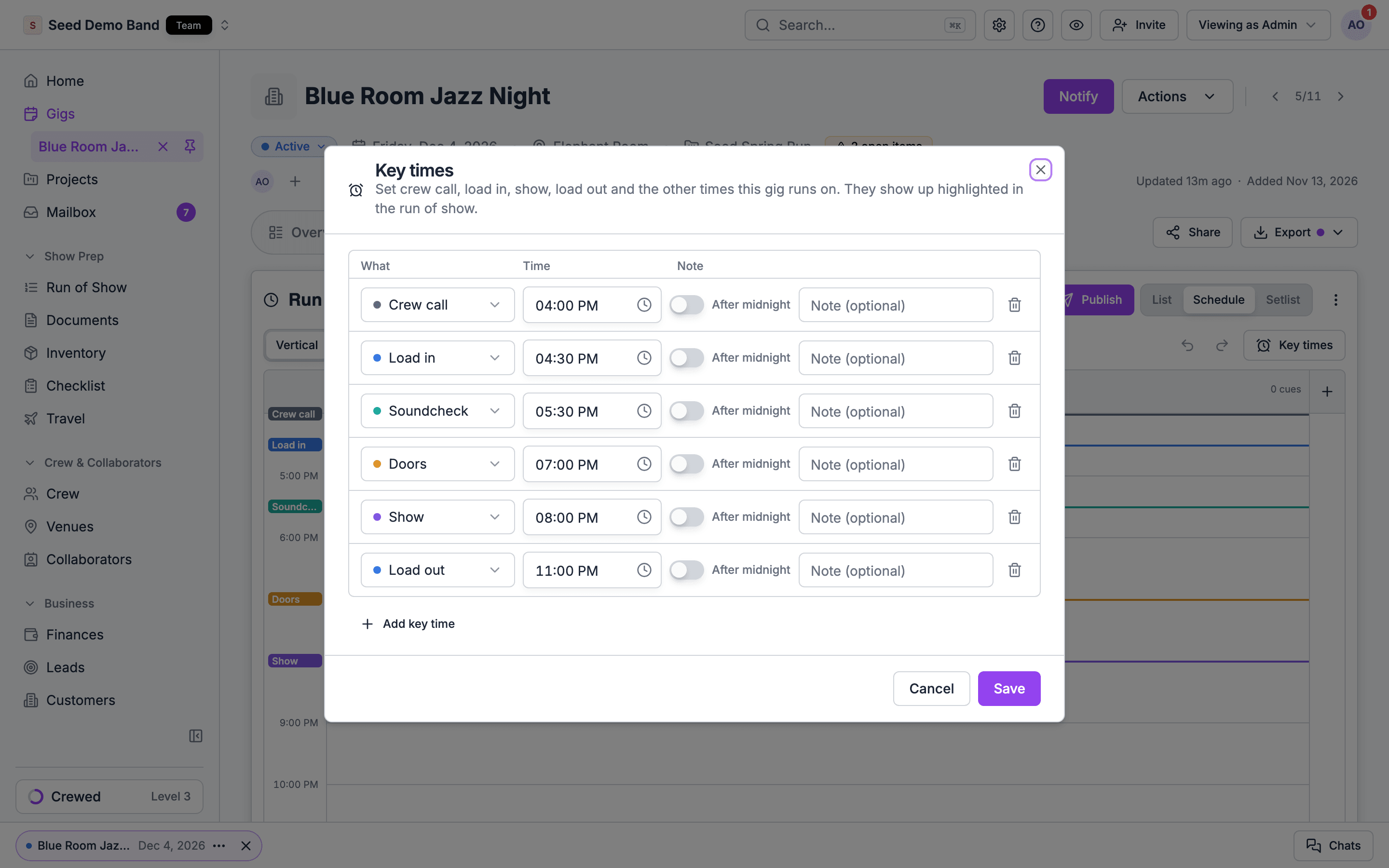
Choose Key times in the Schedule toolbar. The key times editor lists every key time on the gig. Change a time there and the item behind it moves. See Setting key times on a gig.
6
Check what everyone else sees
Crew see the key times at the top of the gig brief in the mobile app. Guests on the live page see doors, ceremony, show, set time and curfew. See Where key times show.
Works with
Key times are made in the Run of Show and read across Soundcheck. This is how they connect to the other parts of a gig.Pick the right page
Your key time list and colors
The built-in key times, colors, featured key times by organization type, adding, renaming and archiving.
Setting key times on a gig
The key times editor, days and after midnight, notes, copying and moving gigs, and agents.
Key times from run of show items
Mark an item as a key time, which item counts, tracks, and how each view shows key times.
Colors and sections
How key time rows and sections get their colors, and sections that follow a key time.
Times that fill in on their own
Flex quotes, the labor call, event page links, imports, documents and pasted call sheets.
Where key times show
The gig, the crew brief, the live page, guest pages and the client portal, and who sees which.
Mobile
Key times in the gig brief and the run of show on a phone.
Troubleshooting
Answers when a key time, a color or a sync doesn’t look right.
Who can do what
- Read: everyone on the gig can see its key times.
- Mark items as key times: anyone who can edit the gig’s run of show. See Roles and permissions.
- Use the key times editor: gig managers.
- Manage the organization’s list: owners and admins. People who manage gigs can open Key times in settings to read it.
Quick reference
The sections below summarize each part of key times. They link to the page with the full detail.The kinds
Every organization starts with ten key times: crew call, load in, rehearsal, soundcheck, doors, ceremony, show, set time, curfew and load out. Load in defaults to the first day of a multi-day gig, load out to the last day, and the rest to every day. See The built-in key times.Your organization’s key times
Your organization keeps its own list of key times, each with a color, under Settings → Labels → Gigs → Key times. Rename them, recolor them, archive the ones you don’t use and add your own. See Your key time list and colors.What your business sees first
Your organization type decides which key times the gig page suggests and highlights. See Featured key times.Setting key times
Choose Key times in the ⋮ menu of the Run of Show tab, or in the Schedule toolbar, to open the key times editor. Saving replaces the gig’s whole set. See Setting key times on a gig.Key times from run of show items
When a gig has a run of show, its key times come from named items. Pick a key time from an item’s Key time field and that item’s start is the gig’s key time. See Key times from run of show items.Times that fill in on their own
Flex quotes, the labor call, event page links and imports can set key times for you. A sync never changes a key time a person set. See Times that fill in on their own.Run of show sections that follow a key time
A section linked to a key time starts at that key time and moves with it. See Sections that follow a key time.Copying a gig
Duplicating a gig copies its key times and each section’s link to a key time. See Copying a gig.Moving a gig
Key times stay on the same day of the run when you move a gig. See Moving a gig.For agents
Theget_event_key_times MCP tool reads a gig’s key times, and set_event_key_times replaces the whole set. The API is GET and PUT /api/v1/events/{event_id}/key-times. See For agents.
Related
Run of Show
The schedule key times come from.
Live page
The public page that shows guest-facing key times.
Importing a schedule
Paste key times from a call sheet.