

Where to find it
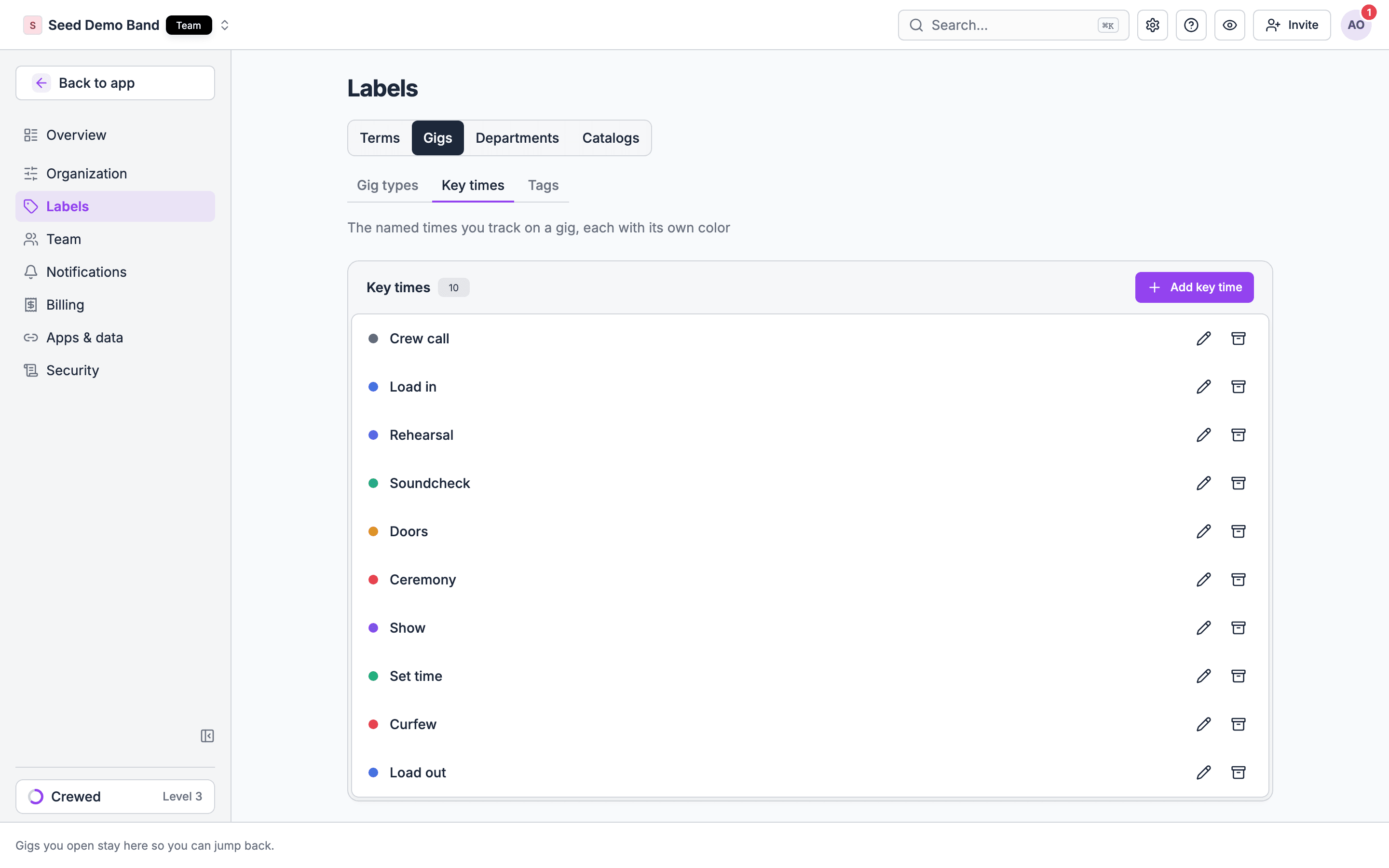
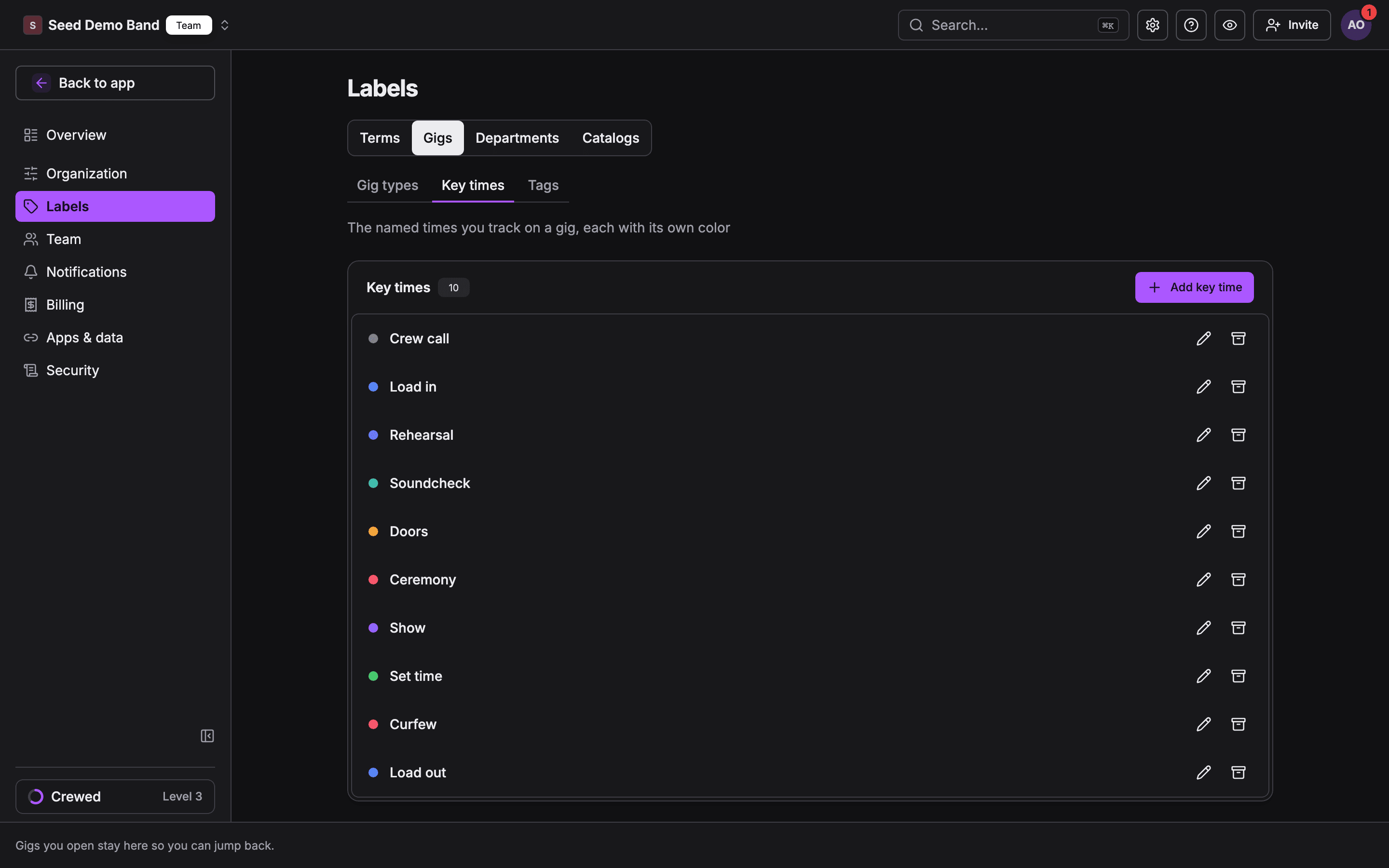
On the web, open Settings → Labels → Gigs → Key times. The page describes key times as the named times you track on a gig, each with its own color.- Owners and admins manage the list.
- People who manage gigs can open Key times to read it.
The built-in key times
The list starts with ten key times. Each has a default day on a multi-day gig and a default color.
Guests can see it decides whether the key time appears on the live page, guest pages and the client portal. See Where key times show.
Changing the list
1
Open the list
Open Settings → Labels → Gigs → Key times.
2
Rename or recolor a key time
Choose the key time’s edit button. Change its name or its color, and save. Every gig shows the new name, and every run of show picks up the new color.
3
Add your own key time
Choose Add key time, name it, such as Walk-in, and pick a color.
4
Archive a key time you don't use
Choose the key time’s archive button. Soundcheck tells you where it’s used before you confirm.
What archiving does
- Gigs and run of show sections that already use the key time keep it.
- Nobody can pick it for anything new. It’s no longer suggested.
- Turn on Show archived to see archived key times. Restore brings one back.
Your own key times
A key time you add works like a built-in one in the run of show and the key times editor. Two things differ:- It applies to every day of a multi-day gig.
- Guests don’t see it. Your own key times never appear on the live page, guest pages or the client portal.
Colors
Key times own colors in the run of show. A key time row takes its key time’s color across the whole row, and a section linked to a key time takes the run of show color closest to it. See Colors and sections. The run of show uses an eight-color palette: violet, blue, teal, green, amber, rose, indigo and slate. Pick a key time color from that palette so its rows are tinted. A color that doesn’t match a palette color leaves its rows with the default tint.Featured key times
Every key time is available to every organization. Your organization type decides which ones the gig page suggests and highlights first.
Featured key times show up in three places:
- The key times editor’s subheading names them, and its buttons add the featured key times the gig doesn’t have yet.
- The crew’s gig brief in the mobile app shows them in bold.
Related
Key times
Start here.
Setting key times on a gig
Use the list on a gig.
Organization setup
Where Labels sits in settings.