

Early access. Imports and exports are rolling out. If you don’t see Settings → Apps & data → Import & export, contact info@soundchecklive.io. On the Team plan and above, Soundcheck’s team also helps with onboarding and migration.
What moves, and how
Imports never message anyone. Your crew hear nothing until you invite them or send a shift.
Before you start: a migration checklist
1
Pick a cut-over date
Choose the first gig you’ll staff in Soundcheck. Keep staffing earlier gigs in your old tool.
2
Set up positions
Write down every position you staff, with the short code your crew use (A1, A2, V1, L1, ST for stagehand) and your usual day rate. Import creates positions it doesn’t recognise, or you can add them first under Positions in settings. See Positions.
3
Set up crew record fields
Create the fields you track, such as W-9 on file, OSHA 10 card or Forklift certified, and turn on Expires for anything that expires. Import fills values into fields that exist. It doesn’t create fields.
4
Export your roster
Export the crew list from your old tool. Make sure every row has an email address.
5
Import the roster
Import crew first, then venues and clients, then gigs. Check the counts on the review step before you commit.
6
Check people and rates
Open a few member profiles and check their positions, day rates and hourly rates under Org Positions.
7
Check your seats
Every crew member who joins uses a member seat. A 150-person roster needs the Team plan’s 100 seats raised, or Enterprise. See Plans and pricing.
8
Invite your crew
Open the roster and invite people when you’re ready. Imported crew show as pending until they accept.
9
Staff one real gig
Build the shifts for your cut-over gig, send them, and watch the replies come in. Then move the rest.
Coming from LASSO
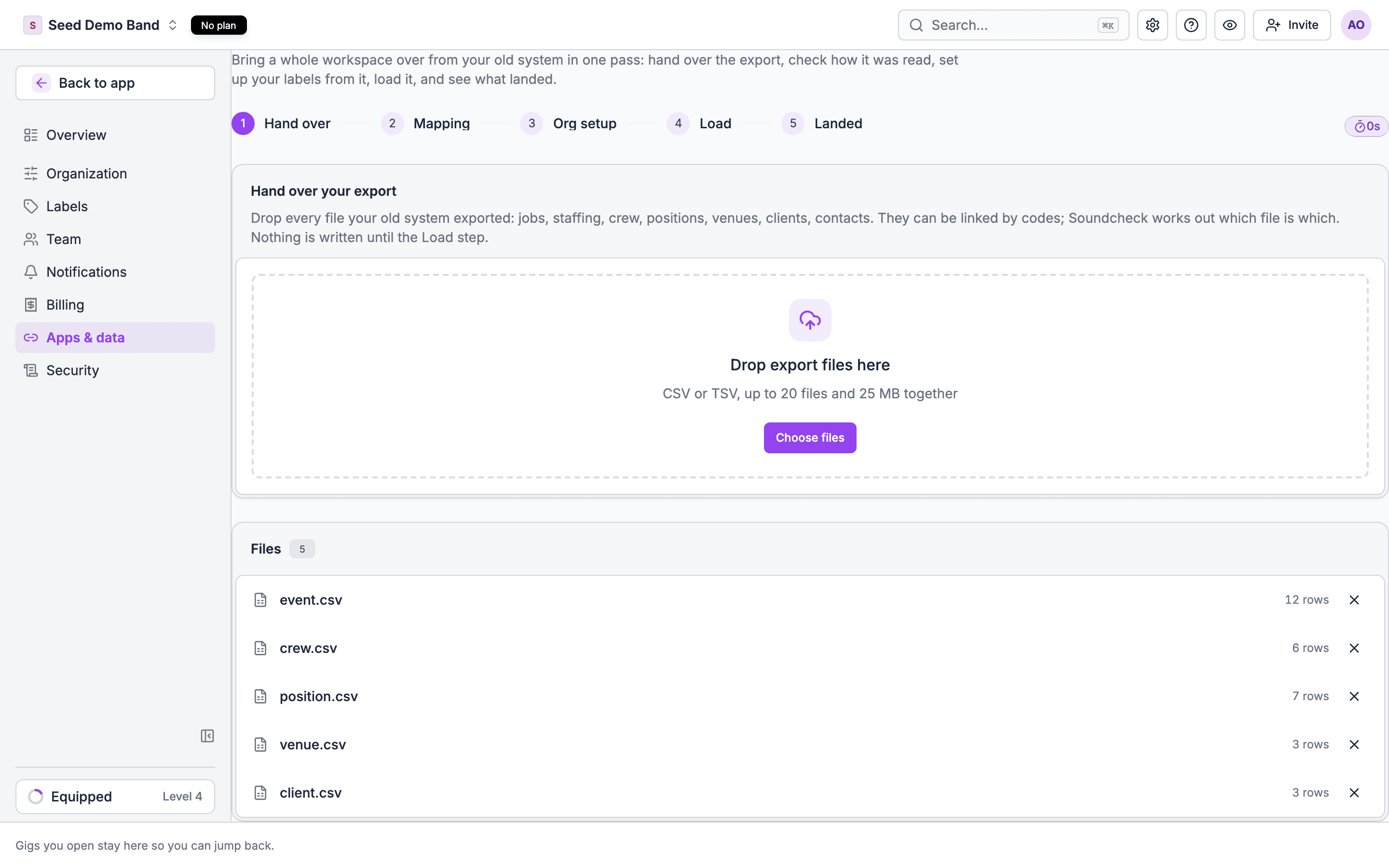
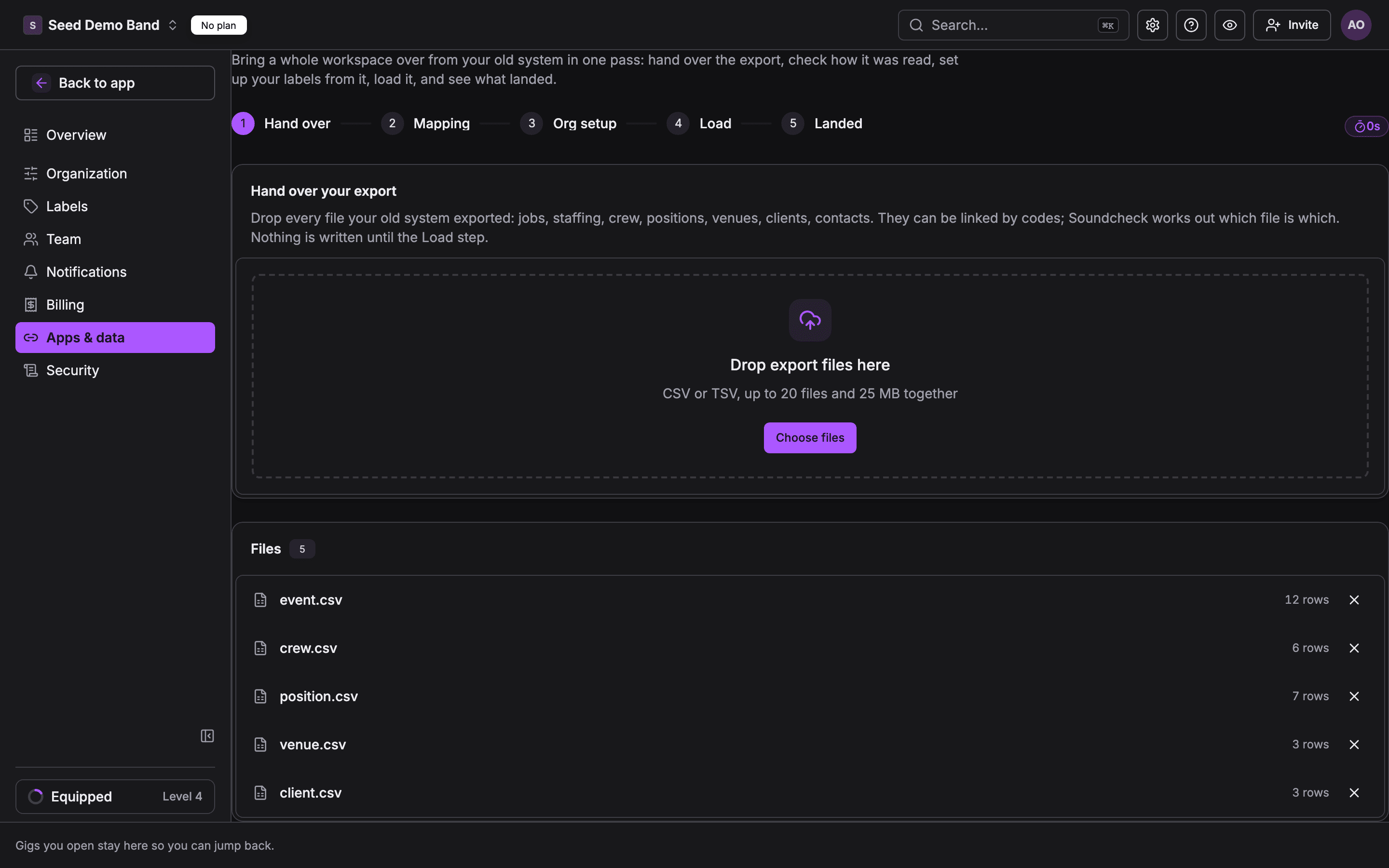
LASSO’s Export Data page gives you separate files for crew, positions, events, venues, clients, contacts and addresses. Soundcheck reads them together.- In LASSO, download every export file.
- In Soundcheck, open Settings → Apps & data → Import & export and choose Migrate from another system.
- Drop all the files at once. Walk through Hand over, Mapping, Org setup, Load and Landed.
- On Org setup, accept, rename or skip each position, gig type and status LASSO used.
Coming from Flex
Many teams keep Flex for rental quotes and warehouse work, and move crew scheduling to Soundcheck.- Your roster comes from a spreadsheet. Soundcheck doesn’t import a crew roster from Flex.
- Flex quotes can be imported as gigs. Staffing lines on the quote become shifts for those positions, with nobody on them yet. You pick the people in Soundcheck.
- Flex labor purchase orders aren’t pulled into Soundcheck.
- Contacts, venues and inventory come across by file.
Coming from spreadsheets
One sheet per list works best. For the roster, use one row per person with these columns:
Drop the file on Settings → Apps & data → Import & export, choose Crew, and map each column. If a column has nowhere to go, the review step lists it. Set any rates that didn’t map on each member’s profile under Org Positions.
For a whole season, see Importing your season.
Coming from Crew Call, Shiftboard and others
Soundcheck has no direct importer for Crew Call, Shiftboard, Rentman, Current RMS or other scheduling tools. Export your roster and gig list to CSV from your current tool, then follow the spreadsheet steps above. For a tool that exports several linked files, try Migrate from another system, which reads linked files together. Other guides: Coming from another system, Master Tour, Back On Stage, Planning Center.Running both tools while you switch
You can. Nothing in Soundcheck talks to your old tool, so nothing double-sends.- Staff gigs before your cut-over date in the old tool, and new gigs in Soundcheck.
- Don’t send the same gig from both. Crew who get two offers for one call get confused fast.
- Soundcheck warns when someone is already booked that day, but only for bookings it knows about. Bookings in your old tool don’t show.
How your old concepts map
What has no equivalent
Be ready for these before you switch. Each links to the page with the workaround.Getting your data out again
On the Team plan and above, Download workspace under Settings → Apps & data → Import & export gives you your roster, venues, clients, songs, gigs and leads as an import file plus CSVs. See Workspace export. Over MCP and the API (Enterprise), you can read the same data with your own tools.Worked example: a regional AV company leaves spreadsheets and Crew Call
A 60-person AV company booked crew from a Google Sheet and confirmed by text through Crew Call.- The operations manager listed 9 positions (A1, A2, V1, V2, L1, L2, Rigger, Stagehand, Driver) with codes and day rates, and added them under Positions.
- She created crew record fields W-9 on file, OSHA 10 card (expires) and Forklift certified (expires).
- She exported the roster from the sheet, filled in two missing emails, and imported it as Crew. Soundcheck matched every position.
- She invited all 60 people. Most accepted in the mobile app within a week.
- She staffed the first January conference in Soundcheck and finished December’s gigs in Crew Call.
- By February, everything was in Soundcheck. The Team plan’s 100 member seats covered her roster.
Questions this page answers
- Can I import my crew roster, with positions, rates and contact details? (FAQ)
- Can I import past gigs and crew history, or upcoming gigs with crew booked?
- How long does setup take before I can send my first offer?
- Do my crew have to download a new app?
- Can I run Soundcheck alongside my old tool?
- Can I bring over certifications and expiry dates?
- Will you help me move from LASSO, Flex, Rentman, Current RMS or a spreadsheet?
- Can I export all my data if I leave?
- Does it connect to my rental software, calendar, payroll and accounting? Is there an API?
Related
Coming from another system
Export steps and column maps for each source.
Import your data
The import wizard, review step and undo.
Plans and pricing
Seats, crew staffing and trials.
Staffing overview
How staffing works in Soundcheck.