

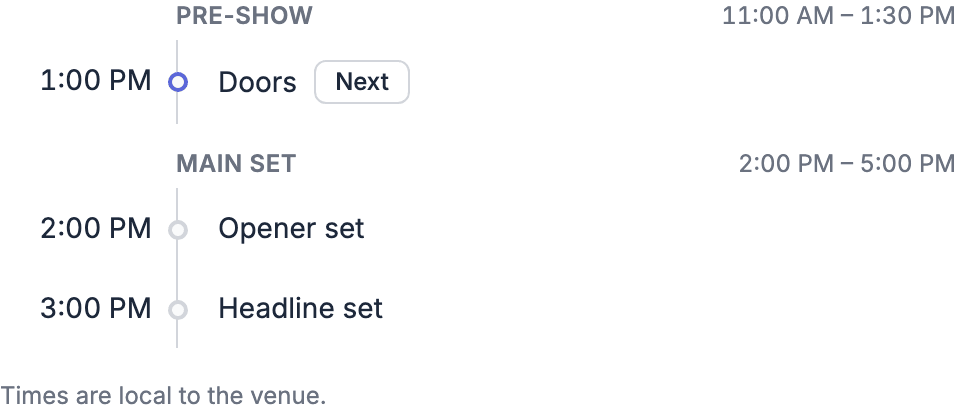
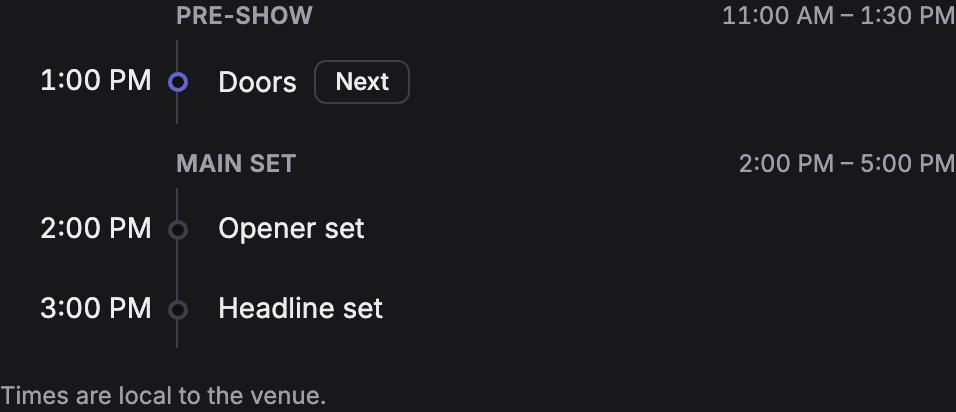
What guests see from the run of show
For each section and item on the page, guests see:- its title
- its time
- its location
- a Tentative badge on a tentative item
What never appears
- Notes, cues and instructions on run of show items.
- The people, tracks and other details on items. Only the title, time, location and Tentative go out.
- Items marked Surprise. See Surprise.
- Sections and items aimed at specific crew positions. See People and assignments.
- Sections you hide.
- Crew steps and crew items you haven’t turned on.
- Context-only sections.
- Crew-only key times: crew call, load in, rehearsal, soundcheck and load out, plus any key time your organization added.
Crew steps start hidden
Some sections are crew work that guests don’t need: load in, soundcheck, rehearsal, load out and the like. Soundcheck marks these as Crew step on the Live page tab (using your organization’s word for crew) and hides them from guests until you turn them on. Inside a section guests can see, crew items such as a line check, crew meal, setup, strike or changeover start hidden too. The section then says how many crew items are hidden, such as 2 crew items are hidden.Choosing what’s on the page
On the gig’s Live page tab, Run of show on the page lists every section, with its date.1
Turn a section on or off
Use the switch beside the section. Off hides the whole section from guests. A crew step starts off; turn it on to show it to guests.
2
Show or hide crew items in a section
When a section hides crew items, choose Show them to show them to guests. The section then says Crew items are shown to guests. Choose Hide them to hide them again.
Which version guests see
The live page only reads the run of show. It never changes it.- With run of show publishing on (the default), guests see the last version you published to crew. Edits you haven’t published don’t reach the page. Publish the run of show when a change matters to guests, such as a set moving.
- If nobody has published the run of show yet on a gig that needs publishing, guests see no run of show. The page lists the key times instead (below).
When there’s no run of show to show
When the gig has no run of show, nothing has been published to crew yet, or every section is hidden, the page lists the guest-facing key times instead, grouped by day: doors, ceremony, show, set time and curfew. A key time’s note doesn’t appear.Guest pages and the client portal
Guest pages and the client portal show the same run of show, but only while the live page is published. Before you publish, and after you take the page down, their schedule lists the guest-facing key times instead. Each guest’s or client’s Your schedule card still lists the run of show items they’re on, whether or not the live page is published. Sections you turn off on the Live page tab stay off there too. Your Schedule status and Status note show there only while the live page is published.How the schedule drives the status
The run of show also decides the page’s status. Only what’s on the page counts: the first item’s start makes the gig Live, the last item’s end makes it Wrapped, and “now” and “next” follow the items in between. A hidden section never shows up as “now”. When you set Schedule status, all of these shift by the delay. See Status updates and running late.Related
Run of Show
Build the schedule guests see.
Key times
The fallback when there’s no run of show.
What guests see
The whole page.