

Linking cues
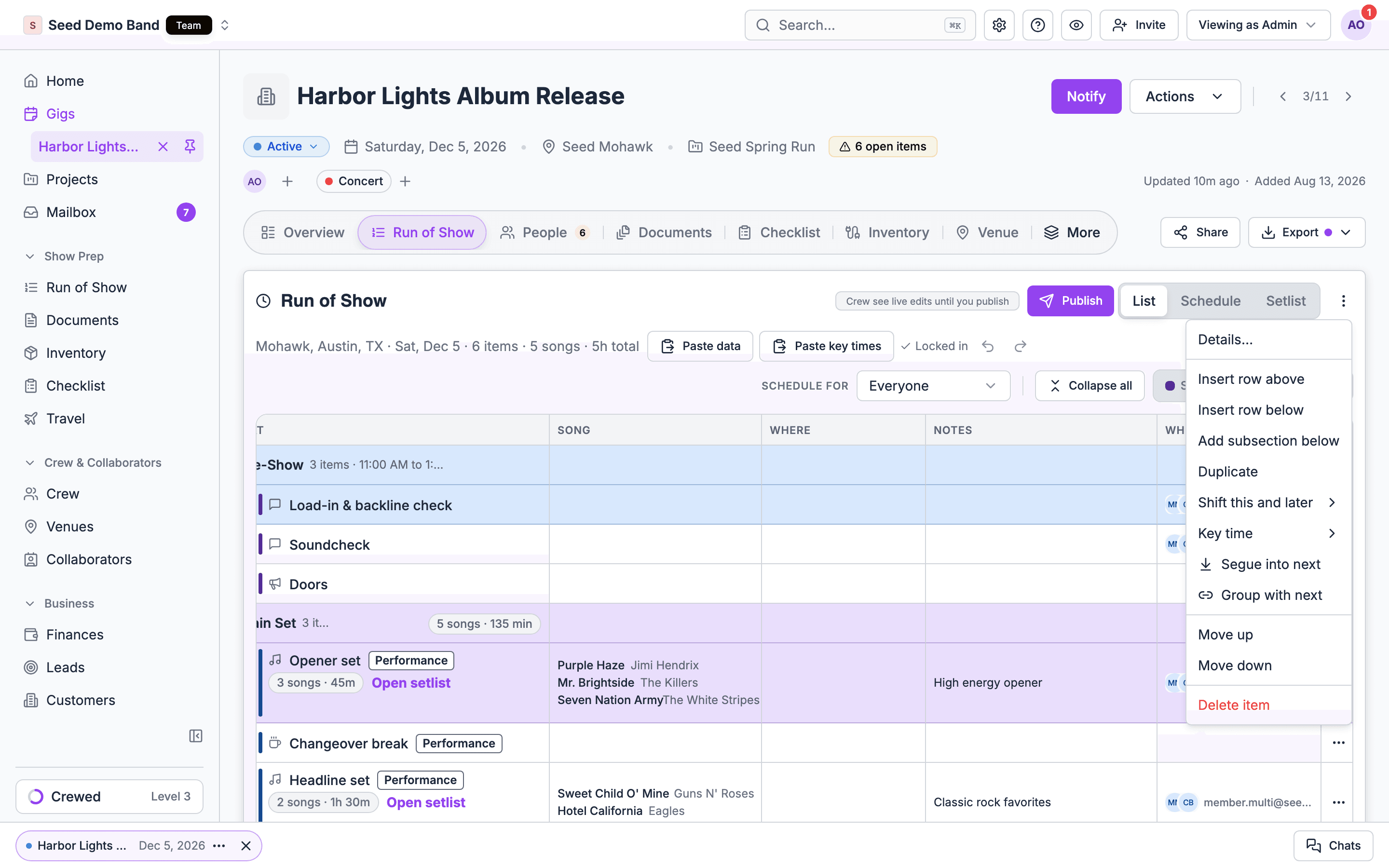
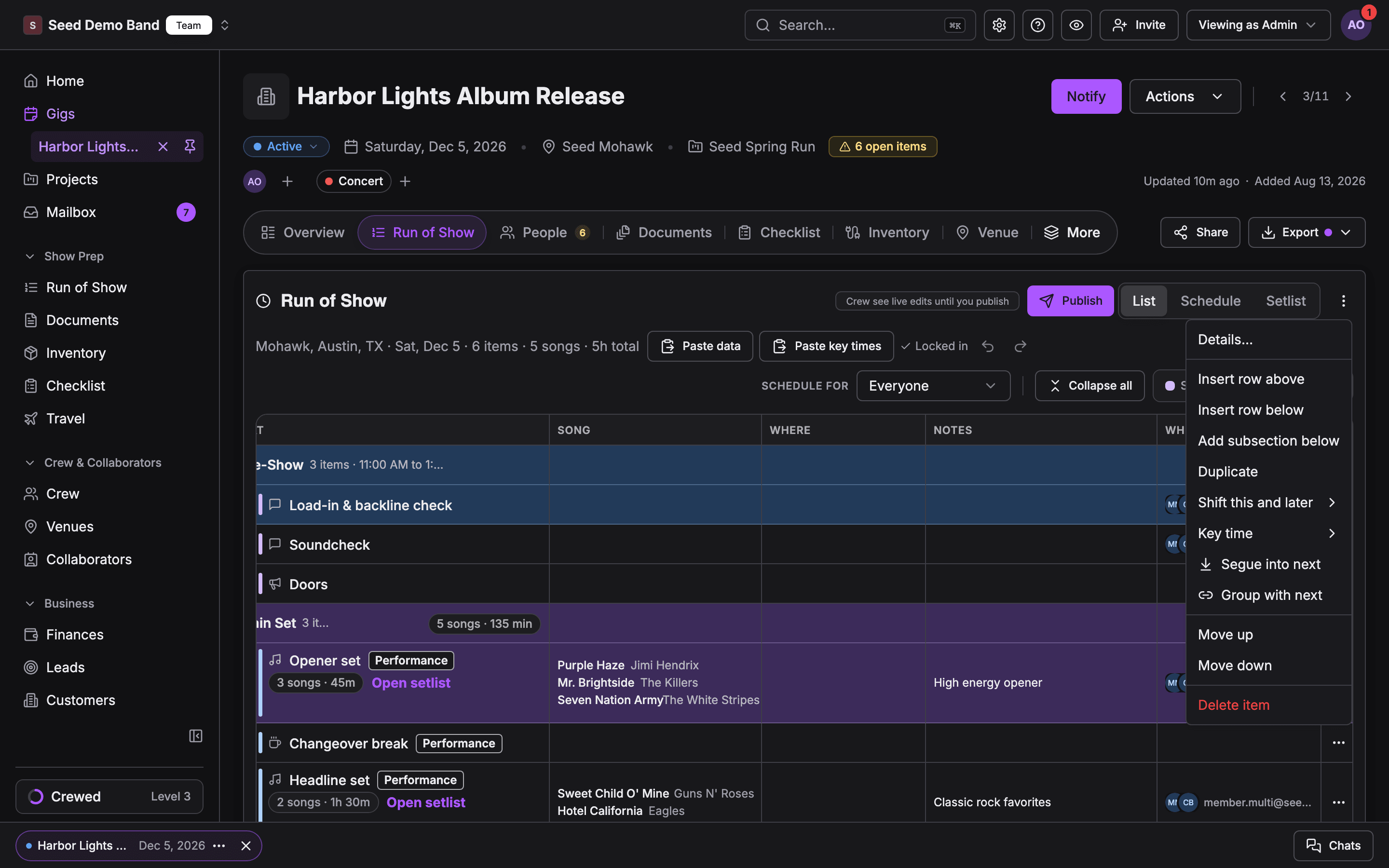
Link a cue to the cue after it, and the two move as one block. There are two kinds of link:Segue, step by step
Say First dance runs 4 minutes from 8:00 PM, and Open the dance floor comes straight after.- Open the ⋯ menu on First dance.
- Choose Segue into next.
Group, step by step
Say Welcome speech is at 7:00 PM and Dinner service is at 7:15 PM, with a 15-minute gap you want to keep.- Open the ⋯ menu on Welcome speech.
- Choose Group with next.
Linking several cues at once
Tick cues that sit next to each other on the same day and track, choose Link in the bar, and pick Group or Segue chain. Ungroup removes every link on the selected cues. See Changing several cues at once.Removing a link
- Choose the same option again in the ⋯ menu. The link that’s set shows a check, and choosing it removes it.
- Choose Unlink to remove the cue’s links to the cues on both sides.
When you can’t link
Both cues must be on the same day and the same track. The next cue can start the next section, as long as both rules hold. When the next cue is on another day or track, both options are greyed out and the menu says The next cue is on another day or The next cue is on another track.How links look
Linked cues show a bracket in the left gutter:- Solid with an arrow: a segue.
- Dashed: a group.
Chains
Cues linked one after another form a chain, and the chain moves as one unit.- Dragging any cue in a chain drags the whole chain. Hold Option (Alt) while you drag to move that cue on its own. Hovering the drag handle on a linked cue reminds you: Hold Option (Alt) to move this cue on its own.
- Shift, Move to… and Duplicate in the bulk bar apply to the whole chain of any cue you select, in every view.
- Changing the start of a linked cue moves the rest of its chain.
- Deleting a cue, or moving it out of its chain, breaks the links on both sides of it. The cue after it starts the remaining chain and keeps its time.
- On the horizontal Schedule, dragging one bar to another section or track breaks its links instead of moving the chain.
Cue details
Open a cue’s Details… from its ⋯ menu, or click it on the Schedule, to see everything it carries. A cue has a People picker and one Notes box. Older cue text shows as Cue: under the notes, with Move into notes to merge it in. Under More options, a cue can also carry:Timing
How the cue’s start is decided:
An On cue cue with a Timing label tells the crew what to watch for, even when nobody knows the exact minute.
Max time
Alongside the cue’s length, the most it may run. Use it for a cue that can run long, such as an open mic or a speech with a hard stop, so the crew know when to step in.Playback
How the cue’s sound is played: Live, Track, DS iPad or Other. Sound engineers use this to set up before the cue.Speaker
Who speaks, each with a name, a relationship (such as Father of the bride), how many minutes they have, and an optional link to one of the gig’s contacts. A cue can have several speakers.Tentative
For a cue that isn’t confirmed yet. Turn it on so everyone knows not to rely on it.Surprise
For a cue to keep from the client, such as a surprise performance. A surprise cue shows a Surprise badge (Hidden from the client). Crew still see it. When you send the music schedule and details from the gig’s Documents tab, turn on Leave out surprise cues to leave surprise cues out of that send, including its list of changes. When you export a PDF, the No Surprises preset leaves them out. See Exporting. In the mobile app, turn on Surprise in the item’s sheet. You can include these details when you export.Shift this and later
When the night slips, you usually want to move one cue and everything after it, and leave what already happened alone.- Open the ⋯ menu on the first cue that moves.
- Choose Shift this and later.
- Pick 5 min, 15 min, 30 min or 60 min, later or earlier.
Shift this and later moves every track. To move only some cues, tick them and use Shift in the bulk bar instead. See Changing several cues at once.
Running late on mobile
On show day, you’re often away from a laptop. Anyone who can edit the run of show can shift times from the mobile app, while the phone is online:- Tap Running late? on the current item in the Day sheet, or open an item and choose Shift times….
- Pick +5, +10, +15 or +30 minutes, step by one minute with the minus and plus buttons, or enter a whole number of minutes. Negative minutes move times earlier.
- Choose This and everything after to include later sections, or Only this item.
- Check the preview and any timing warnings, then confirm.
Tips and gotchas
- Lengths drive segues. A segue follows the end of the cue above. If that cue has no length, the segue has nothing to follow. Give back-to-back cues a length.
- Untimed cues follow the cue before them. You don’t need to link a cue just to make it follow. Linking adds a block that moves together.
- Moving a section to another track clears links across tracks. Relink if you need to.
- Key times follow their cue. When a key time cue moves, whether by a link, a shift or a drag, the gig’s key time moves with it. See Key times.