

- It shows everyone who covers what, in the Who column.
- It gives crew and staff a timed task in the gig’s checklist.
- It decides what each person sees in their own schedule.
Assignments decide who sees what
Who sees an item is decided by its assignments: the people on it, their departments, and the crew on its section’s track. There’s no separate visibility setting to keep in step. The Who sees it field has been removed from section and item details, because a cue you’re on is a cue you see.- Crew see their part of the night through Your times and My items.
- Clients see the items they’re on in the client portal.
- Guests see the items they’re on on their guest page.
Roles and positions that come with an item
An item that came from a template, an import or an AI assistant can carry note roles (Sound, Band leader, Planner, Musicians) or be addressed to crew positions. The web doesn’t show a field to change these today. In the mobile app, an item’s sheet has For while you edit: pick positions to address the cue to them, or tap a role to remove it. Leave For empty to show the cue to everyone. These settings count in a few places:- the PDF export’s For filter and the CSV’s role columns use the roles;
- crew see notes addressed to their position under For you in Your times;
- an item addressed to positions stays off the gig’s live page.
Adding people to an item
On the web:1
Open the item
Open the item’s Details… panel, or click it on the Schedule. In List, you can also click the Who cell.
2
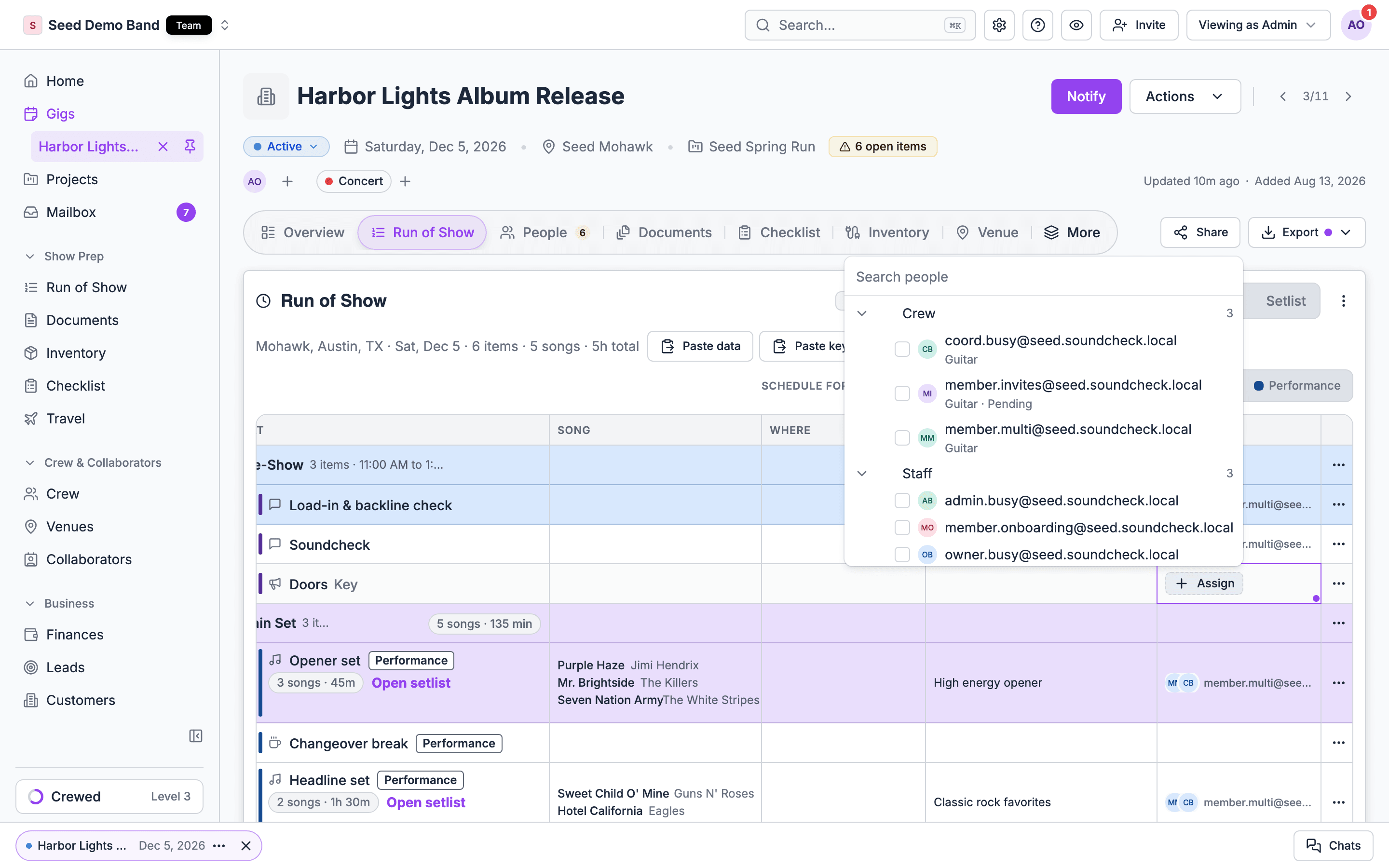
Choose Add people
Under People, choose Add people.
3
Pick people
Search by name and tick the people you want. Choose × beside a name to take someone off.
Who you can pick
The picker groups everyone on the gig. A group with nobody in it is left out.Departments and task notes
Each person on an item can carry a department and a task note, so the crew know exactly who covers what on that cue.1
Open the person's popover
Choose the edit button beside their name. When your organization has departments and the person has none, the button reads Set department.
2
Pick a department
Pick one of your organization’s active departments. Pick it again to clear it.
3
Write the task
Under Task note, write what they do on this item, up to 500 characters. For example: Cue the band’s walk-on music when the MC says “please welcome”.
Track crew
Some people cover a whole stretch of the night rather than single cues. Your A1 is on every Production cue, for example. Instead of adding them to each item, put them on the track:1
Give the section a track
Open the section’s Details… and pick a Track, such as Production.
2
Add the crew
Under Crew on the track track, pick the people. This list saves right away.
Assigning many cues at once
Tick the cues in List or the horizontal Schedule, then use Assign people or Remove people in the bulk bar. Nobody already on a cue is added twice, and a cue whose track crew already includes someone is skipped for that person. See Bulk actions.Checklist tasks
Crew and staff on an item get a task in the gig’s checklist, in a Run of show phase, timed to the item.- The task follows the time crew can see: the published run of show when publishing is on, or the live schedule when it’s off.
- When you take someone off an item, their task is removed if they haven’t started it. A started task stays in the checklist but is no longer linked to the item.
- Collaborators, clients and guests on an item don’t get a task.
- People on a draft offer get no task or assignment notice until a sent offer or an invitation puts them on the gig.
- When someone declines, or their offer expires or is cancelled, Soundcheck removes their run of show tasks.
What clients and guests see
A client sees the items they’re on under Your schedule in the client portal. A guest sees them on their guest page. Each item shows its time, its section’s location, the person’s department and their own note. It doesn’t show the other people on the item or the item’s notes. They see the same version crew see: the published run of show when publishing is on, including live edits on an older gig until its first publish, or the live schedule when it’s off. Collaborators don’t get this view yet.Your times
Crew booked on a gig see a Your times card at the top of its Run of Show tab, on the web and in the mobile app. It shows:- Call: the start of the first section they work.
- Start and End: the span of the performance sections they work. Without a performance section, these cover every section they work.
- The sections they work, each with its time window, location and ensemble.
- For you: the notes on cues addressed to their position.
My items on mobile
In the mobile app’s Day and Timeline views, each row shows the people on the item as avatars. Choose My items above the schedule to see only the items you’re on, including items in sections where you’re on the track crew. Key times always stay in view. Choose All items to see the whole run of show again. The app doesn’t remember this choice between visits. In the item’s sheet, People lists everyone on the item, each with their department and note. While you edit the run of show, tap crew to add or remove them. Other people, departments and notes are changed on the web.Seeing one person’s night
On the web, Schedule for above the grid narrows the list to one person’s cues. See Views and filters.Related
Bulk actions
Assign and remove people on many cues.
Views and filters
Who columns and Schedule for.
Publishing
When crew see your changes.