

Colors
A key time row isn't colored
A key time row isn't colored
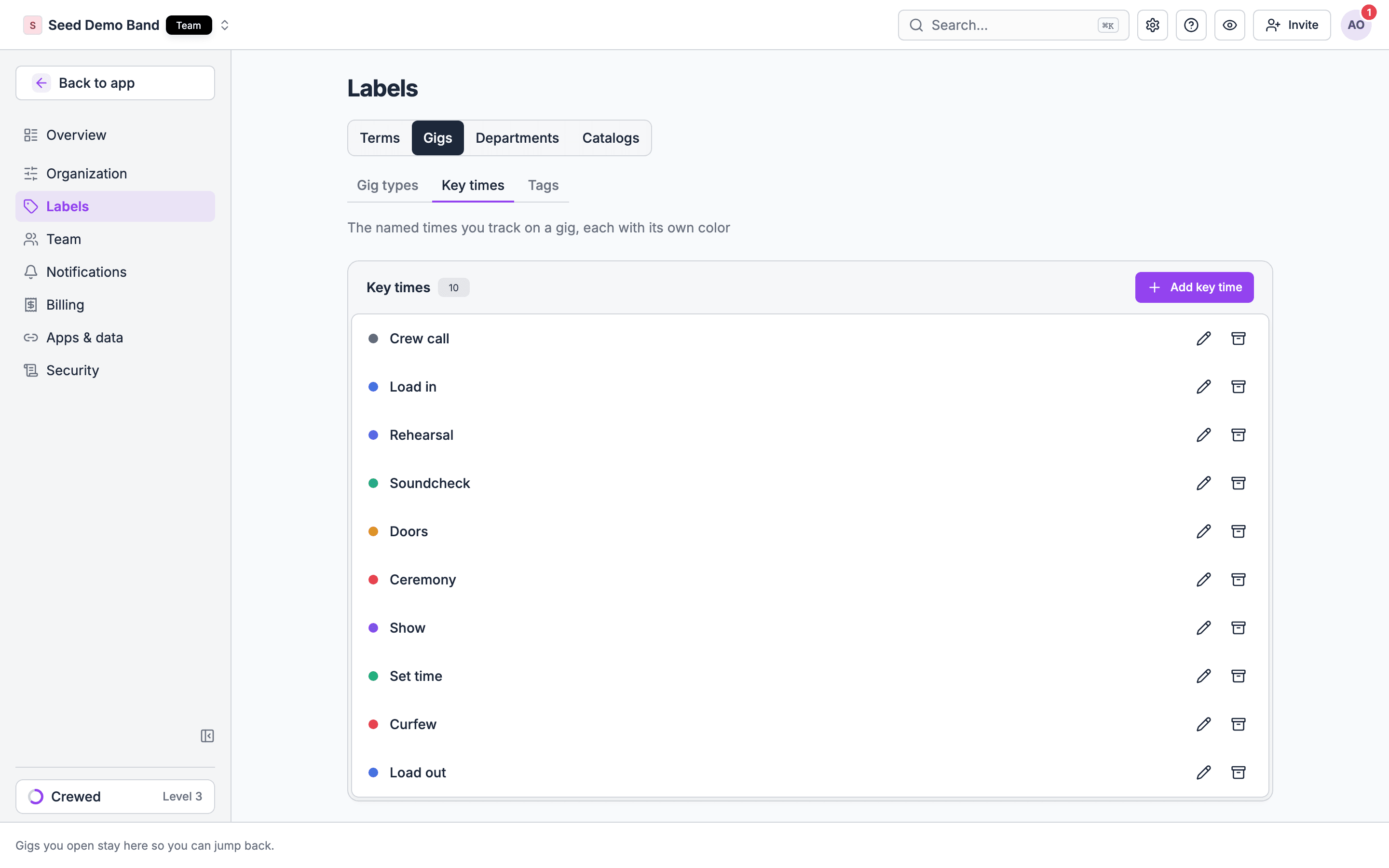
Cause: the row isn’t marked as a key time, or its key time’s color isn’t one of the run of show palette colors.Fix: hover the row and choose Key beside its title, or open Details… and pick a key time. To fix the color, pick a palette color for the key time under Settings → Labels → Gigs → Key times. See Colors and sections.
Where did the section Color picker go?
Where did the section Color picker go?
Key times own color now. A section linked to a key time takes the color closest to that key time’s, and other sections take a color by their position. To change a section’s color, link it to a key time, or change the key time’s color.
Where did Who sees it go?
Where did Who sees it go?
It’s gone from sections. Who an item is for comes from the people assigned to it. See People and assignments.
Load in and Load out look the same
Load in and Load out look the same
Both are blue by default. Change one of them under Settings → Labels → Gigs → Key times.
Times
I marked a second item as Doors and the first one lost it
I marked a second item as Doors and the first one lost it
A key time names one moment, so it sits on one item per day and track. Marking an item removes that key time from any other item on the same day and track.
The gig shows a different Doors time from the one I expected
The gig shows a different Doors time from the one I expected
Cause: when several items on the same day share a key time, the earliest one counts. Items on a track set that track’s key time, and the gig header shows the main schedule’s.Fix: check which items carry the key time on that day. See Which item counts.
A curfew after midnight is on the wrong day
A curfew after midnight is on the wrong day
Fix: set it on the night it belongs to and turn on After midnight in the key times editor. It then shows with (+1 day).
I removed a key time and the item disappeared
I removed a key time and the item disappeared
Removing a key time in the key times editor removes its named items. Saving the editor replaces the gig’s whole set. To keep the item, open it in the run of show and choose Not a key time instead.
Key times vanished after I shortened the gig
Key times vanished after I shortened the gig
Key times on the removed days are hidden. They come back if you extend the gig again.
Syncs and pasting
A sync didn't update a key time
A sync didn't update a key time
Cause: a sync never changes a key time a person set, and an item stops syncing once you change its time or key time. When two sources name the same key time, the first one to set it keeps it.Fix: set the time yourself, or delete the key time so the next sync can add it back. See Times that fill in on their own.
Paste key times added plain items instead of key times
Paste key times added plain items instead of key times
Cause: either the name isn’t on your key time list (it shows New), or that key time is already set on that day.Fix: add the name to Settings → Labels → Gigs → Key times, or open the item and pick a key time for it. See Pasting key times.
The list and who sees what
I can't add or edit key times in settings
I can't add or edit key times in settings
Owners and admins manage the list. People who manage gigs can read it.
I can't find a key time in the picker
I can't find a key time in the picker
Cause: it’s archived. Archived key times aren’t offered for anything new, though items and sections that already use them keep them.Fix: turn on Show archived in Settings → Labels → Gigs → Key times and choose Restore.
Guests don't see a key time on the live page
Guests don't see a key time on the live page
Cause: guests only see doors, ceremony, show, set time and curfew, and the live page lists key times only when there’s no run of show for guests to see. Key times your organization adds are never shown to guests.Fix: to show a moment to guests, put it in a run of show section that’s on the live page. See Where key times show and Live page.
Related
Key times
Start here.
Run of Show troubleshooting
Wider run of show answers.
Times that fill in on their own
How syncs behave.