

/tasks).
The Checklist page is for owners and admins. Anyone else who opens
/tasks lands on the Tasks tab of their mailbox, Gig Coordinators included. Build and edit templates on the web; the mobile app has no menu entry for the template library. In the app you can apply a template to a gig and save a gig’s tasks as a template.Why use templates
- Nothing gets forgotten. The steps your team learned the hard way are on every gig from day one.
- Dates set themselves. Due dates are written relative to the show, such as 1 week before, and turn into real dates on each gig.
- Owners set themselves. A task can name a position, such as Production manager, and goes to whoever holds that position on the gig.
- Each gig stays independent. A gig gets a copy. Editing the template later never changes a gig that already has its checklist.
Your starting template
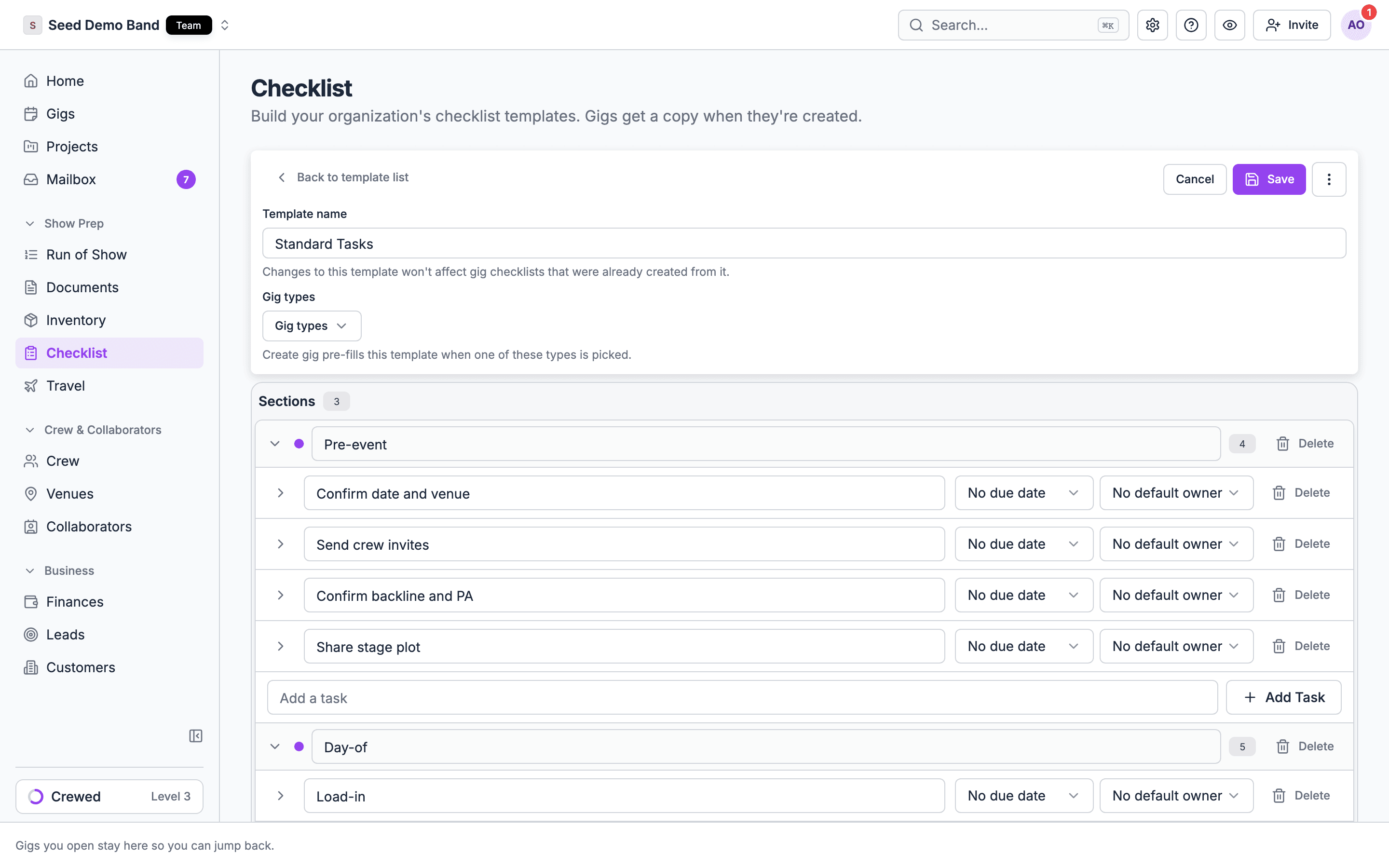
Every organization starts with a Standard Tasks template, with Pre-event, Day-of and Post-event sections. It’s your organization’s own copy. You can change or delete it. Soundcheck won’t overwrite it after it’s created, and a deleted starter isn’t restored. When a gig is created empty, Soundcheck attaches your organization’s default template to it. On the web, the create-gig form also picks a template by gig type and shows its choice, for example Picked for Concert: Concert Tasks. Choose Change to pick a different one, or None for no checklist. See Creating gigs. The Default badge in the library marks the default. If no template is the default, new gigs get Standard Tasks. You can’t choose which template is the default in the app today. To get a different list on new gigs, give your other templates Gig types so the create-gig form picks them, or edit the default template itself.The library
The Checklist page opens on your template library. Each row shows:- the template’s name, with a Default badge on your organization’s default
- the Gig types it’s picked for
If your organization has no checklist templates at all, the library opens on the starter packs, with Build your own template as the other choice.
Starter packs
Choose Starter packs to browse ready-made checklist templates in two groups:- For your business: production, venue, DJ, band, produced event and general packs.
- By event type: wedding, corporate, festival, tour and private party packs.
Starter packs carry task titles only. They have no due dates, owners or notes, so a pack applied as it is gives a gig undated, unassigned tasks. After you add a pack, open each task and set its Due and Owner before you use it on a gig.
The editor
Open a template to edit it. The editor has:- Back to template list, Cancel and Save at the top, and Template actions (⋯) with Delete template.
- Template name.
- Gig types: the types the create-gig form picks this template for.
- Sections: the template’s sections and their tasks.
- Add a section with Add a section to group tasks together, rename it by its title, and remove it.
- Add a task with Add a task at the bottom of a section, and give it a title.
- Expand a task to set its Due and Owner, and add Add optional task notes.
- Set one owner for every task in a section with Owner for all. It shows on any section with more than one task. Pick a position, or No default owner to clear the owner from every task in that section. Other sections don’t change, and the change saves with the template.
- Remove a task.
Due dates and owners
Each template task has two optional pickers. Due is counted from the gig’s first day:
The picker offers these steps. A template that came in through an import or an AI assistant can hold any whole number of days up to a year before or after, and the picker shows that value too.
Owner is an organization position, such as Bass or Production manager. Choose No default owner to leave the task unassigned. A position that’s no longer active shows as Inactive position.
When the template is applied to a gig:
- Each task’s due date is set from the gig’s first day.
- Each task with an owner is assigned to the person who accepted that position on the gig earliest, from the gig’s roster, accepted crew offers or accepted invitations.
- If nobody has accepted the position yet, the task stays unassigned.
Owners are matched only when the template is applied. Crew who accept the position later aren’t assigned automatically. Assign them on the gig.
Worked example
A Wedding template has a task Send music questionnaire, Due 3 weeks before, Owner Band leader. You apply it to a wedding on 14 June.- The task’s due date becomes 24 May, three weeks before the first day.
- If Sam accepted the Band leader position on that gig, the task is assigned to Sam, who is notified.
- If nobody holds Band leader yet, the task is unassigned until you pick someone.
Delete a template
Open it, choose Template actions (⋯), then Delete template, and confirm. Gigs that already have a checklist from it keep their own copy.Apply a template to a gig
1
Open the gig's Checklist tab
The gig must not have a checklist yet.
2
Choose Use template
Pick a saved template from the list.
3
Review
Its sections, tasks and notes copy onto the gig, with due dates and owners filled in as above. Every task starts as Not started.
A gig’s checklist doesn’t follow its template after it’s applied. Due dates are set once, from the gig’s first day at that moment. If the gig moves to another date later, its task due dates stay put; shift them with bulk edit.
Save a gig’s tasks as a template
When a gig’s list turns out better than the template it came from, keep it. Owners, admins and Gig Coordinators can save a gig’s tasks as a template, on the web or in the mobile app. Other members see Save as template but can’t save; the app shows Failed to save tasks as a template.1
Open Task actions
On the gig’s Checklist tab, open Task actions (⋯) and choose Save as template.
2
Name it
Type a Template name and choose Save Template. A name that’s already used by another template is refused, and the dialog says why.
Templates elsewhere in Soundcheck
A checklist template is one of several kinds of template. A gig template reuses a whole show, including its task sections and tasks, but not their due dates. A Run of Show template reuses the schedule.Related
Working a gig's checklist
What to do once the template is applied.
Templates & duplication
Every kind of template in one place.
Creating gigs
Where the create form picks a template.