

Who can be on travel
The pickers on the Flights, Lodging and Transportation cards list the people confirmed on the gig:- crew who accepted an invitation,
- members added to the gig,
- crew who accepted a crew offer for at least one day of an open or filled shift.
The travel button on the Crew board
On the gig’s People → Crew board, a person with travel on the gig shows a plane icon and a bed icon. Each icon is dimmed when they have no flight or no hotel. People who can edit travel see the icons on everyone. Hover them for a summary, such as Travel for Zoe: 2 flights · Hotel Van Zandt. Click to open their travel.
Changes save as you make them. If a change doesn’t save, you see Failed to save. Try again. Crew who can’t edit travel don’t get the editing controls.
Who still needs travel
The Flights card names everyone on the gig who isn’t on any flight yet, once the gig has at least one flight. See Who still needs a flight. The Transportation card does the same for rides with No ride yet: …. See Who still needs a ride. There’s no warning for people without a hotel. Check the bed icons on the Crew board instead.Traveler details
Booking a flight needs the traveler’s name as it appears on their ID. Each person keeps their traveler details on their profile. In the mobile app they’re under You → Profile → Edit profile → Crew profile → Location & travel:
Saved trusted traveler and passport numbers show masked, with only the last four digits. There are no fields for passport country, nationality, visas, seat or meal preferences. Dietary needs go in the person’s dietary restrictions on their profile.
Owners and admins can fill in a member’s Legal name, Date of birth and Preferred airport when they book their travel. Trusted traveler, passport and frequent flyer details stay with the member.
- On the web, open the member’s full profile and choose Edit traveler details on the Location & Travel card.
- In the mobile app, open You → Organization admin → Members and tap the plane icon next to the member. The screen says it’s Used to book travel for that member. Choose Save traveler details.
What crew see
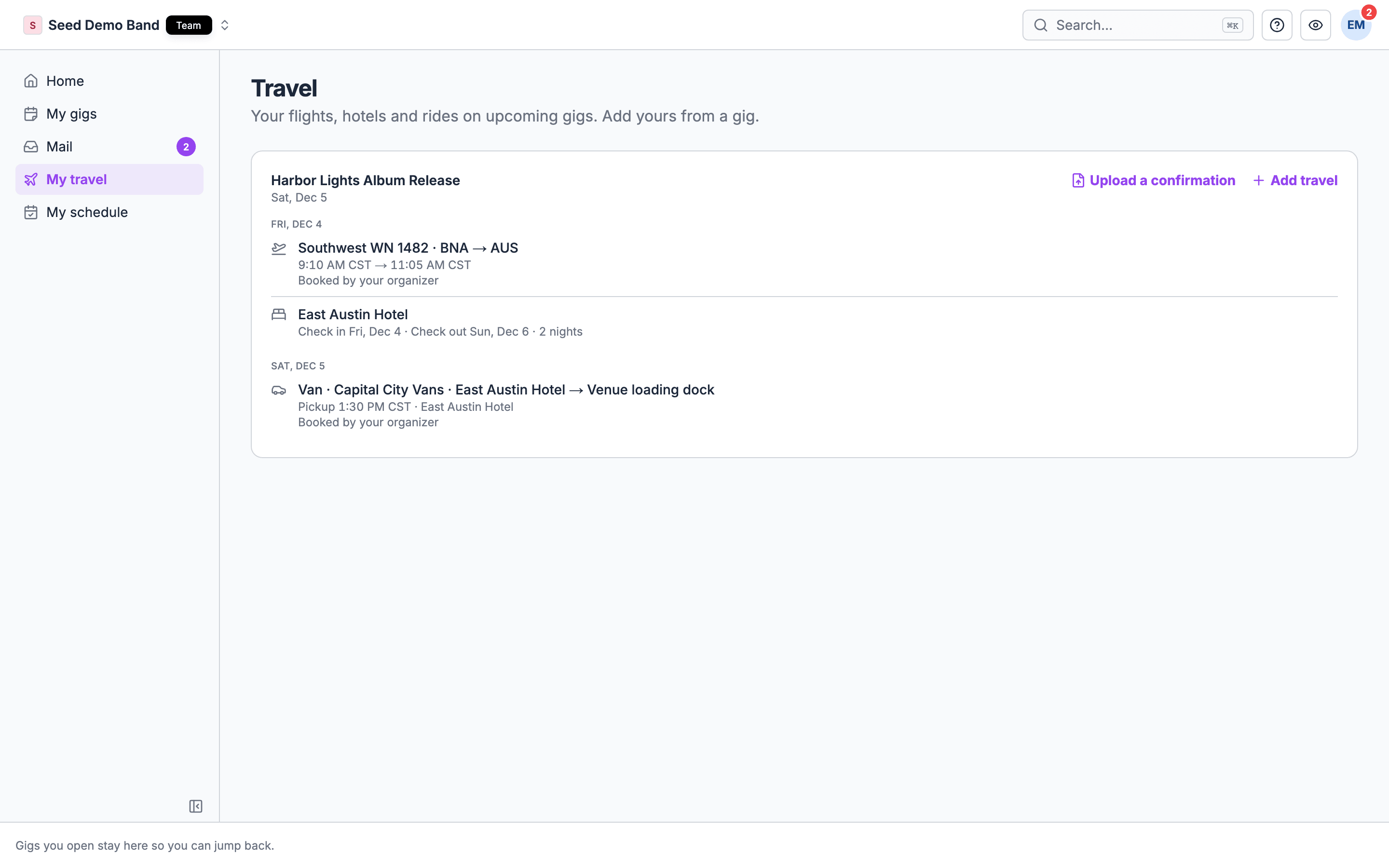
- Their own part. A crew member sees the flights they’re on with their own seat and confirmation, the gig’s hotel stays with their own nights and room, and the rides they’re on. A teammate’s flight is not listed to them, and neither is the stay or flight a teammate added for their own booking.
- What they added. Crew also see the flights, stays and rides they added themselves.
- Rides with room. Crew also see rides they added and rides with nobody on them yet, so an open shuttle is visible.
- No money. Crew never see a flight’s or ride’s cost, a ride’s payer, a flight’s booking reference, or your hotel’s negotiated rate.
- No drafts. Crew don’t see draft gigs, so travel on a draft stays hidden until you publish the gig.
Crew add their own travel
Crew who book their own travel can tell the team about it.- On the web. Crew open the gig’s Venue tab, find the My travel card and choose Add travel. See My travel on the web.
- In the mobile app. Crew open the gig and use My travel → Add travel. See My travel.
- Flights and rides. Crew can edit and delete only the ones they added themselves. A flight or ride the organizer added shows Booked by your organizer. A flight another crew member added is read-only, with no label.
- Hotels. Crew can take themselves off any stay they’re on, including one the organizer booked, with Remove my booking, on the web or in the app. Anyone else on the stay keeps theirs. To change dates or a room, they add the booking again.
My travel on the web
The My travel card sits above the travel cards on the gig. It shows for people who can’t edit the gig’s travel, and not on sample gigs. It sums up what you added, such as You added 1 flight · 1 hotel, and lists the flights, stays and rides you added or are on.- Add travel. Choose Add travel, then Upload a confirmation to have Soundcheck fill in a booking for you, or Flight, Hotel or Ride under Or enter by hand. The flight and ride forms have the same fields as in the mobile app: see My travel. Hotel opens Add a hotel, where you join a stay on the gig or add a different hotel, then choose Add booking.
- Upload a confirmation. Pick the airline, hotel or ride confirmation you got: a PDF, a photo or screenshot, or a Wallet pass. Soundcheck uploads and reads it, then Review what we found shows one card per booking it found for you. Bookings in the file for someone else are skipped. On each card, choose Add to open the Flight, Hotel or Ride form with the details filled in, or Skip. A card marked Check with a number of fields has fields with a warning border to look over. When you save, Soundcheck attaches the file to the booking and the card says Added · file attached. When the file matches a booking you already have, the card shows Update. When it matches a flight or ride your organizer booked, it shows Attach file, which puts the file on your seat without changing the booking. HEIC files can’t be read: take a screenshot or save a PDF. Photos must be 5 MB or smaller, and other files 20 MB. If a file can’t be read, choose Try again, Choose again or Enter by hand.
- Edit or delete. Choose the pencil on a flight or ride you added. Delete is inside the form, and Soundcheck asks you to confirm first. Hotels have no edit: choose Remove my booking, then add it again.
- Documents. Each booking lists its documents. Choose Add document to attach a boarding pass, e-ticket or confirmation (PDF, JPG, PNG, HEIC or Wallet pass). Choose a document to open it, or the trash icon to delete it.
Related
Your profile
Traveler details and travel preferences.
Members
The member profile card owners and admins edit.
Travel on mobile
What travel looks like in the app.
Travel FAQ
Travel parties, passports and privacy questions.
Travel glossary
Travel party, legal name, KTN and other terms.