

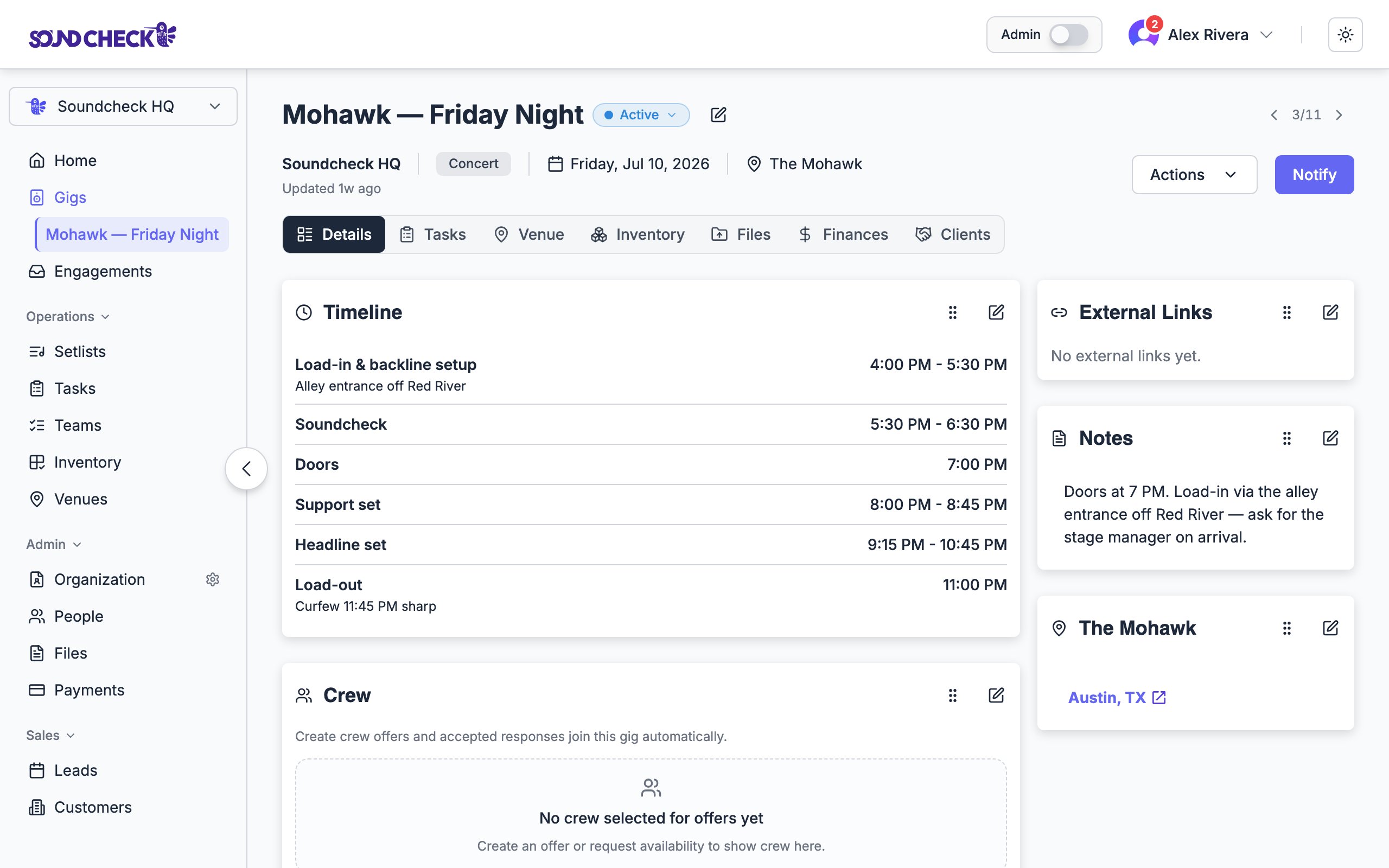
A gig's detail page: Run of Show, crew, notes, and venue at a glance
Create a gig
You can open the create form from the Gigs board or Home. Both paths create an Active gig (see What happens after creating).1
Open the create form
On the Gigs board or Home, choose Create gig. The Create new gig dialog opens.
2
Name it
Enter a Gig name. This is the only truly required field. Use something you’ll recognize at a glance, e.g. “Johnson Wedding, Grand Ballroom.”
3
Set the date
Pick the Date. It defaults to today and can’t be in the past. For a multi-day run, also set an End date (see multi-day gigs).
4
Choose the type and (optionally) the location
Set the Gig type and, if you know it, the Location. Both are covered below. Location is optional.
5
Create
Choose Create. You land on the new gig’s detail page, ready to build out. Soundcheck attaches your organization’s Standard Show run of show and Standard Tasks checklist when the gig is created empty — so Details already has a plan instead of blank pages.
The fields
Gig types
Choose the category that best fits: Wedding, Church, Private Gig, Corporate Gig, Bar/Club, Rehearsal, Festival, Concert, or Other.Location is optional. You can create a gig before the venue is confirmed and add it later. A booking that’s still being negotiated doesn’t need an address to exist in Soundcheck.
Multi-day gigs
For a festival weekend, a two-night run, or any gig that spans more than one day, set an End date in addition to the start Date. Leave the end date blank for a single-day gig. An overnight show stays single-day. Past midnight (next day) turns on when out is earlier than start (8:00 PM – 2:00 AM), and you can check it for a next-morning window (1:30 AM – 3:30 AM). You do not need an end date. On the Gigs board, multi-day gigs show their full date range on the card. To group several separate shows into one run instead, use tours.Adding a location
The Location field is an address search. Start typing and pick a suggestion. Soundcheck captures the place name, formatted address, and map coordinates, so the team gets accurate directions.1
Type the address
Begin typing the venue’s name or address.
2
Pick a suggestion
Select the matching place from the dropdown.
3
Coordinates save automatically
The map location is stored with the gig.
What happens after creating
A new gig is created as Active and appears on your board and calendar right away. If it was created empty (not duplicated and not imported with existing prep), it also starts with Standard Show on Run of Show and Standard Tasks on the checklist. From its detail page you can now build it out tab by tab:Build the team
Add positions, invite crew, and set performance fees.
Run of Show
Lay out the show flow, timeline, and attach files.
Link a setlist
Attach or create the setlist for the performance.
Tasks
Track the checklist that has to happen before the show.
Need a gig to start as a Draft instead of Active? Drafts come from templates. Using a template creates a draft you review before publishing. See Draft and publish.
Faster setup
Duplicate a similar gig
If a new gig closely resembles a past one, open the existing gig, use its ⋯ actions menu, and choose Duplicate. Schedule times rebase to the new date and copied invitations stay unsent until you send them. See templates and duplication.Start from a template
If your organization uses gig templates, open Gigs → Templates, pick a template, and choose Use template to spin up a new draft with your standard crew, schedule, and setup already in place.Apply a saved team
On Pro or Team, you can skip manual staffing by applying a saved Team preset from Manage Team on the gig. That populates positions and primary members with backup call order in one step. On Free, staff positions manually in the Team section. There is no separate Call Lists page; see call lists.Troubleshooting
Can't find the venue in search?
Can't find the venue in search?
You can still create the gig. The Location field is optional. Add the venue later from the Venue tab, or type the address manually.
Need to change the date after creating?
Need to change the date after creating?
Open the gig, edit, and change the date. If the date moves significantly, you may need to re-send team invitations.
Created the wrong gig?
Created the wrong gig?
You can delete it. Be careful deleting a gig that’s already had activity. Deletion removes the historical record.
Next steps
Gig overview
The board, the tabbed detail, and the lifecycle.
Draft and publish
Prepare gigs before they go live.