

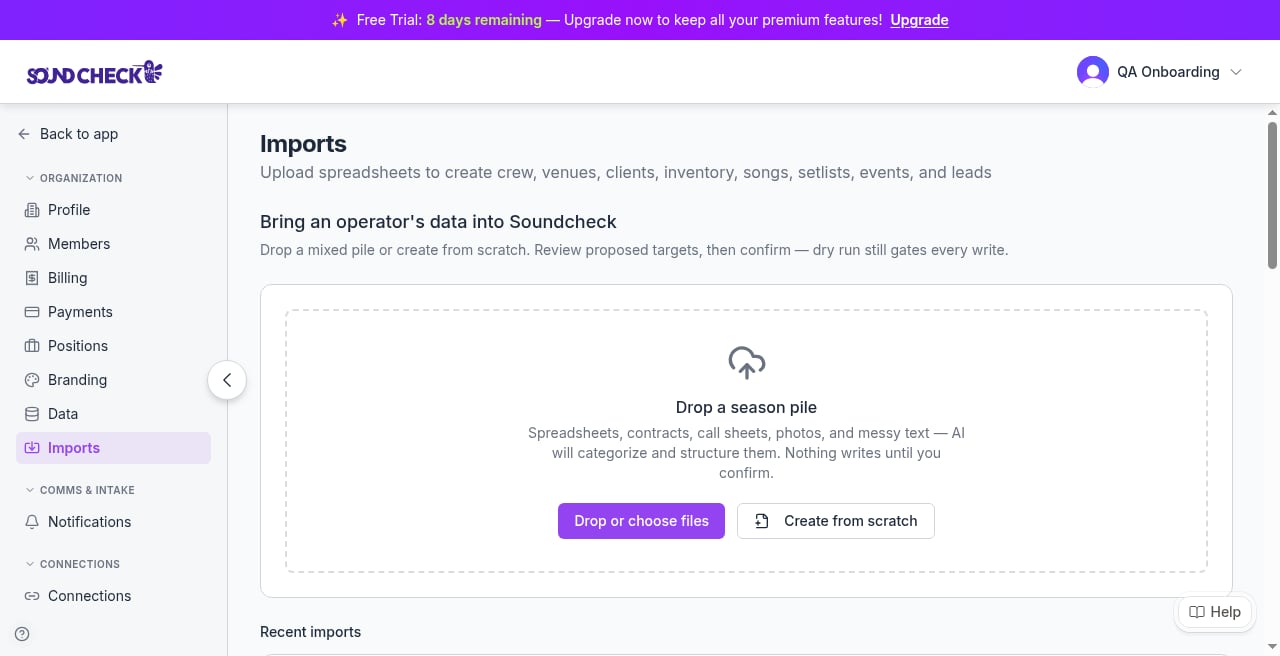
Imports empty state: Drop a season pile, Drop or choose files, and Create from scratch. Nothing writes until you confirm.
Who it’s for
Worship pastors, music directors, and church ops who already run Services and People in Planning Center and want the same worship team, songs, and services as gigs in Soundcheck.What moves / what doesn’t
Do not expect CCLI numbers, charts, or plan order to land as fields. The Songs mapper has no CCLI column. It does keep Planning Center’s Song ID, so a setlist you rebuild can name songs by that ID.
Official export steps
Prefer Planning Center’s public help hosthelp.planningcenter.com (not support.planningcenter.com).
Crew: Services People (worship team)
- In Planning Center Services, open People.
- Export a CSV (scheduler+). This is the roster path.
- Limit the export to the worship team / roster. Do not dump the full congregation.
People database (trap: whole church)
People → Actions → Import & Export CSV (or download from a list) is a different export from Services People. If you Import & Export the People database, you can ingest the whole church. Filter to the worship team before you upload, or you’ll invite people who aren’t on the rotation. Official help: Export data.Prepare CSV field names (PCO import template shape)
Planning Center documents default CSV field names for profile data imports in Prepare a CSV file for import. That page requires First Name and Last Name. Email columns are Home Email, Work Email, and Other Email. Phone columns include Mobile Phone Number. Sample sheet: Import Fields Template. Planning Center’s own CSV import is profile data only. It isn’t a plan, order-of-service, or song-catalog ingest path. Use their field names as a mapping reference when you reshape an export for the Crew target.Songs: date-windowed CCLI / usage reports
- Open Songs, create a report, export CSV.
- Widen the date window to the slice you need. Planning Center song reports are CCLI / usage reports for a date range, not a catalog dump.
- Flatten arrangements into one row per song you want in the repertoire.
- Keep the Author column. The mapper binds
Authorto Artist, and the artist keeps two songs with the same title apart. - Keep the Song ID column. The mapper binds it to the song’s Song ID, and a re-import with the same ID updates that song instead of adding one.
Plans / calendar: will not import as files
- There is no plan or order-of-service CSV from any source.
- Planning Center Services calendar is webcal. Operators often try ICS/webcal; the importer rejects it.
Recommended zip / sheet layout
If you’re packing a season folder before you drop files:Field map (source → import targets)
Email is hard-required on Crew. Dedup is email. Phone-only rows fail.
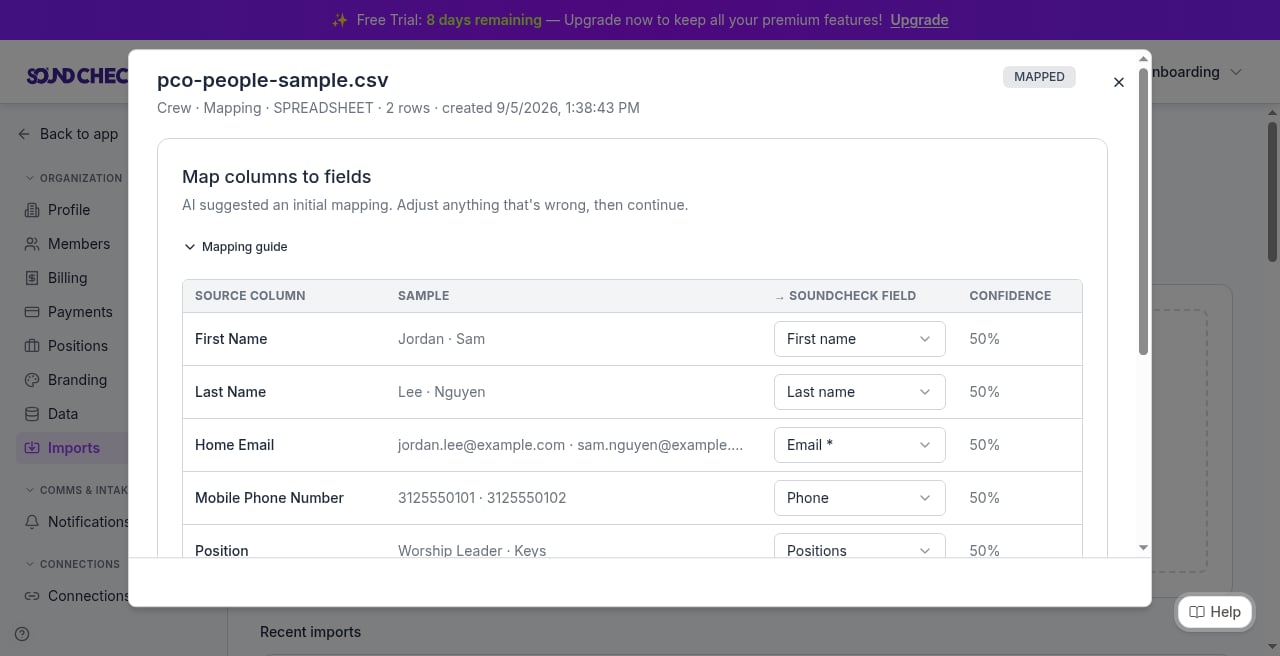
Map columns: Home Email → Email *, Mobile Phone Number → Phone, Position → Positions (AI suggested). Map these PCO headers explicitly.
Mapping traps
- Target for roster rows is Crew.
- Heuristics do not bind Planning Center
Home Email/Work Email/Other EmailorMobile Phone Number. Map those columns yourself. - Keep the Author column; it maps to Artist. Same title + empty artist collapses.
- Song reports remain date-windowed usage, not a catalog. There is no plan CSV.
- Import Songs before Setlists when the setlist names songs by Song ID (
song_external_idorSong ID). An ID that matches no song stops that setlist with an error; it never creates a song named after the ID. A row that also has a song title falls back to the title. - There is no CCLI column on the Songs target. Don’t invent one.
- ICS / webcal is rejected.
Import order
Suggested for houses of worship:- Crew (Services People: worship team)
- Venues / Clients when you have directory sheets (optional BYO)
- Songs (date-windowed report; Author maps to Artist)
- Setlists (you rebuild; not a PCO plan CSV)
- Events (services as gigs)
Import path
- Open Settings → Data & knowledge → Import & export. Drop files on the empty state (drop-first). Review detected targets (Crew, Songs, Setlists, or Events), map columns (especially Email / Artist), preview, commit.
- Save a mapping template if you’ll re-export the same shape.
- After commit: open Gigs, ask people to accept invitations, spot-check Show Prep, re-import once (expect 0 new rows).
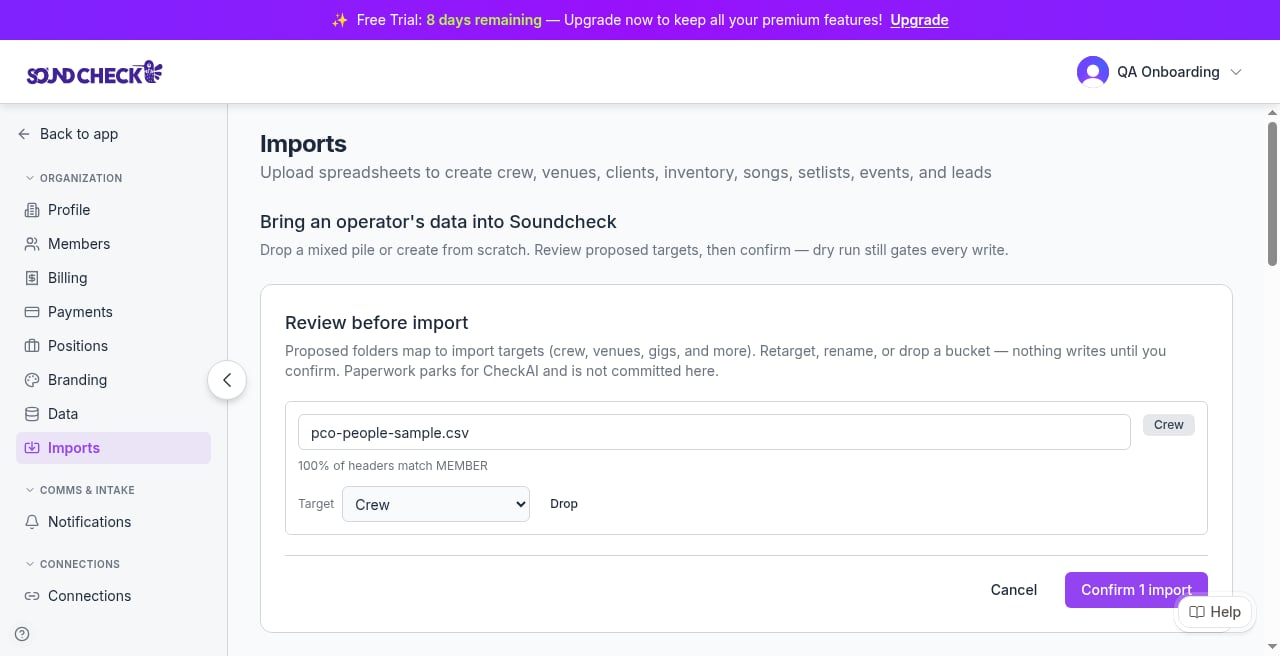
Review before import: file detected as Crew (100% of headers match MEMBER). Cancel and Confirm still stand between you and the write.
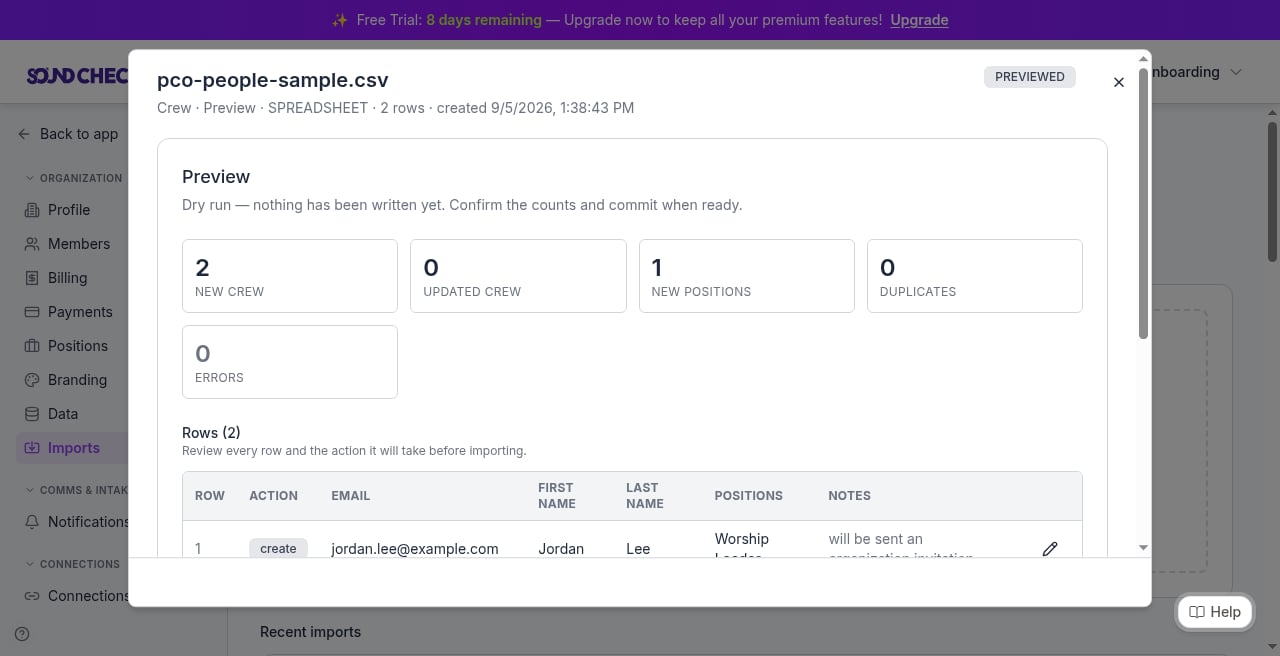
Preview dry run: 2 new crew, 1 new position, 0 errors. Nothing commits until you confirm.
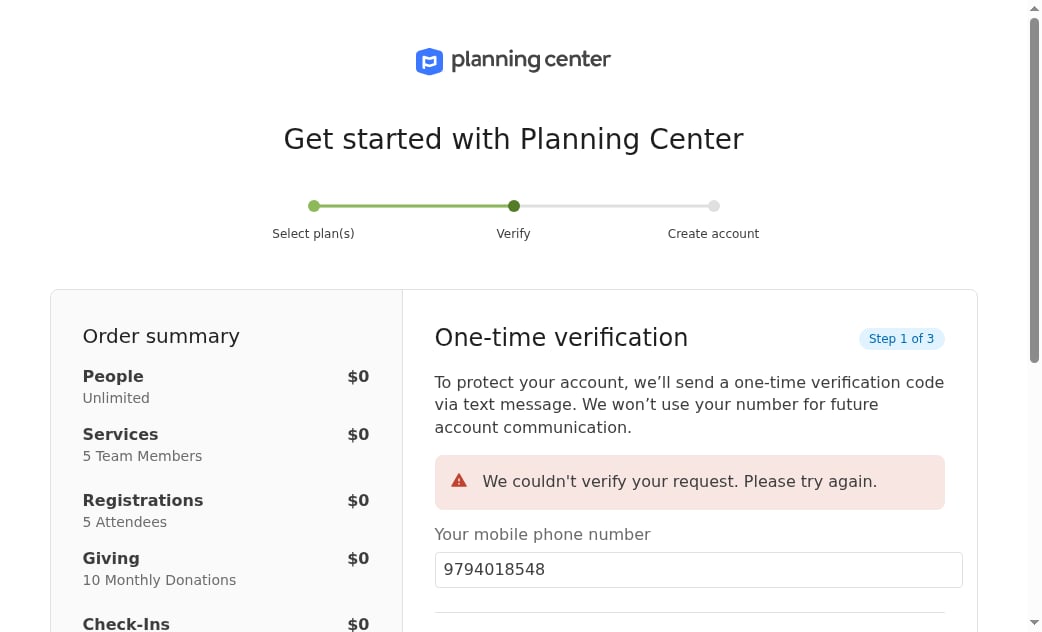
Planning Center signup can stop at SMS / one-time verification
Practice samples
House-of-worship practice files:docs/sample-imports/customers/house-of-worship/ (volunteer team, worship songs, service schedule).
Those CSVs use sample-import headers, not native Planning Center exports. You still must map. That folder has no setlists file. Setlists and Events are rebuilds (the service schedule is a sample-shaped events practice file, not a PCO plan dump).
FAQ
Is there a Planning Center connector?
Is there a Planning Center connector?
No. Coming-from stays on CSV / guided export into the wizard. No live sync, no OAuth, no plan ingest.
Why didn't Home Email map automatically?
Why didn't Home Email map automatically?
Heuristics only bind
email, e-mail, and email address. Map Home Email, Work Email, or Other Email to email yourself.Can I import my Services calendar as ICS?
Can I import my Services calendar as ICS?
No. The importer rejects ICS / webcal. Rebuild services as Events from a CSV or by hand.
Where do CCLI numbers go?
Where do CCLI numbers go?
Not into the Songs mapper. There is no CCLI column there. Keep the Song ID column instead: setlists can name songs by it.
Services People vs People Import & Export?
Services People vs People Import & Export?
Use Services → People for the worship team. People Import & Export can dump the whole church. Filter before you upload.
First-week checklist after commit
- Confirm Crew count matches the worship team (not the whole church).
- Spot-check a few people for email and phone.
- Confirm Songs count matches your widened date window (widen and re-export if the repertoire looks short).
- Rebuild at least one Setlist and one Event (service as a gig).
- Ask people to accept invitations; spot-check Show Prep.
- Re-import the same Crew / Songs files once (expect 0 new rows).
- Save mapping templates for the next season export.
Related
Coming from another system
Hub for Planning Center, Back On Stage, Master Tour, and more
Operator data imports
Imports wizard, targets, and permissions