

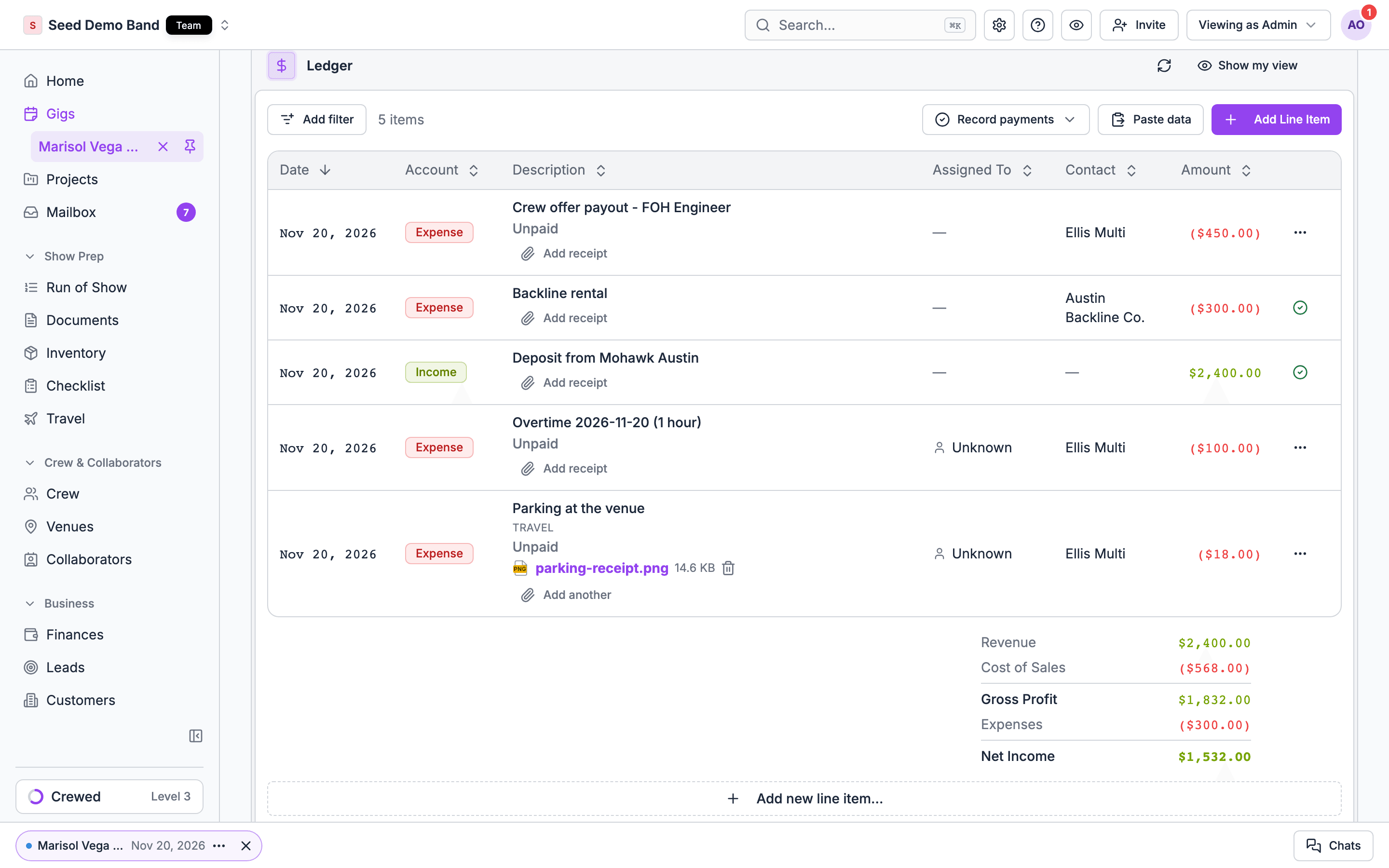
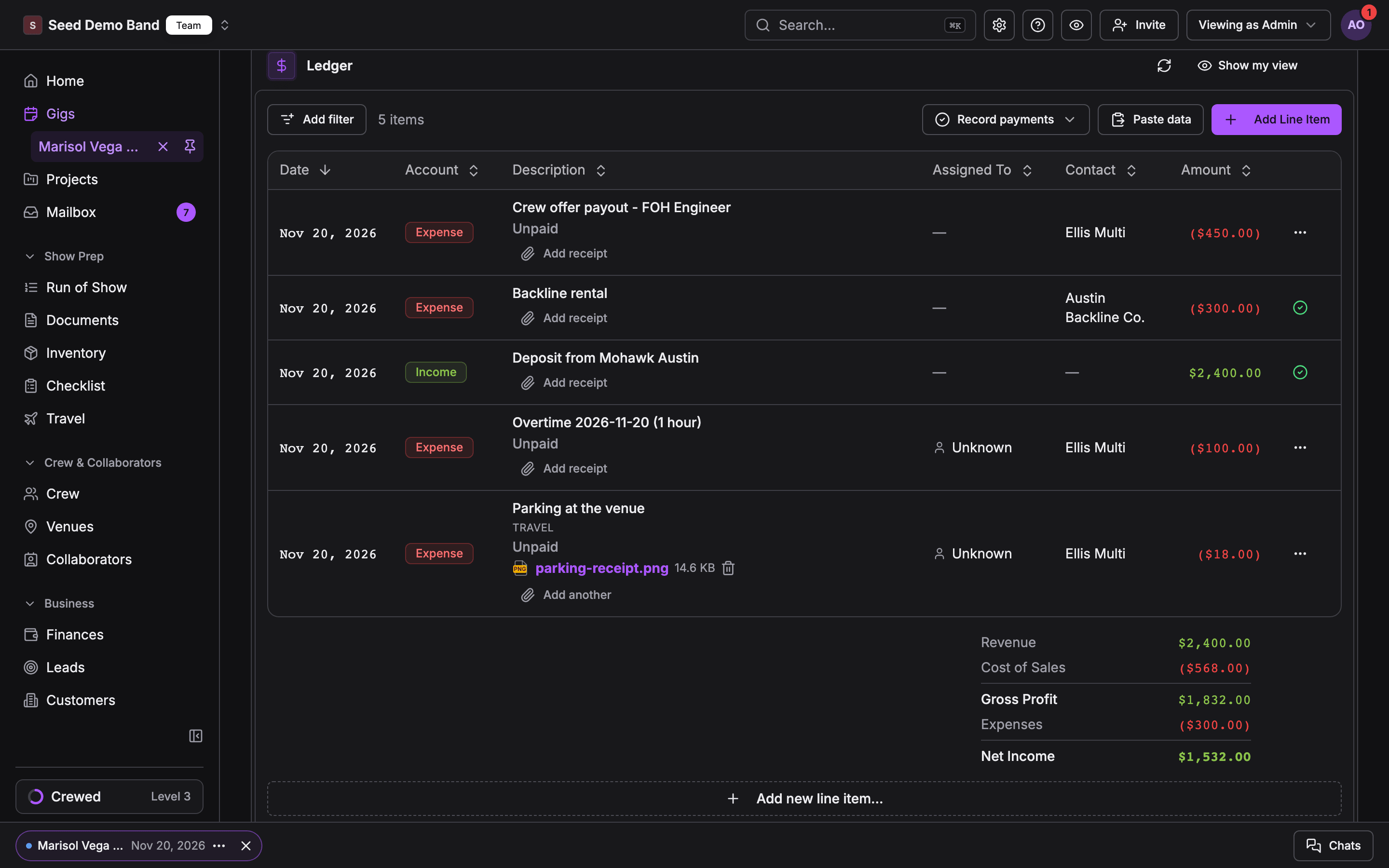
What’s in the ledger
Each row is one of four kinds:
Each row shows its Date, Account, Description, Assigned To, Contact and Amount, and its payment status. A payable or receivable is Unpaid, Processing, Paid, Failed, Refunded or Voided. When part of an unpaid row has been recorded, it reads Partial and shows what’s paid of the total, but it stays unpaid until the whole amount is recorded. See Payout statuses.
The summary
The Finances tab opens with a strip of four figures for the gig:
Under the ledger, the profit and loss panel breaks the same numbers into Revenue, Cost of Sales, Gross Profit, Expenses and Net Income.
When lines carry tax, a Tax Summary follows. Collected (inclusive) is tax already inside line amounts. Additional (exclusive) is tax added on top. The tax summary is for your information. It isn’t subtracted from the profit and loss.
The header also shows how many crew with a fee are paid, such as 3 / 5 paid.
Add a line item
1
Start a line
On the gig’s Finances tab, choose Add Line Item in the ledger. Crew see Add Expense instead.
2
Pick the account
Choose the Account the line files against. An income account records money already received. An expense account records a cost.
3
Expense or payout
On an expense account, choose Standard expense for a cost, or Member payout for money owed to someone on the gig.
4
Fill in the details
Enter a Description, a budget category, the contact or vendor, who it’s Assigned To, the date and the amount. Attach receipts if you have them.
5
Save
Save the line. Soundcheck confirms Item added.
If the account list is empty, the ledger says No accounts available. Ask an admin to configure accounts. With QuickBooks connected, Soundcheck imports your chart of accounts.
Change, void or delete a row
A paid line reads Recorded. To correct, add an adjusting entry. You can only void a row that is unpaid and has no payment recorded. If it has one, undo the payment first.
Undo payment reverses the most recent payment you recorded by hand. A payment sent through Stripe can’t be undone here; a refund made in Stripe updates the row to Refunded on its own. See Refunds.
Archived gigs are read-only. After a gig’s last day its money locks, and only Owners and Admins can edit it. See The past-gig lock.
Currency
Lines you add by hand are in US dollars (USD). Soundcheck doesn’t convert between currencies. Pay that came from staffing in another currency keeps its own currency, and totals are shown per currency, never added together.See the gig as a crew member
Choose Show my view in the ledger header to see the tab the way a crew member does: only your own pay and expenses, with a summary of your pay and your expenses. Choose Show gig view to go back.Export a CSV
Choose Export CSV to download the gig’s rows for your records. The file lists the lines in date order, then a Profit & Loss summary and the tax summary. It uses the accrual basis: unpaid items are included, and the payment status column says which. A crew member’s export has My Summary instead.CSV export from a gig’s ledger is in beta and may not show for your organization yet. Sample gigs can’t be exported.
Purchase orders
Some organizations that use Flex see a Purchase orders card under the ledger, with Flex rental and purchase POs linked to the gig. It’s an early-access feature and is off for most organizations.Who sees and edits the ledger
- See every row: Owner, Admin, Finance, members with finance access, and anyone assigned Finances on the gig.
- Add, edit, void and delete rows: Owner, Admin, Finance, and anyone assigned Finances on the gig. Finance access alone only views a gig’s ledger.
- Crew on the gig: see My Expenses, their own pay and expenses, and can add their own expenses.
Related
Payouts
Pay the payables in the ledger.
Expenses and receipts
Crew reimbursements and receipts.
QuickBooks
Sync the ledger to your books.