

- Extra access for one member, such as staffing every gig. See Extra access for one member.
- Gig staff assignments and sharing, which give access to one gig. See Who can see and do what on a gig.
Find your role
In the workspace switcher, go by the role shown under each organization’s name. Roles that manage gigs show Staff in front, such as Staff · Admin. Finance shows without it, because Finance doesn’t manage gigs.
A job title such as production manager or bandleader is a position, not a role. The word on your screen for a gig, Gig or Event, follows your organization, not your role. See Event.
The five roles
The Owner, Admins, Finance members and Gig Coordinators are staff. Each one uses a staff seat. Members don’t.
Owner
- Manages the plan and billing under Settings → Billing → Plan.
- Manages payment settings under Settings → Billing → Payments, together with Finance.
- Is the only one who can make someone an Admin or Finance, by invitation or by changing their role.
- Can delete the organization.
- Does everything an Admin and a Finance member can do.
Admin
- Creates, edits, staffs and deletes every gig.
- Invites and removes people, changes roles, and gives members extra access.
- Edits organization settings and sees admin notes.
- Sees money everywhere and edits money records, including on gigs that have ended.
- Reviews incident reports.
Finance
- Sees money everywhere: P&L, payouts, rates, fees and the Finances page.
- Edits money on gigs and in the organization’s records.
- Pays people: sends card or direct-deposit payouts, records payments made outside Soundcheck, marks payouts or invoices paid, and undoes a recorded payment.
- Manages payment settings under Settings → Billing → Payments: payout funding (the organization’s bank accounts and cards), the default currency and payment history.
- Uses everything under Crew & collaborators (Crew, Venues, Collaborators), Travel under Show prep, and Business (Finances, Offerings, Leads, Customers), including the crew availability calendar and team templates.
- Reads the Budget categories under Settings → Labels → Catalogs without changing them.
- Otherwise works gigs like a Member. Finance cannot create or staff gigs, manage members, open Plan, or edit other organization settings.
Gig Coordinator
The Gig Coordinator role is turned on per organization. If it isn’t offered when you invite
someone or change a role, it isn’t on for your organization yet.
- Creates, edits, publishes and deletes every gig, and manages projects.
- Staffs every gig: the team, invitations and crew offers.
- Sees each person’s pay on a shift once it is sent, because staffing means knowing what each seat pays. On a draft shift, pay stays hidden, and setting or changing a rate needs finance access.
- On a sent shift, accepts or declines for a crew member, takes people off, swaps someone out and cancels the shift. Owners and Admins can too; Finance members cannot. Changing a crew member’s pay still needs finance access.
- Edits every run of show and manages every checklist.
- Shares gigs and assigns gig staff.
- Manages venues, collaborators, customers, leads, sponsors, inventory, travel and the crew availability calendar.
- Invites people to the organization as Member.
- Edits Song types under Settings → Labels → Catalogs, and reads some other settings pages. See Settings by role.
- Sees and sets each person’s crew pay on every gig: invitation fees and crew offer fees, on draft and sent shifts. Editing is blocked on archived and past-locked gigs.
- Settles a gig, or un-settles it, only when assigned Finances (or Lead) on that gig. The Settled option otherwise shows disabled with Needs finance access.
Member
- Opens the gigs they are invited to, booked on, or assigned to.
- Answers invitations, crew offers and availability requests.
- Sees their own call, schedule, tasks and pay on those gigs.
- Manages their own profile.
- Find your gigs on the Gigs page, which lists the gigs you work with your position on each row, and on Home under Up next and Coming up.
- Reply to work in My Mailbox: accept or decline each offer, day by day on a multi-day shift, and choose Can’t make it if your plans change after you accepted.
- Say when you’re free under your availability.
- Get paid: set up your payout account, see your own pay on the gig, mark a payment as received, and submit expenses with receipts.
- Read the show: the run of show, the gig’s documents, and the venue’s load-in and access details.
- Other people’s pay. On a shift you see the shift’s rate and your own pay, never anyone else’s. The exception is a member given Staffing on a gig or on every gig: they see each person’s pay on that gig’s sent shifts. A Gig Coordinator sees each person’s pay on every gig.
- The organization’s money: P&L, payouts, invoices and the Finances page.
- Gigs you are not on.
- Customers, venues and leads: the customer and lead lists, and the full venue record. You still see a venue’s load-in and access details on a gig you work.
- Settings and the roster: you can’t invite people, change roles or edit organization settings.
Permission matrix
How access is named
Every name on this page is built the same way, so the same word always means the same thing.- A level, then a thing. The levels are View, Edit and Manage. Manage includes creating and removing. The time clock has one more, Approve.
- The thing is a part of Soundcheck you already know: finances, staffing, run of show, checklist, time clock, incidents, customers, venues, leads.
- Access you give is named for its area: Staffing, Run of show, Checklist and Finances on one gig, and the same areas “on every gig” for extra access.
- Your organization’s words are used on screen. A venue sees Staffing on every event, and an organization that renamed customers sees its own word.
On one gig
Some work is done gig by gig. This second table is generated the same way. The first five columns are the roles, which hold the capability on every gig. The last five are gig staff assignments, which hold it on the one gig they are assigned to. The time clock rows apply only when your organization uses the time clock.
A few things sit outside both tables:
Two rules about money:
- Sending money stays with the Owner and Finance. Only they send card or direct-deposit payouts and change where the money comes from. The Owner, Admins, Finance, and members with Organization finances record payments made outside Soundcheck, mark payouts or invoices paid, and undo a recorded payment. Crew can mark their own payout as received.
- Money on a gig that has ended is locked for everyone except the Owner and Admins, unless past-gig money edits are turned on for your organization.
Extra access for one member
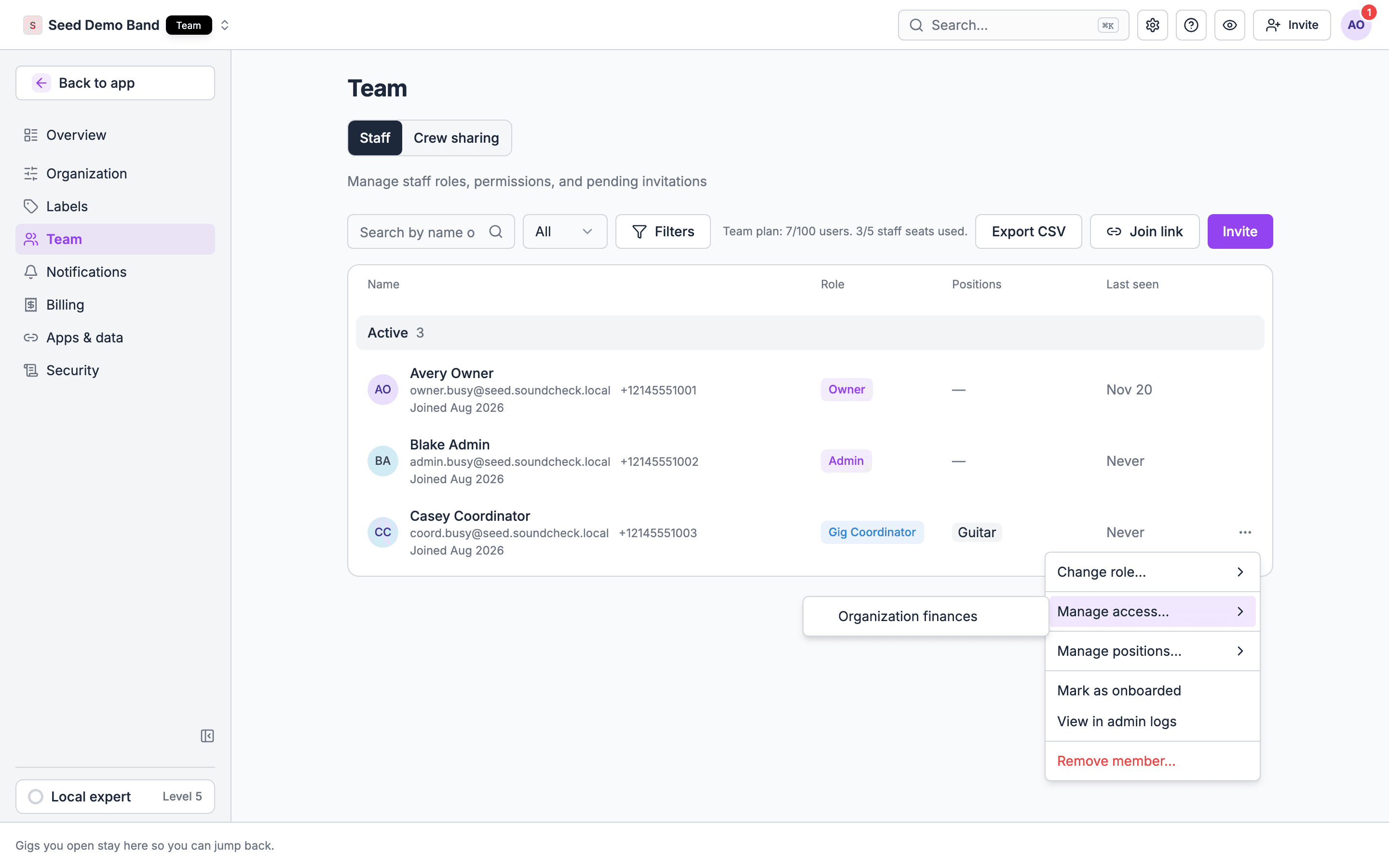
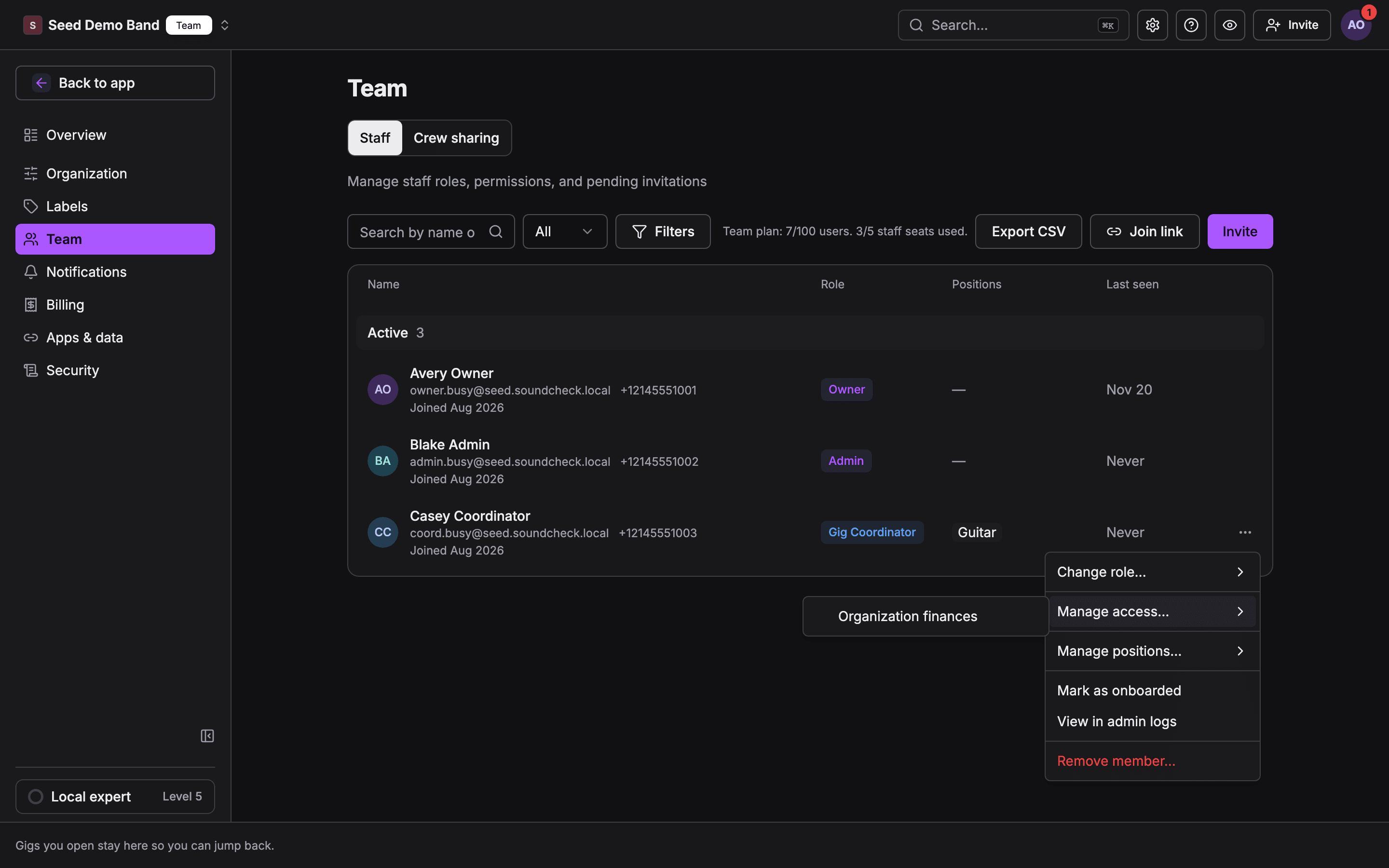
An Owner or Admin can give one person more than their role includes. Open the roster (Settings → Team → Staff, or Crew & collaborators → Crew → Members when your organization staffs gigs with crew shifts), open the person’s row menu and choose Manage access…. Tick what they need. The menu uses your organization’s words, so a venue sees Staffing on every event. It takes effect right away, and unticking removes it.- The menu lists only access the person’s role doesn’t already include. A Gig Coordinator is offered Organization finances only. A Finance member is offered the three gig options.
- The menu isn’t shown for the Owner, Admins, yourself, or people who haven’t claimed their account yet. An Admin’s role already covers everything the menu offers.
- A member with one of the three gig options can open every gig in the organization, not only the ones they are on.
- Run of show access covers the songs in a gig’s set once your organization has brought its setlists into Run of Show. Before that, editing a gig’s setlist takes an Owner, Admin or Gig Coordinator.
- To give access to one gig only, assign the person as gig staff instead.
Who can invite
- Owners and Admins invite from Settings → Team → Staff. Everyone who can invite also has Invite in the header and Invite team on Home.
- Gig Coordinators and members with Staffing on every gig can cancel or resend only the invitations they sent. Owners and Admins see and manage every pending invitation.
- A pending invitation holds a seat. An invitation that would pass your plan’s member-seat or staff-seat limit is blocked before it sends. See Seat limits.
- People who ask to join through a join link are approved by an Owner or Admin and always join as Member.
Choosing a role
Changing a role
1
Open the member
Go to Settings → Team → Staff and open the person’s role menu.
2
Pick the new role
Admin, Finance, Gig Coordinator or Member. Only the Owner can pick Admin or Finance. The change
takes effect immediately.
Moving someone to Admin, Finance or Gig Coordinator uses a staff seat and is blocked when you are
at your plan’s staff-seat limit.
What each role sees
Navigation and the Home page follow your role and any extra access you hold.- Owners and Admins get the organization Mailbox, the Settings gear in the header (or Workspace settings in the avatar menu on a phone), and finance roll-ups on Home. Plan in settings opens for the Owner only, and Payments for the Owner and Finance.
- Finance members see finance roll-ups, every page under Crew & collaborators and Business, and Payments in settings.
- Gig Coordinators see gigs, scheduling, customers, venues and leads, with no finances or member administration.
- Members see their own gigs and their personal My Mailbox.
Pages by role
This is the web sidebar. Extra access adds the pages its capability covers, as noted.
Some pages also depend on your plan or on a feature being turned on for your organization, whatever your role: Inventory, Leads and Customers need a plan that includes them, Collaborators and Customers need CRM turned on, and Run of Show, Offerings and Crew appear once your organization uses them. Organizations that still keep setlists outside Run of Show also see Setlists.
Settings by role
What each role can open under Settings, and whether they can change it. View means the page opens read-only and names who can change it. A role that can’t open a page doesn’t see it in the sidebar.- Pages behind early access or a plan show only when your organization has them, whatever your role.
- In the mobile app, the Organization Admin screens under You (Org Profile, Members, Positions, Org Notifications and Connections) open for Owners and Admins only.
- Members change only their own settings: their profile, appearance and their own notification preferences.
The crew view
People who work gigs but don’t manage anything get a shorter web app built around their own work. You get it when your role is Member and you have no access to manage gigs, customers, venues and leads, or finances. Staff see it too while they use Member view. The sidebar has five items and no groups:
Two more appear only when they apply: Crew, if you have Staffing on at least one upcoming gig, and Incidents, if you can manage incidents.
My Mailbox and My Schedule leave the avatar menu, because they are in the sidebar.
A gig page opens on what you need for the day:
- Your shift, with your call time and shift length, and a row for each day on a multi-day gig. You accept or decline here.
- Where: the venue and its address.
- Your contact for the gig, or a pointer to the gig chat when no contact is set.
Features that are not in the sidebar
If something is missing
Three things can hide a page or a button. Check them in this order:- Your role. Find the page in the tables above. A locked sidebar item says why when you select it.
- Your plan. A feature your plan doesn’t include shows a plan chip. See Plans.
- Early access. Some features are turned on per organization. The feature’s own page says so in a note at the top.
View as Staff or Member
If you manage at least one organization, you can switch between two views, on the web and in the mobile app. Open the workspace switcher (on mobile, Switch organization).- Member sits at the top: “Your gigs across every org.” You see the gigs you work in every organization, your own pay on gig cards, and the crew home. Manager tools such as creating gigs are hidden. On the web, the switcher reads Member with an All orgs tag.
- Pick one of your organizations to use it with your real role. Organizations you manage are labeled Staff with your role, such as Staff · Admin. Staff view shows only that organization’s gigs and the manager home.
Related guides
Who can see and do what on a gig
Members, collaborators, crew, clients and guests on one gig
Managing members
The roster, seats and extra access
Invitations
Bring new people in
Positions
The work someone does, not their access
Settings reference
Every setting, its default and who can change it
Settings FAQ
Answers about organization settings
Team FAQ
Answers about members, roles and seats