

Early access: Knowledge base is rolling out gradually. Contact info@soundchecklive.io if you’d like it turned on for your organization.
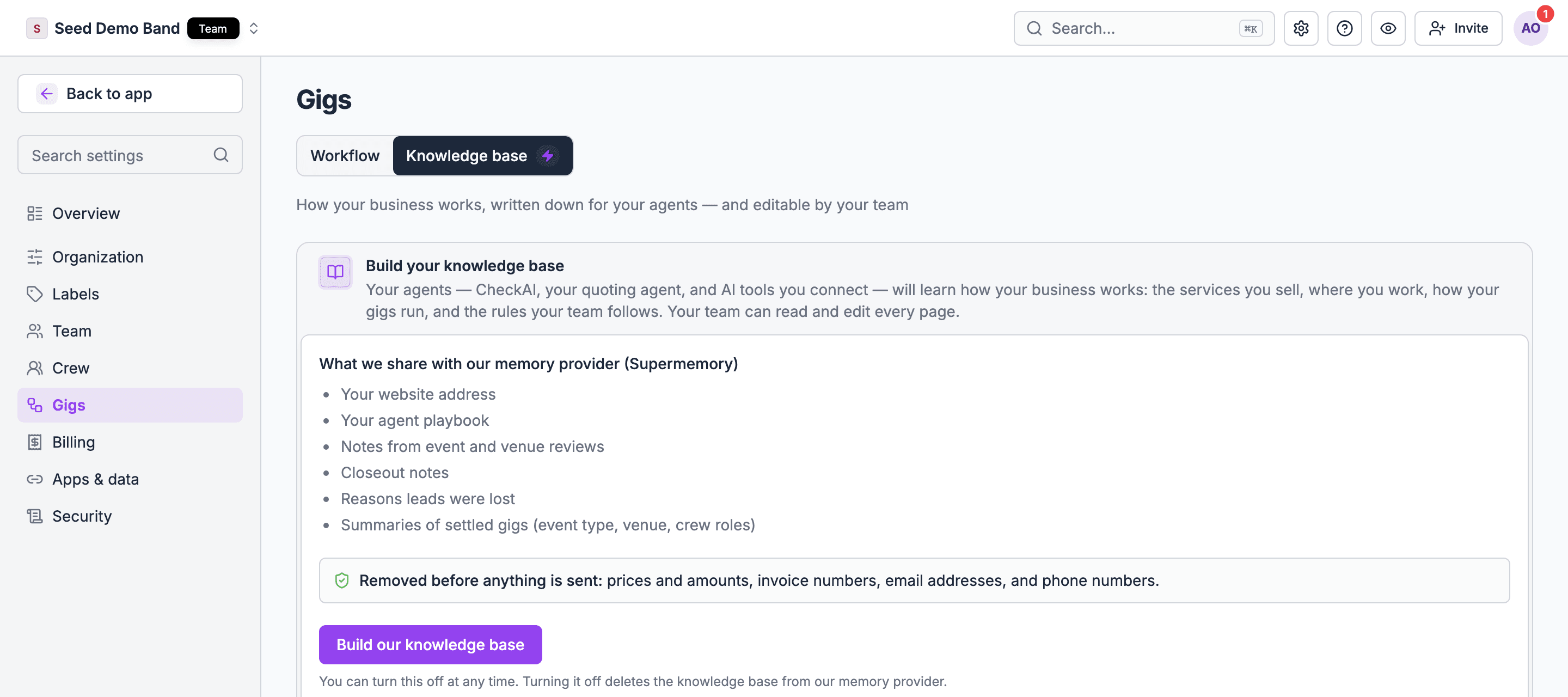
Where to find it
Go to Settings → Apps & data → Knowledge base.Turning it on
Before you build it, Soundcheck shows what gets shared to power it:- Your website address
- Your saved working notes (the playbook)
- Notes from event and venue reviews
- Closeout notes
- Reasons leads were lost
- Summaries of settled gigs (event type, venue, crew roles)
Sections
Once built, the knowledge base is organized into sections: an Overview plus topic pages such as Services, Service area, Clients, Venues, Staffing, Operations, Money rules, Incidents, Voice, Playbook, and Glossary. Use the sidebar (or the section picker on mobile) to jump between them, and filter the list by name. Sections Soundcheck generates for you are marked apart from ones your team has written or edited, so you always know whether you’re looking at your own words or a draft.Editing a section
Select Edit on any section to rewrite it directly. Select Regenerate to replace it with a freshly written version instead. This overwrites any edits your team made to that section, and Soundcheck asks you to confirm first.Connect to Agent
Select Connect to Agent to get the connection details for wiring an external AI tool to your knowledge base over MCP. Once connected, an agent can call:
What these tools return is reference data about your business. It informs the answer to a request; it does not change how the connected assistant behaves or override what you ask it.
Related guides
MCP server
Connect external AI tools to your organization’s data
Organization setup
Where Knowledge base sits among the rest of Settings