

Questions this page answers
- How do I choose which notifications I get by push, email or text?
- How do I stop texts, or mute one gig chat?
- Can I set quiet hours or a daily digest?
- How do I change my password and sign out my other devices?
- How do I turn on dark mode or change the theme?
- How do I get my gigs into Google Calendar, Apple Calendar or Outlook?
- Can I set my own language or time zone?
- How do I delete my account, and what happens to my data?
Notifications
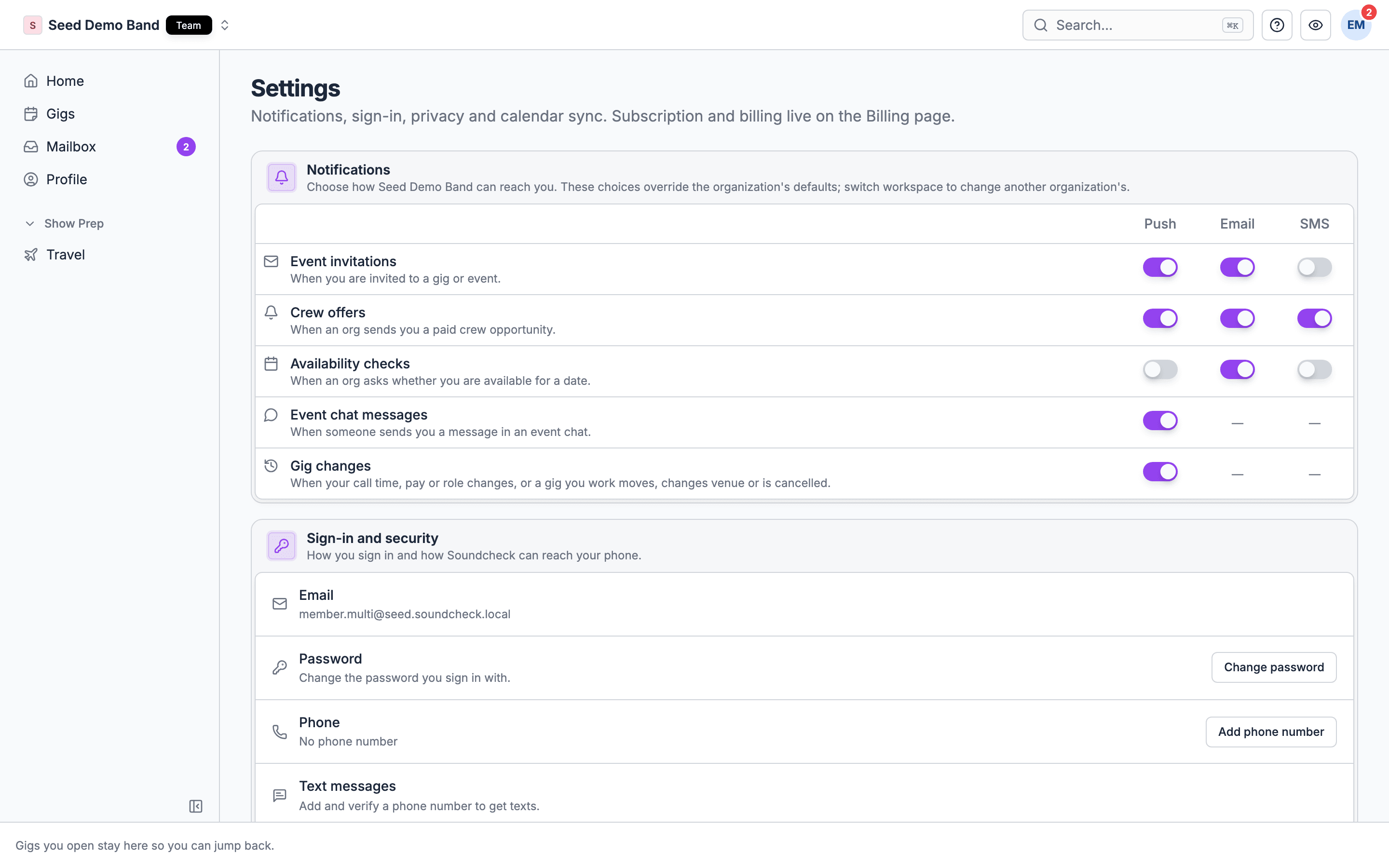
You choose, for each organization you belong to, which channels can reach you for each kind of message. “These choices override the organization’s defaults; switch workspace to change another organization’s.” Until you or your organization change them, every channel is on.- Push is the mobile app notification. In the app, the settings screen also shows whether your phone allows Soundcheck notifications.
- Email goes to your account email.
- SMS is a text message to the phone on your profile, and carrier rates apply. My Settings → Sign-in and security shows whether you’ve agreed to receive texts. Turn SMS off for any kind you don’t want texted, or reply STOP to any text to stop them all.
Mute one gig chat
Open the chat’s bell and choose All messages, Mentions only or Nothing. To pause it for a while, choose Mute for 1 hour or Mute until the gig ends, and Resume notifications to turn it back on.What isn’t available
Soundcheck has no quiet hours or do-not-disturb schedule, and no daily or weekly digest for crew. Messages send as they happen. To hear less, turn off the channels you don’t need, or use your phone’s Focus or Do Not Disturb mode. More detail: Notifications.Sign-in and security
My Settings → Sign-in and security shows “How you sign in and how Soundcheck can reach your phone.”- Email: your sign-in email. It’s read-only here.
- Password: Change password. Keep Sign out of other sessions on to sign out your other devices; your current session stays signed in.
- Phone: verify your number by SMS to get texts.
Appearance
On the web
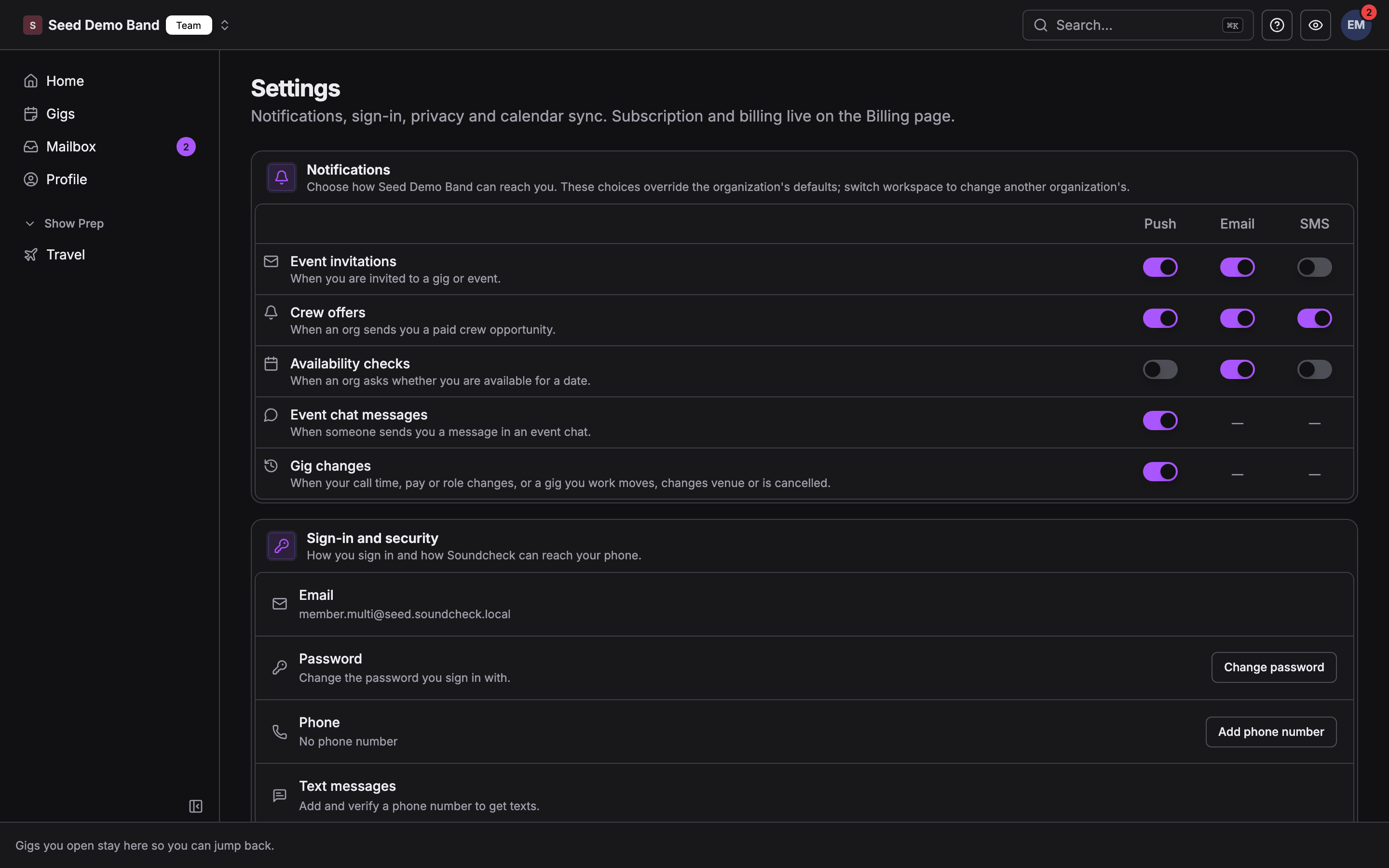
Open the avatar menu and choose Appearance. “Color mode and theme choice are saved on this device; a named custom theme also syncs to your account across devices.”- Color mode: light, dark, or follow your system.
- Theme: pick from Soundcheck themes (Soundcheck, Blue Note, Green Room, Golden Hour, Velvet), or build a Custom theme from six anchor colors: Primary, Background, Surface, Text, Success and Destructive. Soundcheck warns you when two colors don’t contrast enough. Every theme has a light and a dark version.
In the mobile app
Open You → Settings → Appearance and choose System, Light or Dark. On iPhone, the Widgets section has Hide gig details on the Lock Screen. Turn it on and “The Lock Screen widget shows only your next call time.” Your organization’s branding sets its logo and colors for everyone; your appearance settings change only how Soundcheck looks to you.Calendar sync
Get your gigs into your own calendar in one of two ways, both one way out of Soundcheck:- Calendar feed link: a private subscription link for Apple Calendar, Google Calendar, Outlook or any app that reads iCal. In the mobile app, use Copy link, Apple Calendar, Google Calendar or Outlook. On the web, Soundcheck shows the full link only when you create it; rotate the link to see a new one. Rotating stops the old link.
- Connect Google Calendar: Soundcheck creates its own Soundcheck calendar in your Google account and keeps the gigs and shifts you’ve accepted in it. When you disconnect, you choose whether to keep that calendar or delete it.
Forward confirmations
My Settings → Forward confirmations gives you an address to forward travel, hotel and venue confirmations to. Soundcheck reads them and lets you review each one before it lands on a gig. See Forwarded confirmations.Language and time zone
Soundcheck is in English only, and you can’t set a personal time zone. Your own times, such as when a message was sent, use your device’s time zone. Gig times use the gig’s time zone, or your organization’s.Delete your account
You delete your account in the mobile app. The web app has no delete option for crew and staff accounts.1
Open your profile
In the mobile app, go to You → Profile.
2
Delete
Choose Delete Account. Soundcheck asks: “Are you sure you want to permanently delete your account? This action cannot be undone and all your data will be removed.”
3
Confirm
Confirm. Your account is deleted right away.
Worked example: a freelance A2 working for three companies
Maya is an A2 who takes calls from two production companies and a venue.- She opens You → Settings → Notifications and picks the first company. She leaves crew offers on for push and SMS, because they fill fast, and turns email off. She switches workspace and does the same for the other two.
- The venue’s gig chat is busy on show days, so she sets it to Mentions only.
- She connects Google Calendar from You → My schedule → Calendar Sync, so every shift she accepts appears in her Soundcheck calendar next to her personal events.
- She switches the app to Dark and turns on Hide gig details on the Lock Screen so client names don’t show on her phone backstage.
- Later she changes her password on the web with Sign out of other sessions on, which signs her out of an old tablet.
Related
Notifications
Every kind of notification, and who controls the defaults.
Your profile
Your details, positions, travel, payouts and gig history.
Calendar feed subscription
Subscribe from Apple Calendar, Google Calendar or Outlook.
Settings glossary
Plain definitions of the settings terms.