

Deal-breakers at a glance
The 15 questions buyers ask first, with a short answer and where to read more.The five roles, as the app runs them
Everyone in an organization has one role. The full matrix is on Roles and permissions, and the terms are defined in the settings glossary.1. Inviting people
1. How do I invite office staff, and how do I invite crew? Is it the same process?
1. How do I invite office staff, and how do I invite crew? Is it the same process?
2. Can I invite someone by phone number only, without an email address?
2. Can I invite someone by phone number only, without an email address?
3. Can I add crew to my list without inviting them yet, and invite them later?
3. Can I add crew to my list without inviting them yet, and invite them later?
4. Can I invite people in bulk from a spreadsheet or my old system?
4. Can I invite people in bulk from a spreadsheet or my old system?
5. What does the invited person see? Can I customize the invite message?
5. What does the invited person see? Can I customize the invite message?
6. Do invites expire, and can I resend or cancel one?
6. Do invites expire, and can I resend or cancel one?
7. What happens if the person already has an account with another company on the same platform?
7. What happens if the person already has an account with another company on the same platform?
8. Can someone join my company by request (they sign up and ask to join), with my approval?
8. Can someone join my company by request (they sign up and ask to join), with my approval?
9. Can I see who has been invited but hasn't joined?
9. Can I see who has been invited but hasn't joined?
10. Does a person have to download the app, or can they do everything from a link?
10. Does a person have to download the app, or can they do everything from a link?
11. Can I invite from the mobile app, or only from a computer?
11. Can I invite from the mobile app, or only from a computer?
12. Can I set a person's role and department as part of the invite?
12. Can I set a person's role and department as part of the invite?
2. Seats and who counts
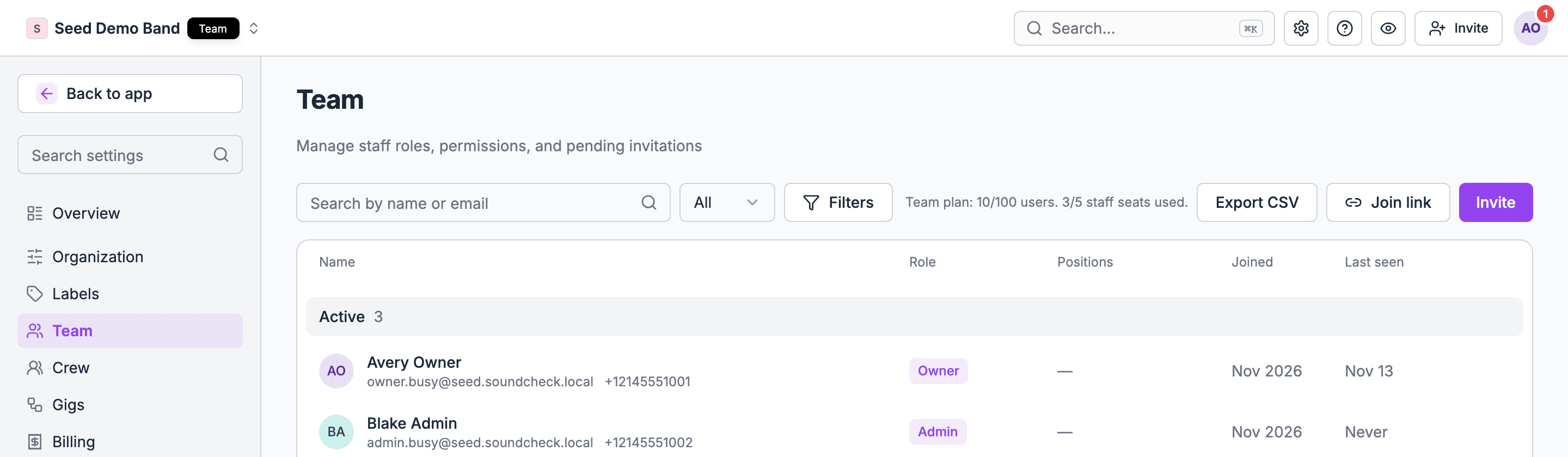
13. Who counts as a paid seat: every crew member, or only office users?
13. Who counts as a paid seat: every crew member, or only office users?
14. Are freelancers and day-hire crew free to add?
14. Are freelancers and day-hire crew free to add?
15. What can a non-paying user do compared with a paid one?
15. What can a non-paying user do compared with a paid one?
16. If I go over my seat limit, does anything stop working?
16. If I go over my seat limit, does anything stop working?
17. Can I move a seat from someone who left to a new hire?
17. Can I move a seat from someone who left to a new hire?
18. Do pending invitations count against the seat limit?
18. Do pending invitations count against the seat limit?
19. Do clients, venue contacts and partner companies count as seats?
19. Do clients, venue contacts and partner companies count as seats?
20. Are seats charged monthly per active user, or for every user on the list?
20. Are seats charged monthly per active user, or for every user on the list?
21. Can I deactivate someone without deleting their history?
21. Can I deactivate someone without deleting their history?
3. Roles
22. What roles come built in, such as Owner, Admin, Manager, Finance, Crew? What can each one do?
22. What roles come built in, such as Owner, Admin, Manager, Finance, Crew? What can each one do?
23. Is there a single page that lists every role and every permission side by side?
23. Is there a single page that lists every role and every permission side by side?
24. Can I create my own roles?
24. Can I create my own roles?
25. Can I give one person more than one role, such as Crew Chief and Finance?
25. Can I give one person more than one role, such as Crew Chief and Finance?
26. Who can change someone's role? Can an admin promote themselves to owner?
26. Who can change someone's role? Can an admin promote themselves to owner?
27. Can there be more than one owner? How do I transfer ownership when the owner leaves or sells the business?
27. Can there be more than one owner? How do I transfer ownership when the owner leaves or sells the business?
28. What happens to someone's gigs, tasks and documents when I remove them?
28. What happens to someone's gigs, tasks and documents when I remove them?
29. Can a role be limited to certain brands, locations or departments?
29. Can a role be limited to certain brands, locations or departments?
30. Can I copy one person's access when adding someone similar?
30. Can I copy one person's access when adding someone similar?
31. Is there a "view as" mode, so I can check what a crew member or client sees?
31. Is there a "view as" mode, so I can check what a crew member or client sees?
32. Can a crew member also be an office user without two separate accounts?
32. Can a crew member also be an office user without two separate accounts?
33. Does the mobile app show different things depending on the role?
33. Does the mobile app show different things depending on the role?
4. Granular permissions
34. Can I hide money from crew: rates, budgets, client prices and margins?
34. Can I hide money from crew: rates, budgets, client prices and margins?
35. Can a crew member see their own pay but not anyone else's?
35. Can a crew member see their own pay but not anyone else's?
36. Can I let someone see finances without letting them edit or send invoices?
36. Can I let someone see finances without letting them edit or send invoices?
37. Can I let a department head staff their own department, and nothing else?
37. Can I let a department head staff their own department, and nothing else?
38. Can I give someone access to one gig only, or one client's gigs only?
38. Can I give someone access to one gig only, or one client's gigs only?
39. Can I separate "can view", "can edit" and "can delete" for each area?
39. Can I separate "can view", "can edit" and "can delete" for each area?
40. Can I stop people from deleting gigs, clients or documents, even if they can edit them?
40. Can I stop people from deleting gigs, clients or documents, even if they can edit them?
41. Can I restrict who can send contracts, quotes or invoices to clients?
41. Can I restrict who can send contracts, quotes or invoices to clients?
42. Can I restrict who can export data or download contact lists?
42. Can I restrict who can export data or download contact lists?
43. Can I hide client contact details from crew, so crew don't go around the company to the client?
43. Can I hide client contact details from crew, so crew don't go around the company to the client?
44. Can I hide crew phone numbers and emails from other crew?
44. Can I hide crew phone numbers and emails from other crew?
45. Can I limit who sees private notes, such as HR notes or performance notes about a crew member?
45. Can I limit who sees private notes, such as HR notes or performance notes about a crew member?
46. Can I limit who changes company settings, billing and integrations?
46. Can I limit who changes company settings, billing and integrations?
47. Can permissions be set per person as an exception to their role?
47. Can permissions be set per person as an exception to their role?
48. When a permission changes, does it take effect right away, including on phones that are already signed in?
48. When a permission changes, does it take effect right away, including on phones that are already signed in?
49. Is there a record of who changed whose permissions?
49. Is there a record of who changed whose permissions?
5. Crew access on a gig
50. What does a crew member see on a gig they're booked on: call time, address, contacts, run of show, documents, other crew?
50. What does a crew member see on a gig they're booked on: call time, address, contacts, run of show, documents, other crew?
51. Can I hide parts of a gig from some crew, for example the hotel list or the VIP schedule?
51. Can I hide parts of a gig from some crew, for example the hotel list or the VIP schedule?
52. Can crew see a gig before they've accepted it, and how much of it?
52. Can crew see a gig before they've accepted it, and how much of it?
53. Does a crew member lose access to a gig after it ends?
53. Does a crew member lose access to a gig after it ends?
54. Can crew see who else is on the crew, and their positions?
54. Can crew see who else is on the crew, and their positions?
55. Can I give a crew chief extra rights on one gig, such as checking people in or editing the run of show?
55. Can I give a crew chief extra rights on one gig, such as checking people in or editing the run of show?
56. Can a crew member see gigs from several companies they work for in one place?
56. Can a crew member see gigs from several companies they work for in one place?
57. Can crew download or forward gig documents, and can I stop that?
57. Can crew download or forward gig documents, and can I stop that?
6. Guest and external access
58. Can I give a client access to their own event, without seeing anything else?
58. Can I give a client access to their own event, without seeing anything else?
59. Can a client edit some things, such as the guest list or song requests, but not others?
59. Can a client edit some things, such as the guest list or song requests, but not others?
63. Can I take away an outside person's access at any time?
63. Can I take away an outside person's access at any time?
64. Do outside guests see my branding, or the vendor's?
64. Do outside guests see my branding, or the vendor's?
65. Can a guest see the run of show but not the budget?
65. Can a guest see the run of show but not the budget?
66. Can an artist's own team (manager, agent) see the advance without seeing my other artists?
66. Can an artist's own team (manager, agent) see the advance without seeing my other artists?
67. Can I invite a bookkeeper or accountant with finance-only access? Do they count as a seat?
67. Can I invite a bookkeeper or accountant with finance-only access? Do they count as a seat?
7. Sharing crew and gigs between companies
68. A partner production company is supplying half the crew on my gig. Can they staff their own people into my gig?
68. A partner production company is supplying half the crew on my gig. Can they staff their own people into my gig?
69. Can the partner see only their own crew, rates and positions, and not mine?
69. Can the partner see only their own crew, rates and positions, and not mine?
71. When I work for another company as a subcontractor, does their gig show up in my account?
71. When I work for another company as a subcontractor, does their gig show up in my account?
73. Can two companies see each other's crew availability, without seeing each other's rates?
73. Can two companies see each other's crew availability, without seeing each other's rates?
74. Can I lend a crew member to another company for a day, with their consent?
74. Can I lend a crew member to another company for a day, with their consent?
75. Can a labor agency send me crew who appear on my gig without being on my staff list?
75. Can a labor agency send me crew who appear on my gig without being on my staff list?
76. Can I post a call for extra crew to people outside my own list?
76. Can I post a call for extra crew to people outside my own list?
77. Can a freelancer who works for several companies keep one profile, with one set of certifications and availability?
77. Can a freelancer who works for several companies keep one profile, with one set of certifications and availability?
78. Can a freelancer stop one company seeing their bookings with another?
78. Can a freelancer stop one company seeing their bookings with another?
79. Can a venue see the outside production crew working in its building that day?
79. Can a venue see the outside production crew working in its building that day?
8. Union locals
82. Can I record which union local each crew member belongs to, with their member number?
82. Can I record which union local each crew member belongs to, with their member number?
83. Can I set union rules per local: minimum call, meal penalties, overtime, turnaround, required ratios?
83. Can I set union rules per local: minimum call, meal penalties, overtime, turnaround, required ratios?
84. Can I keep separate rate tables for union and non-union work on the same position?
84. Can I keep separate rate tables for union and non-union work on the same position?
85. Can a gig be marked as union, so only union members can be offered positions?
85. Can a gig be marked as union, so only union members can be offered positions?
86. Can I request crew from a union hiring hall through the tool, or does that stay on the phone?
86. Can I request crew from a union hiring hall through the tool, or does that stay on the phone?
87. Can the union local itself have an account, to see and fill my call?
87. Can the union local itself have an account, to see and fill my call?
88. Can the local's dispatcher see only my calls, and not my other gigs or rates?
88. Can the local's dispatcher see only my calls, and not my other gigs or rates?
89. Can I track the union steward or crew chief for each call?
89. Can I track the union steward or crew chief for each call?
90. Can I export hours and penalties in the format the union or payroll company needs, such as for pension and welfare contributions?
90. Can I export hours and penalties in the format the union or payroll company needs, such as for pension and welfare contributions?
91. Can I handle a show where some departments are union and others aren't?
91. Can I handle a show where some departments are union and others aren't?
92. Can I record a yellow card or pink contract tour and its rules?
92. Can I record a yellow card or pink contract tour and its rules?
93. Can I track who is on the local's referral or seniority list, and in what order?
93. Can I track who is on the local's referral or seniority list, and in what order?
94. Who is allowed to see and edit labor agreements in my account?
94. Who is allowed to see and edit labor agreements in my account?
9. Agencies, rosters and multi-brand teams
95. As an agency, can each agent see only their own artists, or everyone's?
95. As an agency, can each agent see only their own artists, or everyone's?
96. Can an artist or their manager log in and see only their own bookings?
96. Can an artist or their manager log in and see only their own bookings?
97. Can an assistant work on behalf of an agent, with the same view?
97. Can an assistant work on behalf of an agent, with the same view?
98. Can I give a booker access to one venue or room only, in a multi-venue group?
98. Can I give a booker access to one venue or room only, in a multi-venue group?
99. Can a festival give each stage manager access to their stage only?
99. Can a festival give each stage manager access to their stage only?
100. Can I split a team by brand, so the wedding team doesn't see the corporate team's clients?
100. Can I split a team by brand, so the wedding team doesn't see the corporate team's clients?
101. Can someone work across two brands without two logins?
101. Can someone work across two brands without two logins?
10. Leaving, offboarding and access hygiene
102. When someone leaves, how do I remove their access everywhere, including the phone app, in one step?
102. When someone leaves, how do I remove their access everywhere, including the phone app, in one step?
103. Can I reassign everything they owned (gigs, leads, tasks) to someone else?
103. Can I reassign everything they owned (gigs, leads, tasks) to someone else?
104. Do their past messages and documents stay in the record after they leave?
104. Do their past messages and documents stay in the record after they leave?
105. Can I suspend access temporarily, for example during a dispute, without deleting the account?
105. Can I suspend access temporarily, for example during a dispute, without deleting the account?
106. Can a freelancer leave my company on their own? What do I keep?
106. Can a freelancer leave my company on their own? What do I keep?
107. Can I see when each person last signed in?
107. Can I see when each person last signed in?
108. Can I sign someone out of all devices remotely?
108. Can I sign someone out of all devices remotely?
109. Can I review everyone's access in one list once a quarter?
109. Can I review everyone's access in one list once a quarter?
110. If an owner's account is compromised, how do I get the company back?
110. If an owner's account is compromised, how do I get the company back?
111. Can I require a person to accept terms or an NDA before they see any gig?
111. Can I require a person to accept terms or an NDA before they see any gig?
Worked example: an AV company with office staff, a freelance roster and a partner
An AV production company runs about 15 corporate shows a month. It has an owner, an office manager, a bookkeeper, two production managers and 80 freelancers. It’s on the Team plan.- Staff seats. The owner is Owner, the office manager is Admin, and the two production managers are Gig Coordinators. That’s 4 of Team’s 5 staff seats.
- The bookkeeper joins as a Member with Organization finances, so she sees every gig’s money on a member seat.
- Freelancers. The 40 who work every month join as Members and use the app. The other 40 get shifts by link with no account and use no seat.
- Crew chiefs. On each show, the lead tech is assigned Staffing. He fills the stagehand shifts with pay hidden on his board.
- A partner lighting company gets the run of show’s lighting section and the load-in contacts through Share. It never sees the crew or the money.
- The client gets the client portal, where they sign the agreement and see the invoice.
- A production manager leaves. The owner removes her: her access ends on every device, her settled shows keep her on the record, and the owner makes the other production manager Lead on her upcoming gigs.
Questions this page answers
- Do I pay for every freelancer, or only for office users?
- Is there a permission matrix I can show my team?
- Can I hide rates, budgets and client prices from crew?
- Can a department head or crew chief staff without seeing pay?
- Can a client see only their own event?
- Can a partner company or labor agency work inside my gig?
- Can a union local have its own account?
- Can agents in an agency see only their own artists?
- How do I transfer ownership?
- How do I remove someone who leaves, everywhere at once?