

Questions this page answers
- Workspace basics (14 questions)
- Branding and white-label (12 questions)
- Terminology and labels (10 questions)
- Custom fields (10 questions)
- Departments, positions and event types (13 questions)
- Notification rules (14 questions)
- Email sending and domains (12 questions)
- Public profile and lead capture (13 questions)
- Workflow settings (11 questions)
- Setting up from an existing business (4 questions)
Deal-breakers at a glance
These 18 questions decide most evaluations. Soundcheck answers Yes to 8, Partly to 8 and No to 2.Worked example: an AV company sets up in an afternoon
Brightline AV is a 12-person audio and lighting company in Austin. It runs corporate shows and festival stages, and books about 40 freelancers.Sign up as Production
Fill in General
Brand the documents
Set up positions and records
Tune notifications
Send from the company domain
Workspace basics
1. How long does it take to set up a new company account before I can send my first gig or quote?
1. How long does it take to set up a new company account before I can send my first gig or quote?
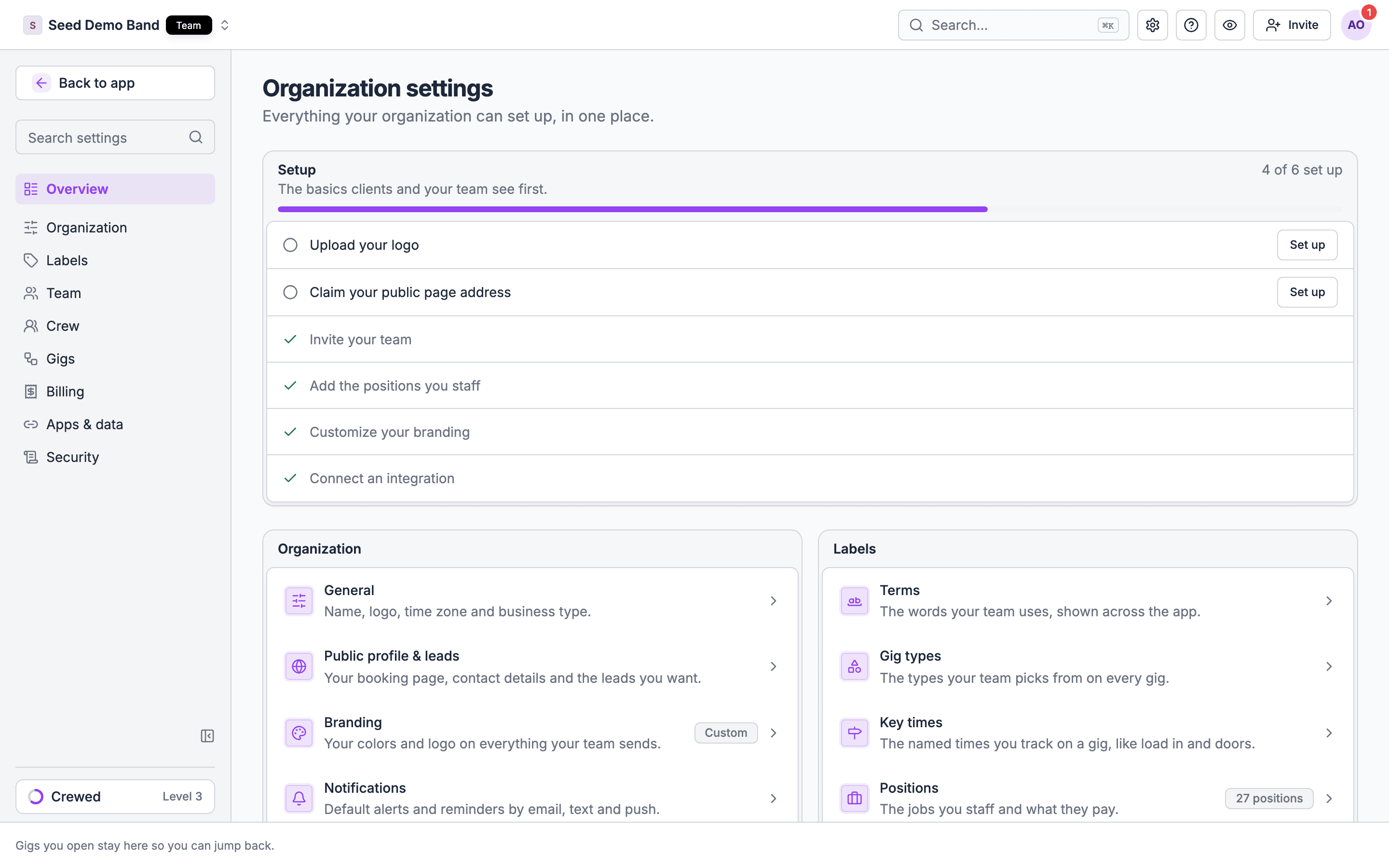
2. Is there a setup checklist that tells me what to fill in first and what I can skip?
2. Is there a setup checklist that tells me what to fill in first and what I can skip?
3. Where do I set the company name, address, phone, website and tax ID that print on quotes, invoices and contracts?
3. Where do I set the company name, address, phone, website and tax ID that print on quotes, invoices and contracts?
4. Can I set a default time zone for the company, and can each gig or venue have its own?
4. Can I set a default time zone for the company, and can each gig or venue have its own?
5. Can I set the currency, number format and date format (US or day-first)?
5. Can I set the currency, number format and date format (US or day-first)?
6. Can one account hold several companies or brands, for example a production company and its rental arm, or two wedding bands under one agency?
6. Can one account hold several companies or brands, for example a production company and its rental arm, or two wedding bands under one agency?
7. Can I switch between two companies I belong to without logging out?
7. Can I switch between two companies I belong to without logging out?
8. Can I add several office locations or warehouses and set which one a gig belongs to?
8. Can I add several office locations or warehouses and set which one a gig belongs to?
9. Does the workspace ask what kind of business I am (production company, venue, agency, band) and set itself up to match?
9. Does the workspace ask what kind of business I am (production company, venue, agency, band) and set itself up to match?
10. Can I change that business type later without losing data?
10. Can I change that business type later without losing data?
11. Can I start with sample data to try things out, and delete it cleanly before going live?
11. Can I start with sample data to try things out, and delete it cleanly before going live?
12. Can I rename the workspace or change the company's legal name without breaking old documents?
12. Can I rename the workspace or change the company's legal name without breaking old documents?
13. Who in my company can change company-wide settings?
13. Who in my company can change company-wide settings?
14. Is there a log of who changed a company setting and when?
14. Is there a log of who changed a company setting and when?
Branding and white-label
15. Can I upload my logo, and where does it appear: quotes, invoices, contracts, call sheets, emails, the client portal, the crew app?
15. Can I upload my logo, and where does it appear: quotes, invoices, contracts, call sheets, emails, the client portal, the crew app?
16. What size and file type should the logo be, and can I have a light and a dark version?
16. What size and file type should the logo be, and can I have a light and a dark version?
17. Can I set brand colors and fonts for documents and client-facing pages?
17. Can I set brand colors and fonts for documents and client-facing pages?
18. Can I remove the software vendor's name and logo from everything my clients see (white-label)?
18. Can I remove the software vendor's name and logo from everything my clients see (white-label)?
19. Can the client portal or proposal links use my own domain, such as portal.mycompany.com?
19. Can the client portal or proposal links use my own domain, such as portal.mycompany.com?
20. Can I have different branding per brand or division, for example a wedding brand and a corporate brand in one account?
20. Can I have different branding per brand or division, for example a wedding brand and a corporate brand in one account?
21. Can I brand per act on an agency roster, so each artist's advance and contract carries that artist's look?
21. Can I brand per act on an agency roster, so each artist's advance and contract carries that artist's look?
23. Can I customize the page that crew see when they accept an invite or sign in?
23. Can I customize the page that crew see when they accept an invite or sign in?
25. If I rebrand, do old documents keep the old logo or change to the new one?
25. If I rebrand, do old documents keep the old logo or change to the new one?
26. Does the mobile app show my company's logo to my crew?
26. Does the mobile app show my company's logo to my crew?
Terminology and labels
27. Can I rename things to match how we talk? We say "show", not "event"; "booking", not "gig"; "crew call", not "shift".
27. Can I rename things to match how we talk? We say "show", not "event"; "booking", not "gig"; "crew call", not "shift".
28. Do my renamed terms show everywhere, including emails, PDFs, the mobile app and notifications, or only in some screens?
28. Do my renamed terms show everywhere, including emails, PDFs, the mobile app and notifications, or only in some screens?
29. Can a venue see "hall" and "room" while a touring company sees "date" and "routing", in the same product?
29. Can a venue see "hall" and "room" while a touring company sees "date" and "routing", in the same product?
30. Can I rename statuses, such as Hold, Pencil, Confirmed, Contracted, Settled?
30. Can I rename statuses, such as Hold, Pencil, Confirmed, Contracted, Settled?
32. Can I set colors for labels so the calendar is readable at a glance?
32. Can I set colors for labels so the calendar is readable at a glance?
33. Can I control who is allowed to create new labels, so the list doesn't fill with duplicates?
33. Can I control who is allowed to create new labels, so the list doesn't fill with duplicates?
34. Can I merge two labels that mean the same thing?
34. Can I merge two labels that mean the same thing?
35. If I rename a term, do my reports and exports use the new name?
35. If I rename a term, do my reports and exports use the new name?
36. Can I set the language for client-facing documents separately from the staff interface?
36. Can I set the language for client-facing documents separately from the staff interface?
Custom fields
37. Can I add my own fields to gigs, clients, venues, people and gear?
37. Can I add my own fields to gigs, clients, venues, people and gear?
38. What field types are there: text, number, date, yes/no, dropdown, multi-select, file, link, currency?
38. What field types are there: text, number, date, yes/no, dropdown, multi-select, file, link, currency?
39. Can I make a custom field required before a gig can be confirmed?
39. Can I make a custom field required before a gig can be confirmed?
40. Can I choose which custom fields crew can see and which stay internal?
40. Can I choose which custom fields crew can see and which stay internal?
41. Do custom fields appear on call sheets, quotes, contracts and exports, and can I place them where I want?
41. Do custom fields appear on call sheets, quotes, contracts and exports, and can I place them where I want?
42. Can I use custom fields in filters, reports and calendar views?
42. Can I use custom fields in filters, reports and calendar views?
43. Can custom fields be filled through an import or the API?
43. Can custom fields be filled through an import or the API?
44. Can I set a default value per event type?
44. Can I set a default value per event type?
45. What happens to the data if I delete a custom field?
45. What happens to the data if I delete a custom field?
46. Is there a limit on how many custom fields I can add, and does it depend on my plan?
46. Is there a limit on how many custom fields I can add, and does it depend on my plan?
Departments, positions and event types
47. Can I set up departments, such as Audio, Lighting, Video, Staging, Backline, Catering, Security?
47. Can I set up departments, such as Audio, Lighting, Video, Staging, Backline, Catering, Security?
48. Can I build a list of positions (A1, A2, LD, Stagehand, Rigger, Bartender, Usher) with a default rate for each?
48. Can I build a list of positions (A1, A2, LD, Stagehand, Rigger, Bartender, Usher) with a default rate for each?
50. Can a position have a client bill rate and a crew pay rate, kept separate?
50. Can a position have a client bill rate and a crew pay rate, kept separate?
51. Can I set overtime, double-time and minimum-call rules per position or per department?
51. Can I set overtime, double-time and minimum-call rules per position or per department?
52. Can I attach required skills or certifications to a position, such as a rigging certificate or a forklift license?
52. Can I attach required skills or certifications to a position, such as a rigging certificate or a forklift license?
53. Can a person hold several positions, with a different rate for each?
53. Can a person hold several positions, with a different rate for each?
54. Can I group positions into departments and give each department a head who manages it?
54. Can I group positions into departments and give each department a head who manages it?
55. Can I set up event types (wedding, corporate, concert, festival, private party) with their own default checklist, run of show, crew and documents?
55. Can I set up event types (wedding, corporate, concert, festival, private party) with their own default checklist, run of show, crew and documents?
56. Can event types carry a default duration, load-in time and package or price?
56. Can event types carry a default duration, load-in time and package or price?
57. Can I set which event types each team member handles, so the right person gets the inquiry?
57. Can I set which event types each team member handles, so the right person gets the inquiry?
58. Can I add venues and rooms once and reuse them across gigs, with load-in notes and contacts?
58. Can I add venues and rooms once and reuse them across gigs, with load-in notes and contacts?
59. Can I archive a position or event type I no longer use without breaking old gigs?
59. Can I archive a position or event type I no longer use without breaking old gigs?
Notification rules
60. Which notifications does the system send by default, and to whom?
60. Which notifications does the system send by default, and to whom?
61. Can I turn company-wide notifications on or off, by type?
61. Can I turn company-wide notifications on or off, by type?
62. Can I choose the channel per notification: email, SMS, push, in-app?
62. Can I choose the channel per notification: email, SMS, push, in-app?
63. Does an SMS cost extra, and is there a monthly cap?
63. Does an SMS cost extra, and is there a monthly cap?
64. When I change a call time or venue, does the system tell the affected crew automatically, or do I have to send it?
64. When I change a call time or venue, does the system tell the affected crew automatically, or do I have to send it?
65. Can I review and edit a change message before it goes out?
65. Can I review and edit a change message before it goes out?
66. Can I set quiet hours, so crew aren't texted at 2 a.m. unless it's urgent?
66. Can I set quiet hours, so crew aren't texted at 2 a.m. unless it's urgent?
67. Can I send reminders before a call time (24 hours, 2 hours) automatically?
67. Can I send reminders before a call time (24 hours, 2 hours) automatically?
68. Can I get notified when a client signs, pays or fills in a form?
68. Can I get notified when a client signs, pays or fills in a form?
69. Can I get notified when crew accept, decline or don't answer an offer by a deadline?
69. Can I get notified when crew accept, decline or don't answer an offer by a deadline?
70. Can I customize the wording of the automatic emails and texts?
70. Can I customize the wording of the automatic emails and texts?
71. Can a notification go to a department head instead of every person?
71. Can a notification go to a department head instead of every person?
72. Can I see a log of every notification sent, and whether it was delivered or opened?
72. Can I see a log of every notification sent, and whether it was delivered or opened?
73. Can clients and crew reply to a notification, and where do replies land?
73. Can clients and crew reply to a notification, and where do replies land?
Email sending and domains
74. Do emails to clients and crew come from my company address, or from a no-reply address at the vendor?
74. Do emails to clients and crew come from my company address, or from a no-reply address at the vendor?
75. How do I connect my own domain for sending, and what DNS records do I need (SPF, DKIM, DMARC)?
75. How do I connect my own domain for sending, and what DNS records do I need (SPF, DKIM, DMARC)?
76. Can I send through my own Gmail or Outlook account instead?
76. Can I send through my own Gmail or Outlook account instead?
77. Who should I ask to add the DNS records if I don't manage my website myself?
77. Who should I ask to add the DNS records if I don't manage my website myself?
78. How do I check that my domain is verified and working?
78. How do I check that my domain is verified and working?
79. Can different team members send from their own addresses?
79. Can different team members send from their own addresses?
81. Do replies come back into the system so they're attached to the gig or client?
81. Do replies come back into the system so they're attached to the gig or client?
82. What happens if my domain setup breaks later: does mail stop, or fall back to the vendor address?
82. What happens if my domain setup breaks later: does mail stop, or fall back to the vendor address?
83. Can I see bounces and spam complaints for messages the system sent?
83. Can I see bounces and spam complaints for messages the system sent?
84. Can I set an email signature for the company and for each user?
84. Can I set an email signature for the company and for each user?
85. Can I turn off my own domain and go back to the default sender?
85. Can I turn off my own domain and go back to the default sender?
Public profile and lead capture
86. Can I put an inquiry or booking request form on my website?
86. Can I put an inquiry or booking request form on my website?
<iframe> embed code from the Public booking form card on the Offerings page, and each request becomes a lead. See Lead intake.87. Does the form work on Squarespace, Wix, WordPress, Webflow and GoDaddy?
87. Does the form work on Squarespace, Wix, WordPress, Webflow and GoDaddy?
88. Can I choose the questions on the form, such as date, venue, guest count, budget, and package?
88. Can I choose the questions on the form, such as date, venue, guest count, budget, and package?
89. Does a new inquiry create a lead or draft gig automatically, with the client added?
89. Does a new inquiry create a lead or draft gig automatically, with the client added?
90. Can I auto-reply to new inquiries with my brochure or pricing?
90. Can I auto-reply to new inquiries with my brochure or pricing?
91. Can I check the date against my calendar or my artists' availability before I answer?
91. Can I check the date against my calendar or my artists' availability before I answer?
92. Can I have a different form per brand, per act or per event type?
92. Can I have a different form per brand, per act or per event type?
93. Is there a public profile or directory listing for my company that clients can find?
93. Is there a public profile or directory listing for my company that clients can find?
94. Can I show my roster, packages, photos, videos and reviews on that page?
94. Can I show my roster, packages, photos, videos and reviews on that page?
95. Can I hide prices from the public page and only show them after an inquiry?
95. Can I hide prices from the public page and only show them after an inquiry?
96. Can I track where leads come from (website, Instagram, referral, a directory)?
96. Can I track where leads come from (website, Instagram, referral, a directory)?
97. Is the form protected from spam?
97. Is the form protected from spam?
98. Can I collect a deposit or a hold fee when someone books from the form?
98. Can I collect a deposit or a hold fee when someone books from the form?
Workflow settings
99. Can I set the stages a gig goes through (inquiry, hold, quoted, confirmed, advanced, settled) and what each one allows?
99. Can I set the stages a gig goes through (inquiry, hold, quoted, confirmed, advanced, settled) and what each one allows?
100. Can I require approval before a quote goes out or a gig is confirmed, for example by an owner when the discount is over 10%?
100. Can I require approval before a quote goes out or a gig is confirmed, for example by an owner when the discount is over 10%?
101. Can I make some steps automatic, such as sending a contract when a quote is accepted, or an invoice when the contract is signed?
101. Can I make some steps automatic, such as sending a contract when a quote is accepted, or an invoice when the contract is signed?
102. Can I set default payment terms, deposit percentage and due dates?
102. Can I set default payment terms, deposit percentage and due dates?
103. Can I set default document templates per event type (contract, rider, call sheet, settlement)?
103. Can I set default document templates per event type (contract, rider, call sheet, settlement)?
104. Can I set how crew are offered work: first-come, first-served; send to a list in order; or pick and assign?
104. Can I set how crew are offered work: first-come, first-served; send to a list in order; or pick and assign?
105. Can I set a deadline for crew to answer an offer, after which it goes to the next person?
105. Can I set a deadline for crew to answer an offer, after which it goes to the next person?
106. Can I set what happens when a gig is cancelled: notify crew, release holds, apply cancellation fees?
106. Can I set what happens when a gig is cancelled: notify crew, release holds, apply cancellation fees?
107. Can I set holds to expire after a number of days, with a reminder before?
107. Can I set holds to expire after a number of days, with a reminder before?
108. Can I set default checklists that appear on every new gig?
108. Can I set default checklists that appear on every new gig?
109. Can I lock a gig after it's settled, so no one edits past numbers?
109. Can I lock a gig after it's settled, so no one edits past numbers?
Setting up from an existing business
110. Can you set up my departments, positions, rates and event types from my old system or spreadsheet, instead of me typing them in?
110. Can you set up my departments, positions, rates and event types from my old system or spreadsheet, instead of me typing them in?
111. Can I copy settings from one brand or workspace to another?
111. Can I copy settings from one brand or workspace to another?
112. Can I export my settings, so I have a record of how the account is configured?
112. Can I export my settings, so I have a record of how the account is configured?
113. Is there someone who will check my setup before we go live with real clients and crew?
113. Is there someone who will check my setup before we go live with real clients and crew?