

Positions vs roles
Positions describe the work someone does. Roles describe their access. They’re independent.
For example, someone can be a Member with positions for Guitar and Vocals, while a Gig Coordinator schedules gigs without any performance position at all.
Why define positions
- Consistency: standardized role names across every gig and report
- Speed: pick from a list instead of retyping roles each time
- Matching: members carry positions, so Soundcheck can suggest the right people when you staff a gig
- Coverage: see who can fill each role and spot gaps
Managing the catalog
1
Open Positions
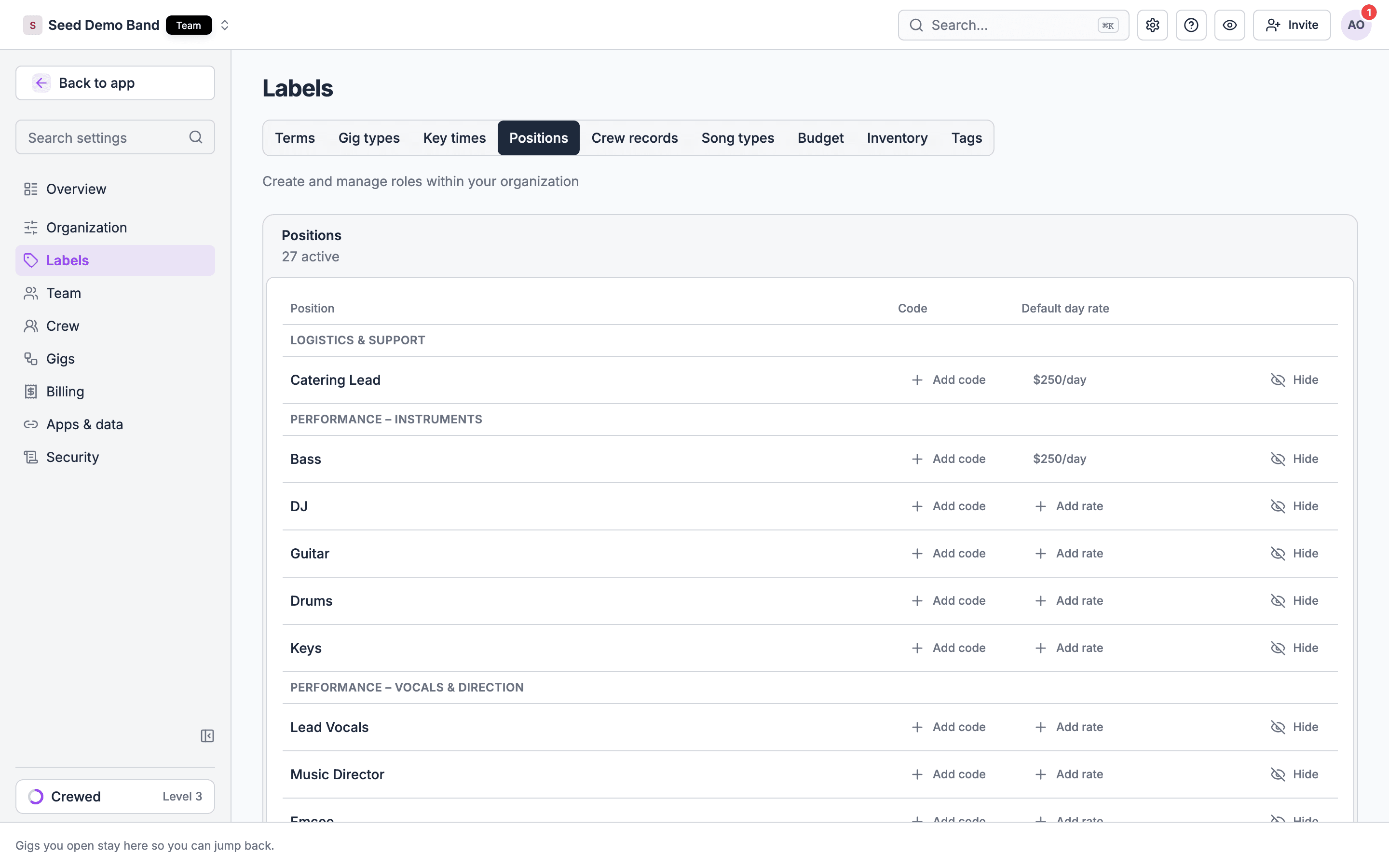
Settings → Labels → Departments → Positions. The Teams tab or page lists roster templates (+ New template); it does not manage the position catalog. Your active positions show grouped by section, such as Vocals, Strings, Brass, Percussion, and Production.
2
Add positions
Open Add positions. Pick from the built-in list (use Search positions… to find one), or create your own under Create your own position: with a name, an optional short code, and a section.
3
Set details
Give a position a short code (for example MV), used on the roster and shift board. You can note a default day rate for the position as a reference. It never sets anyone’s pay: crew are paid their own rate for the position (below) or a fee you type on the shift.
4
Hide or delete
Hide a position you don’t use; hidden positions stay listed below the active ones so you can show them again. Custom positions and hidden positions can also be deleted. Soundcheck asks you to confirm first. A position that gig records use can’t be deleted (see below).
Each change saves as you make it. Keep names professional, since they can appear on invoices and contracts.
Positions and imports
When you import events or members, Soundcheck matches each position name (case-insensitively) against your catalog.- Match found → the member is linked to the existing position.
- No match, auto-create on → the position is created automatically and added to your catalog, then linked. Subsequent rows with the same name reuse it.
- No match, auto-create off → the row is skipped with a warning: “unknown position — skipped (add it to the org catalog or enable auto-create).”
The placeholder name
default (common in exports from other tools) is treated as a non-position and skipped. It never creates a catalog entry.Member positions
Members carry the positions they can fill. These are set two ways:- By the member during onboarding (the Positions step) or on their profile.
- By an owner or admin directly from the member’s profile.
A member’s own rate
An owner or admin can give a member their own pay for each position they hold. On the web, open the member’s profile, edit Org Positions, and fill in Day rate, Hourly rate, or both for a position, then save. Clear a field to remove that rate. A member with no rate for a position gets no fee from the position’s default day rate; type a fee on the shift to pay them. When you add the member to a shift for that position, Soundcheck sets their fee from their rate:- Fixed-rate shift: their day rate times the shift’s days.
- Hourly shift: their hourly rate. A day rate alone gives no fee on an hourly shift.
Positions during onboarding
Add a Positions onboarding step so members pick the roles they play from your active catalog. The step assigns from the existing catalog only. Create or update your positions first so the choices are right.Organization setup
Add the Positions step to onboarding.
Positions on a gig
When building a gig’s team:1
Add a position
In the gig’s team section, add a position from your catalog.
2
Add multiples as needed
The same position can appear several times (2× Background Vocals, 3× Security).
3
Set per-position detail
Performance fee, fee notes, and any special instructions.
Naming conventions
Consistent names keep reporting and staffing clean:- Prefer “Lead Vocals” over “singer”; “Sound Engineer (FOH)” over “Sound”
- Group with prefixes: “Vocals - Lead”, “Vocals - Background”, “Guitar - Lead”, “Guitar - Rhythm”
- Standardize across the org: “Lead Guitar”, never a mix of “Lead Guitarist” and “Guitar 1”
Troubleshooting
A position doesn't show up on a gig
A position doesn't show up on a gig
Confirm it’s saved in the catalog and refresh the gig. Check you have permission to edit the gig.
An import skipped some positions
An import skipped some positions
Those names weren’t in your catalog and auto-create was off. Add them to the catalog (or enable auto-create) and re-run the import.
Can't delete a position
Can't delete a position
A built-in position can be deleted only after you hide it. A position that any shift, gig invitation, gig crew assignment, call list entry, labor call department or time punch uses can’t be deleted at all, even if the gig was cancelled. Hide it instead: it keeps the people who hold the position, with their rate and notes for it.
Related guides
Teams overview
How team management fits together
Call lists
Saving rosters with call order
Team building
Staffing events
Imports
Bulk-load events and members