

How you’re notified
Soundcheck reaches you three ways:- Push notifications on the iOS or Android app. See Push notifications.
- Email to your account address, with the details and a link back to Soundcheck.
- SMS text messages to your phone number. Carrier rates apply. When you add or verify your phone on your profile or during onboarding, you’re asked to agree to receive gig texts. To get fewer texts, turn SMS off for the types you don’t want (see Managing notification settings). To stop texts from Soundcheck altogether, reply STOP to any of them; reply START to turn them back on. Gig chat texts come from a different number and are stopped from that chat.
What triggers a notification
Soundcheck notifies you for:- Gig invitations: someone invites you to a gig, or reminds you about an open invitation. You’ll see the gig title and date, your assigned position, the performance fee (if specified), and buttons to respond.
- Crew offers: an organization sends you a paid shift.
- Availability checks: a scheduler asks which days you’re free.
- Responses (for the person who sent the request): a crew member accepts or declines an invitation or crew offer, or answers an availability check.
- Gig changes: your call time, pay, or role changes, or a gig you work moves, changes venue, or is cancelled. You’ll see what changed and a link to the gig. When a gig’s date, time or venue changes, people invited to it or confirmed on it are also told by email and, when their phone is on file, by text. When a gig is cancelled they’re also emailed, and when it’s deleted they’re also texted. These messages go out whatever your Gig changes setting is, so you don’t miss a show moving.
- Payments: an organization records a payment to you. The push notification You got paid says how much and for which shift, or for how many shifts when several are paid at once. Partial payments say so. Tap it to open your pay for that gig, or the You tab when the payments cover several gigs. You don’t get one when you confirm a payment yourself.
- Roles and tasks: you’re given a role on a gig, or a gig task is assigned to you.
- Team messages: someone running a gig you accepted sends the crew a message with Notify (web) or Notify crew (mobile).
- Event chat messages: someone posts in a gig chat you belong to.
- Form responses (for the team member who assigned the form): a customer submits a form. The email links to the gig’s forms, or to the Forms library when the response has no gig. See Portal forms.
Admin delivery visibility
On a crew offer, each recipient shows whether the offer reached them. Not delivered means sending failed. Not sent means the person has no Soundcheck account yet, so nothing went out. Crew offers, event invitations and availability checks also show what happened to the email. When the email that asked the person was opened or bounced, their recipient row shows Opened with the time, or Email bounced. A bounce on the latest email wins over an earlier open. You see this on the offer detail and on each recipient row in the admin Mailbox. Only the emails that ask or remind the person count; update, cancellation and confirmation emails don’t. Apple Mail’s automatic opens are left out and some mail apps block open tracking, so a row with no Opened doesn’t mean the person hasn’t seen it. On the organization Staff page, account badges help explain reachability:- No account members are imported roster entries. They aren’t sent crew offers or availability checks, and their row shows Not sent, until they claim an account. Some organizations have email delivery to members without an account turned on; there, they get the email, and for crew offers a text only when your organization has recorded their agreement to texts. Availability checks reach them by email only.
- Never signed in members have an account, but no recorded login yet.
- Last signed in … members have a recorded login; this is the best indicator for in-app readiness.
Managing notification settings
Org-wide defaults (owners and admins)
Engagement notification defaults live at the organization level:- Open Settings → Notifications
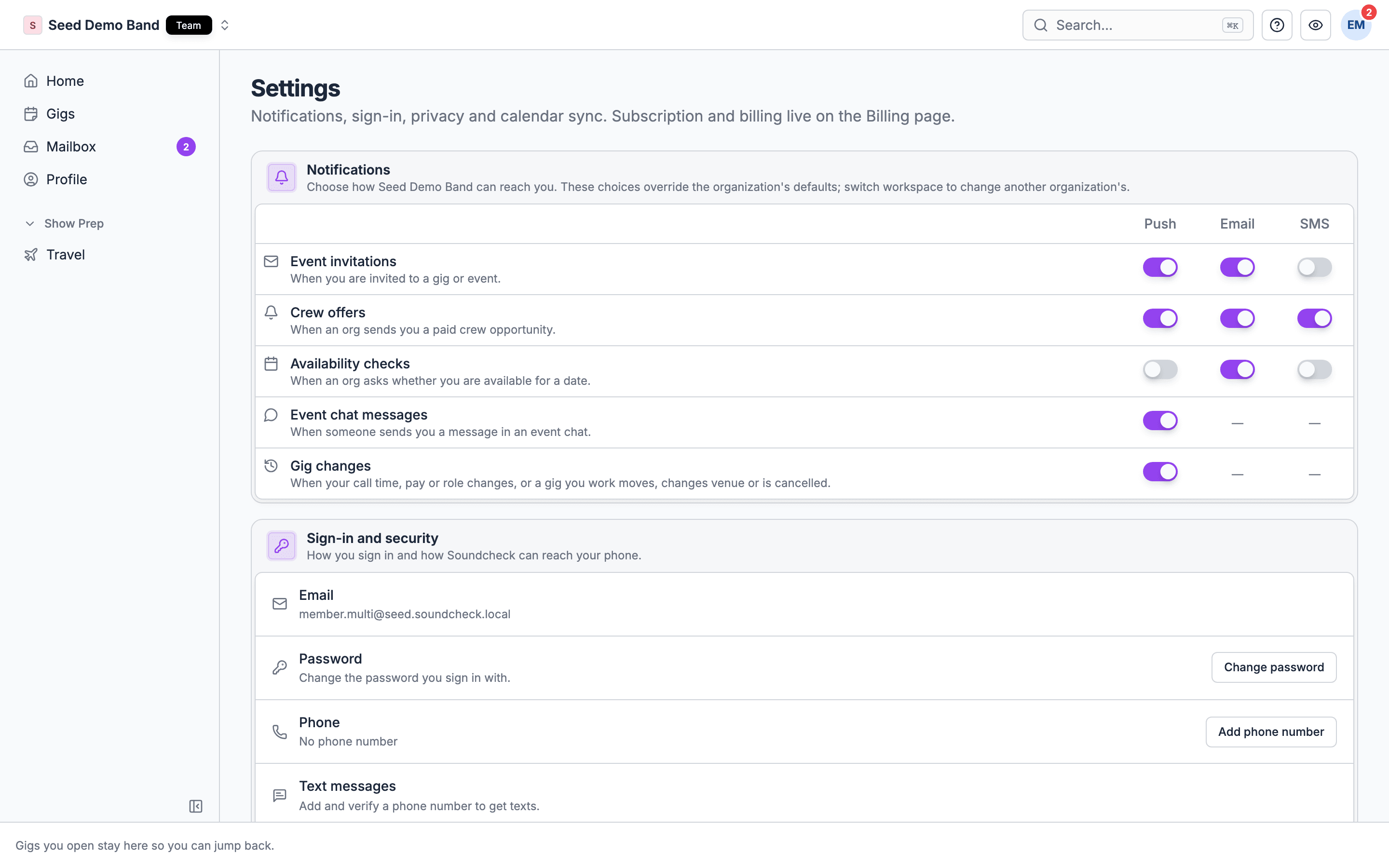
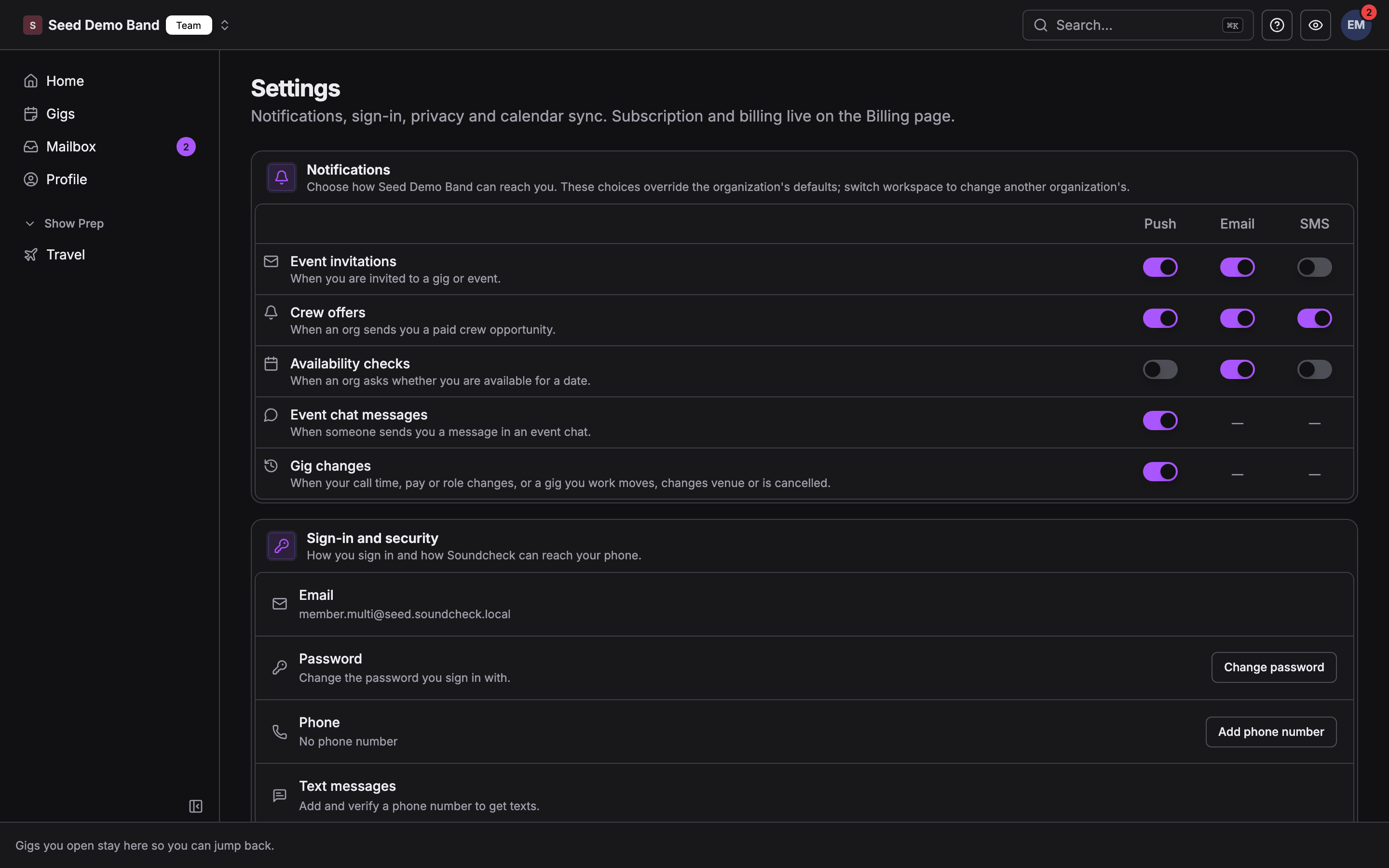
- Under Notification defaults, set push, email, and SMS for Event invitations, Crew offers, and Availability checks. Event chat messages, Gig changes and Checklist tasks have a push toggle only (texts to chat members who don’t use the app are separate from this setting). Form responses has an email toggle only.
- Each toggle saves when you change it.
What members can do
Your own settings override the organization’s defaults, one organization at a time. Change them in either place:- Mobile app: You → Settings → Notifications.
- Web: open the avatar menu and choose My Settings, or open My Mailbox and select Manage notification preferences. The Notifications card has the same toggles.
Responding to notifications
1
View the notification
Open the notification, or find the request in My Mailbox, to review the gig information.
2
Review the gig
Check the date, time, location, your assigned position, and performance fee.
3
Respond
Choose Accept to confirm you’ll participate, or Decline if you can’t attend.
Email delivery tips
To make sure Soundcheck emails reach you: add Soundcheck to your contacts, check your spam or junk folder, whitelist notification emails, and confirm your email address is correct on your profile. To keep them from getting lost in a busy inbox, set up a filter for Soundcheck emails and give them a label or folder of their own so they don’t get buried. If emails still aren’t arriving, check your own email settings and the org defaults under Settings → Notifications (ask an owner or admin), your spam or junk folder, and the email address on your profile. Soundcheck emails don’t have an unsubscribe link; turn Email off in your notification settings instead.Good habits
If you’re on the team: turn on gig invitation notifications, respond promptly, and don’t let update notifications pile up unread. A missed change can mean missing the show. If you’re an admin or owner: keep push on so you hear when crew respond, and keep an eye on declining trends rather than missing them. If the volume gets overwhelming, adjust which types are on instead of tuning everything out.How often you’ll hear from us
Notifications send as each event happens. There are no digest emails and no quiet hours or do-not-disturb schedule. To hear less, turn off the channels you don’t need for each type, or use your phone’s own Focus or Do Not Disturb mode.Mobile notifications
On the iOS or Android app, notifications arrive as push notifications. See Push notifications for how to enable them and which categories cover invitations, crew responses, event-chat messages, and gig changes. The web app does not send browser notifications. If you use Soundcheck in a mobile browser instead of the app, rely on email and SMS. On the app, allow notifications in your device settings and keep Push on in Soundcheck.Troubleshooting
I'm not receiving notifications
I'm not receiving notifications
Check the org defaults under Settings → Notifications (ask an owner or admin), confirm your email address is correct on your profile, check your spam or junk folder, make sure your email provider isn’t blocking Soundcheck, and (on mobile) confirm device push permissions are on.
I'm getting too many notifications
I'm getting too many notifications
Turn off the channels you don’t need in your own notification settings. If you’re an owner or admin, you can also change the organization defaults under Settings → Notifications.
Notifications are arriving late
Notifications are arriving late
This is usually an email server delay, a slow connection, or your device’s battery or focus settings holding back push notifications.
I can't find a notification
I can't find a notification
Open My Mailbox for open requests, search your email, check spam or junk, or confirm you’re looking in the right organization.
Notification types reference
Every channel starts on until you or your organization turns it off.
Related guides
- Your settings: notifications, sign-in, appearance and calendar sync in one place
- Your Profile: profile email and org notification context
- Team Building: understanding invitations
- Invitations: invitation system details