

Where to find it
In the mobile app, crew read a gig’s sets in its run of show. See Setlists on mobile.
The building blocks
Learn these ideas first. Everything else builds on them.How it fits together
How a set works in the run of show
- A set is a song item. Its row in List is one row, however many songs it holds.
- A set’s length comes from its songs. Adding a song pushes the items after it later.
- Songs come from one shared song library, the same one your saved setlists use.
- A set has a title, such as Set 1 or Dinner set. A new set gets the next set number when you don’t name it.
Adding a setlist to an item
The quickest way to fill a set is to pick a whole setlist. In the List view:1
Open the item
Click the item’s What cell. The panel opens with its Title, Notes and Songs.
2
Choose Add setlist
Under Songs, choose Add setlist. One search list opens: Search setlists and songs.
3
Pick a setlist
Setlists come first: the gig’s own setlists and your organization’s saved setlists, each with its number of sets. Pick one.
4
Check the result
The item fills with that setlist’s songs. If the setlist has more than one set, the extra sets become new items right below it, in order.
Adding single songs
The same list shows songs below the setlists: the Gig setlist songs first, then the Song library. Ticking a song adds it to the item, and ticking it again removes it. Ticking a song on an item that isn’t a set makes it a set and keeps its title. Use single songs for a one-off, such as a request or a first dance. Use a setlist when you’re placing a whole program. When the client has sent music requests, requested songs are pinned in the song picker with their category, such as Must play or Do not play.There is one control for songs in the What panel: Add setlist. The older separate Pick a song box is gone. To create a brand-new song while you build, open the item with Open full details.
Building a set on the Schedule
On the Schedule view, click a song item to open its side sheet:- Choose Use a saved setlist to fill the item from a setlist in your library, the same way as above.
- Add, remove and reorder the set’s songs right in the sheet.
Building a set in Details
From the List view, open a row’s ⋯ menu and choose Details…. Pick the set’s first song, then choose Add song under it to search the song library and grow it into a set. Drag to reorder, or remove a song. You can also add a new song to the library right from the picker.The Setlist view
Setlist is a big-type list of every set that has songs, without times, for printing or a stage monitor. Each set is labeled with its slot on the timeline. If you can edit the run of show, it’s also a full set editor: add and remove songs, drag to reorder, Add set, Use a saved setlist, Save as setlist, Re-sync, Paste data, each set’s Ensemble, Pieces and Vocals, and the gig’s Music notes. See The Setlist view.Your first set, step by step
This walkthrough takes you from an empty library to a set on a gig. It takes about ten minutes.1
Fill the song library
Open Documents → Songs. Choose Starter packs to add songs for your kind of business, Import from Spotify to bring in an album, or New song to type one in. See Adding songs in bulk.
2
Add lengths and keys
Click a few songs, choose Edit song, and fill in Duration and Key. A set’s length is the sum of its songs, so a song with no length makes its set look shorter than it is. See The song library.
3
Save a setlist
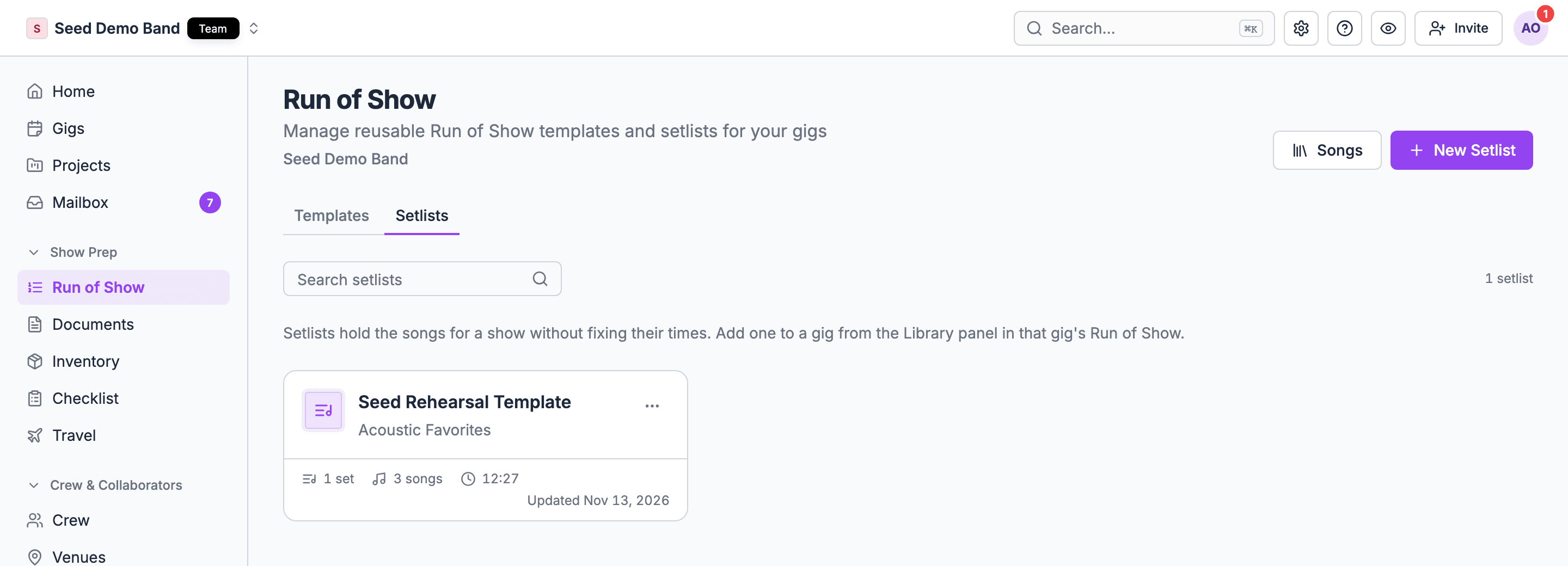
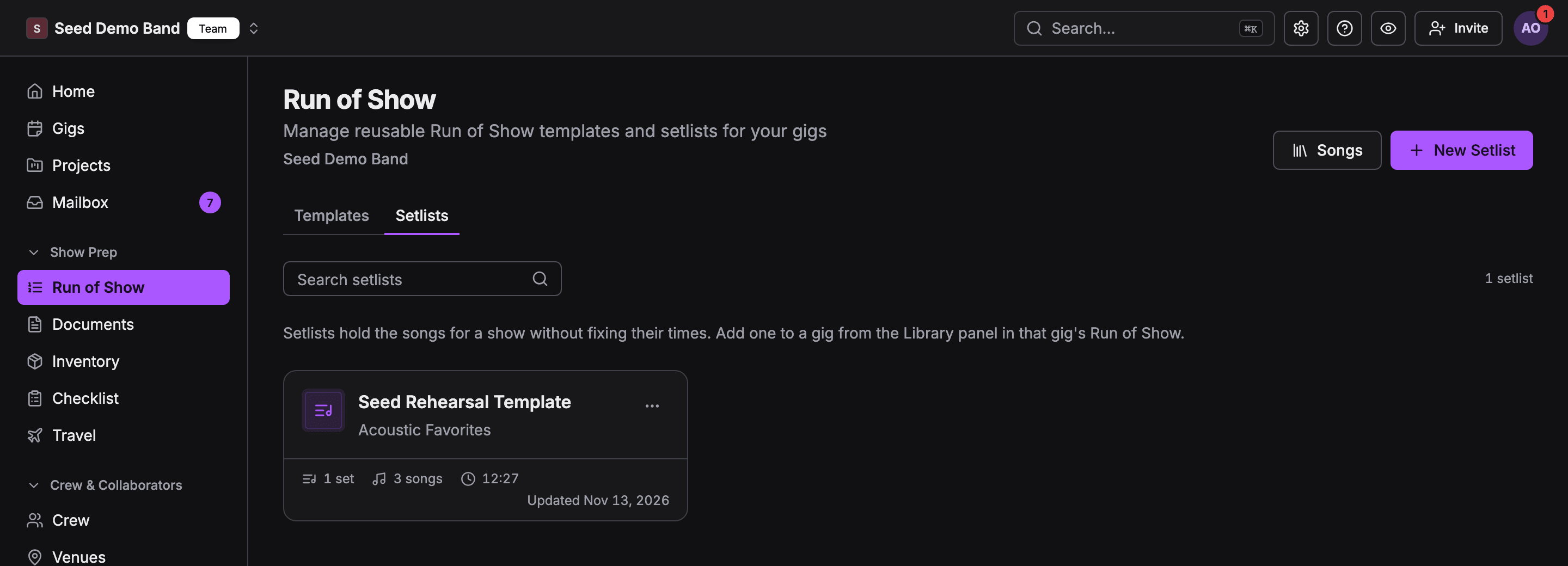
Go to Show prep → Run of Show, open the Setlists tab, and choose New Setlist. Name it, add songs to Set 1 with Browse Library, use Add New Set for each further set, then choose Save Setlist. See Building saved setlists.
4
Put it on a gig
Open a gig, choose the Run of Show tab and pick List. Click the What cell of the row where the music goes, choose Add setlist, and pick your setlist. Each set lands as its own item.
5
Check it for the stage
Switch to the Setlist view to see every set in big type. Add Music notes for the band below the sets.
Pick the right page
The song library
Add, edit, find, select and delete songs, with every field and media link.
Adding songs in bulk
Starter packs, Spotify albums, Find a song, spreadsheets and show packets.
Building saved setlists
The Setlists tab, the setlist builder, editing in place, duplicating and exporting.
The Setlist view
The gig’s stage list and set editor, Save as setlist, Re-sync, Paste data and Music notes.
Song types
Colour-coded types for when you play a song.
Acts and songs
Tag songs to the acts that play them, and how pickers and act lanes use the tags.
Music requests
The client’s must-play and do-not-play list, and requests your team enters.
Works with
How Setlists connects to Run of Show, Acts, Documents, the client portal and Imports.
Mobile
What the mobile app shows and what stays on the web.
Troubleshooting
Answers when something doesn’t look right.
Who can do what
Once your organization has brought its setlists into Run of Show, the songs in a gig’s set are run of show items, so whoever can edit the gig’s run of show edits them: the gig lead, or anyone with the Run of Show role. Before that, editing a gig’s setlist takes an Owner, Admin or Gig Coordinator. Owners, admins, finance members and gig coordinators can add music requests by hand. See Roles and permissions.
After your organization switches to Run of Show
When an owner or admin switches the organization to Run of Show, or later chooses Bring setlists into Run of Show, your setlists are copied:- Each gig setlist becomes a section of that gig’s Run of Show, one song item per set with its songs in order. Edit it in the gig’s Run of Show List or Setlist view; viewers see the Setlist view as a read-only list for the stage.
- Each library setlist becomes a Run of Show template you can apply to any gig.
- Gig setlists become read-only: editing one, or attaching a setlist to a gig, is refused. An old link to a gig setlist opens that gig’s Run of Show instead.
- The gig’s old Setlist section and the mobile Setlist tab are hidden. Older versions of the mobile app still show each gig’s sets, read from its Run of Show.
- Setlists leaves the sidebar. The old Setlists page sends you to the Setlists tab of the Run of Show page, and its old song library links open Documents → Songs.
- The original setlists are kept on our side as a backup.
Linking a gig’s sets to a setlist
On a gig’s Run of Show Setlist view, editors can choose Save as setlist to save the gig’s sets to the Setlists tab. The gig’s sets stay linked to that setlist: each shows From and the setlist’s name, with Re-sync. Re-sync replaces the songs in each linked set with that set’s current songs from the setlist, and adds back any of its sets the gig no longer has. Any song changes you made to those sets on the gig are replaced; nothing syncs until you choose Re-sync. See Save as setlist and Re-sync.Music requests on the run-of-show Setlist view
Song requests no longer live on setlists. The client fills in the Music requests form, and your team can add requests that came in by email or phone. The gig’s run-of-show Setlist view shows them below the sets: counts per category, the notes, each song’s library match, and a warning when a run-of-show song matches a do-not-play request. Warnings never block a save. See Music requests.Related
Run of Show
The schedule your sets live in.
Templates
Library setlists become templates after the switch.
Setlists FAQ
Short answers to common questions.