

To build a gig’s own sets, work in the gig’s run of show instead: its List, Schedule or Setlist view. This page is about the reusable setlists you pick from there.
The Setlists tab
Go to Show prep → Run of Show and open the Setlists tab. It lists your organization’s saved setlists that aren’t tied to a gig, sorted by name. Each card shows:- the setlist’s name and its sets, such as Cocktail hour · Dinner · Dancing,
- how many sets and songs it holds, and its total length,
- when it was last updated.
- Search setlists by name.
- Choose a card to open the setlist and edit it in place.
- Choose New Setlist to open the setlist builder.
- Open a card’s ⋯ menu to Duplicate or Delete it.
- Choose Songs to open Documents → Songs.
Before your organization switches to Run of Show
Until your organization switches to Run of Show, Show prep → Setlists also opens a Setlists page. It lists both kinds of setlist:
Search with Search setlists by title…, and narrow the list with All Setlists, Templates Only or Gigs Only. Templates come first, then gig setlists, each alphabetically. Each card shows its song count, set count, total time and its first three sets. Create New Template opens the setlist builder. After the switch, this page sends you to the Setlists tab.
The setlist builder
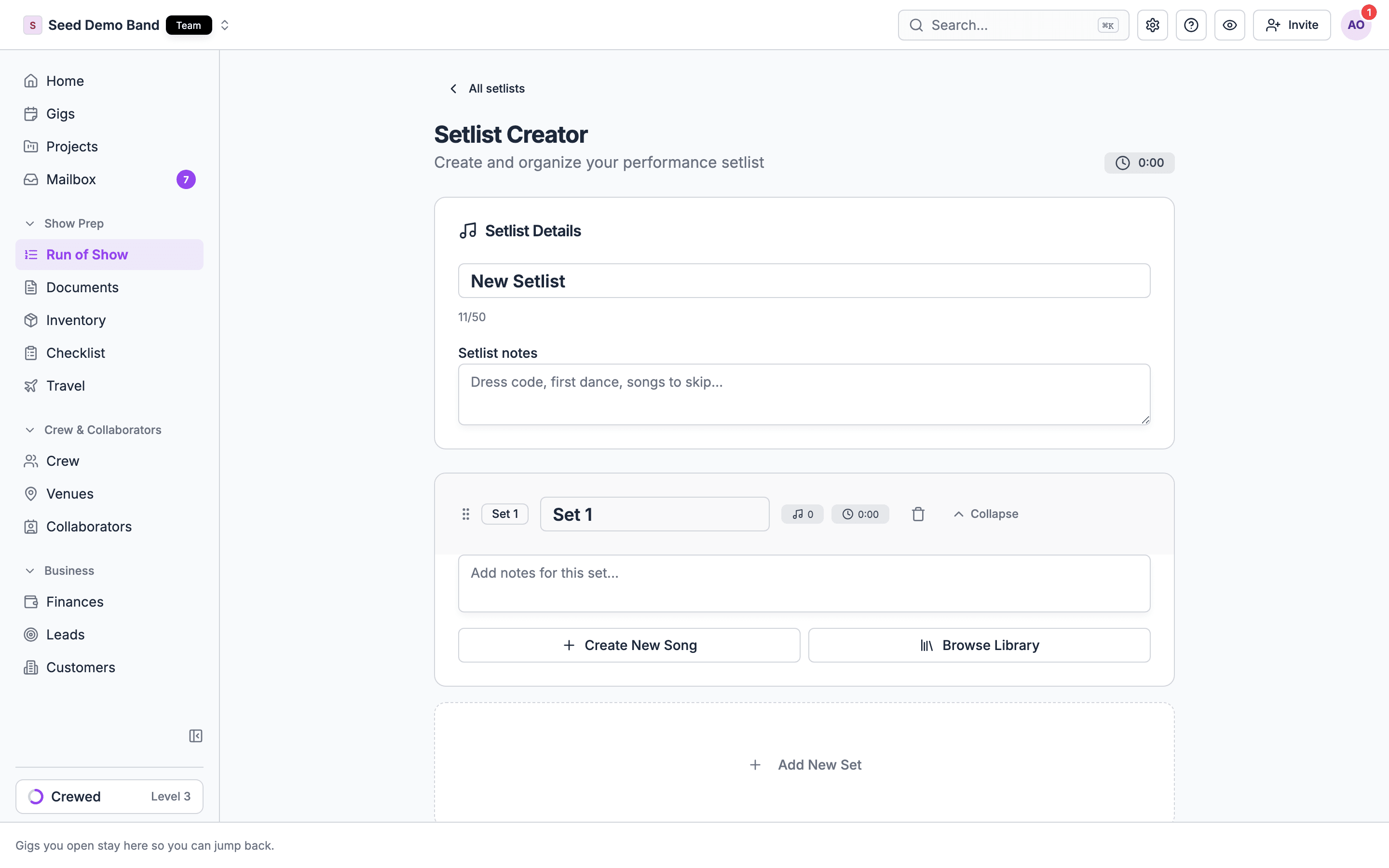
New Setlist opens the Setlist Creator. It starts as New Setlist with one empty set, Set 1. The header shows the running total as you build.1
Name it
Type over the title. Pick a name you’ll recognize in the Add setlist search, such as Wedding reception or Friday standard.
2
Add setlist notes, if you like
Use Setlist notes for anything about the whole program, such as dress code, the first dance or songs to skip. Up to 2,000 characters.
3
Fill the first set
Rename Set 1 in its title box. In the set, choose Browse Library to pick songs from your library, or Create New Song to add a song to the library and this set at once. Add notes for this set for transitions, announcements or cues.
4
Add more sets
Choose Add New Set under the last set. Repeat for each set.
5
Arrange
Drag songs by their handles to reorder them within a set. Drag a whole set to reorder the sets.
6
Save
Choose Save Setlist. It needs a title and at least one set. The new setlist opens, ready to edit in place.
In the builder
- Collapse and Expand fold a set away while you work on another.
- Each song shows its title, artist and details, its links, and buttons to edit it, view its attachments, or remove it from the set. Removing a song from a set leaves it in your library.
- Remove set asks first, and says how many songs the set holds. Removing it removes those songs from this setlist.
- View All Attachments opens every file on the setlist’s songs.
- Songs you create or edit in the builder save to the library straight away, even before you save the setlist.
Leaving before you save
Nothing about the setlist itself is saved until you choose Save Setlist. If you leave or choose Cancel with unsaved changes, Discard setlist changes? asks first. Your unsaved title, order, sets and song placement are lost if you discard. Changes already saved to songs in the library stay saved. The builder keeps your unsaved draft for the browser tab you’re working in, so reloading the page doesn’t lose it.Editing a saved setlist
Opening a saved setlist shows each set as a table with #, Song, Artist, Key, BPM, Time, Notes and Links columns. The set header shows its song count and total time, and you can collapse a set. The page header shows the total song count, set count and running time, and a Template badge on a template. If you can manage gigs, you edit everything in place, with no separate edit screen:- Click the setlist title, a set title, a set’s notes, or Add setlist notes to change them.
- Double-click a song cell, or start typing on a selected cell, to edit it. You can also paste a block of cells from a spreadsheet. A value that doesn’t fit the column, such as
fastin BPM, is rejected with “That value is not valid for this column.” Song details save to the song in your library, so the change shows everywhere that song is used. - Choose Add set in the header for a new set, or Add song at the bottom of a set to pick a song from the library.
- Drag a song by its handle to reorder it within a set, or drag a whole set to reorder the sets. You can also drag with the keyboard: Space, then the arrow keys, then Space.
The set menu
Each set’s ⋯ menu has:The song menu
Each song’s ⋯ menu has:The setlist menu
The setlist’s actions menu has Export Setlist, which downloads a PDF with your organization’s name, and your logo if you’ve uploaded one. It also has Duplicate and Delete Setlist. View All Attachments opens every file on the setlist’s songs.Duplicating a setlist
Choose Duplicate from a card’s ⋯ menu on the Setlists tab, or from the setlist’s actions menu. The builder opens with a copy of every set, its songs in order, and its notes, titled with (Copy). Rename it and choose Save Setlist. A copy is always a template. Duplicating a gig setlist drops its gig link, so you get a reusable template from a one-off show.Deleting a setlist
Choose Delete from a card’s ⋯ menu, or Delete Setlist from the setlist’s actions menu, and confirm. It can’t be undone. The songs stay in your library, and gigs that already use the setlist’s songs don’t change.Putting a setlist on a gig
With Run of Show, open the gig’s Run of Show tab, click an item’s What cell, choose Add setlist, and pick the setlist. Each set becomes its own item. See Adding a setlist to an item. On the Schedule view or the Setlist view, use Use a saved setlist. Before your organization switches, a gig’s detail page has its own Setlist section. Choose Build setlist, then pick a template under Quick Start with Templates or start a new setlist for this gig. The setlist you save is linked to the gig, and the team on the gig sees it there, including on mobile.Planning tips
- Shape the energy. Open at medium energy, build to a peak, give the room a break, then end strong or wind down.
- Leave slack. Songs often run longer live, with solos and crowd moments. Note which songs you can cut if you run long.
- Write set notes the band can act on. Open with full band intro, Straight into the next song, Crowd moment here.
- Keep templates generic. Build Wedding reception once, then let each gig’s run of show hold that couple’s changes. Save as setlist on a gig saves a version worth keeping. See The Setlist view.
Related
The Setlist view
A gig’s sets on stage.
The song library
Where every setlist’s songs come from.
Templates
Whole-rundown templates for the run of show.