

For managers: the gig’s Finances screen
Owners, Admins, Finance members, members with finance access and gig Finances assignees open a gig, tap More, then Finances. The menu describes it as Income, expenses and crew pay.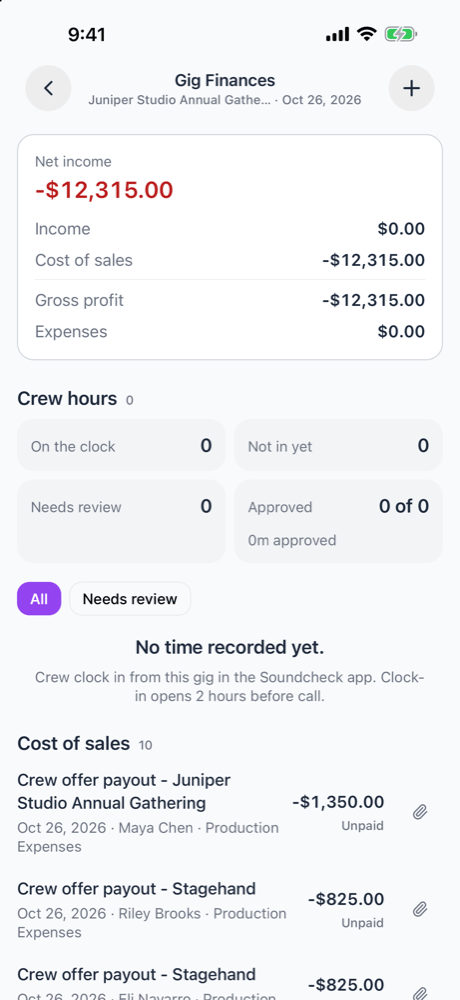
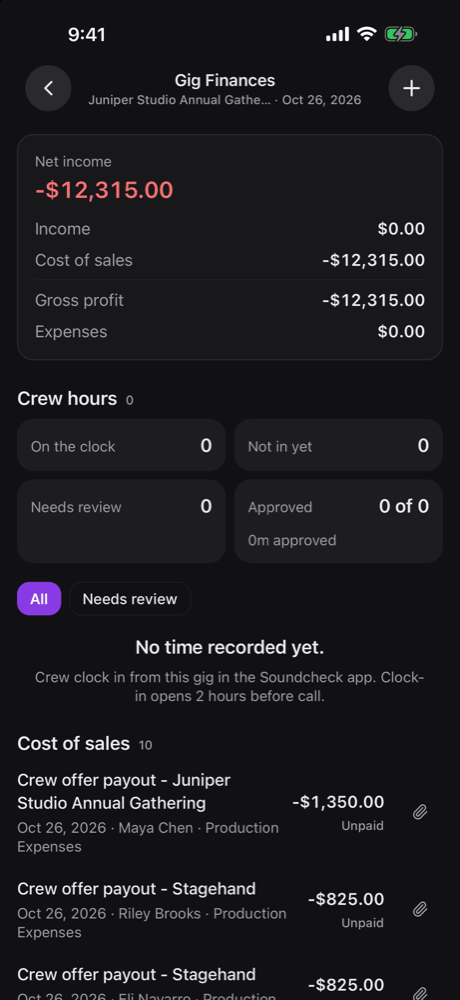
- Summary. Net income at the top, with Income, Cost of sales, Gross profit and Expenses below it.
- Ledger rows. Grouped into Income, Cost of sales and Expenses, each with a count and a subtotal. A part-paid row reads Partial · paid of total.
- Add a line item. Tap the add button, choose Member payout or Standard expense, then the Account, details, Amount, Date and Assigned to. Attach receipts before you save.
- Change a row. Tap a row to open it. Edit line item changes it. Void Item keeps it visible but locked, and Delete Item removes it for good.
- Receipts. Add a receipt to a row from its detail sheet.
- Crew hours. Where your organization uses the time clock, Crew hours sits on the same screen. See Crew hours.
For managers: crew pay
People who manage the gig open it and tap Crew pay on its brief. The screen shows To pay, Paid and Left to pay, then a row for each person with their pay and payment status.- Tap a person to see their pay. Open in Finances jumps to their row on the gig’s Finances screen, where you can add receipts, edit or void.
- Pay is set when you offer the gig to crew. With nobody paid yet, Open Staffing takes you there.
- To record or send payments, tap Record payments on the web. It opens the gig’s finances in your browser.
For crew: your pay
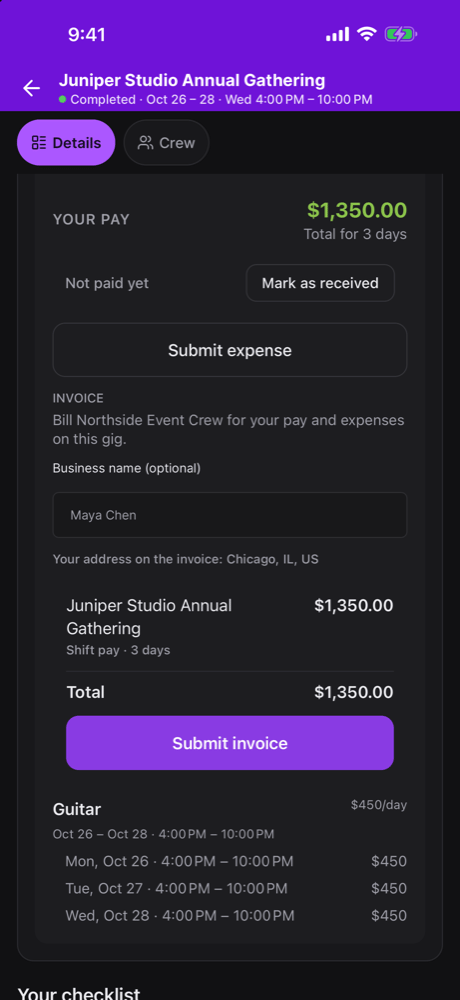
Open a gig you work and tap Your pay to show the breakdown: what you’re owed, the payment status, and any reimbursements.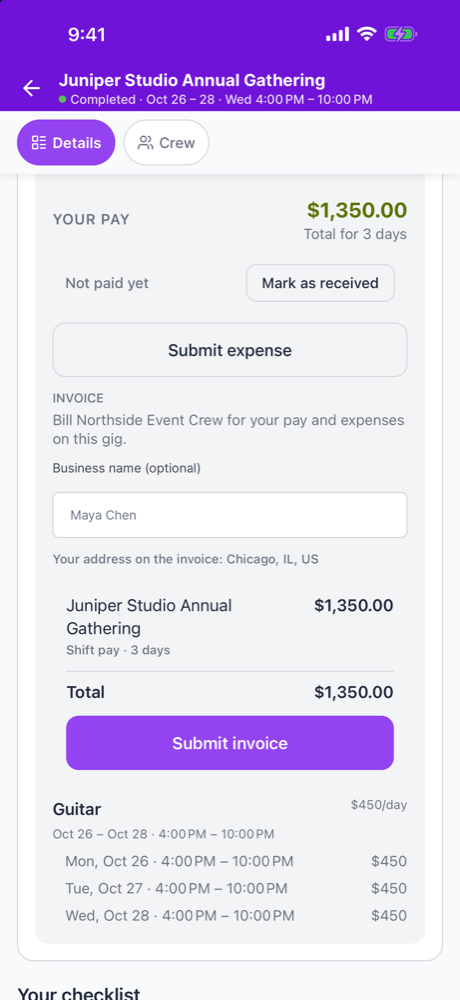
Confirm a payment
When the organizer paid you outside Soundcheck, confirm it yourself:1
Mark as received
Tap Mark as received on your pay.
2
Say how you were paid
Answer How were you paid?, enter the amount and the Paid on date, and add a Note (optional) such as a check number.
3
Save
Tap Mark received. The amount can’t be more than you’re still owed.
Submit an expense
Under your pay, tap Submit expense. Enter What was it for?, the amount and the Date, which can’t be in the future. Pick a Category if the app shows one; it only appears when your organization has two or more expense accounts. Add receipts from Camera, Photos or Files. Your expenses show under Your reimbursements with their status. See Expenses and receipts.Payouts and earnings on the You tab
- Crew see their earnings on the You tab. With no pay yet it reads No pay yet. Pay from the gigs you’re booked on shows up here.
- Owners, Admins, Finance members and members with finance access tap Payouts in the earnings card. It shows Owed to crew & vendors, Paid out this month, Overdue payouts, and a Gigs to settle list with each gig’s unpaid payouts and amount left. Manage payouts on the web.
Closeout on mobile
Owners, Admins and Gig Coordinators can close out a gig from the app: More → Closeout. See Close out in the mobile app.What stays on the web
- Quotes, billing terms, the deal and the billing schedule
- Creating, sending and voiding invoices
- Sending payouts by direct deposit or card, and recording payments for crew
- Overtime
- CSV export
Related
Payouts
Sending and recording payouts on the web.
Your profile
Set up where you get paid.
Finances
Start here for the whole tab.