

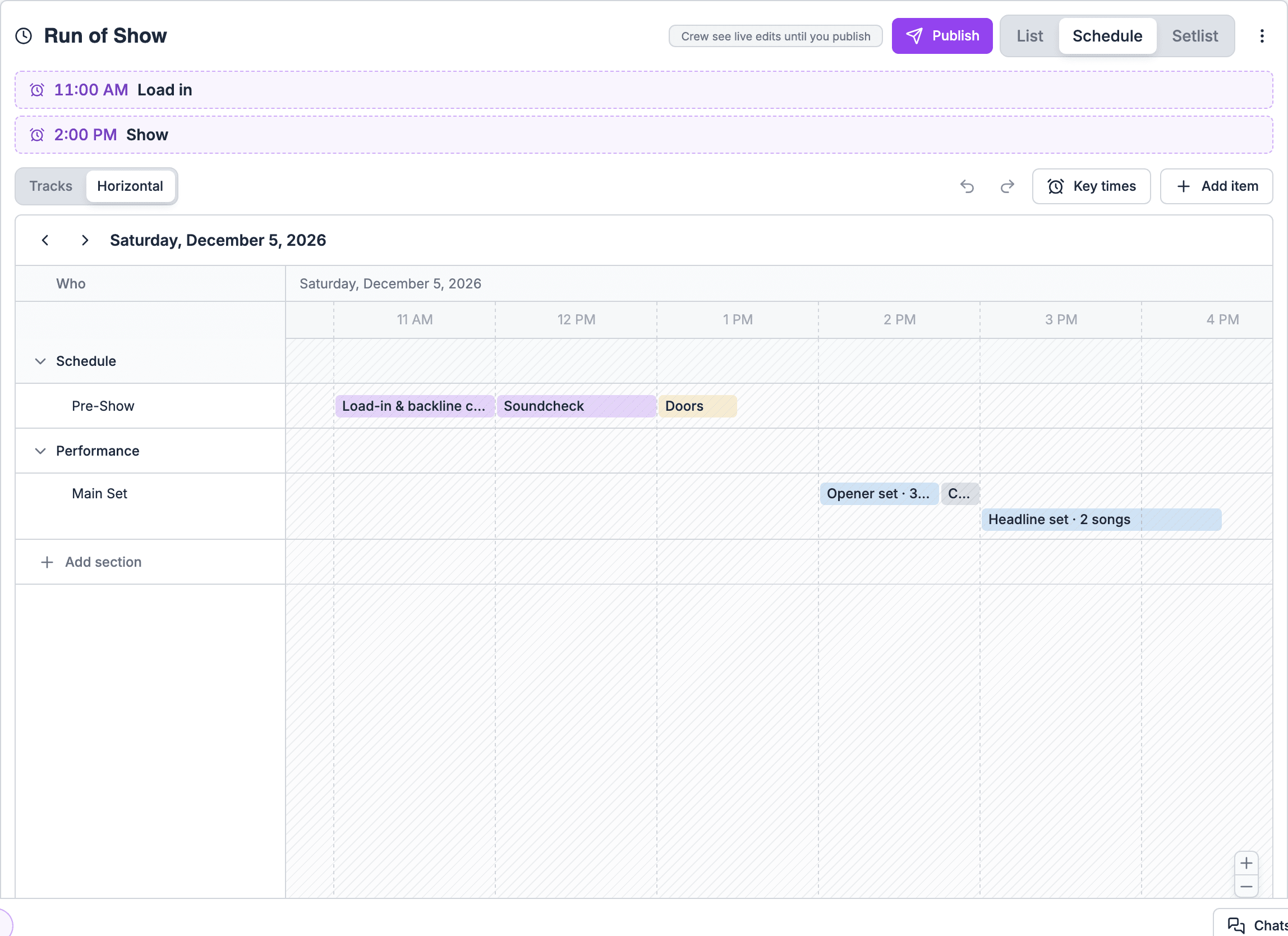
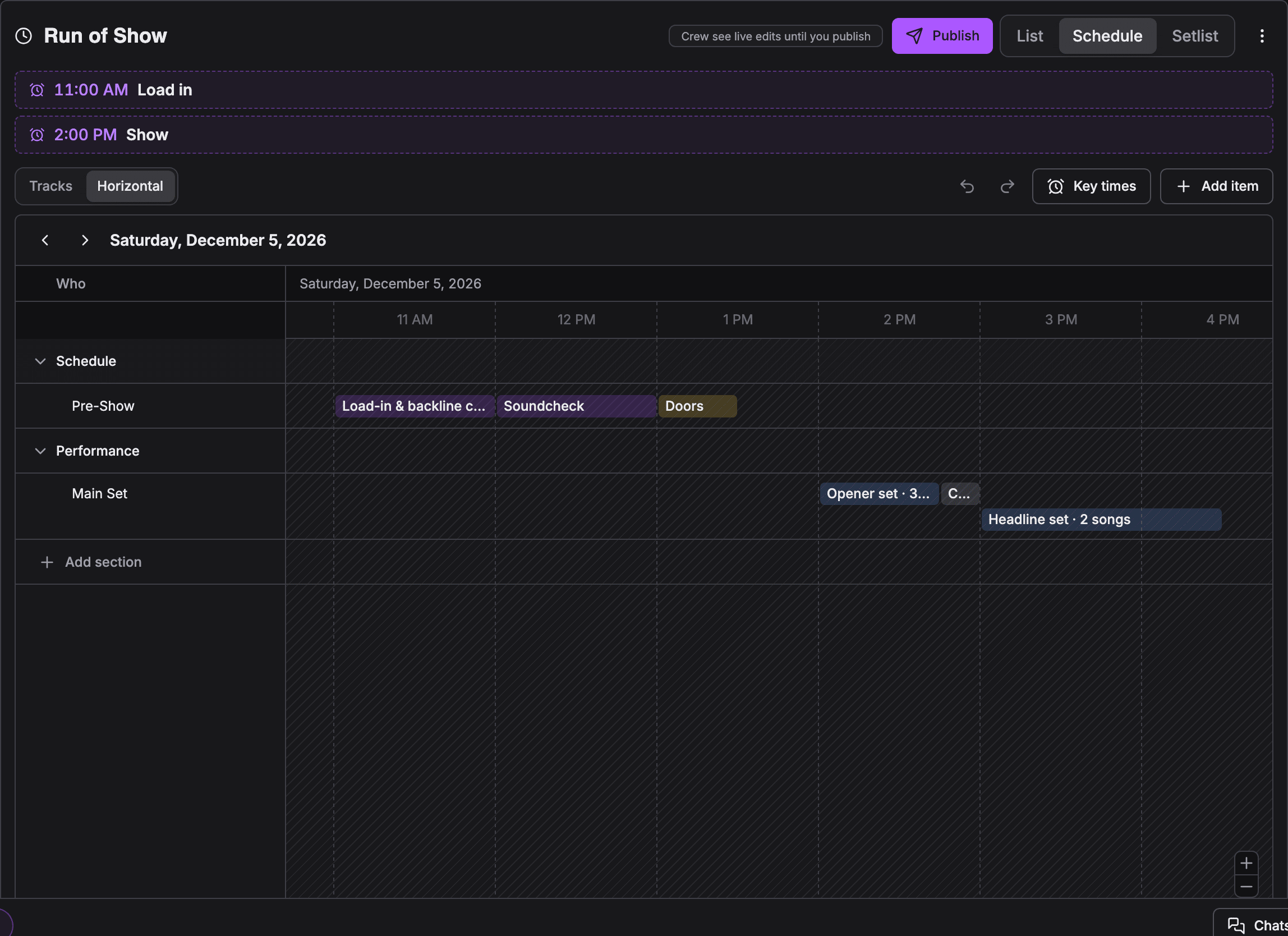
Switching views
The view switcher sits at the top of the Run of Show tab on the web. Pick List, Schedule or Setlist. Soundcheck remembers the view you picked, so the tab opens on it next time. Until you pick a view yourself, the tab opens on your organization’s starting view.The summary line
A line at the top of every gig’s run of show sums it up in one glance:- the venue and the date,
- the number of items,
- the number of tracks and stages, shown only when there are two or more,
- the song count,
- the total length.
Which view should I use?
List
List is a spreadsheet-style grid. Its columns are Time, What, Song, Where, Notes and Who.- Sections are rows that expand to show their cues. The chevron that opens and closes a section sits in the leftmost column of the table, so every section’s toggle lines up in one place.
- Time shows the start time. The end time follows in grey when the cue has its own length or the section has an end time, such as 2:00 PM – 3:00 PM. A cue with no length shows only its start.
- Each set of songs is one row.
- Song lists each cue’s songs with their song type, title and artist. A set shows its first three songs, then +N more.
- Where shows the stage as a pill in its color, once on the section’s row. A cue that uses the section’s stage doesn’t repeat it. A cue with its own location shows that location, and a cue in a section with only one item shows the stage.
- A cue in a section with a track shows the track’s name in a box after its title.
- Who shows the people on the cue as avatars with their names, their department and their task note. A cue with nobody on it reads Unassigned. A section row shows its people only while it’s collapsed.
- Key time rows take their key time’s colour. See Key times in the run of show.
Schedule
Schedule shows the day by track and by time. Schedule direction switches between two layouts of the same plan: Tracks and Horizontal. If you can edit the run of show, you can edit in both. See Building on the Schedule.Tracks
Tracks puts times down the side and one lane per track across.- Each department track (Production, Vendors and so on) has a lane.
- Each act on the gig has a lane too, so the ceremony strings, the cocktail trio and the dance band each read down their own column.
- Items that start at the same time sit side by side.
- A set opens in place to show its songs with key, tempo, song type and notes.
- Each lane header shows its cue count.
- Items with no start time sit in a No time row at the bottom.
- On the gig’s day, a Now row marks the current time, from the first timed item to the end of the last one.
- Each key time for the day is a row in its colour with its time and name, placed before any row that starts at the same time.
- When the lanes don’t fit, the layout scrolls sideways and the Time column stays put.
- On a phone, the lanes become one list in time order. Each item is marked with its track, and a filter shows one track.
Horizontal
Horizontal shows items as bars on a time grid. Its rows show who is on when: tracks, roles, positions, acts and speakers. The gig’s key times are listed above the schedule. It opens with the first item at the left edge, or centered when the whole show fits on screen. While the show is running, if the current time would be off screen, it opens with the current time about a quarter of the way in.Setlist
Setlist lists every set that has songs, each labeled with its slot on the timeline. It’s built for big type: printing, a music stand or a stage monitor. If you can edit the run of show, you can change the sets here too. Below the sets, one card holds the gig’s Music notes, music requests, chart assignments and the music schedule’s send history. See Setlists.Filters
Three filters sit above the grid. They change what you see, never what anyone else sees, and they never change the run of show itself.Schedule for one person
Schedule for narrows the list to the cues one person is on, either on the item itself or through track crew. It lists everyone on any cue, including collaborators, clients and guests.1
Pick a person
Open Schedule for above the grid and pick a name.
2
Read their night
The list shows only that person’s cues. Key time rows stay in the list, and each section keeps its full length, so you still see the shape of the night.
3
Go back to the whole plan
Pick Everyone.
Track cards
When the run of show uses two or more tracks, a row of track cards sits above the grid. Each card shows:- the track’s color and name,
- an owner line that names the gig’s organization followed by gig owner,
- how many items it has and their time range,
- how many people are on it, when the track has crew,
- a badge that reads Can edit or View only.
Highlight items for
Highlight items for has a tab for each row the horizontal Schedule shows: the tracks in use, each role or department a cue is addressed to, and Performers and Speakers. Pick a tab to dim every cue that isn’t on that row. Pick it again to clear it. Unlike Schedule for, this filter dims rather than hides, so you keep your place in the night. Each cue shows a colored dot for every row it’s on, and when sections use tracks, a colored rail marks each cue’s track. When the run of show has two or more tracks, tracks aren’t listed under Highlight items for. Use the track cards instead.Collapse all and Expand all
Collapse all folds every section to a single row. Expand all opens them again. To fold or open one section, choose its chevron in the leftmost column, or the summary line under its name. On the web, Soundcheck remembers which sections you collapsed on each gig in this browser. Collapsing never changes what anyone else sees.The starting view
The tab opens on your organization’s starting view until you pick another view yourself. Owners and admins set it under Settings → Organization → Gig workflow → Run of show starting view:
Recommended opens:
- bands, artists and DJs on Tracks with act lanes first and songs showing,
- production companies on Tracks with Production first and sets closed,
- venues on Tracks with sets closed.
Related
Building and editing
Add rows and subsections and edit cells.
Building on the Schedule
Lay out the day on a timeline.
People and assignments
Who is on each cue.