

Early access. The time clock is rolling out to organizations gradually. Contact info@soundchecklive.io if you’d like it turned on for yours. Once it’s on, an owner or admin still has to switch on clock-in in settings. It’s off by default.
When to use it
- Hourly crew. Turn it on when you pay crew by the hour. Approved hours replace the scheduled hours on their pay.
- Day-rate crew you want a record of. Turn on Fixed-rate crew clock in too to record when flat-rate crew arrive and leave. Their hours are recorded but don’t change their pay.
- Payroll hand-off. When a payroll provider or bookkeeper pays your crew, export the approved hours instead of re-typing them.
How it works
1
An admin turns it on
An owner or admin sets the rules once for the whole organization: clock-in, location, meal breaks and overtime.
2
Crew clock in on their phone
From two hours before their call, crew booked on the gig tap Clock in in the mobile app, then Clock out when they’re done.
3
You review and approve
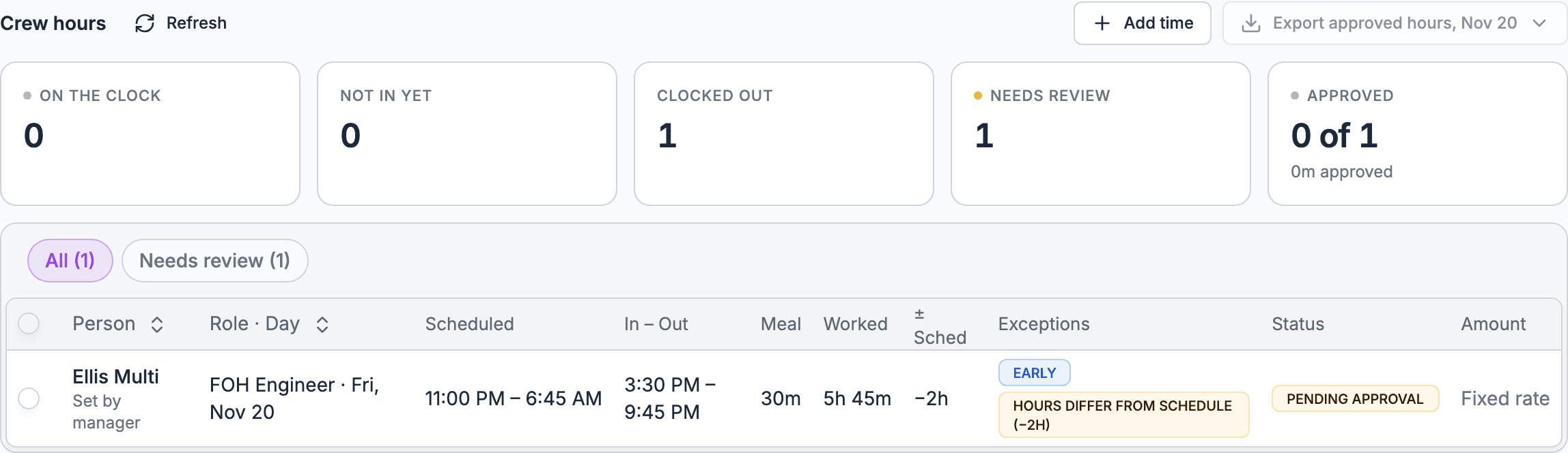
Their entries land on the gig’s Finances tab under Crew hours, and across gigs on the Timesheets tab. You fix mistakes and approve.
4
Approved hours set pay
On an hourly shift, the approved hours replace the scheduled hours, with any overtime you’ve set up. The payable updates on its own.
5
Export for payroll
Export approved hours downloads a CSV for your payroll provider. Soundcheck doesn’t run payroll itself.
Turn on the time clock
1
Open the settings
On the web, go to Settings → Organization → Gig workflow and find the Time clock card. It reads: Let crew clock in and out from the Soundcheck app. Hours are exported for payroll; nothing is paid automatically.
2
Turn on clock-in
Switch on Crew clock in and out. Hourly crew offers and accepted invitations then get a clock on the gig’s work day. While it’s off, the other settings read Turn on clock-in to change these.
3
Choose the rest
Set the options in the table below. Each one saves as you change it.
Only owners and admins can change these settings, and only on the web. To turn clock-in off, confirm Turn off clock-in?. Anyone on the clock can still clock out, and you can still review, approve and export hours already recorded.
Clocking in and out on mobile
Crew clock in from the gig in the Soundcheck app. Crew can’t clock in on the web.1
Wait for the window
Before the window opens, the gig’s Time clock card says Clock-in opens at a time two hours before their call. Crew Home and the top of the Gigs list show a Clock in for row that opens the gig.
2
Clock in
Tap Clock in in the gig’s bottom bar. With location on, the app first shows Finding your location…. If it can’t get a location, it clocks in anyway with Clocked in without location.
3
Log the meal break
With Meal breaks on, use the meal stepper on the card, in 15-minute steps.
4
Clock out
Tap Clock out. The Clock out at sheet shows the meal stepper again. Choose Clock out, or Not yet to keep working. The entry then reads Pending approval.
- Two calls in one day. After clocking out, Clock in again starts a second entry for the same day, such as load-in and then the show.
- Forgot to clock out. Tap I forgot to clock out and answer When did you stop working? with a time after clock-in. Save stop time closes the entry and marks it as reported by them. Once the work day is over, the bar reads Still clocked in with Set my stop time.
- Clocked in elsewhere. Someone can’t be on two clocks at once: You’re clocked in to another gig. Clock out there first.
- No signal. In a basement or an arena bowl, the punch is kept on the phone: Saved on this phone. Will sync when you’re back online. It sends once they reconnect.
- Their own record. You → My schedule → My hours shows their hours for This week, Last week and 30 days, with each entry’s status. Approved entries show who approved them and the approved pay. Pending hours show an estimate.
When a punch is refused
A refused clock-in, clock-out or added entry always says why. Crew see the reason in the app; managers see it on the web and in the app when they clock someone in or out or add time.Review and approve hours
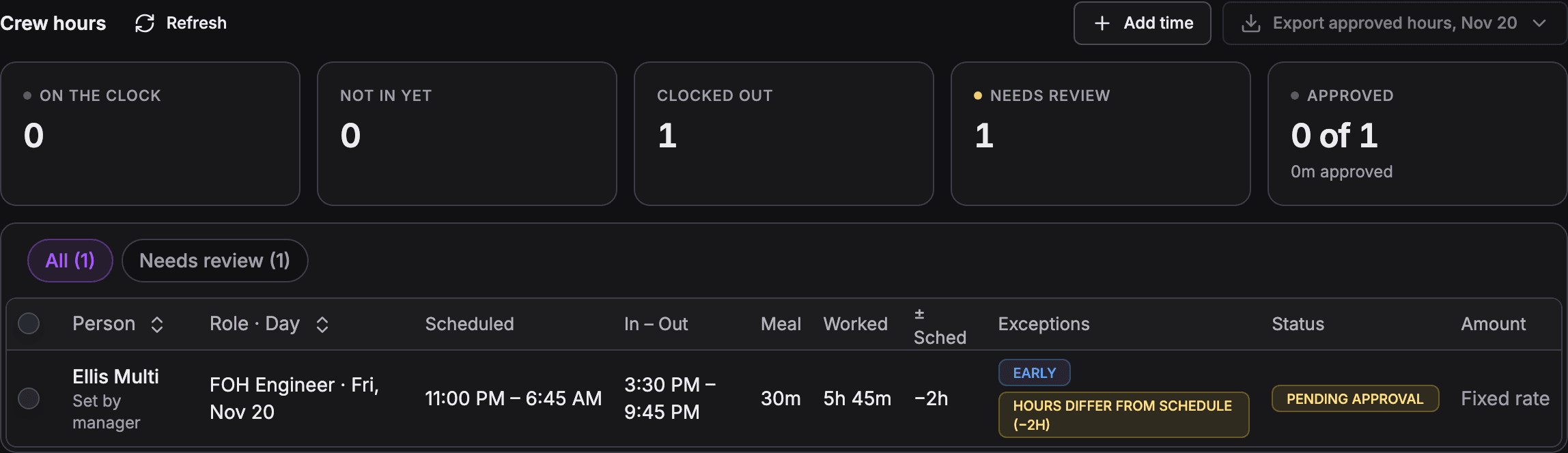
Hours show in two places:- One gig: the gig’s Finances tab, under Crew hours. Counts show who is On the clock, Not in yet, Clocked out, Needs review and Approved.
- Every gig: the Timesheets tab on the Crew page, this week by default, with Gig, Person, Status and Exception filters. Organizations that don’t use crew staffing find Timesheets in the sidebar instead.
Exceptions
Soundcheck flags entries that need a second look. Three of them block approval until you fix the entry.Fix and approve
On mobile, managers open the gig, tap More, then Finances, and find Crew hours. They can Fix a time, Reject with a reason, Reopen, Add time, and tap Approve N ready to approve everything that’s ready. Approving needs a connection.
Who can see, fix and approve hours
Archived gigs are view only. See Permissions and privacy.
How approved hours change pay
On an hourly shift, pay starts from the scheduled call-to-out hours. Approved hours then take over:- A day is settled once every entry on it is approved or rejected. Its payable then uses the whole minutes worked, minus an unpaid meal break, times the rate, plus any overtime. It’s rounded to the cent.
- Still in review. While any entry on the day is waiting, the payable stays on scheduled hours.
- Reopened. Reopening an approved day whose payable is unpaid puts it back on scheduled hours.
- Already paid. Approving more hours on a paid day leaves the paid line alone. A new unpaid line holds the difference.
- No rate. Hours approved for someone with no hourly rate show a No rate badge.
Day-rate crew
- Clocking in. Day-rate crew only clock in when Fixed-rate crew clock in too is on. Turn it on if you want a record of when they arrive and leave.
- Pay stays fixed. A day-rate person is paid their day rate for each accepted day. Approving, fixing or rejecting their hours never changes it, and there is no overtime on a day rate.
- Days to decide on. An accepted day that ended with no clock-in, or whose hours were all rejected, is flagged under Timesheets as needing a decision, with the day’s pay. Nothing is voided automatically. To stop paying for the day, drop it from the person’s crew offer; the accepted days set the pay. Hourly shifts with no clock-in are flagged the same way.
Export hours for payroll
On the Timesheets tab, choose Export approved hours, then CSV for payroll or PDF timesheet. Both hold the same approved entries for the week and the Gig and Person filters you picked, so their totals always match. Exporting needs finance access. A gig’s Finances → Crew hours has the same menu for that gig.CSV for payroll
One row per approved entry, for payroll imports. The columns don’t change. The CSV lists approved hours only: days with no clock-in and rejected hours are flagged in the PDF timesheet and on the Timesheets tab, not here.amount is filled in for:
- Hourly entries: the hours worked at the rate, with overtime and double time.
- Day-rate entries: the day rate, once per worked day. A second entry on the same day has no amount.
hourly_ratestays blank andpay_typeisFIXED. - Per-day fees, when every day of the crew offer has its own fee: that day’s fee, once per worked day.
Local times use the gig’s time zone, so a tour across zones exports correctly. Most payroll tools (ADP, Gusto, QuickBooks Payroll and others) take a CSV import. Soundcheck doesn’t connect to them directly. See Crew invoices and payouts.
PDF timesheet
A branded PDF for people: to review, sign off, or send to crew or a client.- Header: your logo and colors, the period, the gig (or All gigs), the person if you filtered one, and when it was made, in your organization’s time zone (the gig’s, for one gig).
- Summary: one line per person with their roles, hours, overtime, double time and amount, then a Grand total.
- Detail: grouped by person, then by role, so someone who worked A2 one day and A3 the next gets a table for each. Each entry shows the work day, gig, local clock-in and clock-out, meal, worked, regular, overtime and double-time hours, rate, amount, pay type and who approved it. Each role ends with a subtotal, and a person with more than one role gets a total.
- Flags: Missing rate on hourly entries with no rate, and Gig deleted on hours from a deleted gig.
- Waiting for approval, not in totals: entries still on the clock or unapproved for the same filters, listed so nothing is missed. They aren’t counted.
- Needs a decision, not in totals: accepted days with no clock-in after the day ended, and days whose hours were all rejected, with the person, role, gig, day and the pay at stake. They aren’t counted.
amount column: hourly pay with overtime and double time, and the day rate once per worked day (shown as a rate per day). A whole-shift fixed fee shows Fixed with no amount. Long timesheets run over several pages with the column headings repeated.
What the time clock doesn’t do
Soundcheck doesn’t do these today. Here’s what to do instead.Worked example: an AV company’s hotel general session
Northline AV staffs a two-day corporate general session in a hotel ballroom. The A1 and V1 are on day rates. Eight stagehands are hourly, at a rate set on each person’s position.- An admin turns on Crew clock in and out and Record location at clock-in. The stagehands’ rates are hourly, so they clock in. The A1 and V1 are on flat shifts, so the admin also turns on Fixed-rate crew clock in too to see when they arrive.
- On load-in day, the stagehands clock in from the loading dock. One clocks in from the parking garage across the street, and the entry shows Outside venue.
- The load-out runs long. One stagehand forgets to clock out and uses I forgot to clock out the next morning, so the entry shows Self-reported.
- The production manager, who has the gig’s Lead assignment, opens Crew hours, checks the flagged entries, and uses Approve selected for the rest.
- Approved hours replace the scheduled hours on each stagehand’s payable. The office manager, who has the Finance role, exports approved hours for the week and imports the CSV into payroll.
Questions this page answers
- Can crew clock in and out on their phone, and can I limit it to the venue?
- Can the crew chief clock in the whole crew at once, or use a kiosk?
- Can crew log meal breaks, and does the tool flag a missed meal?
- How do I fix a missed punch, and is the change logged?
- Who approves timesheets?
- Does time round to the quarter hour or to a minimum call?
- Can I enter time for crew who don’t use the app?
- Can I export hours to payroll?
Related
Overtime and union rules
Daily overtime and double time on approved hours.
Pay and rates
How hourly and flat pay are worked out.
Crew hours on a gig
The Crew hours section of the Finances tab.
Crew invoices and payouts
Pay the hours once they’re approved.
Day of show
Running the call on the day.
Permissions and privacy
Who sees hours and pay.