

Attachments are for reference. Attaching a file doesn’t send a signature request or read records out of it. To collect a signature, see Agreements and e-sign. Soundcheck doesn’t fill in a gig from an attached file today; type the details into the gig, or forward booking emails as forwarded confirmations.
Where files belong
Add a file
1
Open Attachments
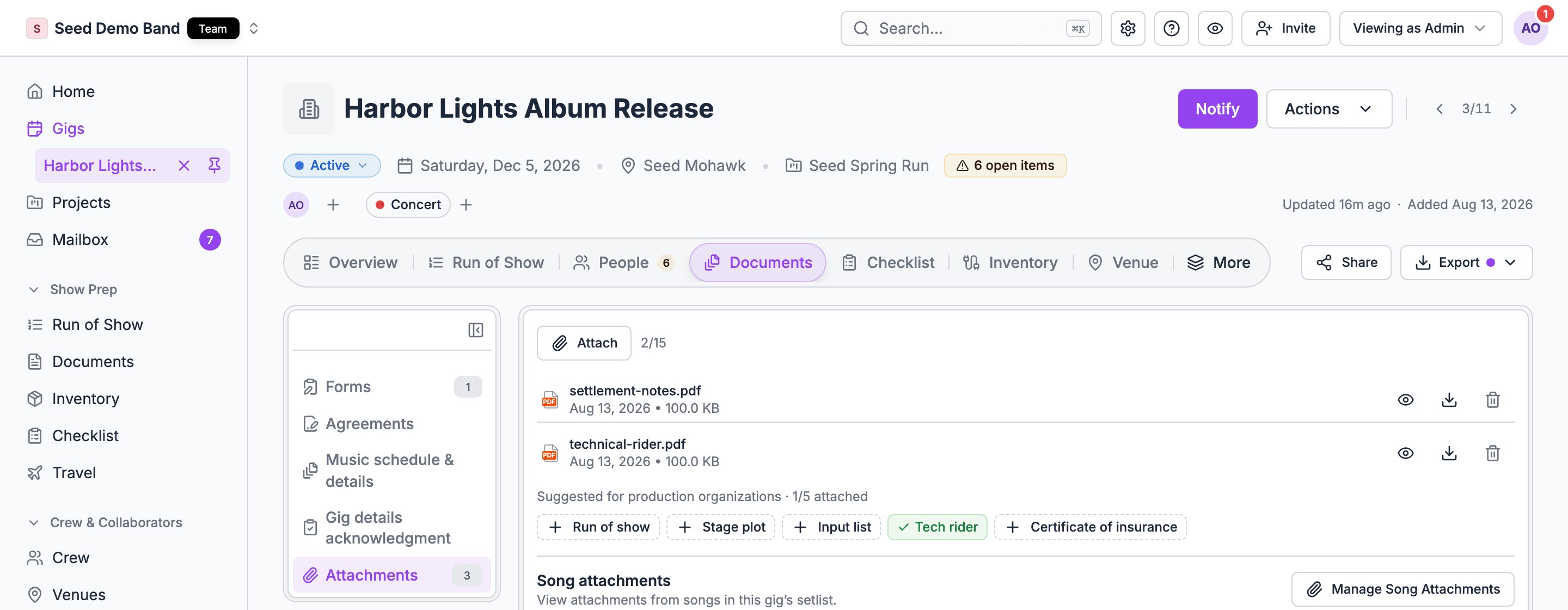
Open the gig’s Documents tab and pick Attachments. On the Overview tab, the Attachments section shows how many files the gig has and opens the same list.
2
Upload or attach
Choose Upload files to add files from your computer. To reuse a file, open the asset picker, search with Search assets, and choose Attach on the file.
Limits and file types
Near the limit, the list reads N attachments remaining. At 15, it reads “Maximum of 15 attachments reached. Remove some or reach out to info@soundchecklive.io if you’d like to add more.” The counter shows how many you’ve used, such as 12/15.
- No storage quota. No plan limits total storage.
- No versions. Uploading a file with the same name adds a second file. Remove the old one yourself.
- No restore. A removed file is gone from the gig. A copy saved to your Documents library stays there.
- No folders or tags on a gig. Folders live in your organization’s Documents library.
- No notification. Adding or removing a file doesn’t notify crew. Tell them, or send gig details acknowledgment, which lists the gig’s files.
- Preview. Images, video, audio and PDFs preview in Soundcheck. Other files, including Word and Excel, show “Preview not available for this file type”; download them to open.
- Past gigs. On the web, you can’t upload to a gig that’s over.
Suggested attachments
If you can upload to the gig, its Attachments list suggests the documents your business type usually needs. A header such as Suggested for talent organizations · 2/6 attached shows your progress. A suggestion with a check mark is already attached. Choose any other suggestion to open the file picker and upload it.Song attachments
Below the gig’s own files, Song attachments lists the files on the songs in the gig’s setlist, with the set and song each one belongs to. Preview or download each file there. Manage Song Attachments opens them all in one viewer. The Attachments count on the Documents tab includes both the gig’s files and its song files.Who can do what
- Open and download: members of your organization, including crew. Crew see Attachments on the Documents tab when the gig has files. There’s no per-person or per-position file visibility, so keep pay sheets and other confidential files off the gig.
- Clients: gig attachments never show in the client portal. Send a client a file as an agreement or attach it to a form in your library.
- Upload and remove: people who manage the organization’s gigs and can edit this gig. See Who can see and do what on a gig.
- Save uploads to the library automatically: people who manage the organization’s gigs.
Google Drive and Dropbox
Owners and admins can connect Google Drive or Dropbox to your organization’s Documents library. Soundcheck copies the files in, up to 50 MB each, and you attach the copies to gigs. It stores a copy rather than linking to the live file, and nothing syncs back to Drive or Dropbox. See Organization documents.With an AI assistant (MCP)
An AI assistant connected through MCP can list and read files in a connected Google Drive or Dropbox (list_cloud_storage_files, read_cloud_storage_file, text up to 200 KB). It can’t upload a file to a gig or remove one today.
Related
Organization documents
The organization’s file library and folders.
Works with
How files connect to Run of Show, forwarded confirmations and the portal.