

Why use them
- One answer, everywhere. The dress code and reminders show in staffing, the crew packet, the call sheet and the day sheet, so nobody has to repeat them in every message.
- Standing rules stay standing. Reminders that apply to every gig (arrive 15 minutes before call, no logos) live at the organization level and print on every gig without anyone retyping them.
- Per-group dress. A dress preset can say something different for men, for women, and for anyone, and each group’s text prints with it.
Two levels
Set up your organization’s presets and reminders
1
Open the settings card
Go to Settings → Labels → Departments → Positions and find the Crew requirements card. Its description reads: Dress presets and standing reminders every gig inherits.
2
Add standing reminders
Type one reminder per line under Standing reminders. Every gig inherits these.
3
Add dress presets
Type a label in the new preset field, for example Traditional black tuxedo, and add it. For each preset, fill in the text for Men, Women and Anyone as you need. Leave a box empty when that group has nothing specific.
4
Save
Changes on this card save when you choose Save. To drop a preset, choose the remove button beside it, then save.
If someone else saves the card while you’re editing, Soundcheck warns you that your save will be refused until you load their version. Choose Load their version, then make your change again.
Set a gig’s requirements
1
Open Requirements
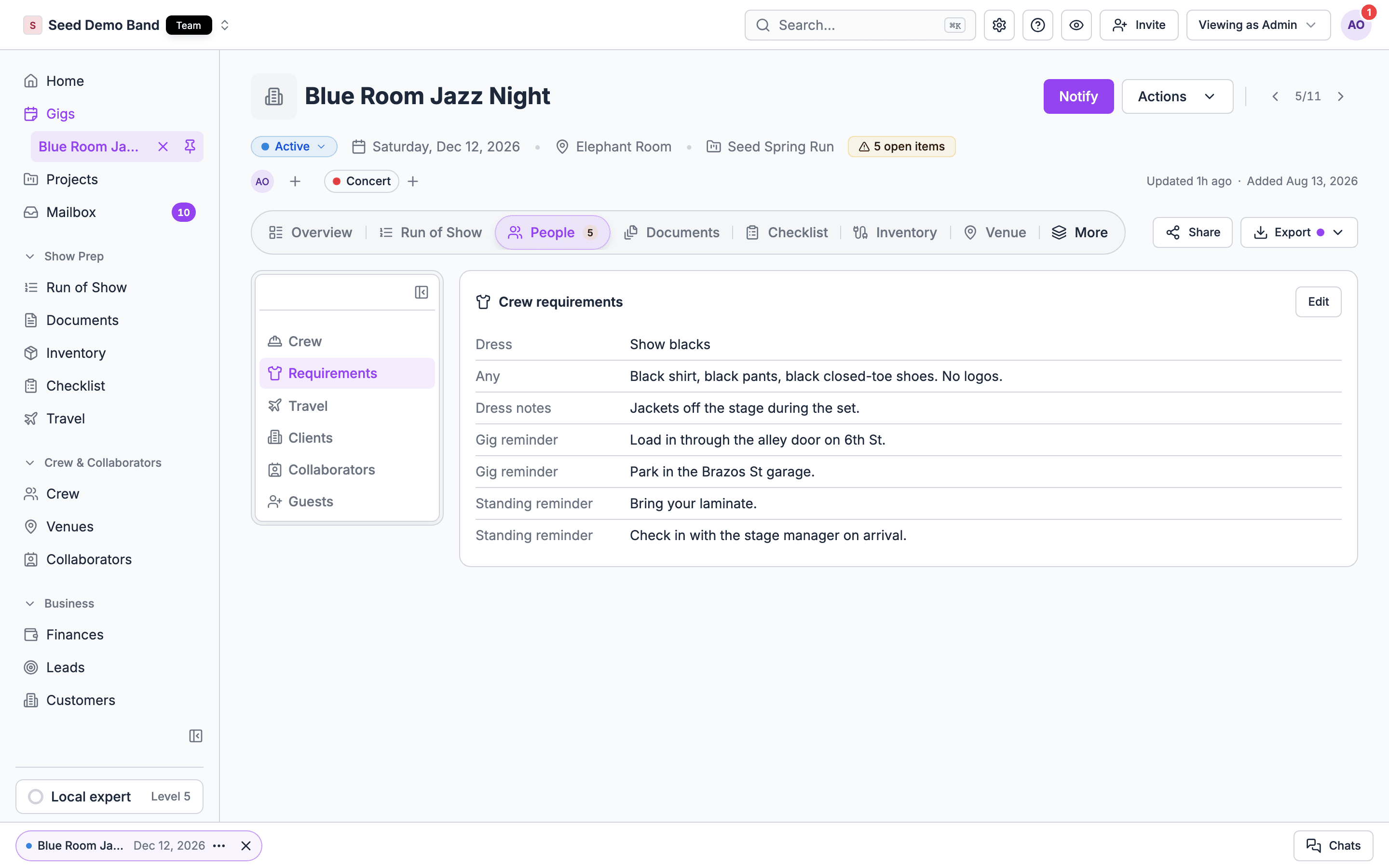
Open the gig, choose the People tab, and pick Requirements. On gigs that aren’t staffed with crew shifts, the card is on the Venue tab instead.
2
Choose Edit
The card shows what’s set. Choose Edit to change it.
3
Pick a dress code
Under Dress code, pick one of your organization’s presets, or No dress code.
4
Add dress notes and reminders
Add anything specific to this gig under Dress notes. Under Reminders for this gig, type one reminder per line.
5
Save
Choose Save. If you leave with unsaved changes, Soundcheck asks whether to discard them first.
What crew see
Once saved, the gig’s requirements show as a list of labelled lines:
In the mobile app, the same lines show under Crew requirements on the gig’s details.
When nothing is set and you can’t edit, the card doesn’t appear at all.
Example
A wedding band sets a standing reminder, Arrive 30 minutes before call, and a preset called Black tie with Black tuxedo, black bow tie for men and Floor-length black for women. On Saturday’s wedding, the coordinator picks Black tie, adds the dress note Gold accents welcome, and one gig reminder: Ceremony is outdoors, bring a jacket. The band then sees: Dress Black tie, Men Black tuxedo, black bow tie, Women Floor-length black, Dress notes Gold accents welcome, a gig reminder about the jacket, and the standing reminder about arriving early.Who can edit
- Organization presets and standing reminders: people who can change organization settings.
- A gig’s requirements: people who can manage that gig. Previewing the gig as a member, and archived gigs, are read-only.
- Everyone on the gig can read them.
Related
People overview
Every part of People and how it fits together.
Managing positions
The settings page the presets live on.