

Where to find it
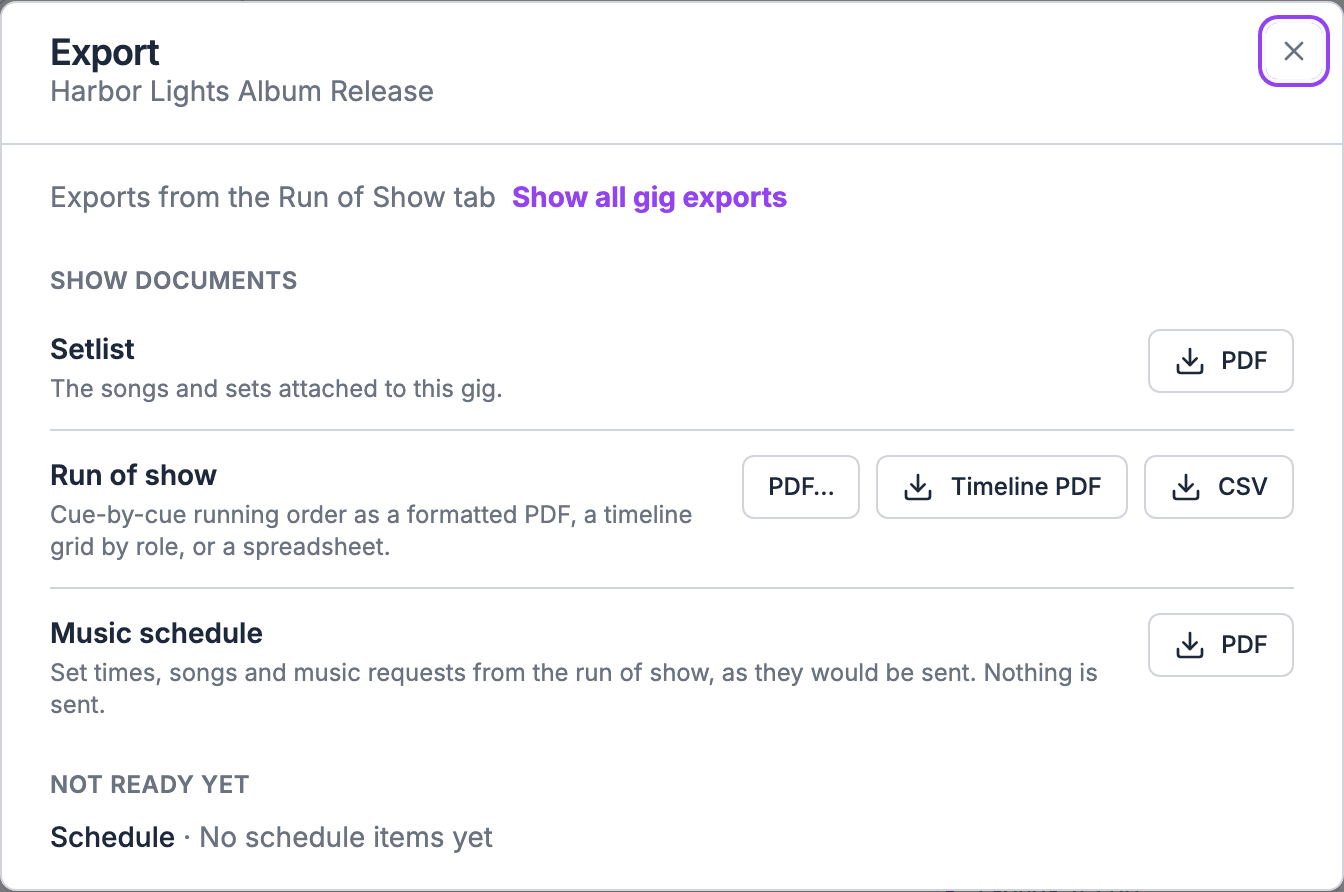
Open the gig’s Run of Show tab and choose Export at the end of the tab bar, then Export Run of Show…. The Run of show row in the Export dialog offers:
On a template, Export offers Timeline PDF and Spreadsheet (CSV).
Which export for whom
The PDF export builder
Choose PDF… to open the builder. A live preview shows the document as you change it.For
For prints the sheet for Everyone or for one role: Sound, Band leader, Planner, or Musicians. A role’s sheet holds that role’s cues plus the cues not addressed to anyone, and it’s titled with the role. A cue’s roles come with it from a template, an import or an AI assistant. Soundcheck has no field to add a role to a cue today, so on a run of show built by hand every cue counts as addressed to everyone. See Roles and positions that come with an item.Fields
Choose which fields appear on each cue:- Time
- Item-type label
- Instructions
- Notes
- Location and ensemble
- Attachments
- Speakers
- Playback
- Tentative
Type
Set the font family, font size, and text alignment. Large type works well for a sheet taped by the stage or read from a distance.Logo
The header prints your organization’s name. On every plan, your organization’s logo prints beside it once you’ve added one. Only a PNG or JPEG logo prints; upload one of those if yours doesn’t appear.No Surprises
Under Quick views, the builder offers All Items, Songs Only and Titles Only. When the run of show has surprise cues, No Surprises sits next to them. It leaves every surprise cue out of the PDF. Use it whenever the sheet might reach the client. To pick cues one by one, use the Items to include list.Download
Export PDF downloads a branded PDF file. It doesn’t open a browser print window. Your choices are remembered for next time.Multi-day gigs
On a multi-day gig, the PDF prints sections grouped under a day heading, and the Timeline PDF has a table per day. The CSV includes the day on every row.Section colors on paper
Each section prints with a color, assigned by its position in the run of show. On paper, a section linked to a key time doesn’t take that key time’s color.What exports can’t do
- Per-person or per-department sheets. For offers the four roles above. For one crew member’s day, use the Day sheet PDF in the export hub, which prints one page per crew member.
- Excel for the run of show. Use CSV, which Excel and Google Sheets open.
- Cue numbers. Soundcheck doesn’t number cues today. Cues print in time order.
Tips
- Publish before you print. Editors work on a draft. Publish first so the paper and what crew see on their phones match. With publishing on, the call sheet, day sheet and advance packet PDFs print the published version, so they only change after you publish. See Publishing.
- Re-export on show day. Paper doesn’t update itself. If times move, print again.
- Use cue details. Instructions, playback and speakers only print if you filled them in. See Linking and timing.
Related
Publishing
Make sure crew and paper match.
Multi-day gigs
Day headings and per-day tables.