

Where People lives on a phone
Open a gig. The row of section pills under the header depends on who you are:
The gig’s Details section also carries a Guest list card, travel cards (Lodging, Flights, Transportation) and, when they’re set, the gig’s crew requirements.
Staffing (managers)
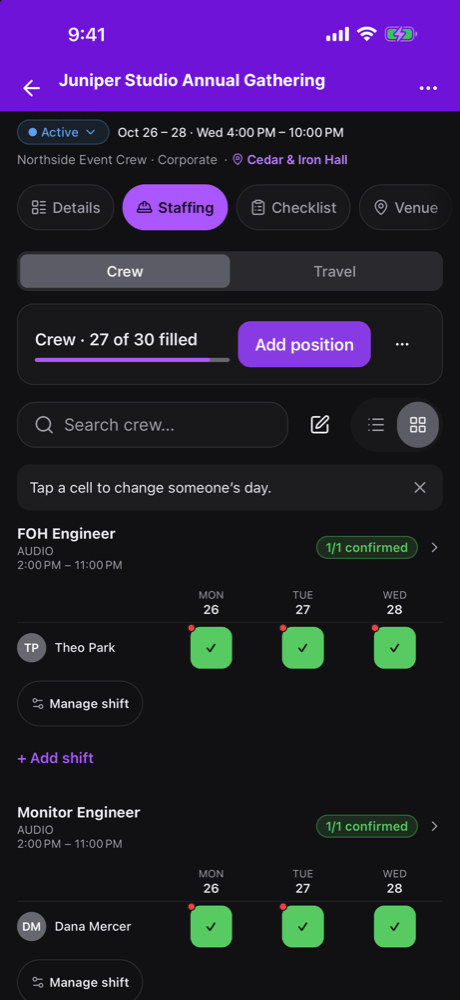
Pick Staffing, then Crew. The roster lists each role with its shifts and the people on them. A search box appears once the roster is long enough to need one. Under the roster, the gig’s labor call and house labor hands show too.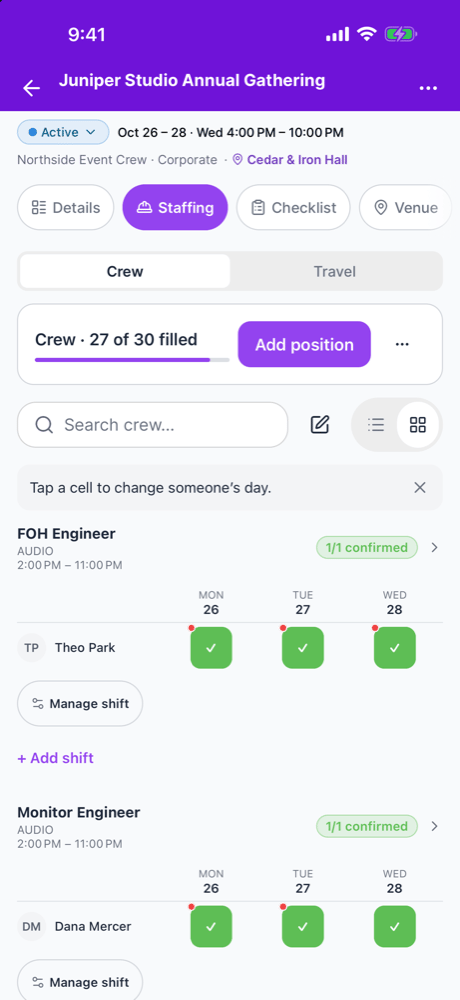
Add a position or a shift
Choose Add position to start a new role, or add a shift from a role that’s already there. The shift sheet asks for the Role, the Days, the Call times, whether it’s Hourly, the Seats, and the Need per day. Leave Need per day blank for no target. Save as draft keeps it without telling anyone.Manage a shift
Each role on the roster has a button for its shifts:- Manage shift on a sent shift opens the shift sheet. From there you can Send reminder, Review changes before sending them, change the call times and choose Save times (or Undo), Add crew, Change spots, or Cancel shift.
- Edit shift and Discard draft on a draft. A draft that was already sent can’t be discarded.
Act for one person
Tap a person on a shift to open their actions. What you see depends on their status and what you’re allowed to do:
Their status reads Confirmed, Waiting on a reply, Declined, Removed, Standby, Available, Asked for availability, Unavailable, On hold, On a paid hold, Draft — not sent yet, or Not on this day.
The roster menu
The ⋯ menu above the roster holds:- Copy phones: copies the crew’s phone numbers so you can paste them into the To field in Messages.
- Edit crew: opens the crew sheet to pick people and send offers. It’s off while you’re offline.
- Remind all pending: reminds everyone who hasn’t answered. The label shows how many.
- Status key: explains each status.
Offline
Without a connection, the roster shows Offline: showing last saved and Changes are off until you reconnect. Reconnect to make changes.Travel
Pick Staffing, then Travel, to see the gig’s flights, transportation and lodging with the people on each. People who can edit travel tap the pencil on a booking to change it, or Edit on web to open the gig on the website. See Manage gig travel.Crew (crew members)
Crew on the gig pick Crew to see who else is working it. Offers and invitations themselves arrive in the Inbox, where you accept a single-day offer with one tap, or toggle the days you want on a multiday offer and tap Accept N days. See Mailbox.Gig staff on mobile
Managers see Staff with the gig staff’s avatars under the gig’s title. Manage staff opens the Staffing section. Adding or changing gig staff happens on the web. See Assigning people to run a gig. The gigs list’s filters include Assigned to. In the app it picks one option at a time: You, Unassigned, or a person assigned on the gigs you have loaded.Guest list and will call
The Guest list card on the gig shows the totals for managers, or your own guest spots for crew hosts.- Managers choose Will call to open the gig’s whole guest list.
- Crew hosts choose All to open My guests, the guests they added.
- Search by name, email, phone or tag, and filter with All, Not arrived or Checked in. The list is grouped by host, under headers such as Guest spots for Zoe.
- Managers tap Check in on a row to check the whole party in. A party of more than one also has a stepper, so you can check people in as they arrive. Tap a checked-in row to Undo check-in.
- Add guest opens the guest form: Guest name, Email, Phone, RSVP status, Plus (the party size reads Party of N), Pass, Meal choice, Dietary needs, Tags and Notes. Managers also see Role, to mark an honoree, and Counts against, to put the guest on Production or on a crew member’s spots. A crew host’s guests always count against their own spots, and the form says how many are left.
- Each guest’s menu has Edit guest, Share guest page, Reset guest page link and Remove from list.
- Managers choose Set allocations to give crew members guest spots.
Share
When the gig’s live page is published, or sharing is on for your organization, the gig’s menu shows Share to gig managers. It isn’t shown on templates or sample gigs. The sheet has:- Guest link: Turn on guest link, then Copy link or Share link. Turning it on gives you an event code to share with guests. It isn’t offered on a draft gig or a gig that’s over. You can’t turn the guest link off in the app; switch General access back to Restricted in Share on the web.
- Who’s who: the roles on the show, read-only, with Suggested and Shared badges and how many roles are still to fill. Answer roles on the web.
- Collaborators: who the gig is shared with, each marked Joined or Invited, read-only. Invite, edit or remove collaborators on the web.
- A crew summary: how many are confirmed, awaiting a reply, or not asked yet.
Show-day contacts
The gig’s Details section has a Point of contact card for managers, and Your contact for crew, with the gig’s contacts. Tap to call, text or email. A Contacts on web link points to the full list. Contacts are read-only in the app; add and edit them on the web. They’re saved with the gig, so they show offline. See Collaborators and clients. See Sharing a gig.Related
People overview
Every part of People and how it fits together.
The Crew board
The full staffing board on the web.
Mobile app overview
Everything else in the app.
How shifts work
Statuses, Need, pay locks and per-day answers.