

Where to find it
- Managers (people who can edit the gig or manage the organization’s gigs): open the gig and tap the Venue pill.
- Crew: open the gig’s Details. Under Know before you go, open Venue & load-in. It shows when the gig has venue details.
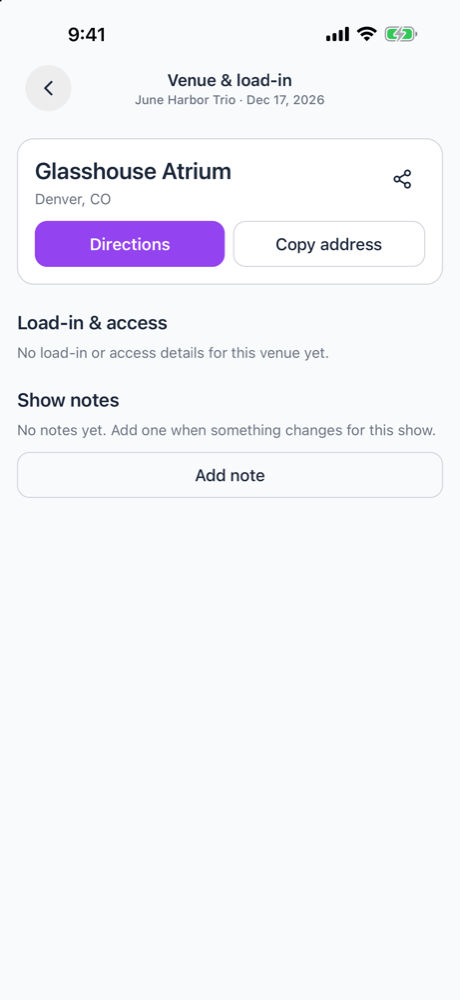
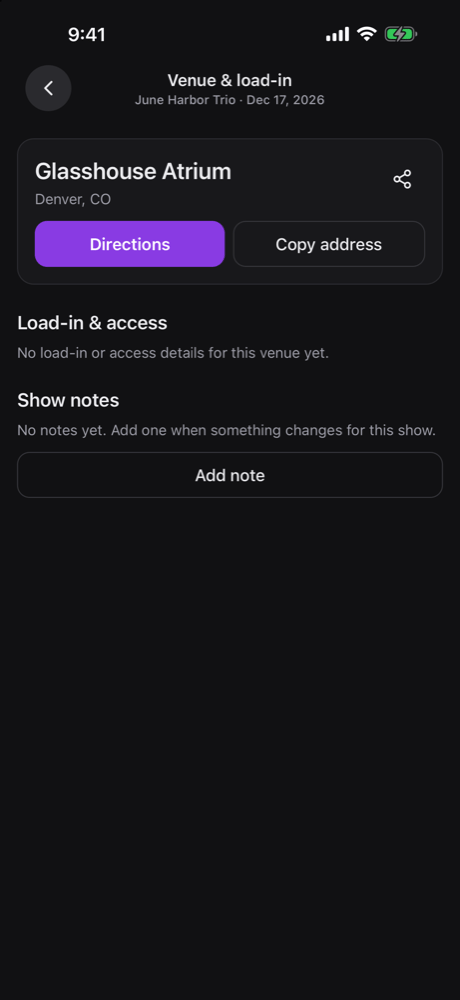
The venue card
The card shows the venue name and address. You can select the address to copy part of it.- Directions opens a sheet: Open in Maps (iOS only), Open in Google Maps, Copy address and Cancel. When the address can be found on a map, Ride with Uber and Ride with Lyft show too.
- Copy address copies it and says “Address copied”.
- The share icon opens your phone’s share sheet. See Share the venue.
Share the venue
Tap the share icon next to the venue name. Your phone’s share sheet opens with a text message that has:- The venue name and address.
- A Parking: line with this show’s parking instructions, when the gig has any. A per-show parking value wins, then the newest show note that points to parking, then the venue default.
- A Google Maps link, when the venue has an address or map location.
Load-in & access
The seven fields come in arrival order: Access code, Dock, Load-in, Load-out, Elevator, Parking and Green room.- The access code comes first, hidden until you reveal it, with a copy button.
- A field changed for this gig shows Changed for this show. A field a show note points at shows See note below. The header counts them, such as 2 changes.
- With no details yet, crew see “No load-in or access details for this venue yet.” Managers see “No load-in or access details yet. Add them to the venue on web.”
Show notes
Show notes hold this gig’s notes. Each reads “Added by”, the author, the date, and Changes: with the field when it points at one. To add one:- Tap Add note. Add show note opens.
- Type the note, such as e.g. Dock door broken tonight — use the front entrance.
- Optionally, pick a field under Overrides a venue field (optional). That field then shows See note below.
- Save. The footer reminds you the note “Stays on this gig · clears when the gig closes”.
Key spots and the venue map
When the venue has key spots, a Key spots card follows. Each spot shows its number, kind, notes and photos, with a Directions button. Uber and Lyft aren’t offered for a spot. When at least one spot is pinned, the card shows a map preview. Tap it, or Expand, to open the full-screen Venue map:- Numbered pins match the numbered list. Pins are the Venue, its Stages and each Key spot.
- Tap a pin to see its name, kind, notes and photos, with Directions.
- Show list and Show map switch views. Recenter map fits every pin.
- Pinch and pan to move. The map follows your light or dark theme.
Crew notes on spots
Each spot shows Crew notes, which are visible on every gig at the venue.- Tap Add note under a spot, in the list or in a pin’s sheet.
- Type the note. Tap Add photo or file and choose Take photo, Photos or PDF or file.
- Tap Post.
Offline
The app saves the gigs you’re booked on for today and the next seven days, and keeps them for 48 hours after they end, so their venue details work without signal, as long as you opened the app online recently. See Offline and sync.
Directions hands off to your maps app, which needs its own connection or offline maps.
What’s not on mobile
- Your organization’s venues list and venue records. Opening them says Venues is not available on mobile.
- Linking a saved venue record to a gig, and typing per-show values.
- Stages, other than as pins on the Venue map.
- Adding or moving key spot pins.
Related
Key spots
Pin spots on the web.
Mobile app
Getting around the mobile app.