

Where to find it
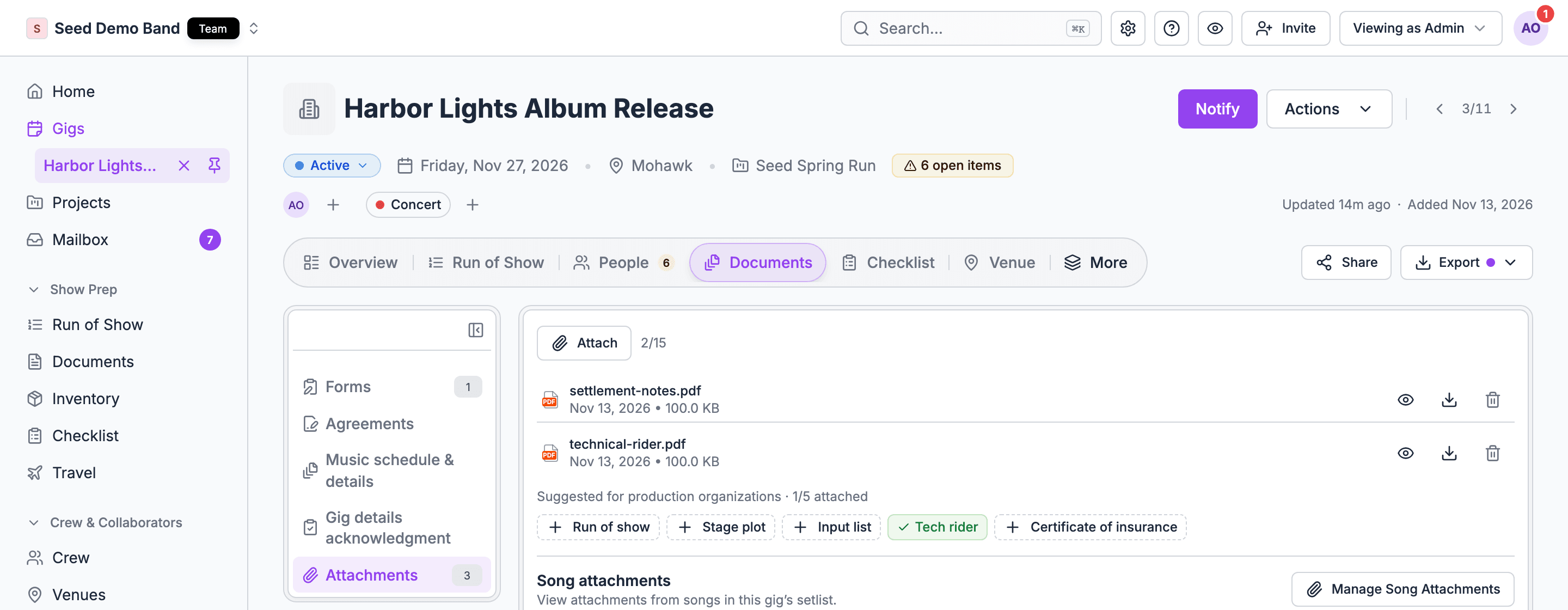
On the web, open a gig and choose the Documents tab. Older links to a gig’sforms tab open it too. On the Overview tab, the Attachments section shows how many files the gig has and opens the same list.
In the mobile app, there’s no Documents tab. Crew open the gig’s files from the Documents card in the gig’s Details section. They sign agreements and acknowledge gig details from the Inbox, and confirm the music schedule from the Music schedule & details card in the gig’s music panel. Forms can’t be filled in the app. See Documents on mobile.
Forms, agreements and the client portal are in early access and rolling out to organizations now. To get them, email info@soundchecklive.io. Attachments, the music schedule and details, and gig details acknowledgment are on for everyone.
The building blocks
Learn these ideas first. Everything else builds on them.How it fits together
Your first send, step by step
This walkthrough gets a client agreement out and a stage plot attached. It takes about five minutes.1
Open the Documents tab
Open the gig and choose Documents. Pick Agreements on the left.
2
Start an agreement
Choose Send. The New agreement dialog opens with the first client contact picked in Recipient. Choose Write terms and pick the Client agreement template in Start from. The gig’s details, such as the date and venue, are filled in.
3
Check the terms
Read the terms in the Preview tab. If a field still shows in double braces, add that detail to the gig or edit it out.
4
Send for signature
Leave Email a signing link ticked and choose Send for signature. The agreement shows as Sent, then Viewed when the client opens it.
5
Attach a stage plot
Pick Attachments and choose Upload files. Name the file with its type, such as
Stage plot.pdf, so the suggested list checks it off.6
Check who still owes you
Pick any kind and turn on Awaiting to see only the rows still waiting on someone.
Pick the right page
The Documents tab
The five kinds, filters, shareable links, and what managers, Finance and crew each see.
Agreements and e-sign
Templates, writing terms or uploading a PDF, signing, company signatures, placed fields, quotes.
Forms
Send portal forms for the gig, remind, copy links, fill in for clients, deadlines.
Music schedule and details
Send numbered versions, who gets what, confirmations, reminders and history.
Gig details acknowledgment
Ask crew to confirm their call times, travel and gig files.
Attachments
Gig files, suggested documents, song files, and where each file belongs.
Forwarded confirmations
Forward travel, hotel and venue emails and approve what’s added to a gig.
Sources
Where a gig came from, and pushing changes back to Luma.
Works with
How Documents connects to Run of Show, Finances, the portal, People, AI and imports.
Mobile
Files, signing, acknowledging and confirming in the app.
Troubleshooting
Answers when something is missing or won’t send.
FAQ
Straight answers to the questions buyers and operators ask about contracts, e-sign, forms and files.
Glossary
Contract, rider, advance and compliance terms, and what each one is in Soundcheck.
Works with
Each part of Soundcheck works like its own app, and Documents is the one that handles the paper. It takes content from Run of Show for the music schedule, sends crew agreements from People, hands a signed quote’s price to Finances, and shows clients what to sign and fill out in their portal. See How Documents works with the rest of Soundcheck.Who can do what
Agreements can’t be sent, voided or countersigned on an archived gig, or on a past gig whose money is locked. On the web, you can’t upload attachments to a past gig.
Related
Gig overview
The tabbed gig detail this lives in.
What clients see
Agreements, forms and versions in the portal.
Portal forms
Build the forms you send.