

Inventory is a Team plan feature. Organizations on Pro keep it for now. On a plan without it, the gig’s Inventory tab shows the plan it needs, and the sample gig shows a Sample gear preview instead. Owners, admins and gig coordinators use Gear. Crew don’t see the Inventory tab or the Inventory page.
Where to find it
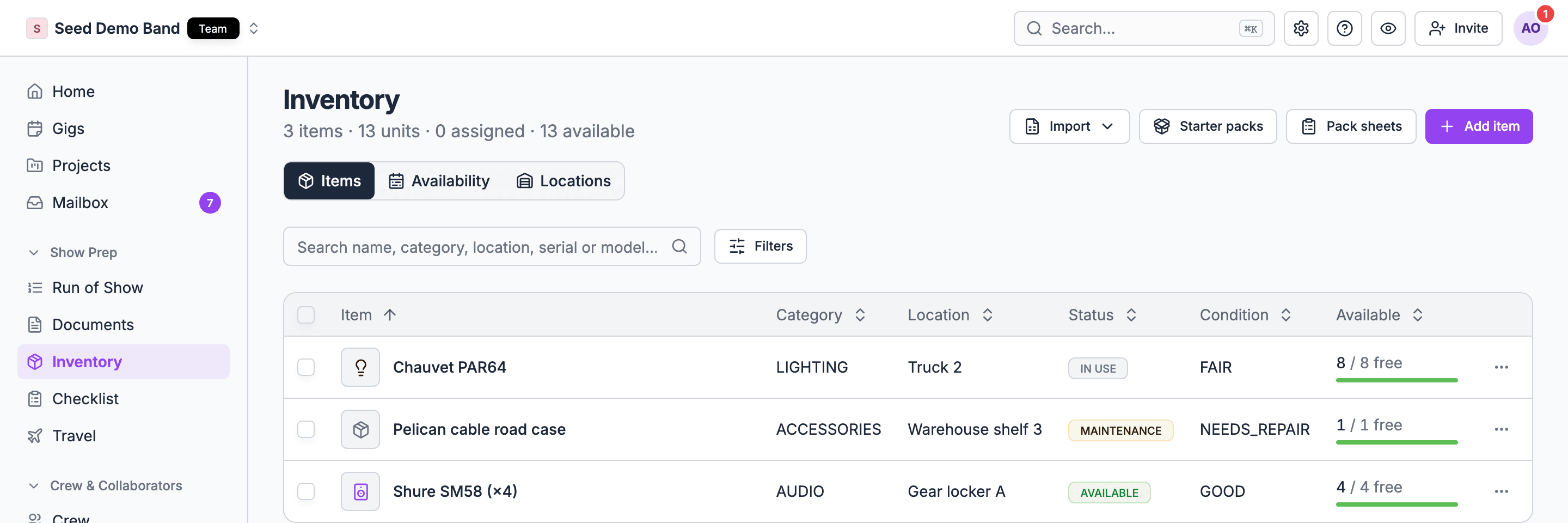
- Your inventory: in the sidebar, open Show prep → Inventory. It has four tabs: Items, Availability, Locations and Pack sheets. See Your inventory.
- On a gig: open the gig and choose the Inventory tab. It holds the gig’s packing list and its Outside gear. See The gig Inventory tab.
- In the mobile app: managers open a gig, tap More, then Inventory to tick gear out and in. See Gear on mobile.
The building blocks
Learn these ideas first. Everything else builds on them.How it fits together
Your first gear booking, step by step
This walkthrough books a small kit onto one gig. It takes about five minutes.1
Fill your inventory
Open Show prep → Inventory. On an empty inventory, choose Start from a pack (or Starter packs at the top of the page) and pick the starter pack for your kind of business. Untick anything you don’t own, fix the quantities, and add it. See Your inventory.
2
Open an active gig
Open a gig that isn’t a draft and choose the Inventory tab. A draft gig says Inventory starts when this gig is active. Activate it first. See Which gigs hold gear.
3
Book the gear
Under Item, pick an item. The picker shows how many are free on this gig’s dates. Set Quantity, then choose Add to gig. Repeat for each item.
4
Check for shortages
If another gig has the same gear booked on overlapping dates, the row shows Short and names that gig, and a banner counts the short items. Free some up or swap items before load-out. See Availability and shortages.
5
List what other people bring
Under Outside gear, type the Gear, set Count and Provided by, add Who, and choose Add. See Outside gear.
6
Pack out and back in
On load-out, tick Out as each item is packed. After the show, tick In as it comes back. Ticking In frees the gear for the next gig. See Packing out and back in.
Pick the right page
Your inventory
Add items, starter packs, import a spreadsheet, item records, photos, and booking an item from its record.
Stock, units and kits
Stock locations, serialized units, cases, bundles and accessories.
The gig Inventory tab
The packing list on each gig: add, edit, remove, Add a pack and Paste data.
Availability and shortages
What’s free on which dates, the Availability board, shortages, and which gigs hold gear.
Packing out and back in
Out and In ticks, pack sheets, returns, and gear still out.
Outside gear
Gear the band, a vendor or the venue brings to the show.
Gear on mobile
Pack out and pack in from your phone, and what crew see.
Troubleshooting
Answers when something doesn’t look right.
Gear FAQ
Straight answers on scanning, sub-rentals, maintenance, pricing and more.
Gear glossary
Rental and AV terms, and what each one is in Soundcheck.
Who can do what
On the sample gig and on archived gigs, the gig’s inventory is read only.
Works with
Gear is one app in the Soundcheck ecosystem. Here is how it connects to the others.Related
Venue
Where the gear is headed, and the house tech already there.
Run of Show
When load-in and load-out happen.
Gig overview
The tabbed gig detail the Inventory tab lives in.