

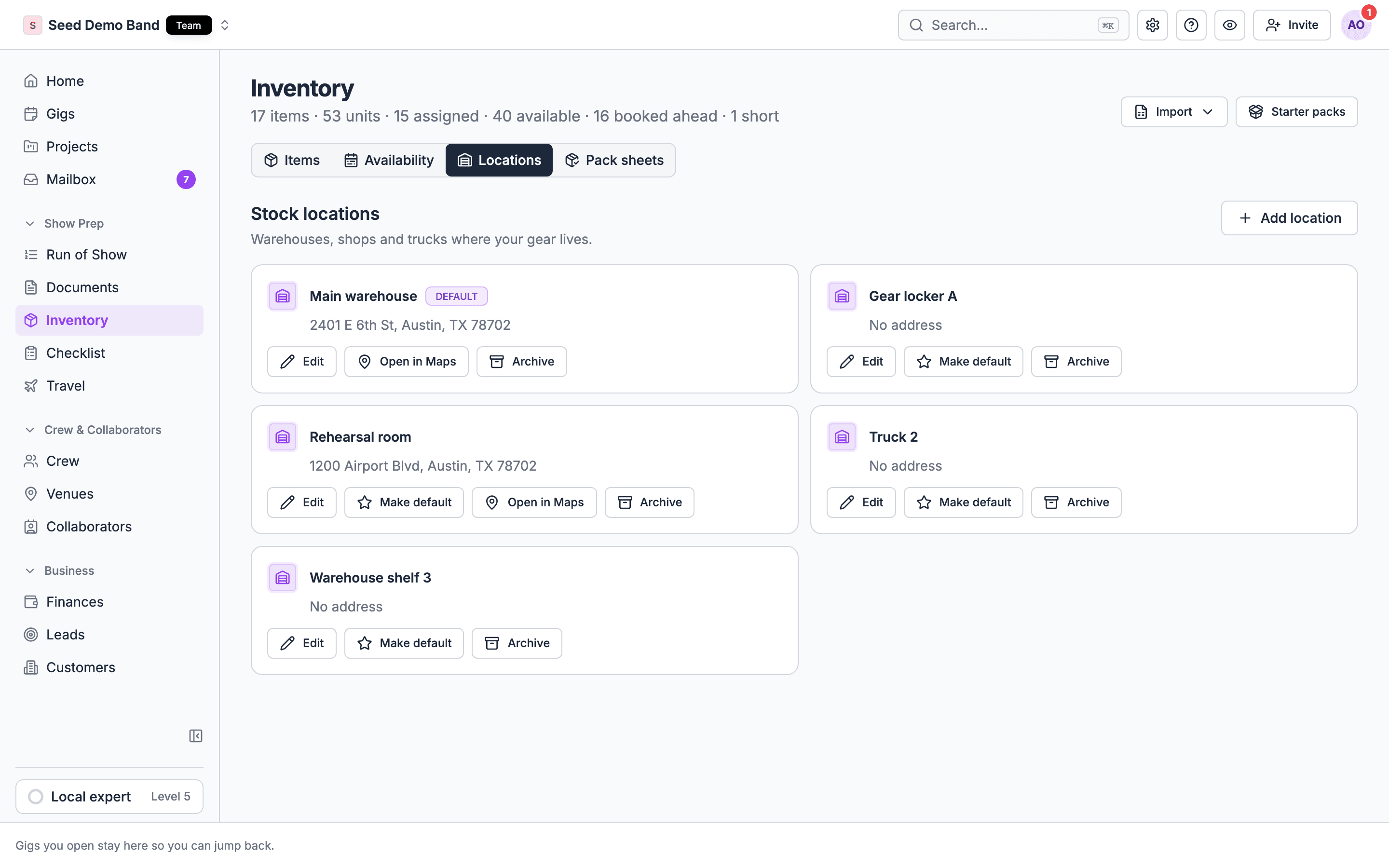
Stock locations
A stock location is a place gear lives: a warehouse, a shop, a truck.Add a location
- Open Show prep → Inventory and choose the Locations tab, next to Items and Availability.
- Add the location. The address field suggests places as you type.
- Mark one location as the default. New bookings ship from it.
Archive or restore a location
Archiving a location hides it from pickers and keeps its history. Archived locations are listed under Archived, where you can restore them. A location that was never used is removed instead.Split stock between locations
On a bulk item, Stock by location splits the total between locations. Anything left over shows as Unallocated. Filter the items list by Location to see what each one holds.Where a booking ships from
Each booking on a gig names a Ships from location. The default is preselected when you add it. The gig row shows “Ships from” and the location, “No ship-from location” when there’s none, or “Ships from an archived location” after the location was archived. If a location holds fewer than the line asks for, the add form warns you, for example “Main warehouse holds 4. This line asks for 6.” When you Return a booking from the item record, you choose where it lands, and the stock moves to that location. There’s no separate transfer between locations. To move stock that isn’t booked, change the item’s Stock by location split.Serialized units
Set Tracking to Serialized (one row per unit) for gear you track piece by piece, such as wireless packs, in-ear packs or laptops.- The item’s Units section lists every unit with its serial, asset tag, status and location.
- Add one unit, or add several at once with an optional serial prefix (
SM58-001,SM58-002, …). - The item quantity follows its units. Units marked retired or lost drop out of the count.
- Units in maintenance can’t be booked.
Kits, cases, and accessories
A kit is an item that carries other items. Set Kit type on the item: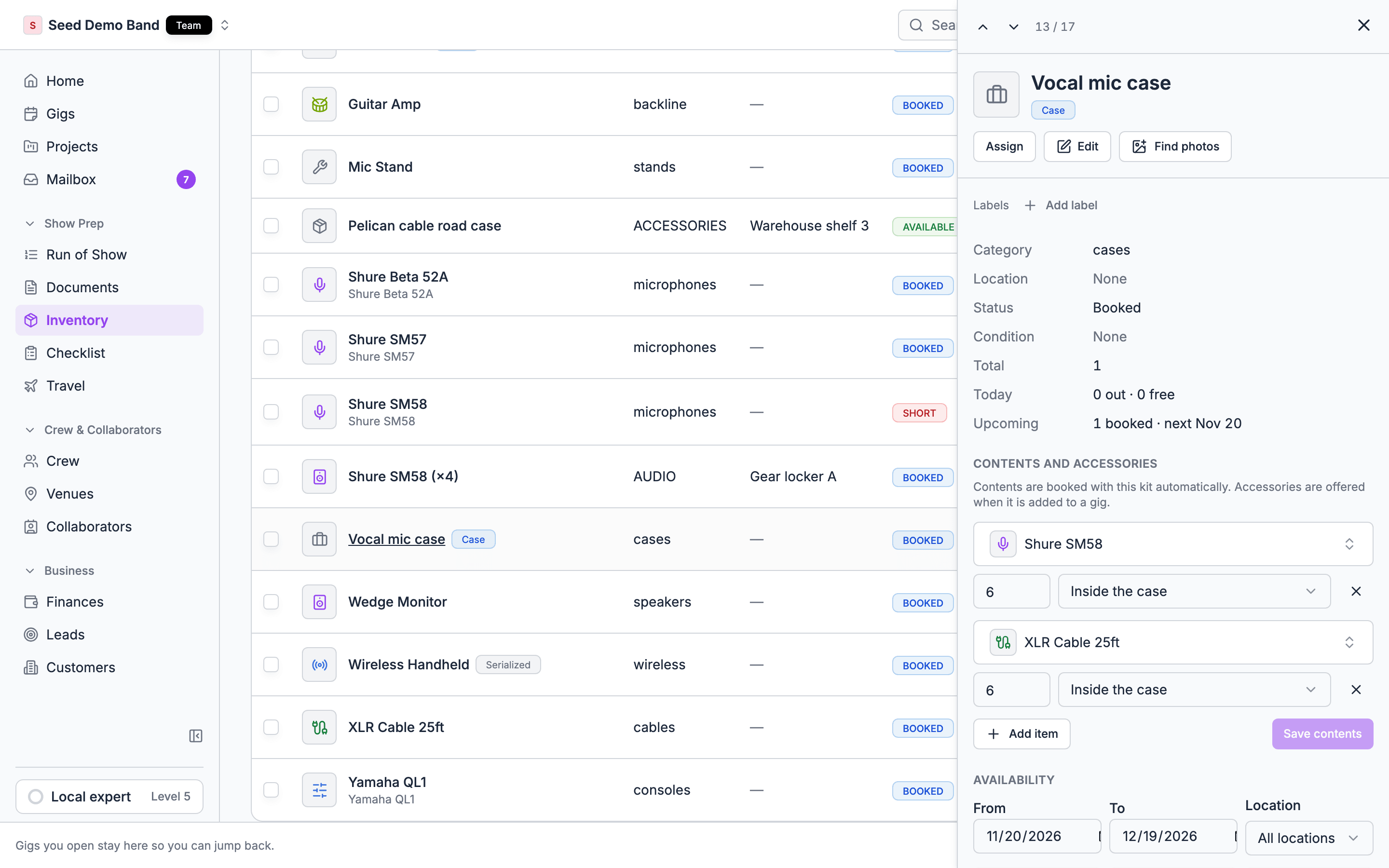
- Booking a kit books its contents with it. Contents can’t be removed on their own. Change the kit booking instead.
- Accessories are offered as checkboxes when you add the kit to a gig, under Add accessories, each shown as “N× name per kit”.
- A kit can’t contain another kit.
Worked example: one bundle for every wedding
You send the same ceremony setup to every wedding: 2 wireless mics, 1 small speaker, 1 mixer, 2 stands.- Choose Add item. Name it Ceremony kit, and set Kit type to Bundle (no stock of its own).
- In Contents and accessories, add the four items with their counts.
- On each wedding’s Inventory tab, add one Ceremony kit.
Inventory doesn’t copy with a gig made in the web app. Duplicates, template copies and repeated dates start as drafts with no inventory; only their outside gear copies. A bundle is the fastest way to put the same gear on each new gig. Add a pack is different: it adds a starter pack of common gear to your inventory, then books it.
Related
Availability and shortages
How kits, units and locations affect what’s free.
Packing out and back in
Pack sheets, ticking kits, and returning stock.